

Fallback Policies in BoldCreate ensure uninterrupted AI workflows by automatically rerouting requests to alternative models when the primary model fails. This feature improves reliability, success rates, and cost efficiency.
Prerequisites
- You must be an Admin
- Only admins are authorized to create and manage fallback policies.
1. How Fallback Works ?
- The request is first sent to the primary model.
- If the request fails (due to timeout, error, etc.), the system automatically retries using the next model in the fallback list.
- This process continues until a model successfully returns a result or the retry limit is reached.
Benefits:
- Prevents stalled workflows
- Increases success rates
- Reduces costs by only paying for successful responses
2. Configuring Fallback Policies
Steps:
-
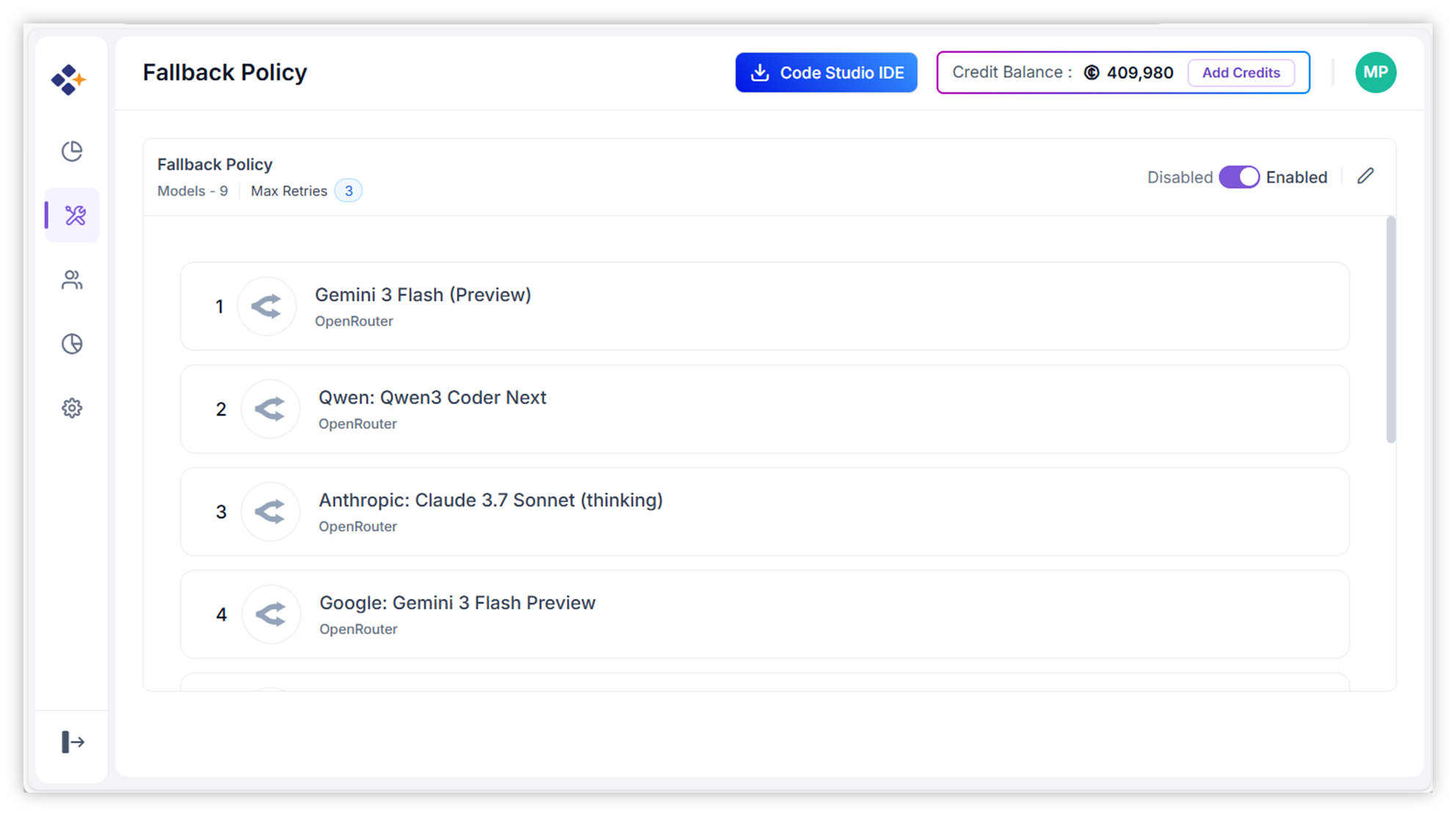
Navigate to the Fallback Policy page.
-
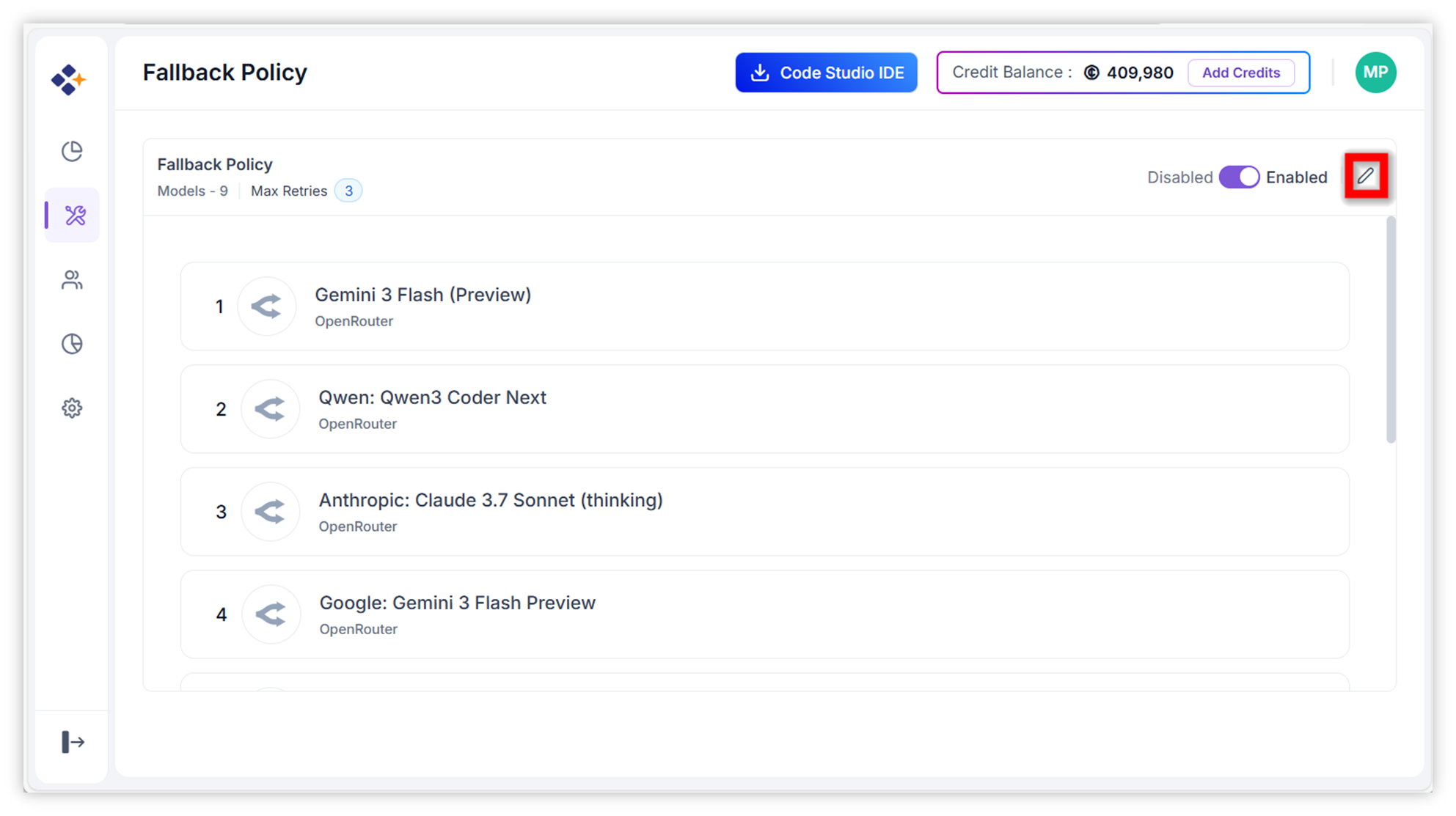
Click the pencil icon to edit your fallback options, including Max retries and the list of models.
-
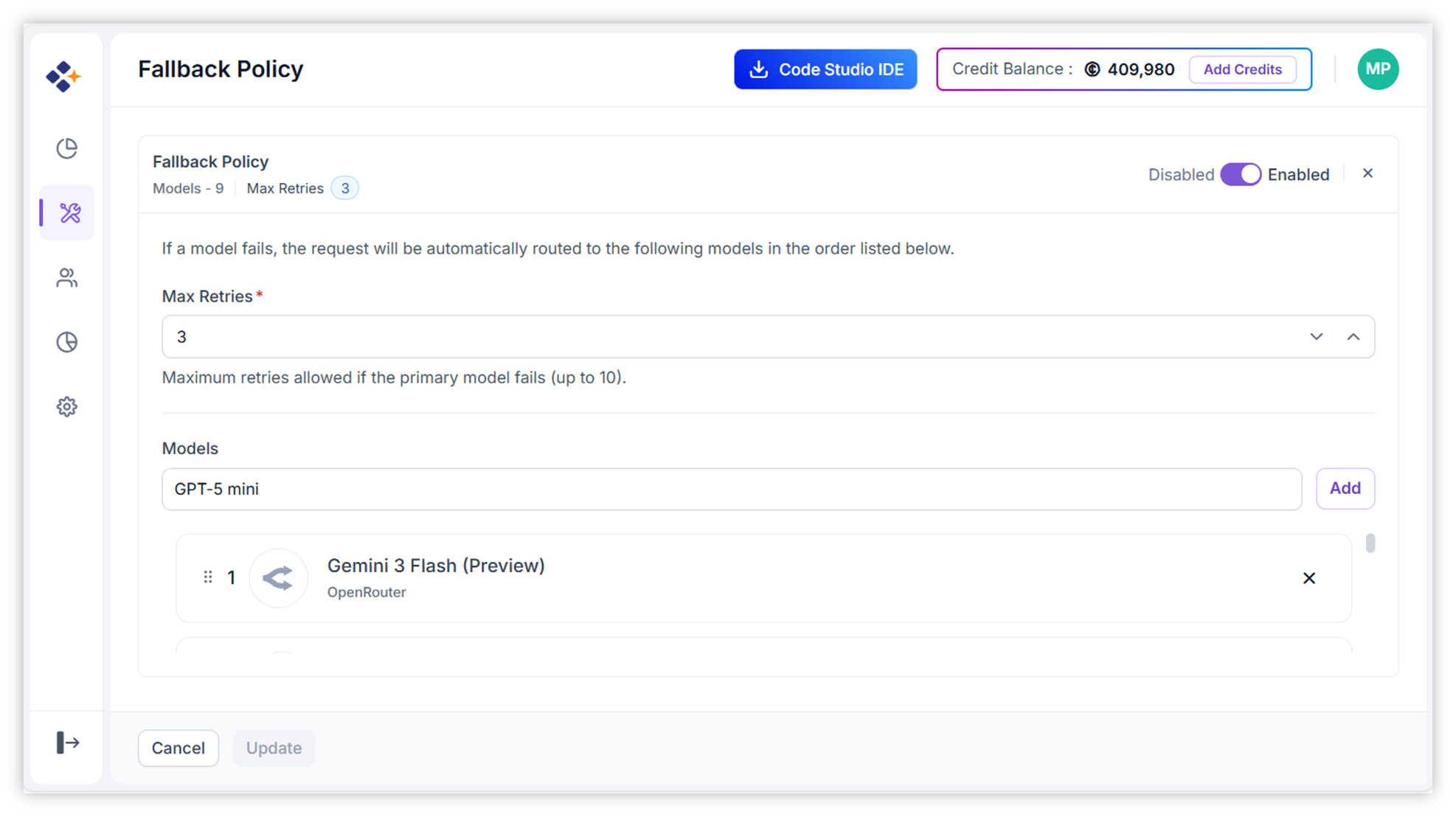
Add models in the desired Fallback Order:
- Select models from available providers.
- Arrange them in priority order.
-
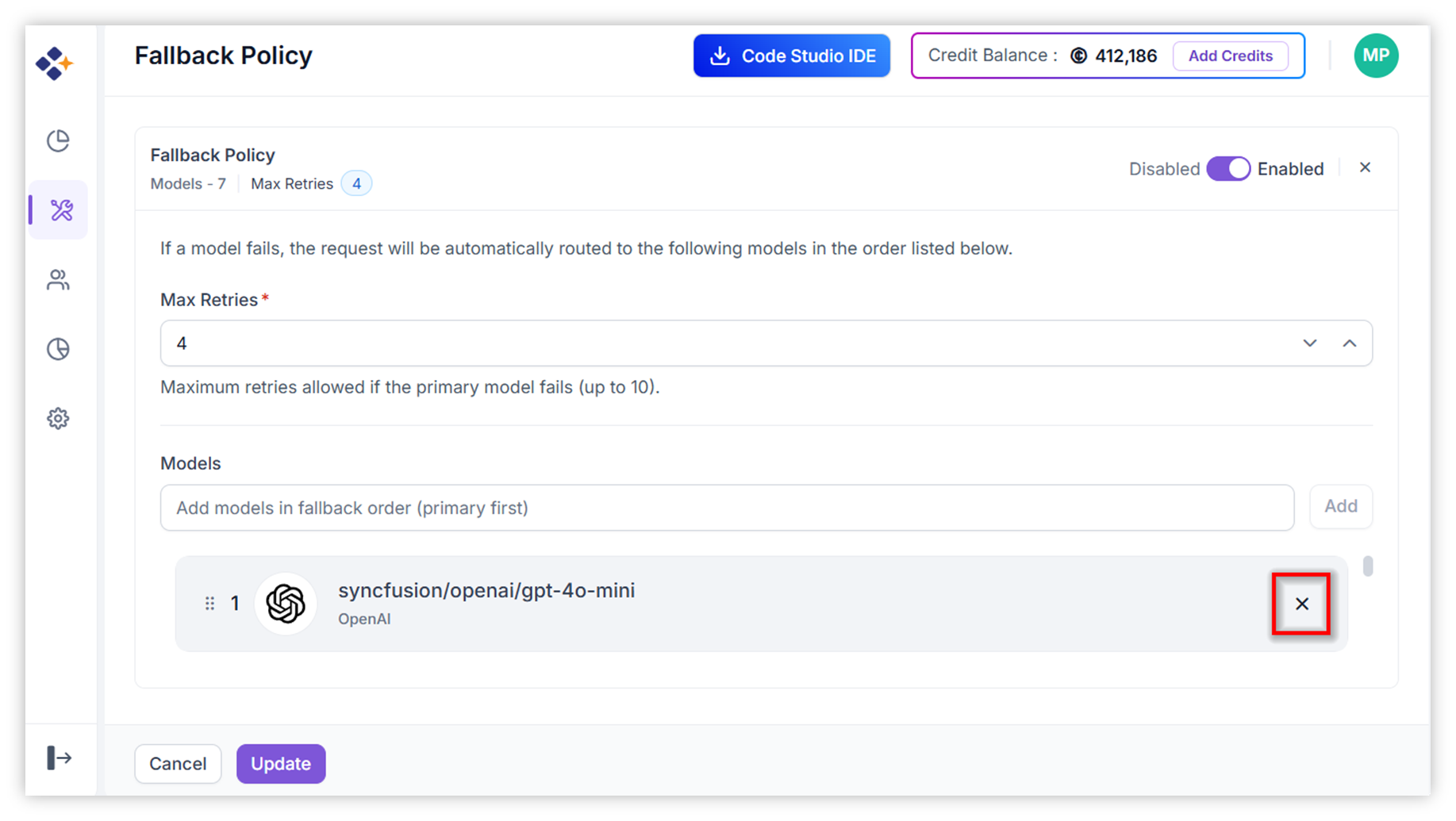
If you want to remove a model, just click the Close icon next to it.
-
Click Update to save the configuration.
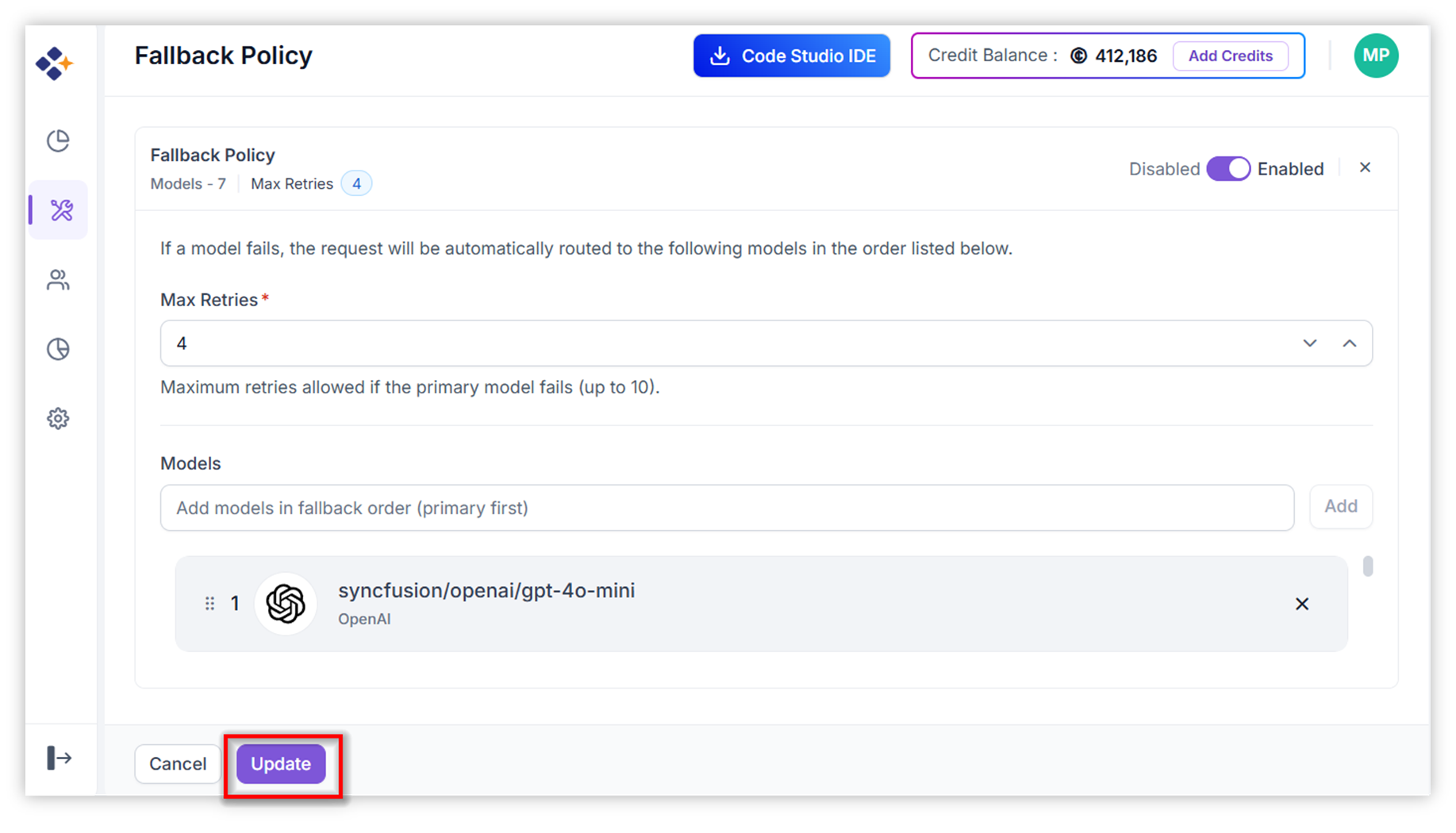
Note: You can edit the model list and reorder them anytime to optimize fallback behavior.
3. Best Practices
- Choose models with varied capabilities and reliability to ensure coverage.
- Limit retries to avoid unnecessary costs.
- Regularly review fallback performance and adjust model order accordingly.