

Problem Summary
Legacy BoldCreate prompt files (.prompt in .codestudio/prompts/) from versions before 2.0.0 are not recognized or usable in BoldCreate 2.0.0 and later, which requires the new .prompt.md format with YAML frontmatter and Markdown support. Users may find their old prompts missing, not appearing in chat, or not functioning as expected.
Possible Causes
- Prompt files are still in the legacy
.promptformat (.codestudio/prompts/) - Files are not saved with the
.prompt.mdextension - Prompts are not placed in the correct directory (
.codestudio/prompts/for workspace, user profile folder for user prompts)
Resolution Steps
Follow these steps to migrate and restore prompt functionality:
1. Locate Your Legacy Prompt Files
- Workspace prompts:
.codestudio/prompts/(in your workspace folder) - File Extension:
.prompt
2. Open and Copy Prompt Content
- Open a
.promptfile in a text editor or BoldCreate. - Copy the content from the
prompt:section (the main instruction text).
3. Create a New Prompt File in BoldCreate
You can create prompts as either Workspace or User prompts:
- Workspace Prompt:
.codestudio/prompts/ - User Prompt: User profile folder (available across all workspaces)
- Open BoldCreate
- Go to the Chat view
- Click the Configure Chat (gear icon)
- Select Prompt Files → New prompt file
- Choose Workspace or User
- Enter a filename (no extension needed)
Note: For detailed instructions on creating and configuring prompt files, see the Custom Prompt Files guide.
4. Paste and Format Content in New File
- Add YAML frontmatter at the top:
- Start and end with
--- - Add
name:,description:, and optionallyagent:,model:,tools:,argument-hint:
- Start and end with
- Paste your prompt content below the frontmatter
- Use Markdown for formatting (headings, lists, bold, etc.)
- Save the file with the
.prompt.mdextension
Example: Legacy vs. New Format
Legacy Format (before 2.0.0) - GenerateReactForm.prompt:
name: GenerateReactForm
description: Generate a new React form component
prompt:
  Your goal is to generate a new React form component based on the templates in #tool:githubRepo contoso/react-templates.

  Ask for the form name and fields if not provided.

  Requirements for the form:
    - Use form design system components: [design-system/Form.md](../docs/design-system/Form.md)
    - Use `react-hook-form` for form state management
    - Always define TypeScript types for your form data
    - Prefer *uncontrolled* components using register
    - Use `defaultValues` to prevent unnecessary rerenders
    - Use `yup` for validation
    - Create reusable validation schemas in separate files
    - Use TypeScript types to ensure type safety
    - Customize UX-friendly validation rules
New Format (2.0.0 and later) - GenerateReactForm.prompt.md:
---
agent: 'agent'
model: GPT-4o
tools: ['githubRepo', 'search/codebase']
description: 'Generate a new React form component'
---
Your goal is to generate a new React form component based on the templates in #tool:githubRepo contoso/react-templates.

Ask for the form name and fields if not provided.

Requirements for the form:
* Use form design system components: [design-system/Form.md](../docs/design-system/Form.md)
* Use `react-hook-form` for form state management
* Always define TypeScript types for your form data
* Prefer *uncontrolled* components using register
* Use `defaultValues` to prevent unnecessary rerenders
* Use `yup` for validation
* Create reusable validation schemas in separate files
* Use TypeScript types to ensure type safety
* Customize UX-friendly validation rules
5. Verify YAML Frontmatter and Variables
- Ensure the YAML frontmatter is correct and between
---lines - Use only officially supported variables:
${workspaceFolder}${workspaceFolderBasename}${selection}${selectedText}${file}${fileBasename}${fileDirname}${fileBasenameNoExtension}${input:variableName}${input:variableName:placeholder}
6. Run the Migrated Prompts
To confirm your migrated prompts are working:
- Open the new
.prompt.mdfile in BoldCreate. - Check the YAML frontmatter for syntax errors.
- In Chat, type
/and see if the prompt appears in the list (look for the prompt name and model used).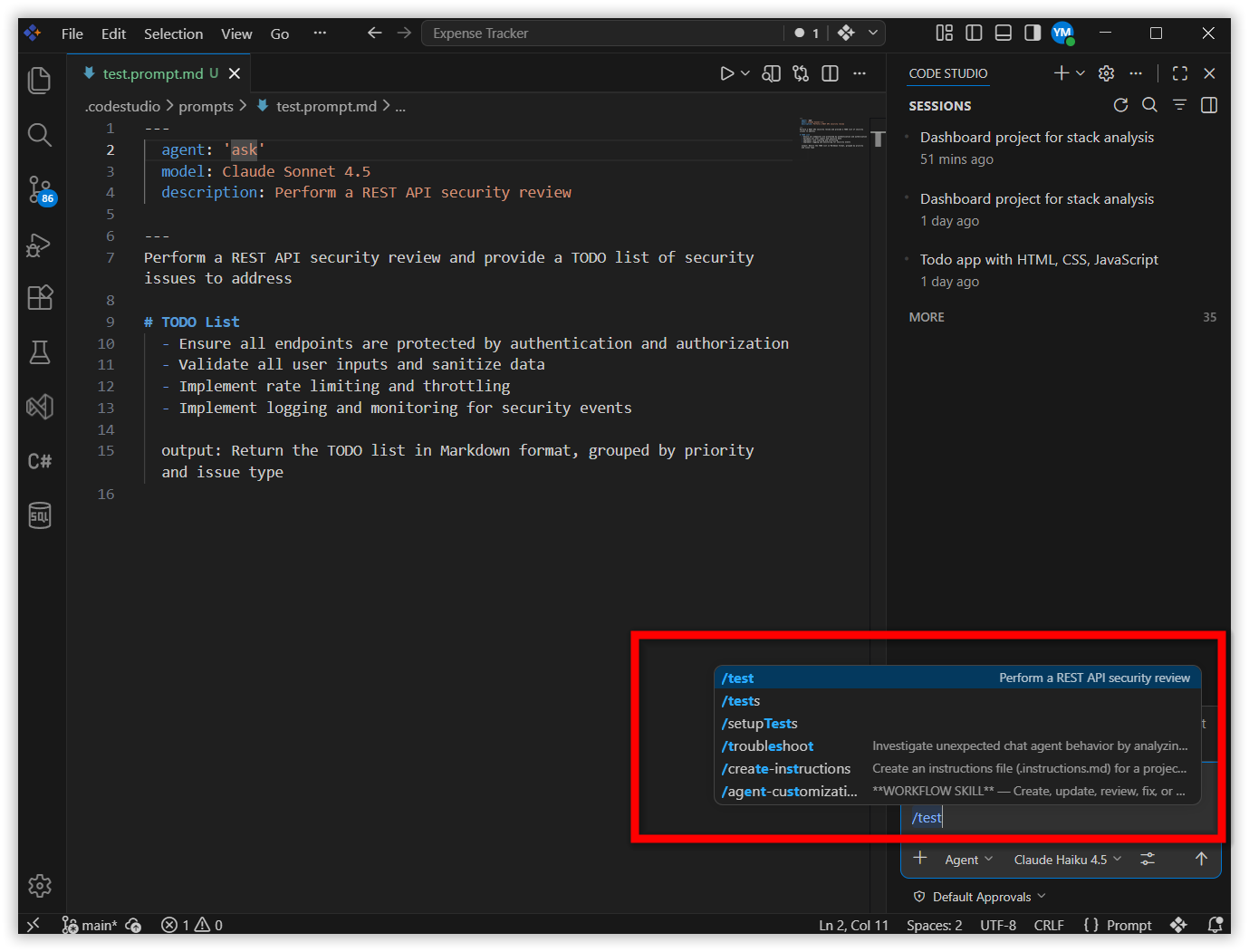
- Run the prompt and make sure it produces the expected results.
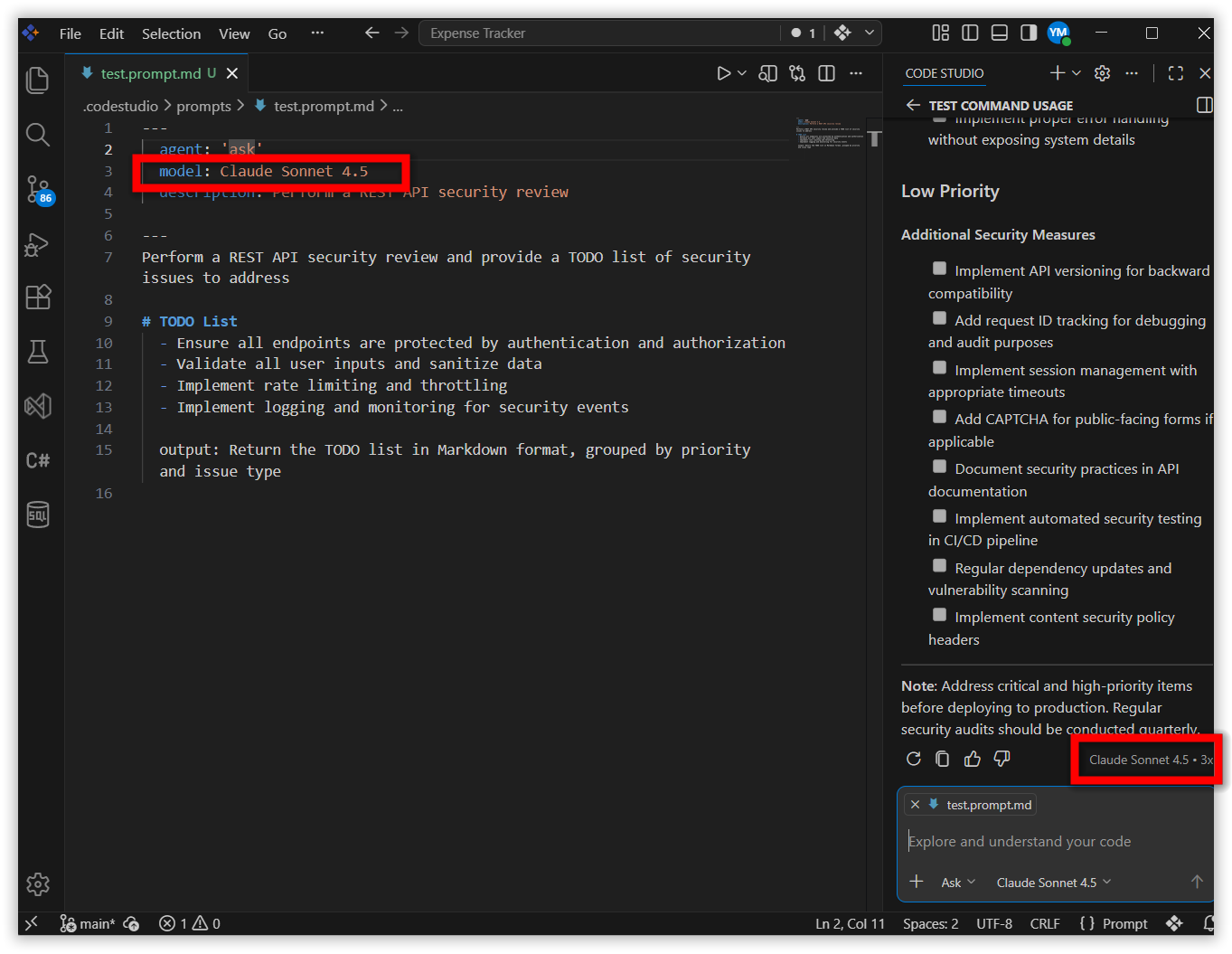
Note: If there are errors in the YAML frontmatter, the prompt’s assigned
modelmay not be used and a default model could be selected instead. Fix frontmatter errors to ensure the specified model is applied.