

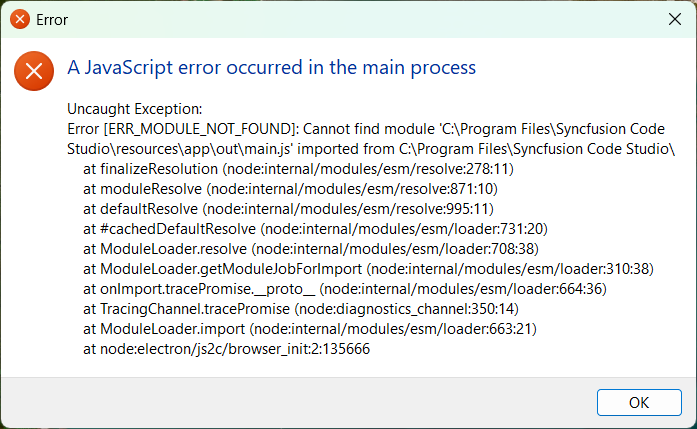
This guide explains how to resolve the Uncaught Exception error that occurs when BoldCreate is launched during its automatic update process.
Problem Summary
Users may encounter an Uncaught Exception error when BoldCreate is launching during its automatic update process. This occurs if the application is opened before the update is fully completed, causing conflicts while essential files are still being modified. The issue can temporarily prevent BoldCreate from starting and may require a simple wait-and-retry approach or a clean reinstallation if it persists.
Possible Causes
- Update In Progress: The automatic update process is still replacing application files.
- Premature Launch: BoldCreate was opened before the update completed.
- File Conflicts: Temporary file locks or conflicts occurred during file replacement.
Resolution Steps
Quick Fix
- Close the error dialog.
- Wait a few minutes for the automatic update to complete in the background.
- Relaunch BoldCreate. It will start successfully with the latest version and automatically launch without requiring any user interaction.
If the Issue Persists (Clean Reinstallation)
Step 1: Uninstall BoldCreate
-
Windows:
-
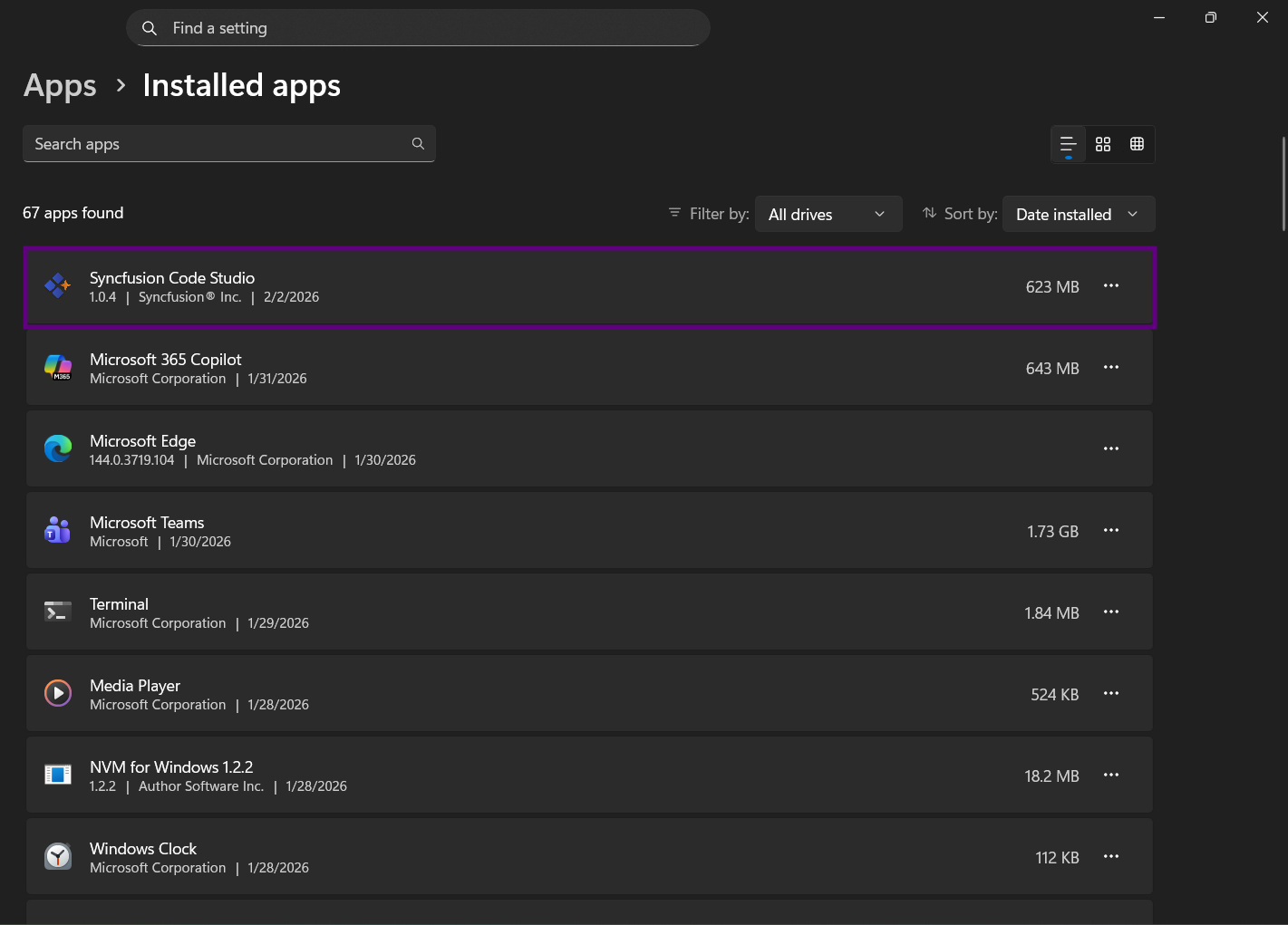
Open Windows Settings → Apps.
-
Find and select BoldCreate.
-
Click Uninstall and follow the user prompts to remove the application.
-
-
macOS:
-
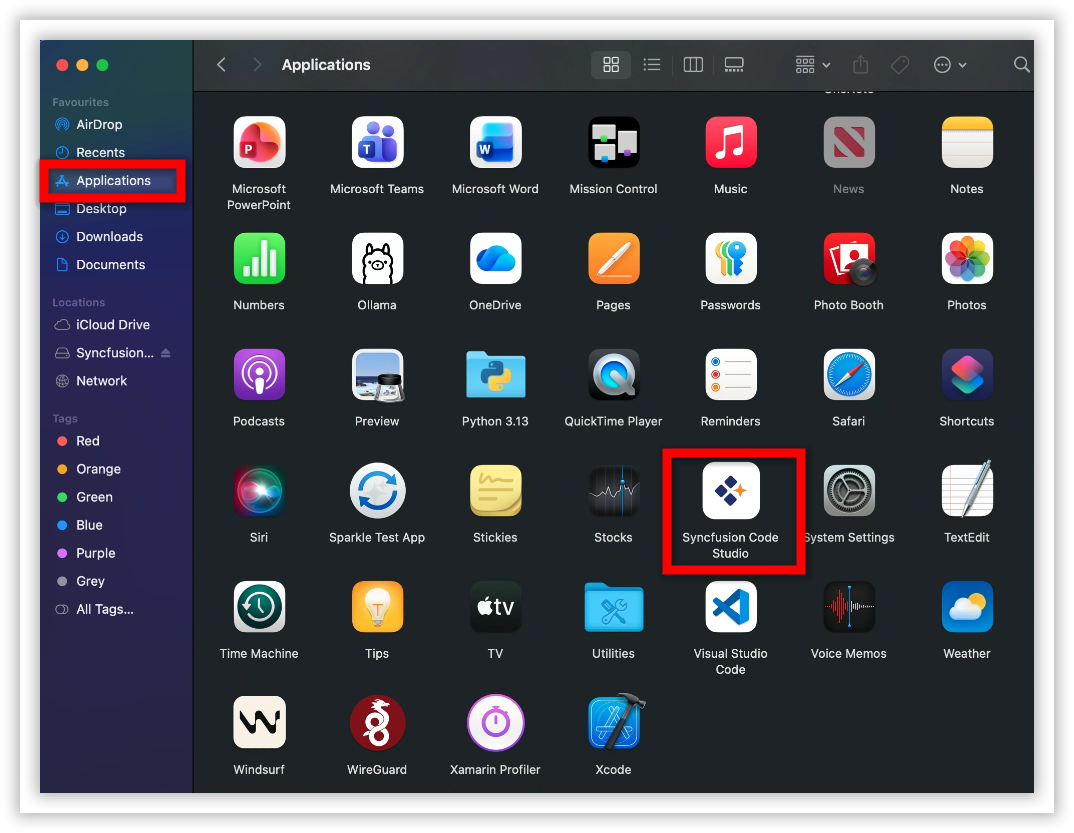
Open Finder → Applications.
-
Locate BoldCreate.
-
Open context menu and click Move to Trash or Move to Bin to remove the application.
-
Step 2: Remove BoldCreate Cache Files
Delete cache and configuration folders to ensure a clean reinstallation. See How to Resolve the App Corruption for detailed steps.
Step 3: Reinstall BoldCreate
- Reinstall BoldCreate, refer to the BoldCreate Install and Configure.
- Launch the application and verify it starts without errors.
Verification
To confirm the issue is resolved:
- BoldCreate launches without the “Uncaught Exception” dialog.
- The application shows the expected latest version in Help → About (after an update).
- Subsequent launches are successful without intermittent errors.
Best Practices
- Avoid Interrupting Updates: Do not open BoldCreate while an update is in progress.
- Allow Full Completion: Let the update complete fully. The application typically relaunches automatically.
- Maintain System Resources: Ensure sufficient disk space and memory during update operations.
Note: If you have custom configurations or settings you want to preserve, back up the relevant folders before deleting or clearing them.