

Problem Summary
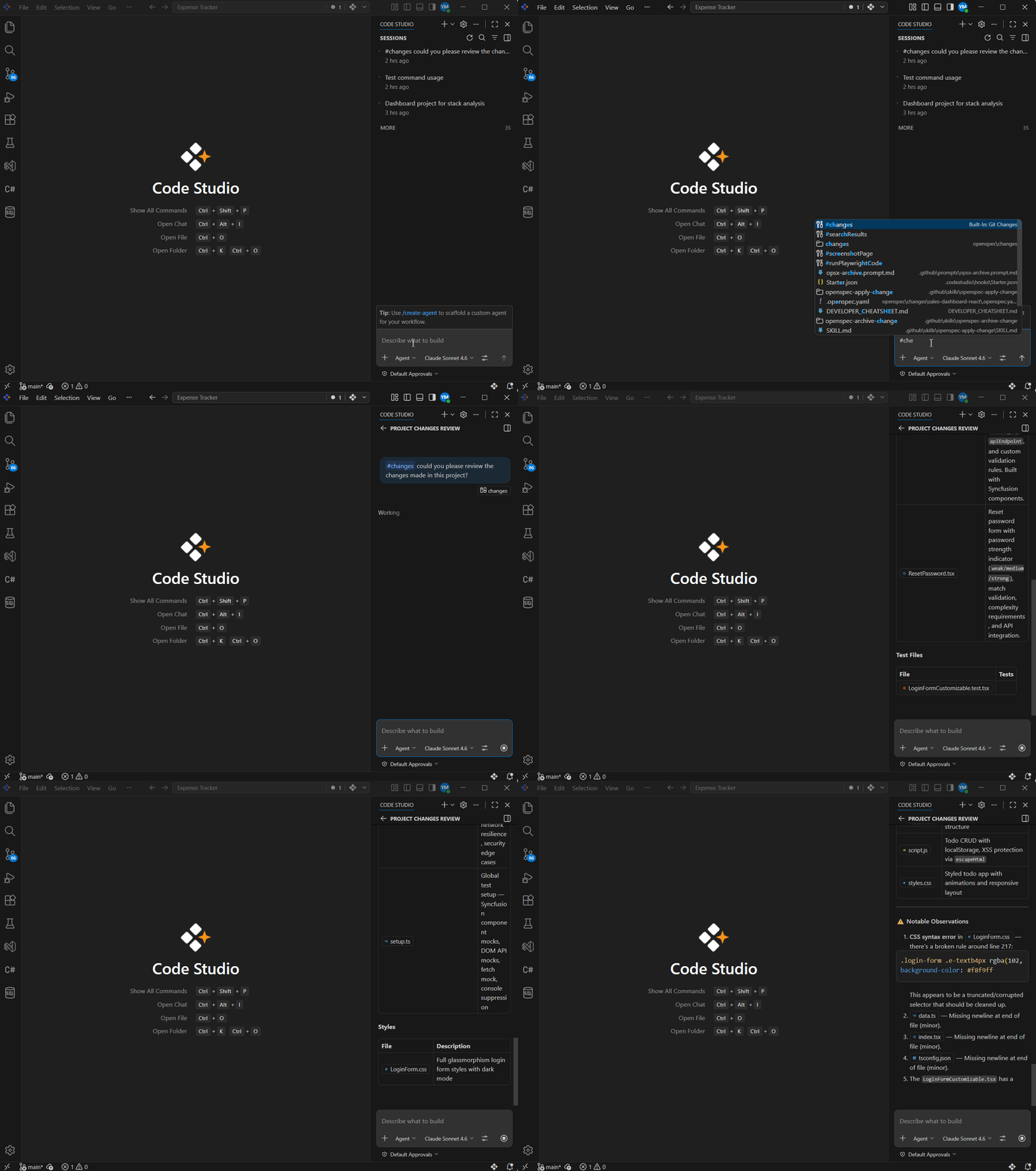
After upgrading to BoldCreate v2.0.0+, the method to review git diff changes has been updated. Previously(before v2.0.0), users could view uncommitted changes by typing @Git Diff in the chat box or using the “Add context(+)” button. In v2.0.0+, this functionality is now accessed by typing # in the chat input box and selecting #changes from the dropdown menu.
Resolution Steps
Steps to Use #changes
-
Make sure the desired project/workspace is open and active in BoldCreate — preferably one that is connected to a GitHub repository. The
#changestool only shows modifications from the currently opened project. -
Go to the chat panel in BoldCreate where you interact with the AI assistant.
-
In the chat input box type #, a dropdown menu will appear showing available options. From this dropdown, select
#changes. -
After selecting
#changes, type your specific question or request regarding the current changes. -
Submit the prompt. The agent collects the current Git changes from your workspace and generates a response that references those changes to fulfill your request.
Best Practices
- Write clear and specific questions so the
#changestool can focus on exactly what you want to see. - Review the diff carefully before staging, committing, or merging changes, especially when many files are modified.
- Refine your question or ask a follow-up if you need a shorter summary, more explanation, or only certain types of changes.