

Purpose
Settings allow users to tailor the development environment to their individual preferences. They help by providing:
- Centralized Control – All key configuration options are available in one place.
- Personalization – Customize features such as agents, autocomplete, and instructions to fit your workflow.
- Usage Monitoring – Track daily costs and token usage to stay within budget.
- Compliance & Transparency – Access legal policies, agreements, and telemetry settings for clarity.
- Help & Support – Quickly reach documentation, tutorials, and support tickets when needed.
When to Use
- You want consistent behavior across projects via explicit settings.
- You need to enable agents, inject instructions, or tune request limits.
- You monitor usage/costs or manage credits and subscriptions.
- You prefer to adjust autocomplete, indexing, or telemetry policies.
How to Access User Settings
The User Settings page can be accessed in three ways:
1. From the Account
- Click the BoldCreate Account icon.
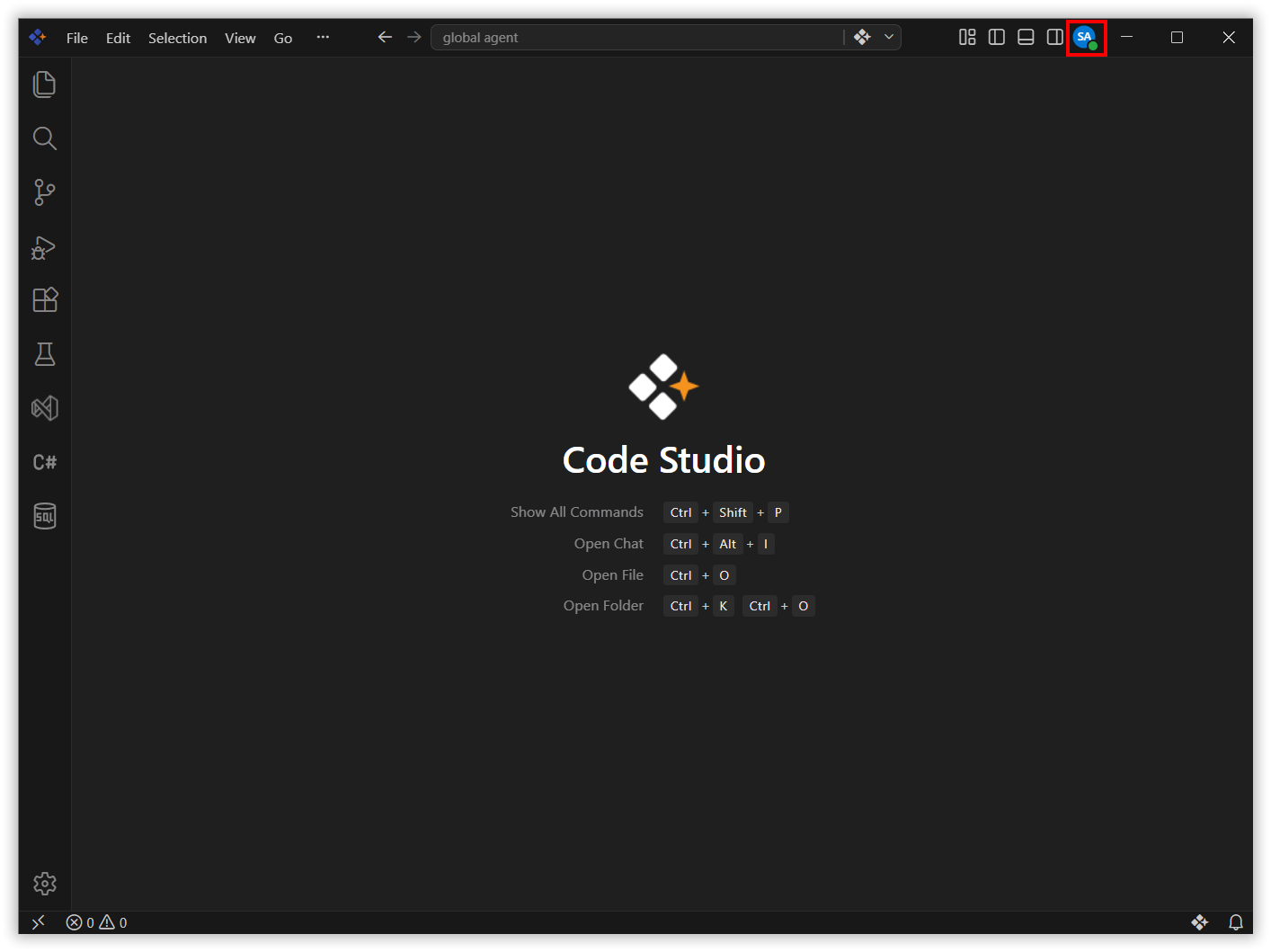
- The Settings page will open.
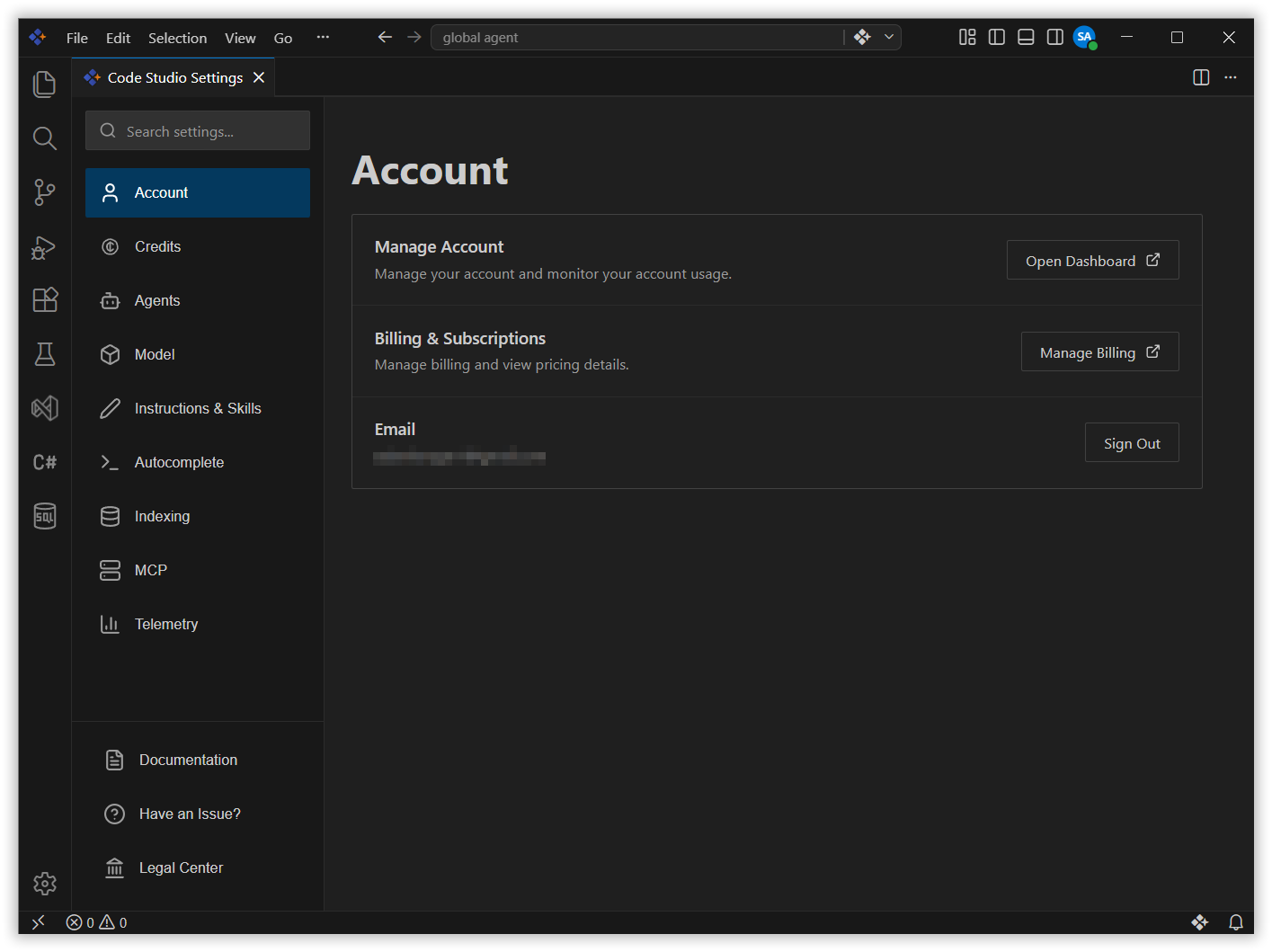
2. From the Toggle Sidebar
- Click the gear icon on the left sidebar of the BoldCreate window.
- Select BoldCreate Settings from the menu.
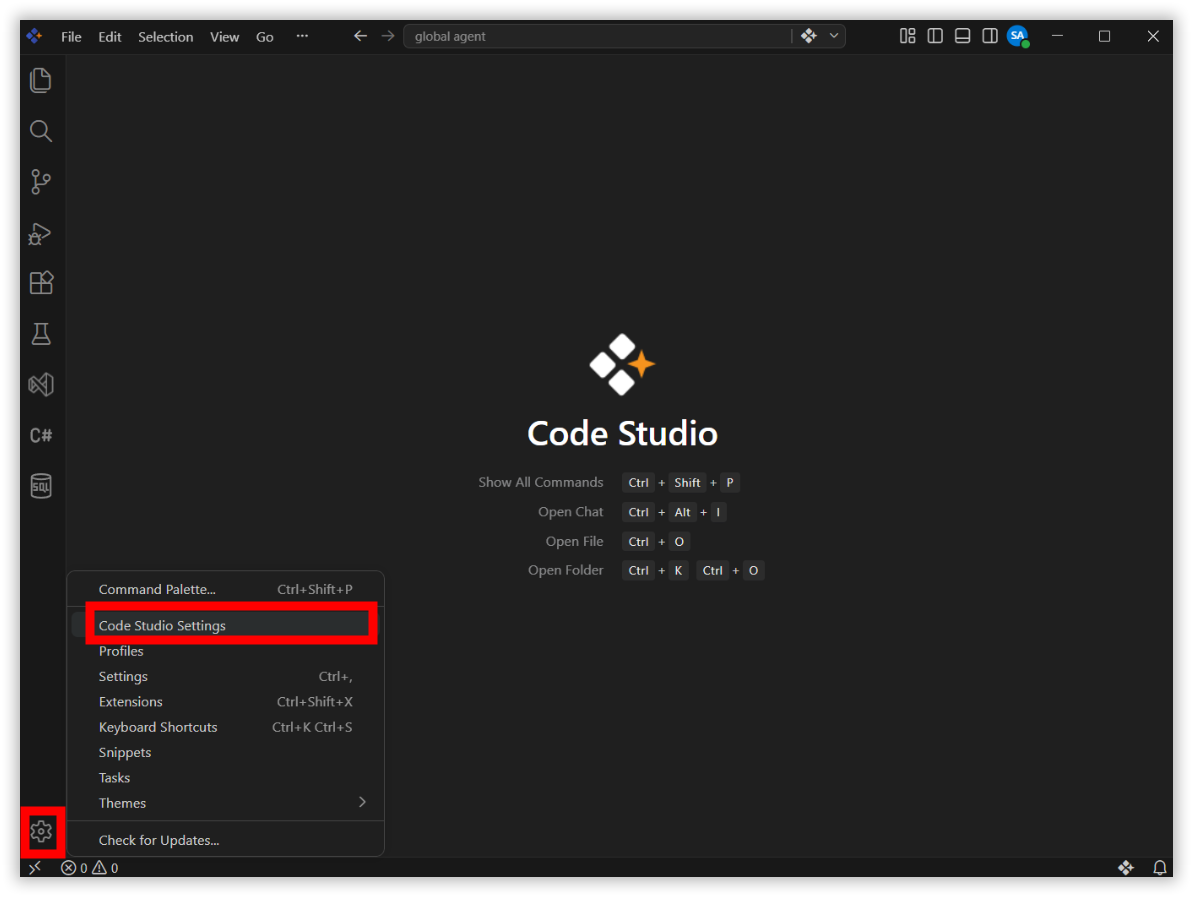
- The Settings page will open.
3. From the Chat Window
- Navigate to the BoldCreate Chat Window.
- Click the gear icon located at the top right corner.
- Select Open Settings.
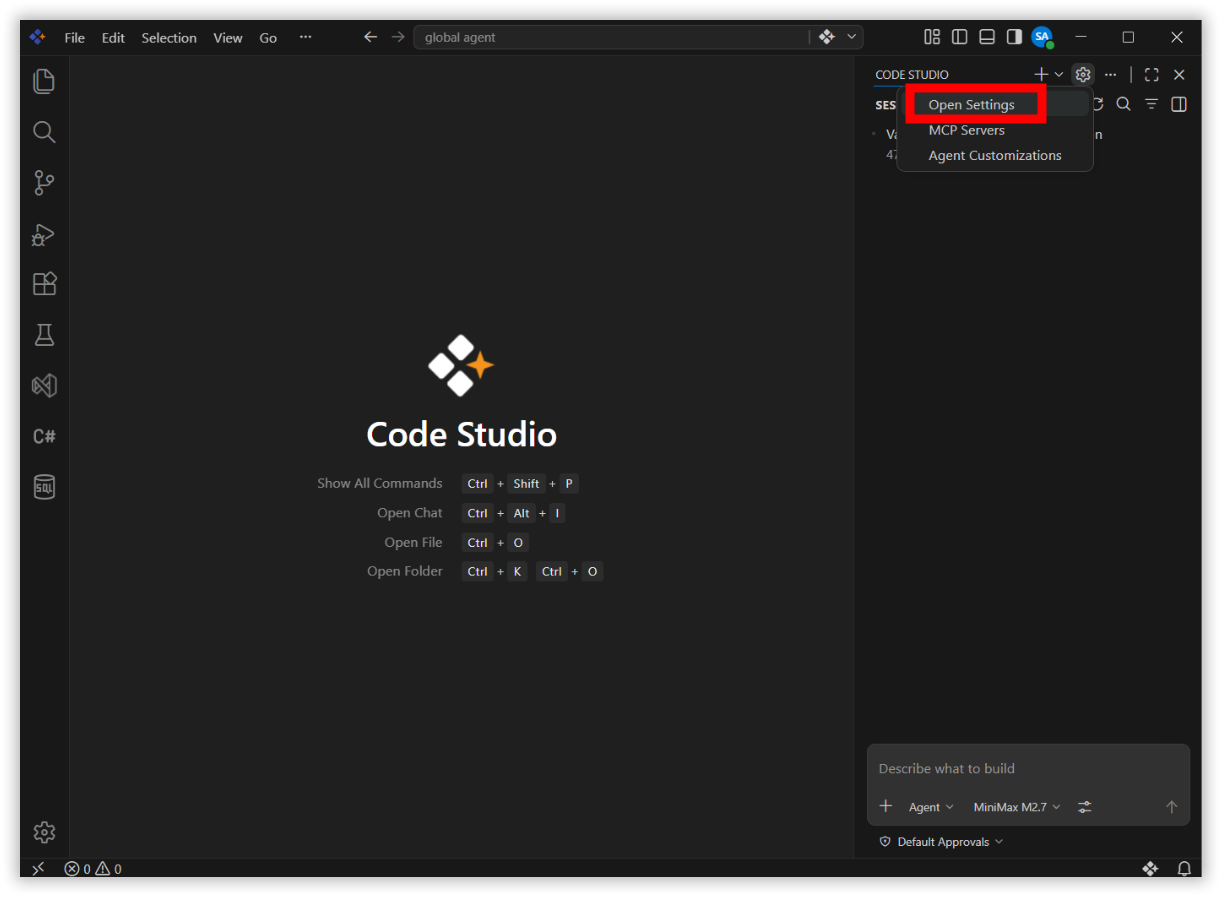
- The settings page will open.
Settings Categories
The following settings are available on the User Settings page.
Account
Manage Account
- Monitor your LLM usage and manage your account.
Note: You can track daily costs and token usage by applying filters in your Dashboard. This helps you stay on budget and manage usage effectively.
Billing & Subscriptions
- Manage billing and view pricing details.
Note: Billing & Subscriptions is only accessible to admins.
- Sign in or sign out of your account.
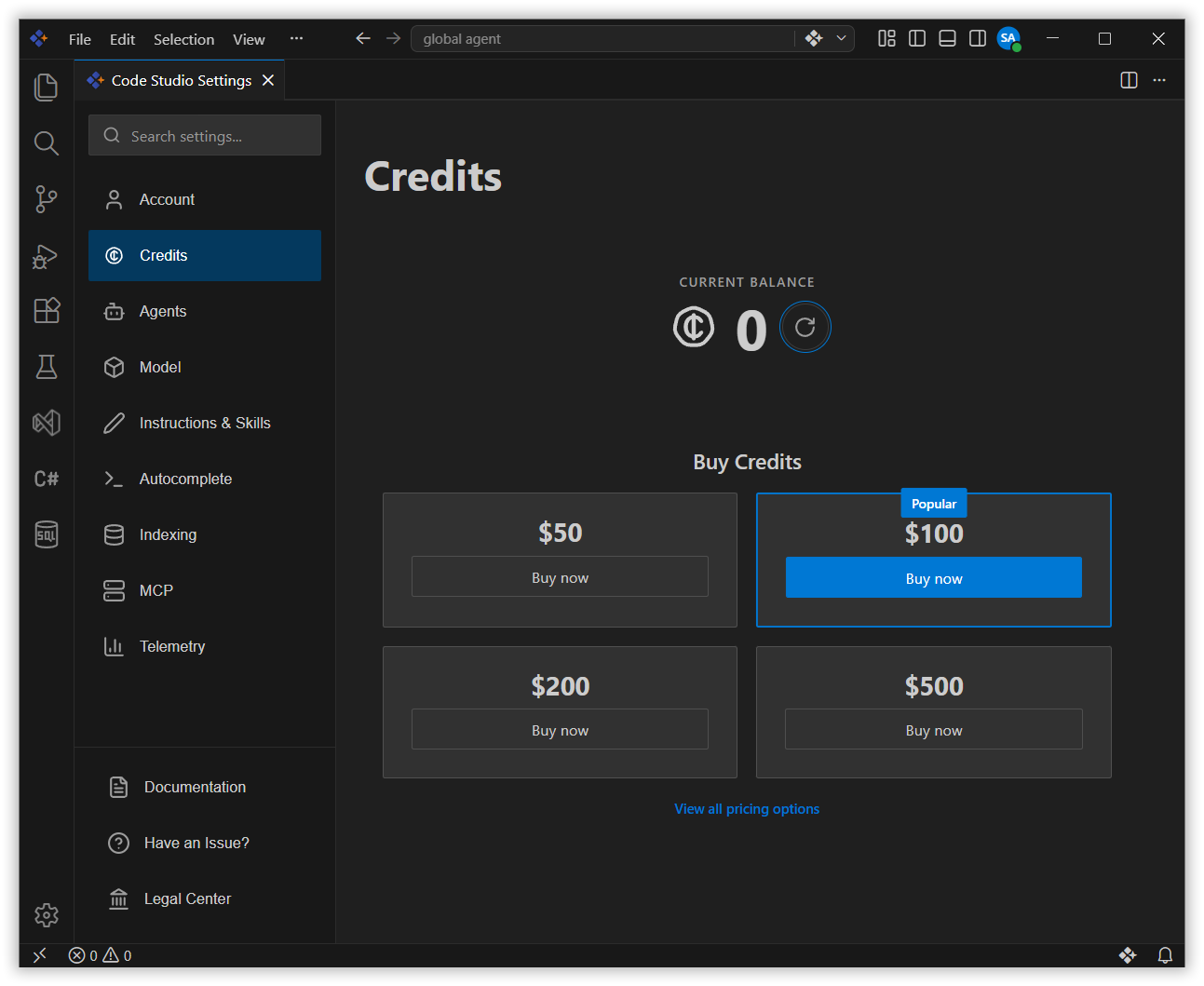
Credits
- View your current balance.
- Purchase credit based on your budget and requirements.
- Access pricing details.
Note: The Credits section is accessible only to admins.
Agents
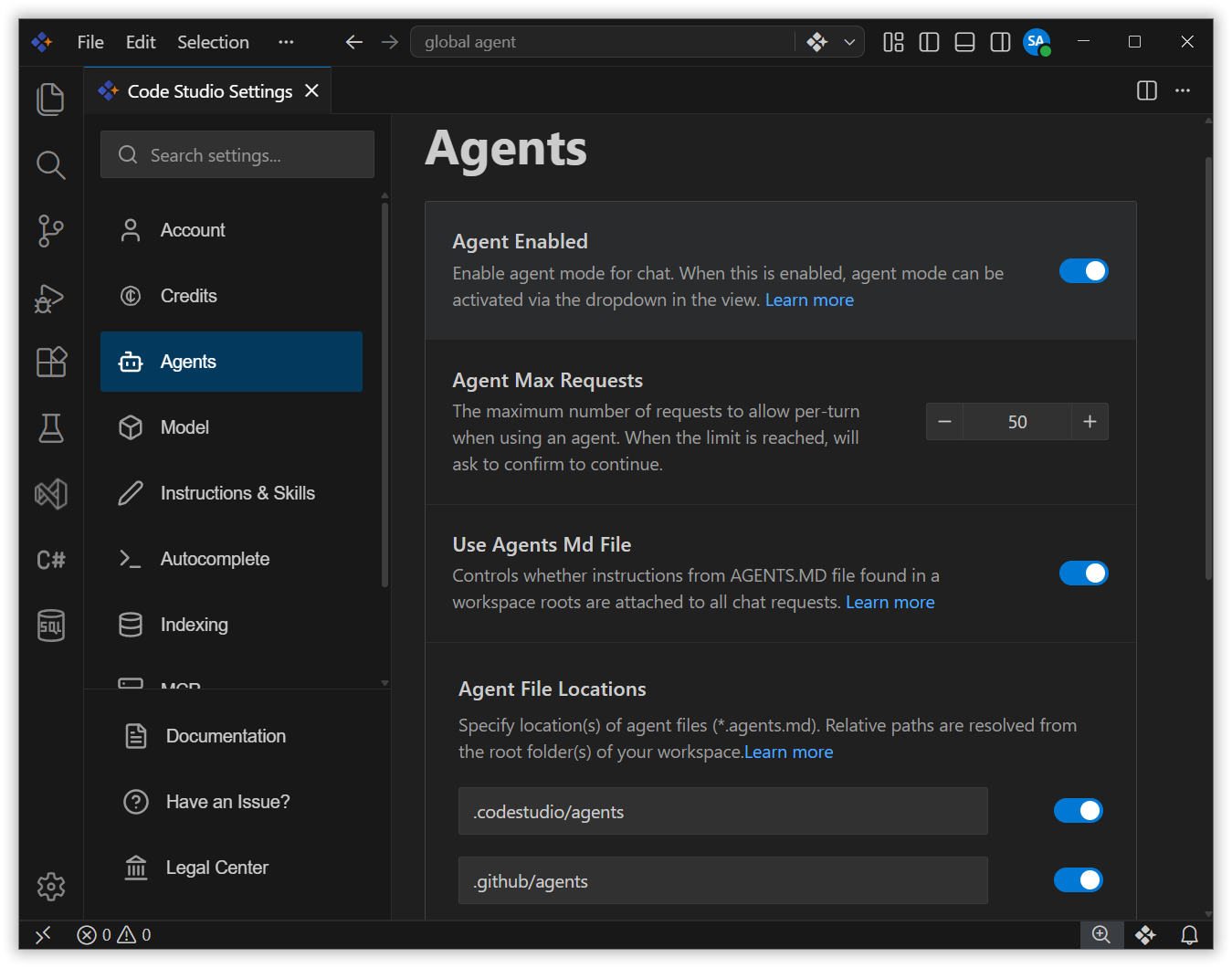
Agent Enabled
- Enables agent mode, which can be activated via the dropdown in the chat box.
- Default:
Enabled
Agent Max Requests
- Sets the maximum number of requests per turn when using an agent. If the limit is reached, you’ll be asked to confirm to continue.
- Default:
25
Use AGENTS.md File
- Decide whether the instructions from the AGENTS.md file in your workspace are added to every chat request.
- Default:
Enabled
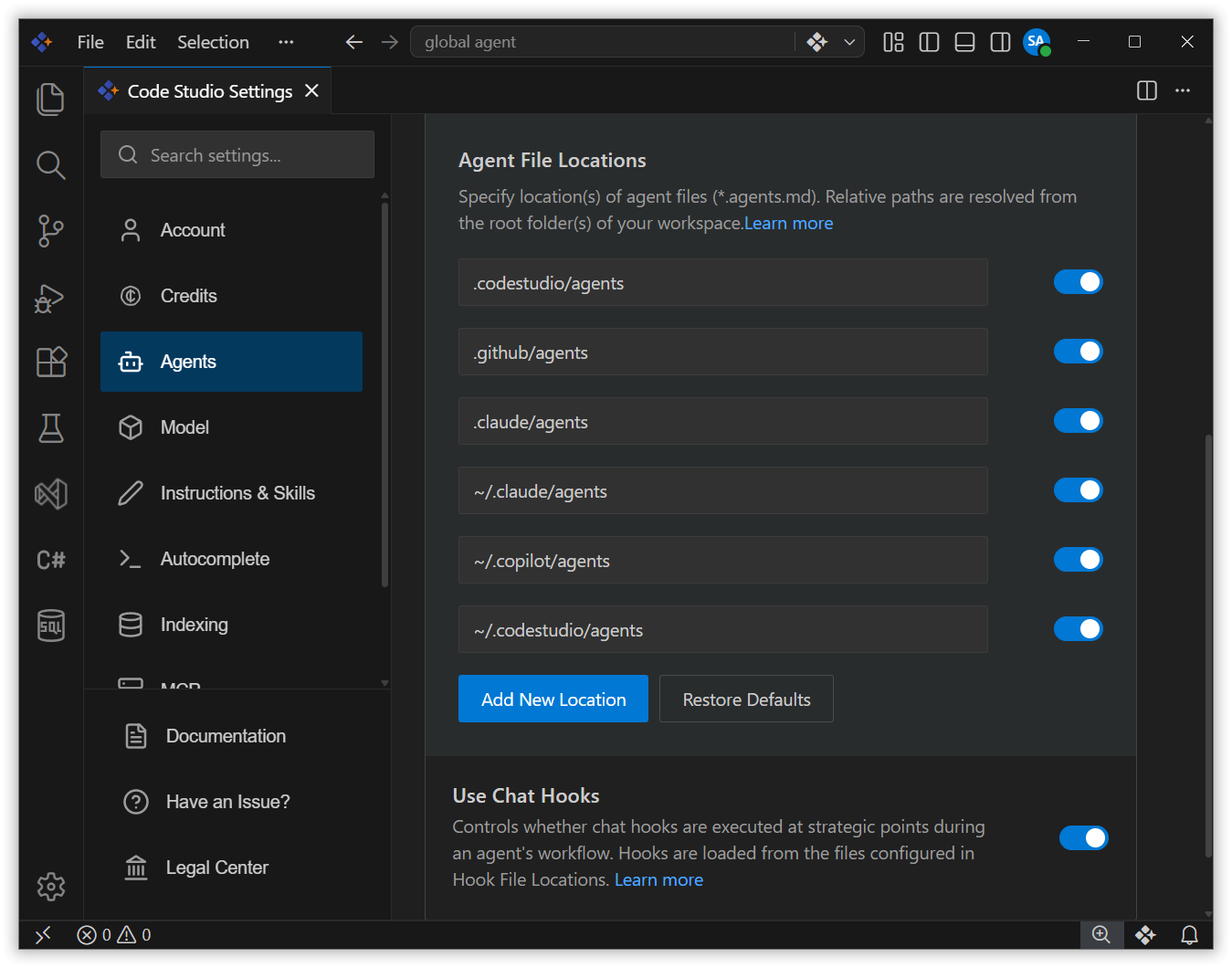
Agent File Locations
- Specify locations of agent files (*.agents.md). Relative paths are resolved from the root folder of your workspace.
- Default:
.codestudio/agents .github/agents .claude/agents ~/.claude/agents ~/.copilot/agents ~/.codestudio/agents
Use Chat Hooks
- Controls whether chat hooks are executed at strategic points during an agent’s workflow. Hooks are loaded from the files configured in Hook File Locations.
- Default:
Enabled
Model
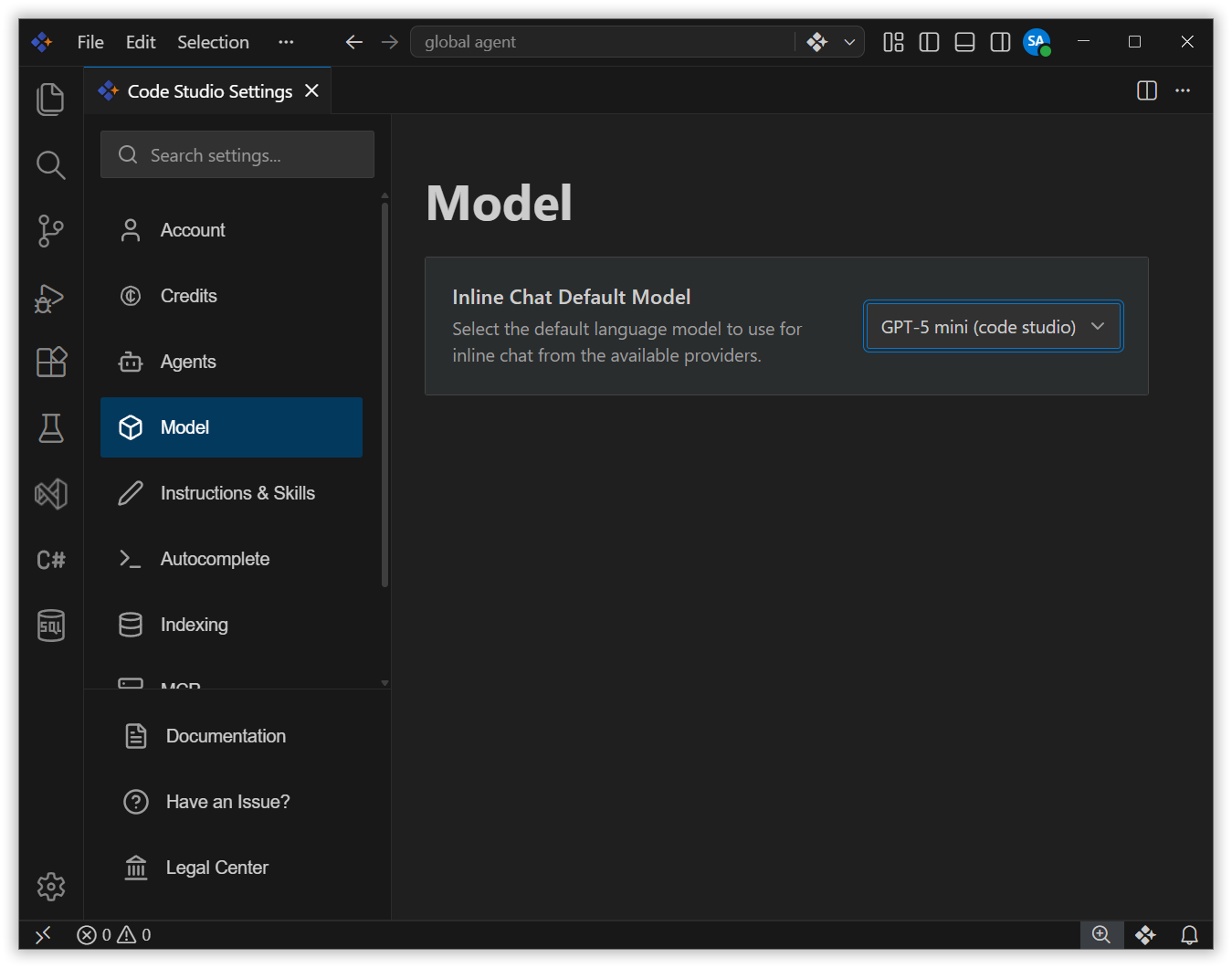
Inline Chat Default Model
- Select the default language model to use for inline chat from the available models.
- Default:
GPT-5 mini
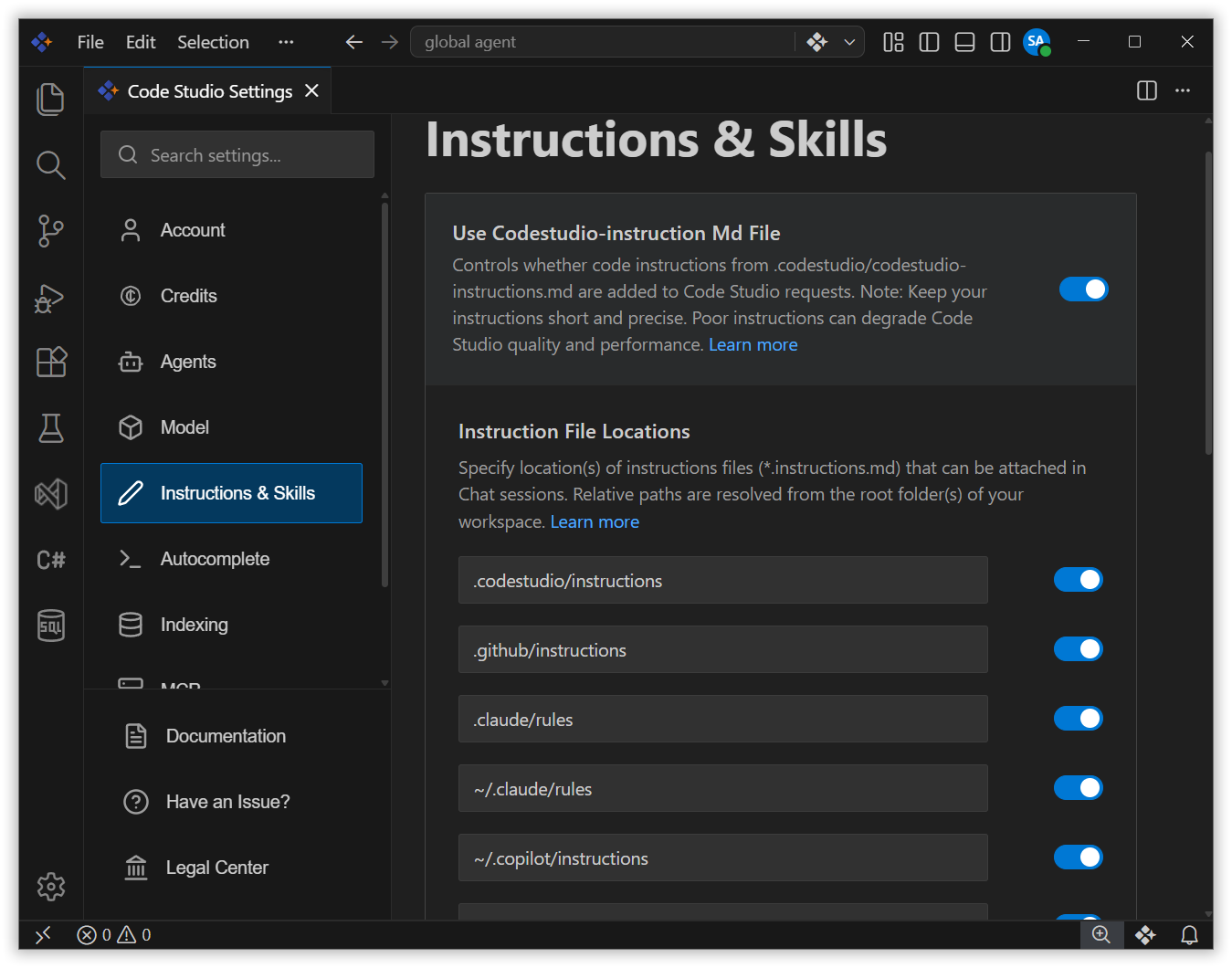
Instructions & Skills
Use codestudio-instructions.md File
- Controls whether instructions from
.codestudio/codestudio-instructions.mdare added to BoldCreate requests. - Default:
Enabled
Note: Keep your instructions short and precise. Poor instructions can degrade BoldCreate quality and performance.
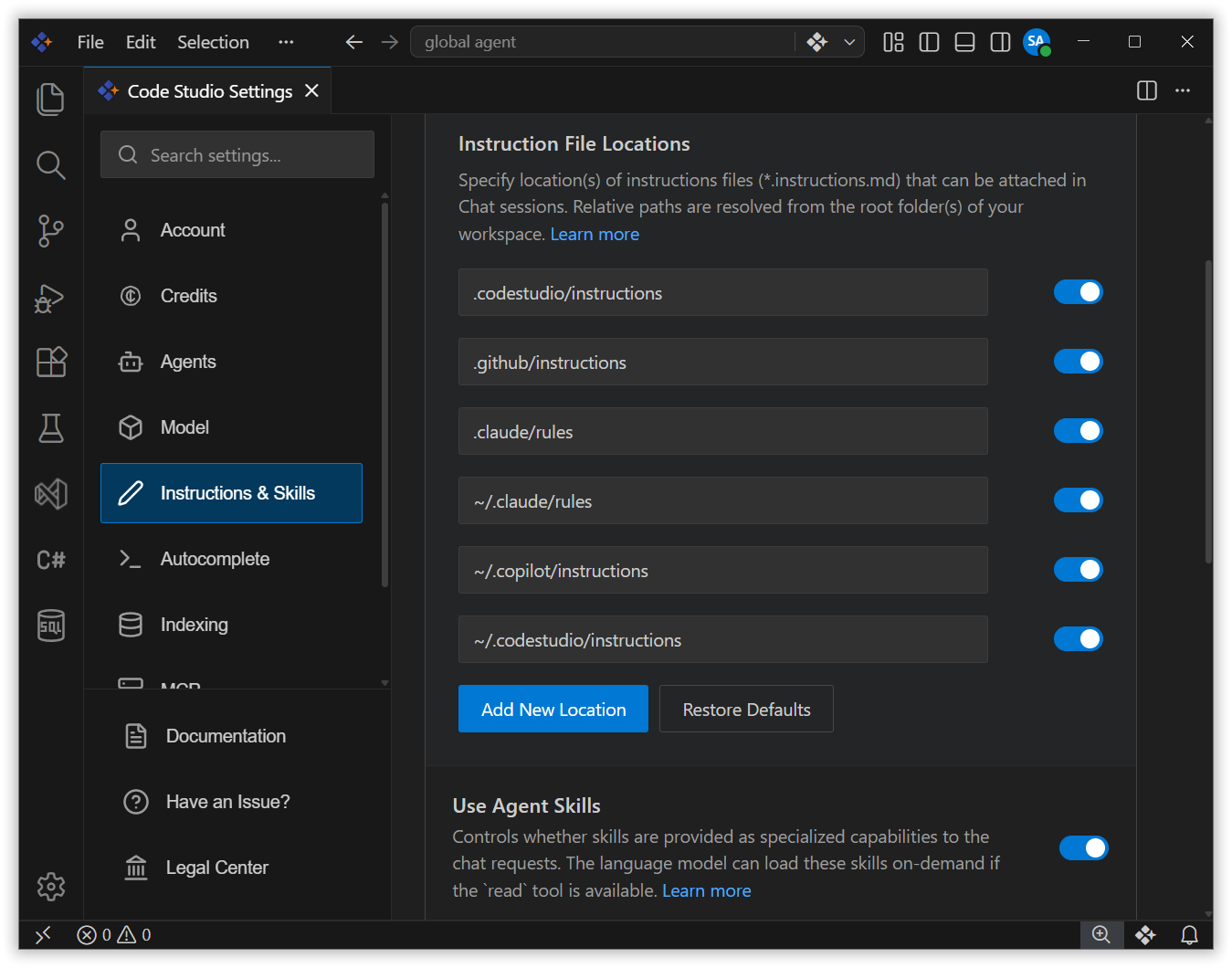
Instruction File Locations
- Specify locations of instruction files (
*.instructions.md) that can be attached in chat sessions. - Default:
.codestudio/instructions .github/instructions .claude/rules ~/.claude/rules ~/.copilot/instructions ~/.codestudio/instructions
Use Agent Skills
- Controls whether skills are provided as specialized capabilities to the chat requests. The language model can load these skills on-demand if the
readtool is available. - Default:
Enabled
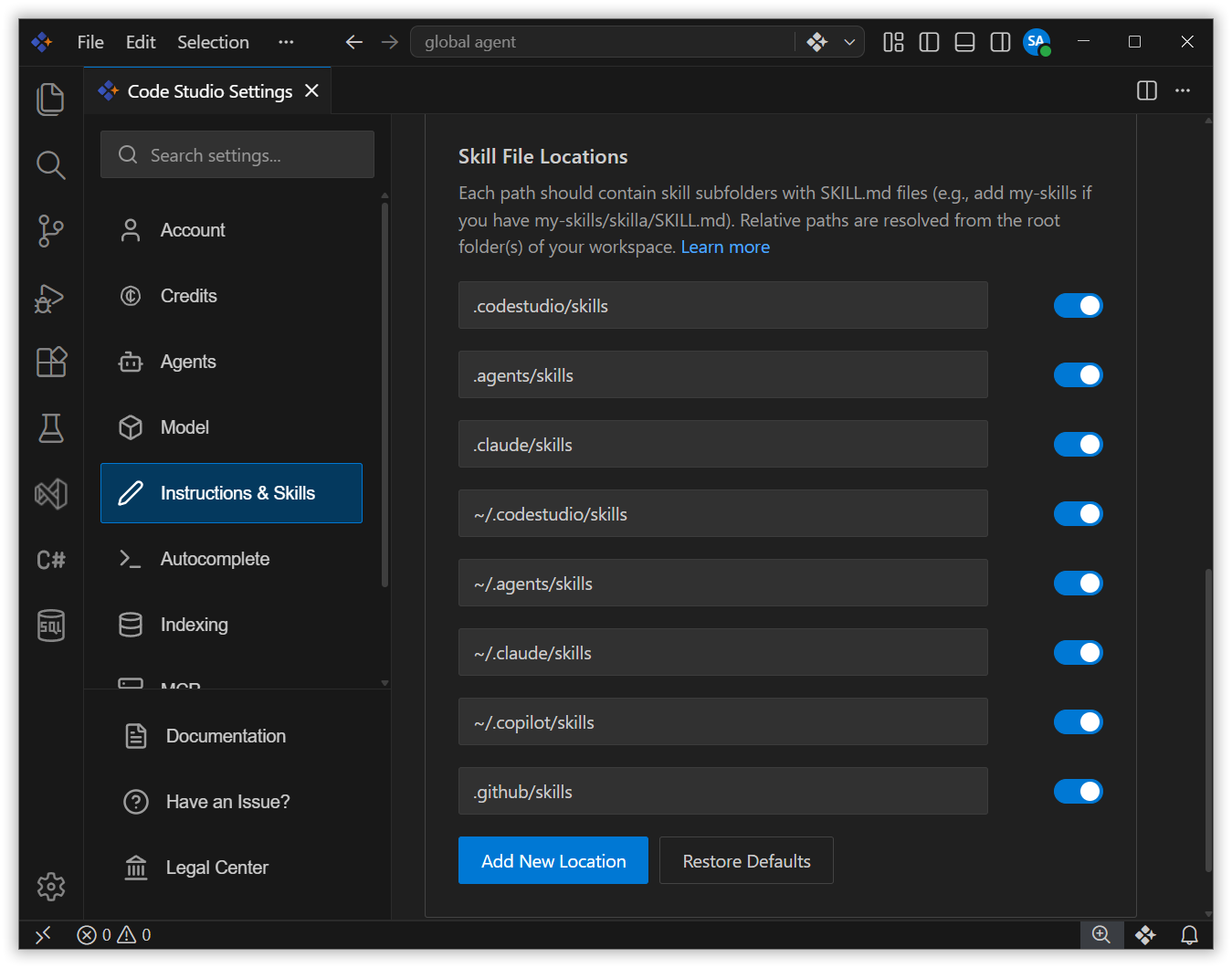
Skill File Locations
- Each path should contain skill subfolders with SKILL.md files (e.g., add my-skills if you have my-skills/skilla/SKILL.md). Relative paths are resolved from the root folder(s) of your workspace.
- Default:
.codestudio/skills .agents/skills .claude/skills ~/.codestudio/skills ~/.agents/skills ~/.claude/skills ~/.copilot/skills
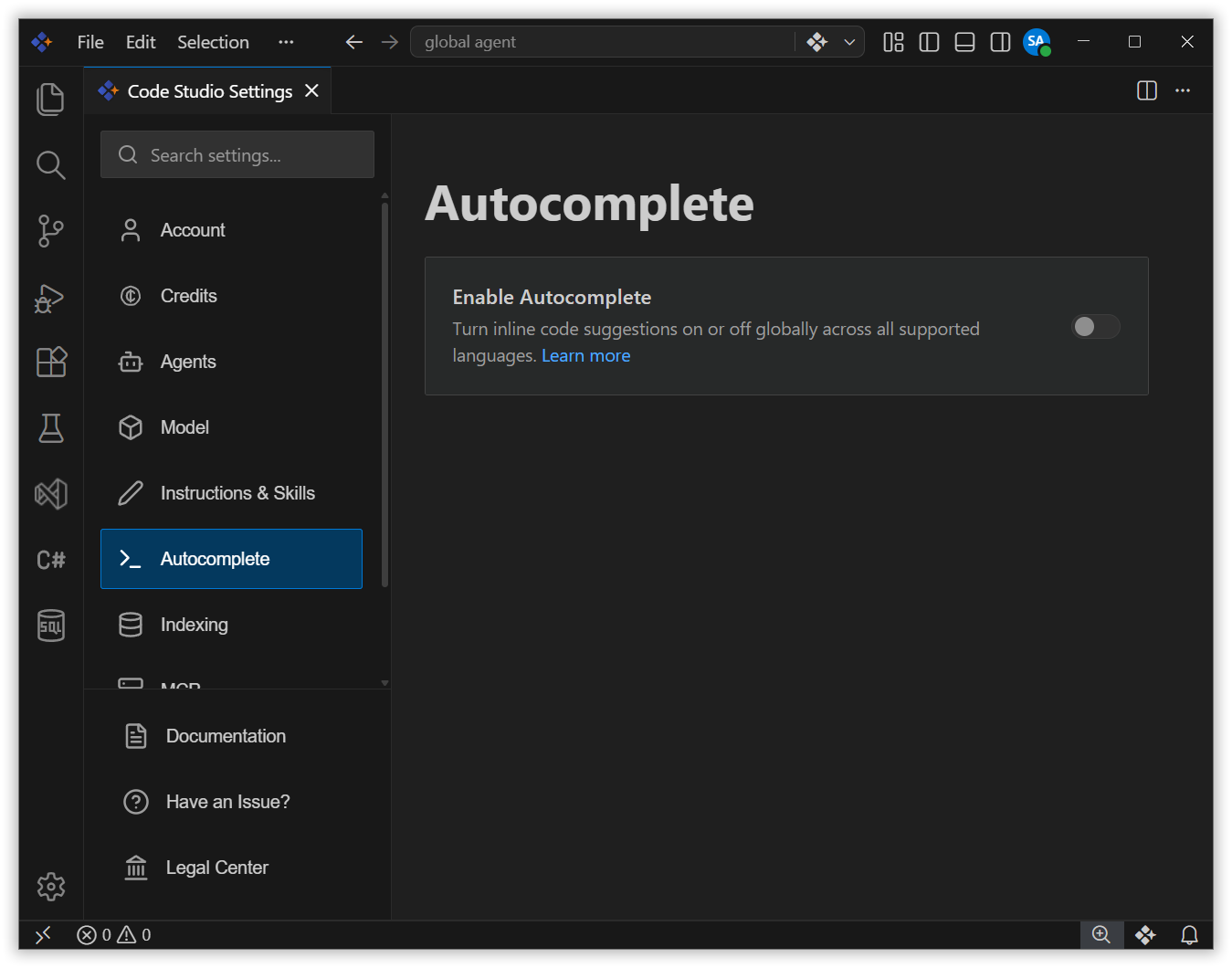
Autocomplete
- When enabled, BoldCreate provides inline code suggestions across all supported languages.
- Default:
Enabled
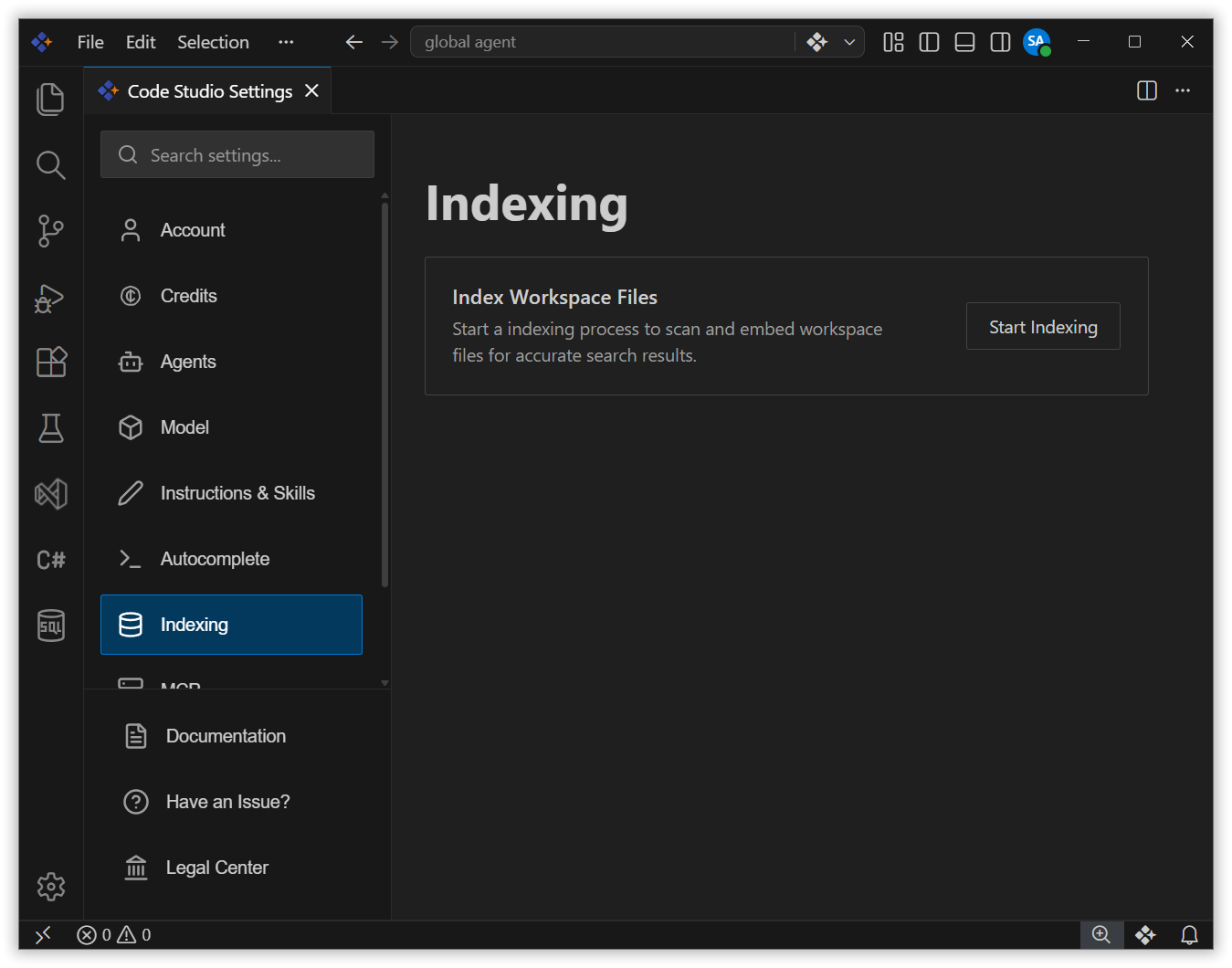
Indexing
- When enabled, BoldCreate will start an indexing process to scan and embed workspace files for accurate search results.
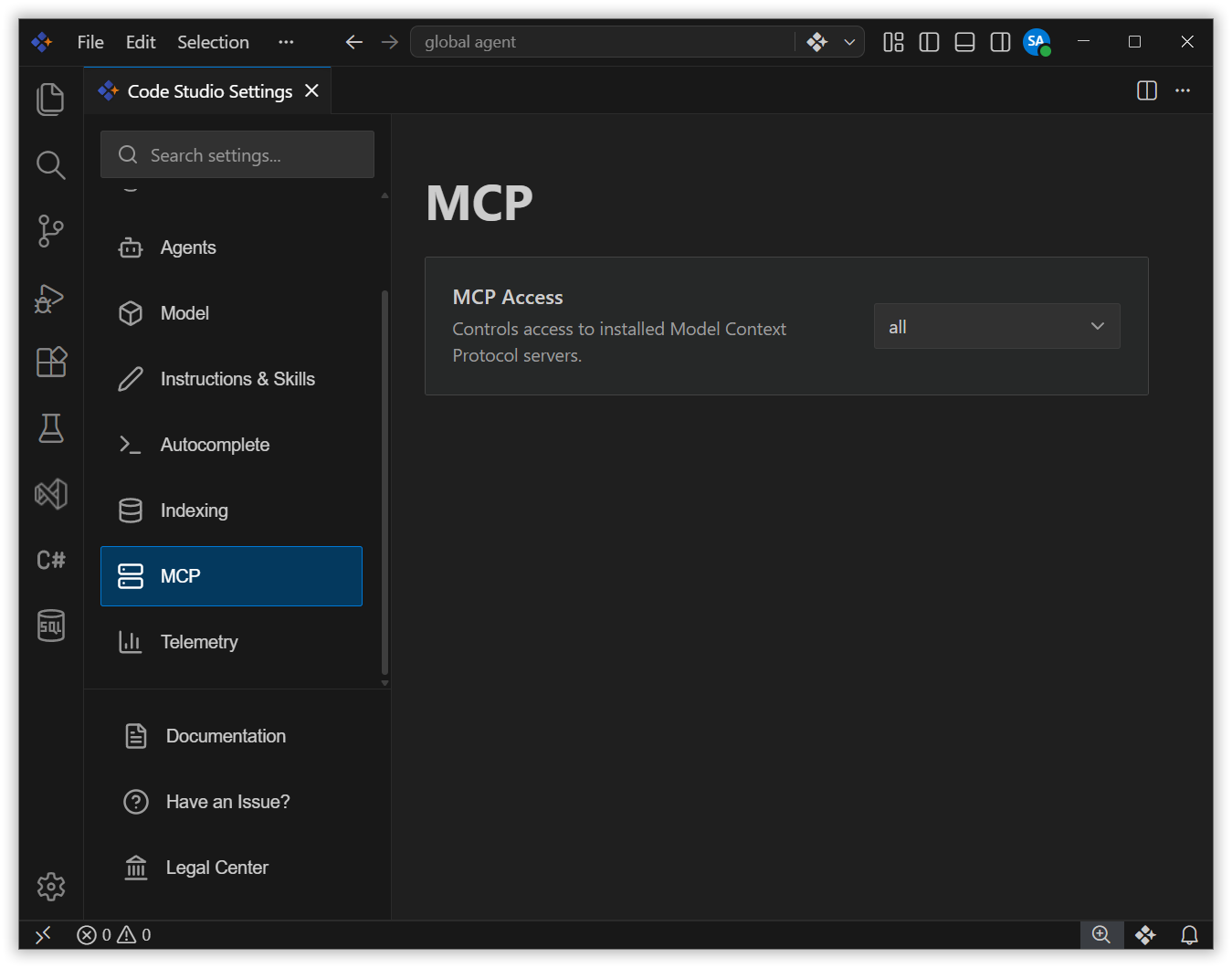
Mcp
MCP Access
- Controls access to installed Model Context Protocol servers.
- Default:
all
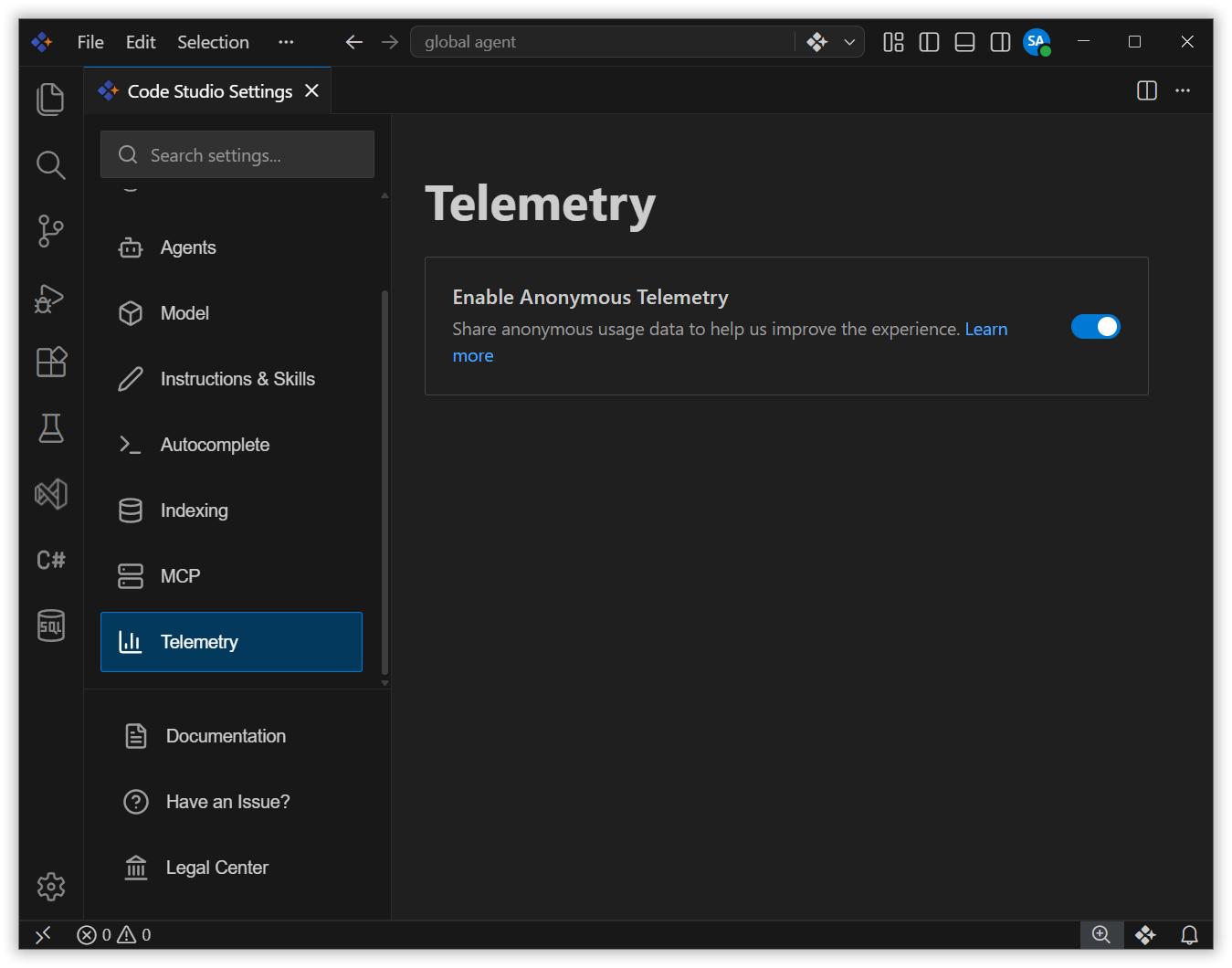
Telemetry
- When enabled, BoldCreate collects anonymous telemetry data to improve the product.
- Default:
Enabled
Help & Support
-
Documentation
Access the official BoldCreate documentation for configuration guidance and usage instructions. -
Have an Issue?
If you encounter any problems, you can easily reach out to our support team at support.syncfusion.com. -
Legal Center
Review our transparent legal policies and agreements in the Legal Center. This ensures you fully understand and comply with Syncfusion’s terms and conditions.