

Overview
Inline Chat in BoldCreate is designed to bring AI assistance directly into your workflow. Instead of switching panels or navigating away from your code, you can interact with AI right inside the editor or terminal. This seamless integration helps you stay focused, get context-aware suggestions, and streamline both coding and command-line tasks.
Use Cases
-
Debugging Code Quickly – Use Inline Chat to identify errors and generate fixes directly in the editor without switching panels.
-
Automating Terminal Workflows – Generate shell commands or scripts in the integrated terminal to speed up repetitive tasks.
-
Refactoring Existing Code – Select a block of code and request improvements, optimizations.
Using Inline Chat in the Editor
When you use Inline Chat inside the editor, BoldCreate scopes your request to the content in the active file. It may also use related files in your workspace to provide more accurate suggestions.
How to Use Editor Inline Chat
Steps:
-
Open a file in the BoldCreate editor.
-
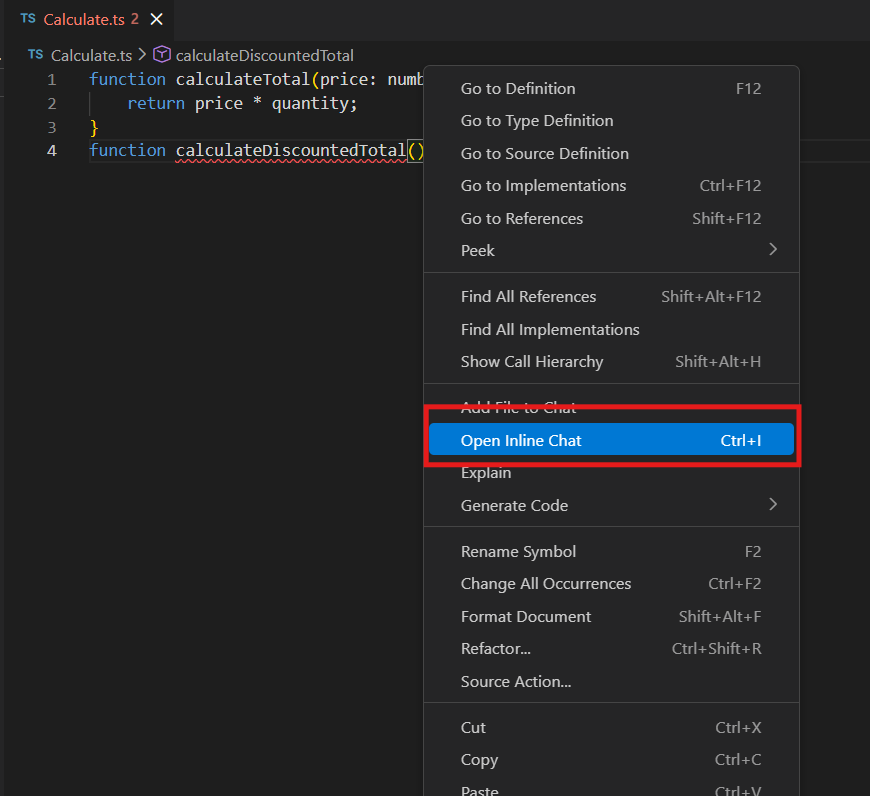
Open Inline Chat by doing one of the following:
- Press
Ctrl + I - Or Right-click inside the editor → Open Inline Chat
- Press
-
Type your request in the inline chat input box and press Enter to submit.
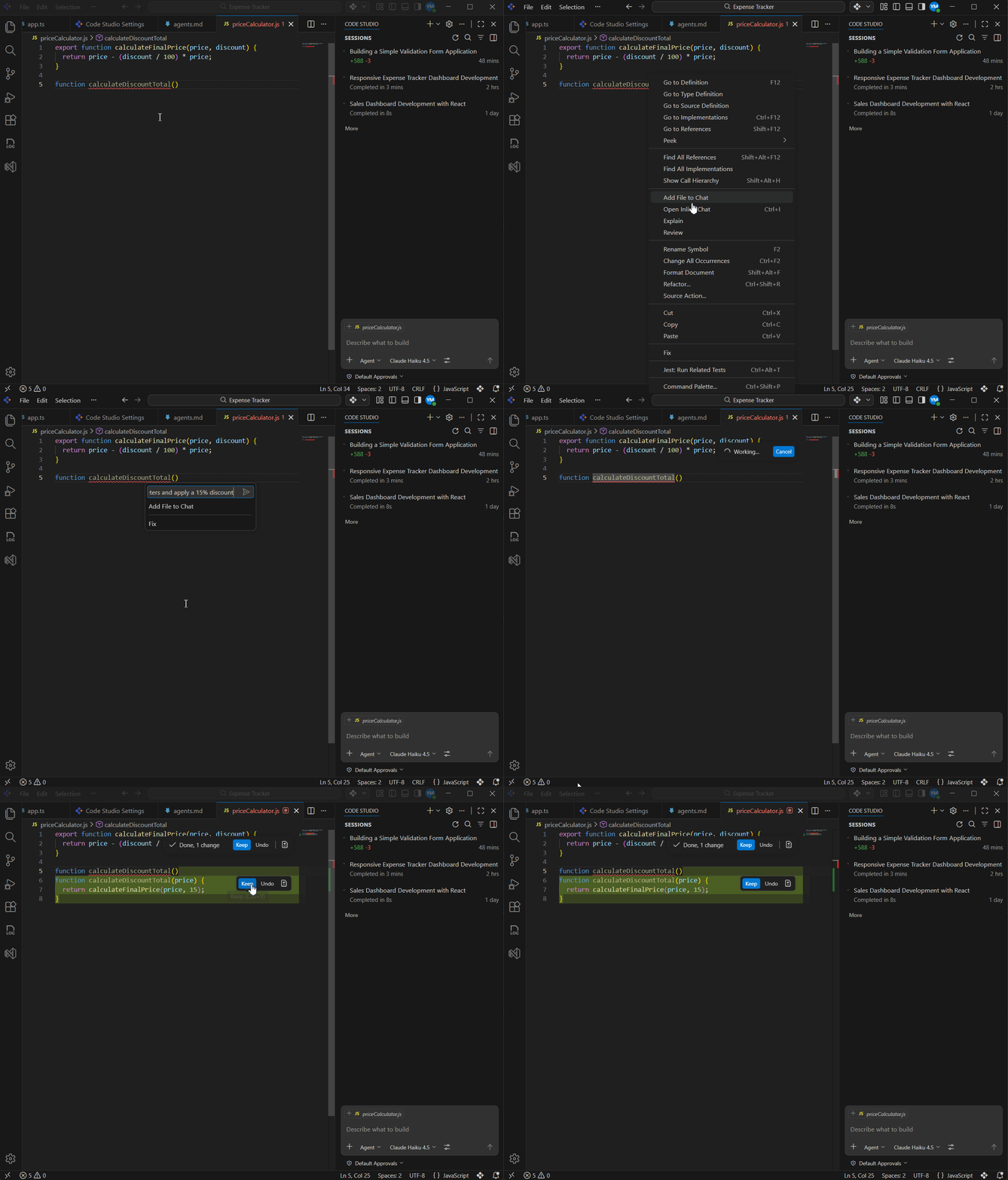
Tip: Select a block of code before opening Inline Chat if you want AI to focus on that part.
Reviewing Suggestions
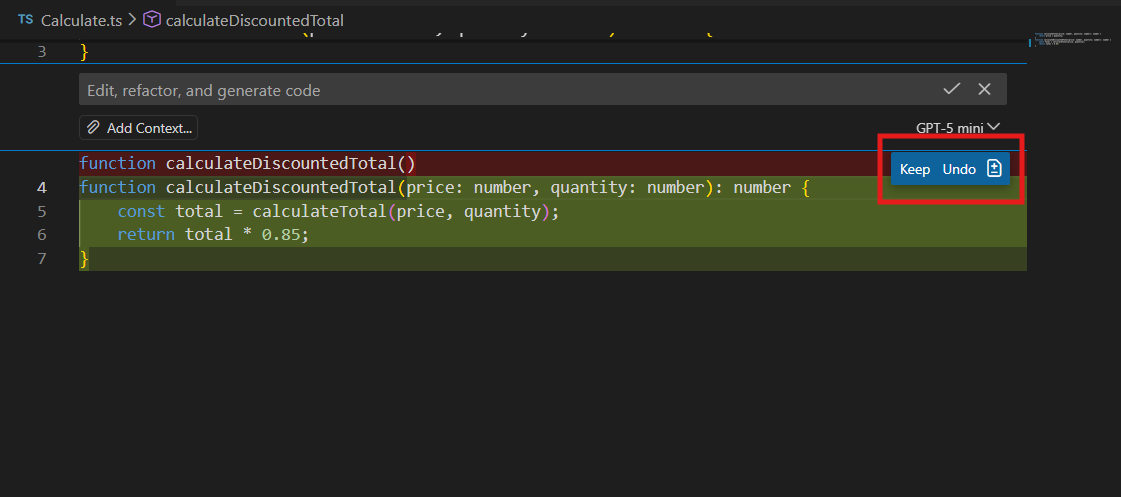
After processing your request, BoldCreate shows an inline diff view. You can:
-
Keep the changes
-
Undo the changes
Using Inline Chat in the Terminal
Terminal Inline Chat helps you work with shell commands, scripts, and terminal workflows directly inside BoldCreate’s integrated terminal.
How to Use Terminal Inline Chat
Steps:
-
Open the terminal (View → Terminal or `Ctrl + ```).
-
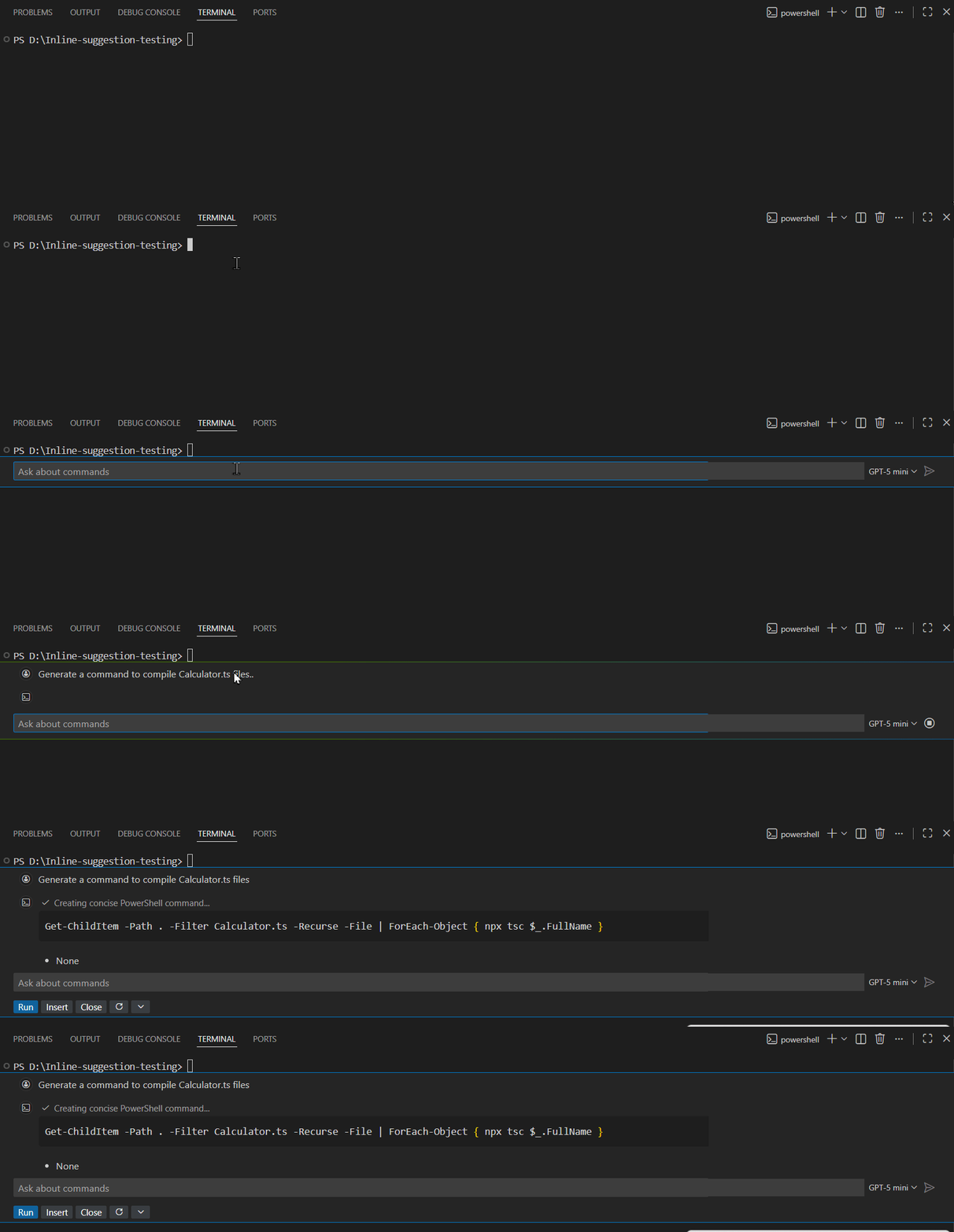
Start Terminal Inline Chat using
Ctrl + I. -
Type your command request and press Enter.
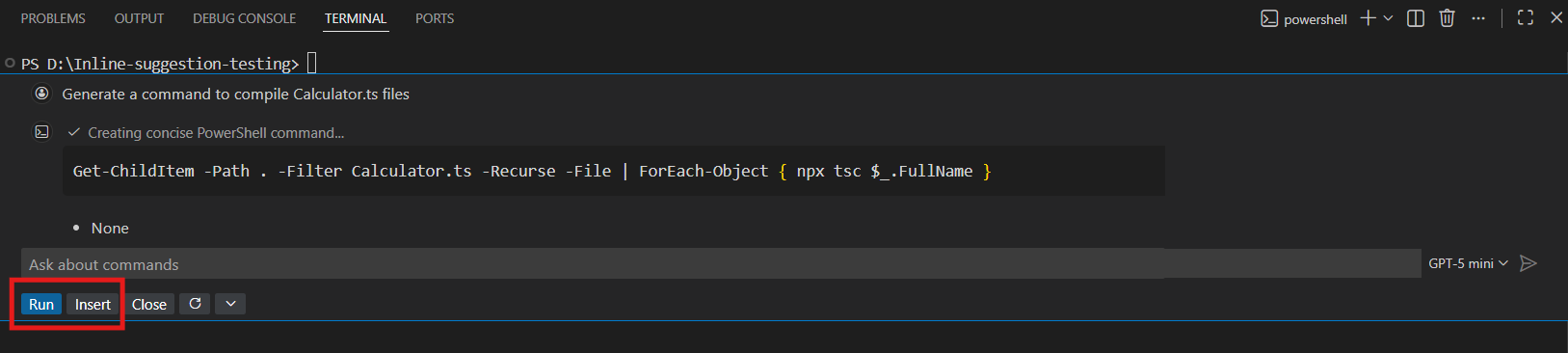
Running or Inserting Commands
After BoldCreate generates a shell command:
-
Select Run (Ctrl + Enter) to execute immediately
-
Select Insert (Alt + Enter) to add it into the terminal for editing
Releted Features
- Add context to your chat prompt - Enhance your prompt by providing extra details. This helps BoldCreate generate more accurate results and keeps your workspace aligned with your goals.