

Overview
Have you ever asked an AI to “fix this code” and gotten a completely different answer each time? When you tell the AI “fix this function” without any context, the results are unpredictable — it may rewrite your function entirely, change your formula, or add error handling you don’t need.
Context-aware prompting means giving the AI clear instructions about what the code currently does, what is broken, what you want fixed, and what you do not want changed. With this approach, the AI produces focused, consistent results every time.
In this tutorial, you will see how vague prompts cause problems and how adding context makes the AI give you reliable answers. You will fix a real JavaScript bug using a structured, context-aware prompt and verify that the result is consistent across multiple runs.
Note: This tutorial uses JavaScript, but the context-aware prompting techniques apply equally to TypeScript, Python, and other languages.
Prerequisites
Before beginning, ensure:
- You have a workspace or project folder opened in BoldCreate where you can create files.
- Node.js is installed on your system. You can download it from nodejs.org.
What You Will Learn
By the end of this tutorial, you’ll be able to:
- Identify why vague prompts produce inconsistent AI responses
- Write structured, context-aware prompts that produce reliable results
- Specify constraints that tell the AI what to preserve and what to change
- Apply a fixed function generated by the AI and verify correctness
- Test prompt consistency by comparing results across multiple runs
Key Concepts
- Context-aware prompting: A technique for writing AI prompts that include the current code, specific bugs to fix, desired behavior, and constraints — so the AI produces focused, repeatable results.
- NaN (Not a Number): A JavaScript value returned when a numeric operation receives a non-numeric input, such as when a string is used in arithmetic without conversion.
- Operator precedence: The order in which JavaScript evaluates mathematical operators. For example,
discount / 100 * pricemay not compute as intended without explicit parentheses. - Prompt constraints: Instructions in a prompt that tell the AI what not to change, such as keeping the existing formula structure or avoiding external dependencies.
Steps to Optimize Your Prompts
Step 1: Create the Buggy Code
This step creates a JavaScript file with a broken price calculation function so you can observe the bugs before applying a fix.
-
Create a new file in BoldCreate:
- Option 1 - Using Menu: Click
Filein the top menu bar, then selectNew Filefrom the dropdown menu. - Option 2 - Using Keyboard Shortcut: Press
Ctrl+N(Windows/Linux) orCmd+N(Mac) to create a new file. - After the new file opens, press
Ctrl+S(Windows/Linux) orCmd+S(Mac) to save it. - In the save dialog, name the file
priceCalculator.jsand choose your desired location in your workspace. - Click Save to confirm.
- Option 1 - Using Menu: Click
-
Paste the buggy code into the file:
- Copy the code block below using
Ctrl+C(Windows/Linux) orCmd+C(Mac). - Click inside your
priceCalculator.jsfile in the editor. - Paste using
Ctrl+V(Windows/Linux) orCmd+V(Mac). - Save the file using
Ctrl+S(Windows/Linux) orCmd+S(Mac).
- Copy the code block below using
function calculateFinalPrice(price, discount) {
  return price - discount / 100 * price;
}

// Test cases
console.log(calculateFinalPrice(100, 20));        // Should be 80
console.log(calculateFinalPrice("100", 20));      // Bug: NaN or wrong
console.log(calculateFinalPrice(100, undefined)); // Bug: NaN
console.log(calculateFinalPrice(-50, 10)); // Bug: Negative price- Run the code:
- Open the integrated terminal by pressing
Ctrl+`(Windows/Linux) orCmd+`(Mac), or go toTerminal→New Terminalin the top menu. - Ensure you are in the directory where you saved
priceCalculator.js, then run:
- Open the integrated terminal by pressing
node priceCalculator.jsNote: If you see a “command not found” error, Node.js is not installed. See the Prerequisites section above.
The output will show wrong numbers or NaN (Not a Number), confirming the function is broken.
Step 2: Use a Context-Aware Prompt to Fix the Bugs
This step demonstrates why vague prompts produce inconsistent results, then shows how a structured, context-aware prompt fixes all four bugs reliably.
Why vague prompts fail: Submit the prompt Fix this function to the chat and observe the results across two separate attempts.
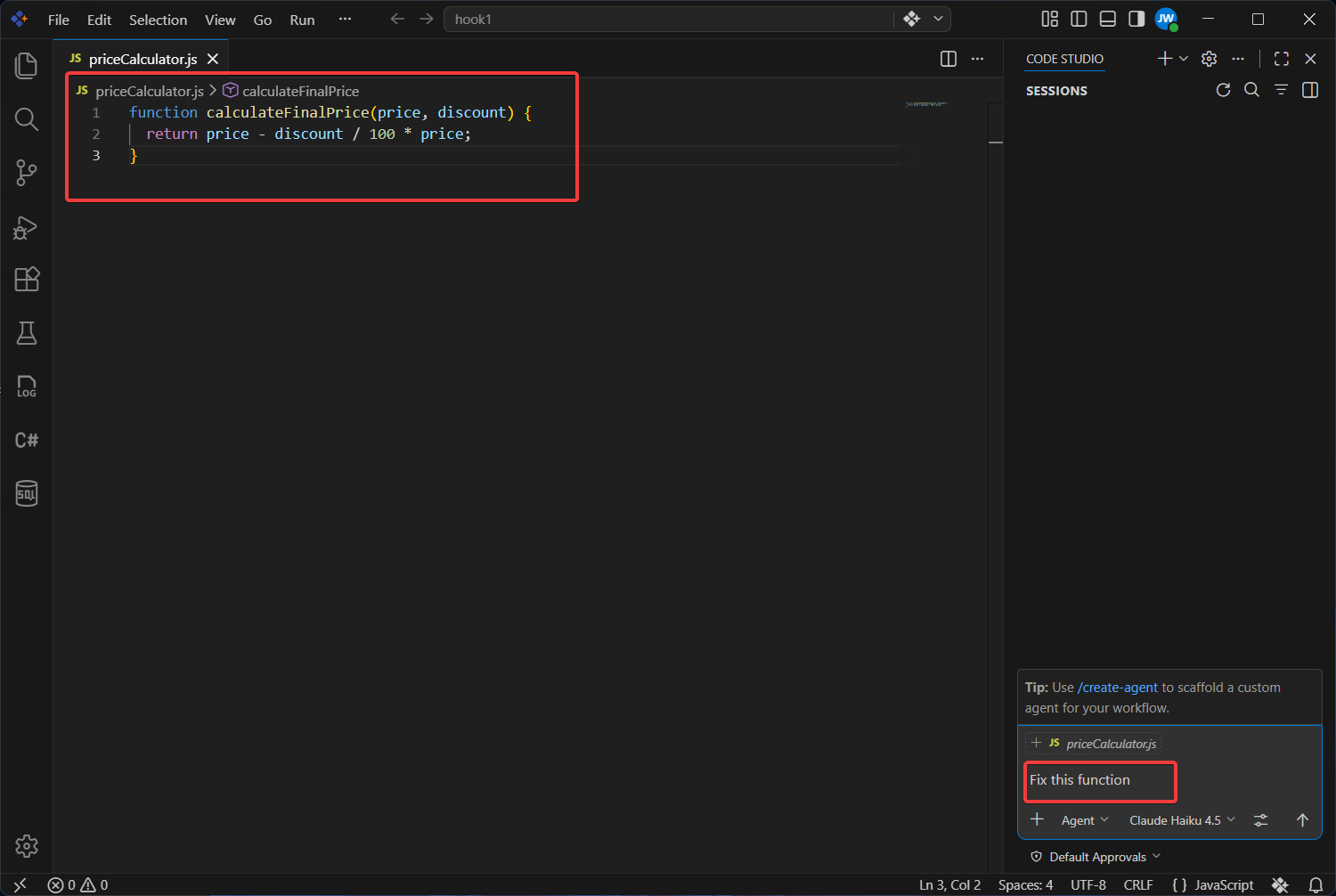
Attempt 1 result:
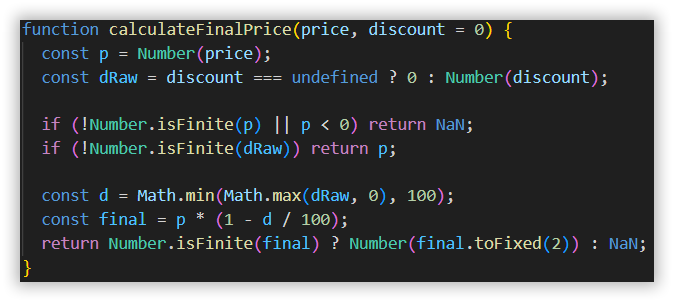
Attempt 2 result (same prompt):
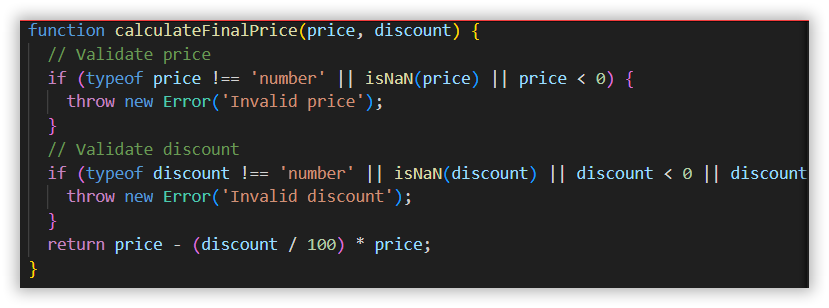
The AI produced two different answers because the prompt did not specify which bugs to fix, how much to change, or what to preserve.
Now use a structured prompt to get a consistent result.
-
Open the Chat Panel by pressing
Ctrl+Alt+B(Windows/Linux) orCmd+Alt+B(Mac), or click the BoldCreate icon to the left of the centered search box. -
Highlight the buggy function - Select the entire
calculateFinalPricefunction in yourpriceCalculator.jsfile -
Use the context-aware prompt below - Copy this entire prompt and paste it into the chat window:
Fix the calculateFinalPrice function with these requirements:

CURRENT CODE:
function calculateFinalPrice(price, discount) {
  return price - discount / 100 * price;
}

BUGS TO FIX:
1. Handle when price is passed as a string (e.g., "100")
2. Handle when discount is undefined or missing
3. Prevent negative final prices
4. Ensure the function returns a clean number, not NaN

CONSTRAINTS:
- Keep the existing formula structure (price - discount percentage * price)
- Use minimal code changes
- Don't add external dependencies
- Set default discount to 0 if missing

EXPECTED BEHAVIOR:
- calculateFinalPrice(100, 20) → 80
- calculateFinalPrice("100", 20) → 80
- calculateFinalPrice(100, undefined) → 100
- calculateFinalPrice(-50, 10) → 0 (no negative prices)- Select the entire
calculateFinalPricefunction in yourpriceCalculator.jsfile, then send the prompt.
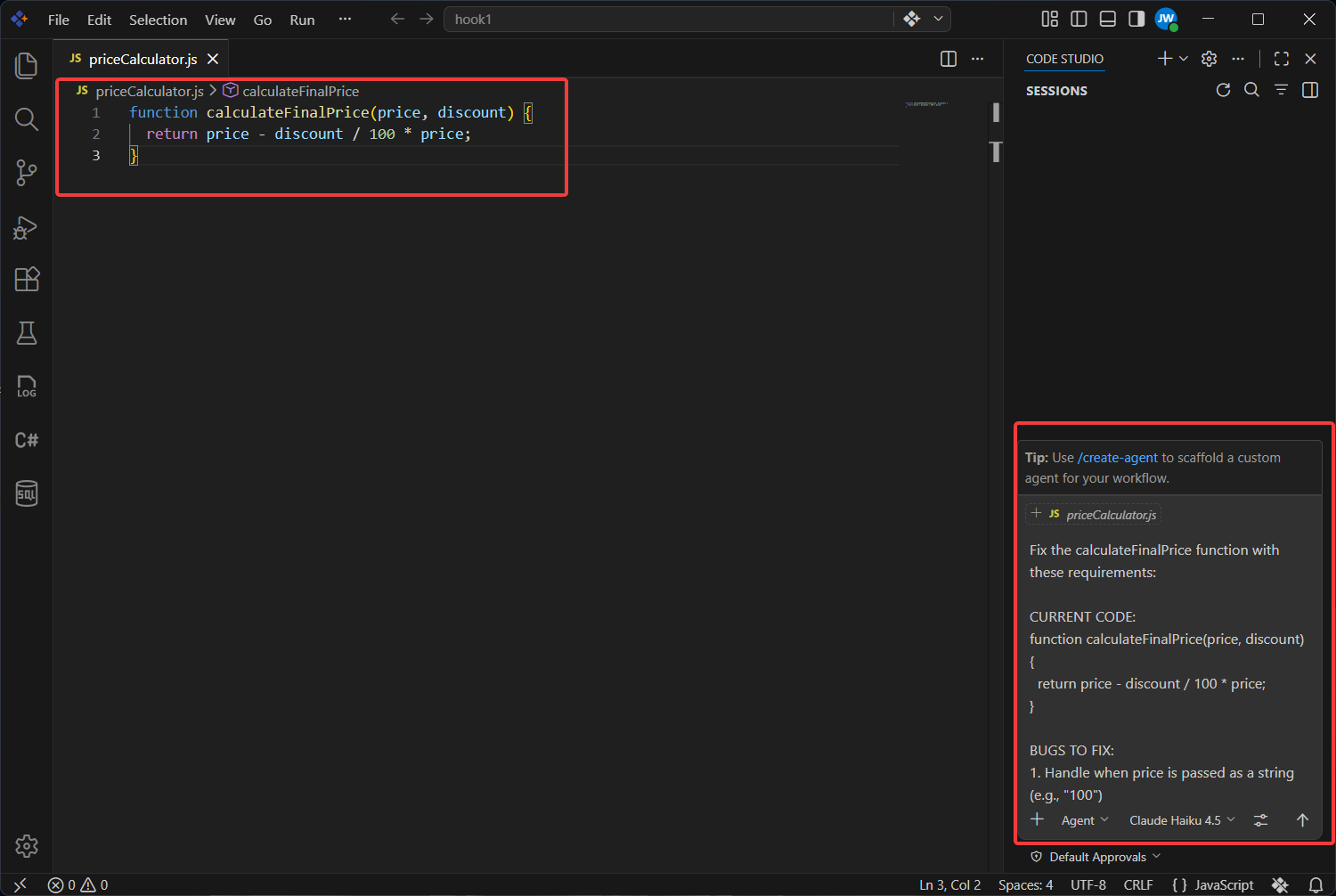
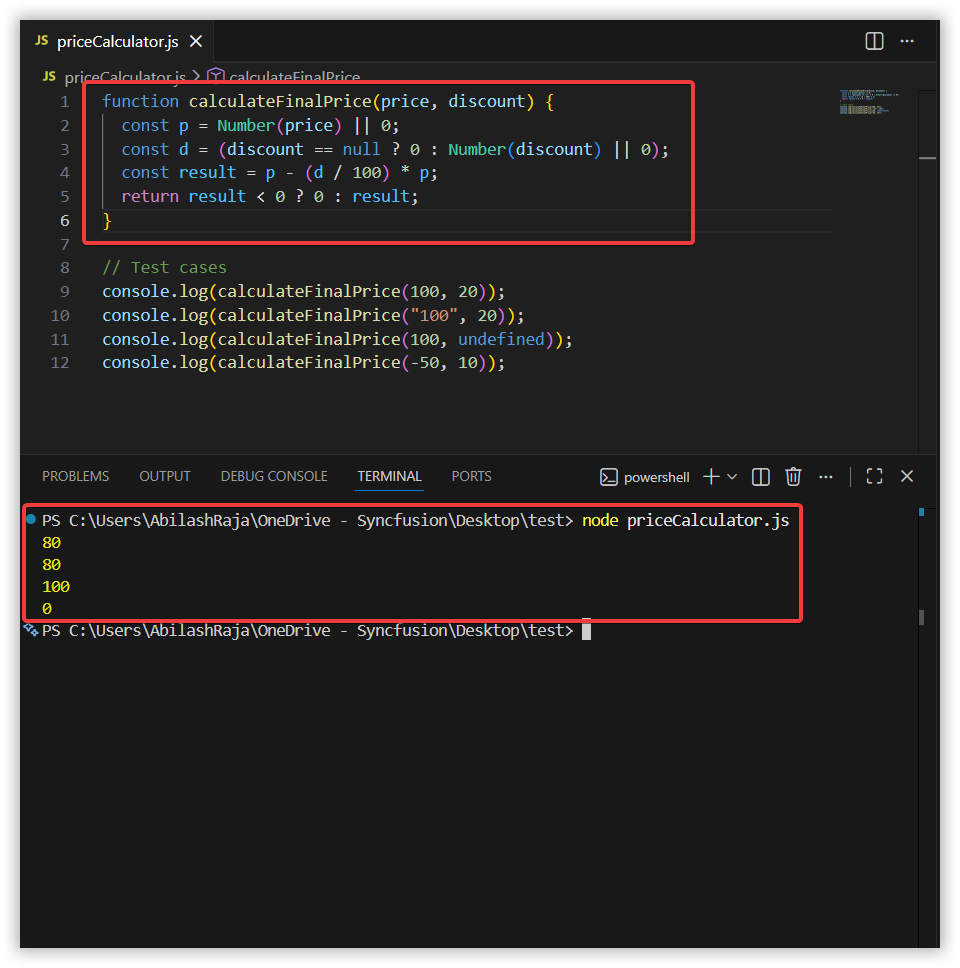
The AI provides a focused fix that addresses all four bugs without unnecessary changes. The detailed context in the prompt ensures consistent, reliable results.
Step 3: Apply and Test the Fix
Replace the original function with the AI-generated fix and confirm all test cases pass.
-
Replace your old function with the fixed version in
priceCalculator.js. -
Update your test cases:
function calculateFinalPrice(price, discount) {
  const p = Number(price) || 0;
  const d = (discount == null ? 0 : Number(discount) || 0);
  const result = p - (d / 100) * p;
  return result < 0 ? 0 : result;
}

// Test cases
console.log(calculateFinalPrice(100, 20));        // Expected: 80
console.log(calculateFinalPrice("100", 20));      // Expected: 80 (handles string input)
console.log(calculateFinalPrice(100, undefined)); // Expected: 100 (handles missing discount)
console.log(calculateFinalPrice(-50, 10));        // Expected: 0 (no negative prices)
All four test cases now pass. The function no longer produces NaN or negative values.
What’s Next?
- Generate Your First Code Change Using Agent — Let AI write new code for you.
- Compare AI Models for Different Tasks — Choose the best AI model for your use case.
- From Repetition to Speed: Reusable Prompt Templates — Save your context-aware prompts as reusable templates.