

Overview
This guide explains how administrators,team leads and team owner can invite new users to their organization. Invited users to gain access to the platform, allowing them to collaborate, join teams, and perform actions based on their assigned roles.
When to Use
- Onboard new team members into your organization.
Prerequisites
- You are an Admin / Team Lead / Team Owner.
- You have the email address of the person you want to invite
- Your BoldCreate organization is active.
- A modern web browser with internet access.
Steps to Invite a New User
Follow these steps to invite a new user to your organization.
Step 1 : Open BoldCreate Dashboard
- Open BoldCreate Application.
- Ensure you are logged in with the correct user credentials.
- In the top-right corner of BoldCreate, click your avatar.
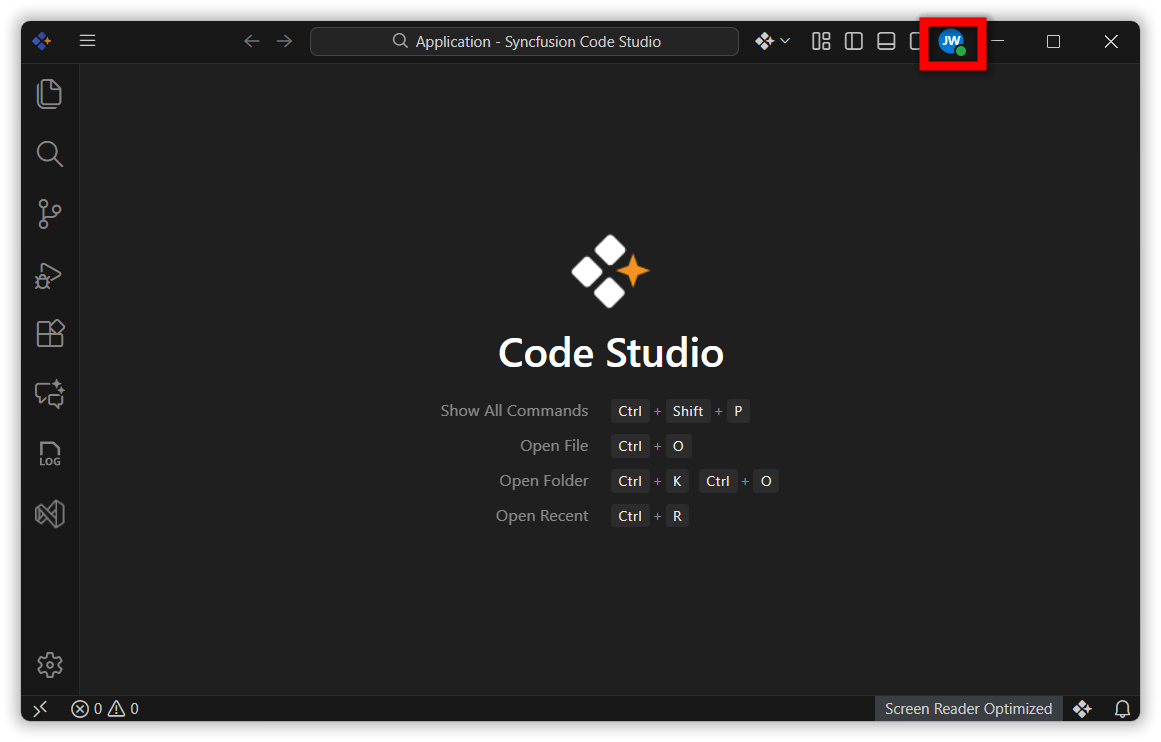
- This opens the Account tab within the Settings page.
- In the Account section, click Open Dashboard.
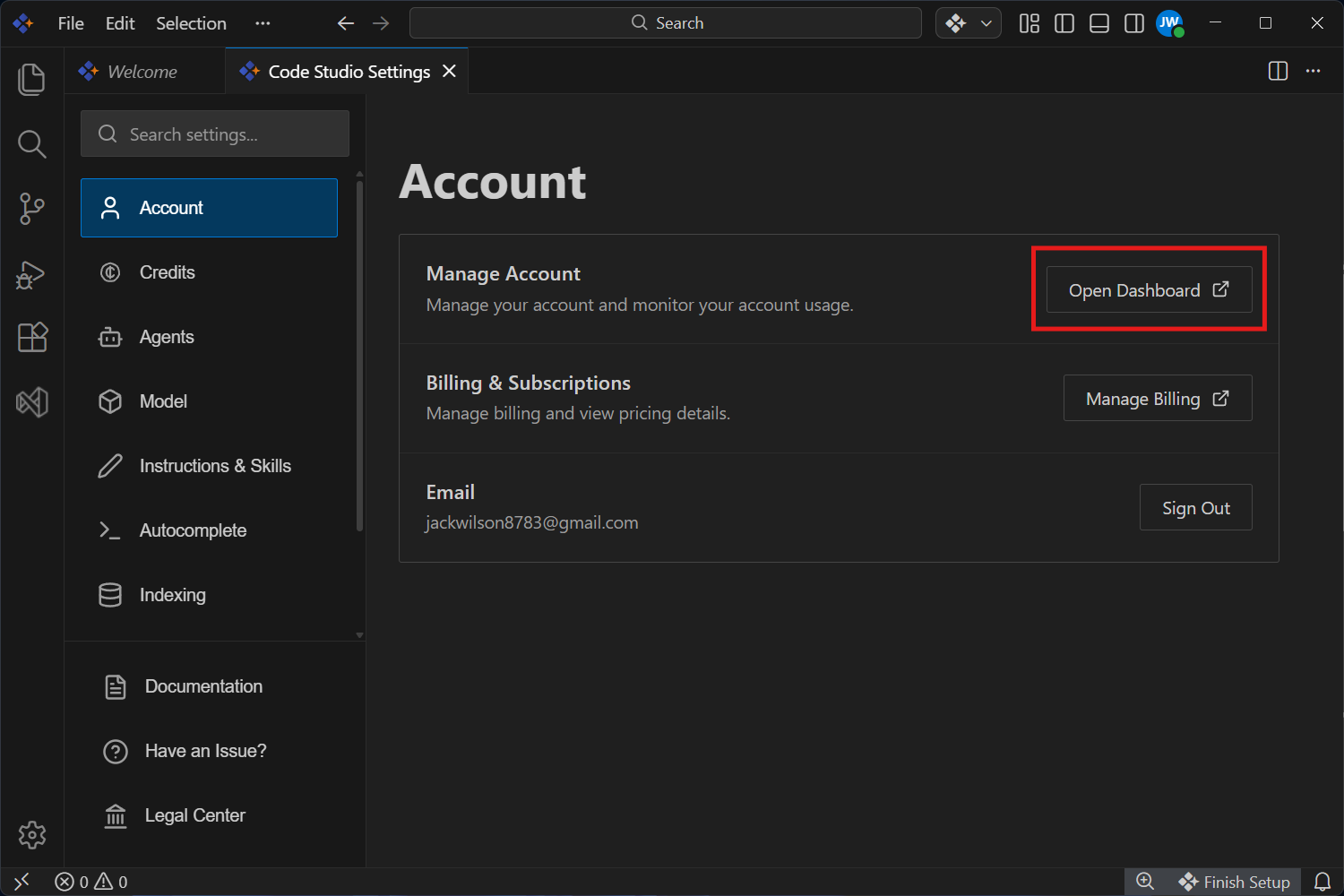
- You are redirected to the web dashboard where credits and usage information is displayed.
Step 2 : Open the Users Panel
- Navigate to the Users section in your organization’s dashboard.
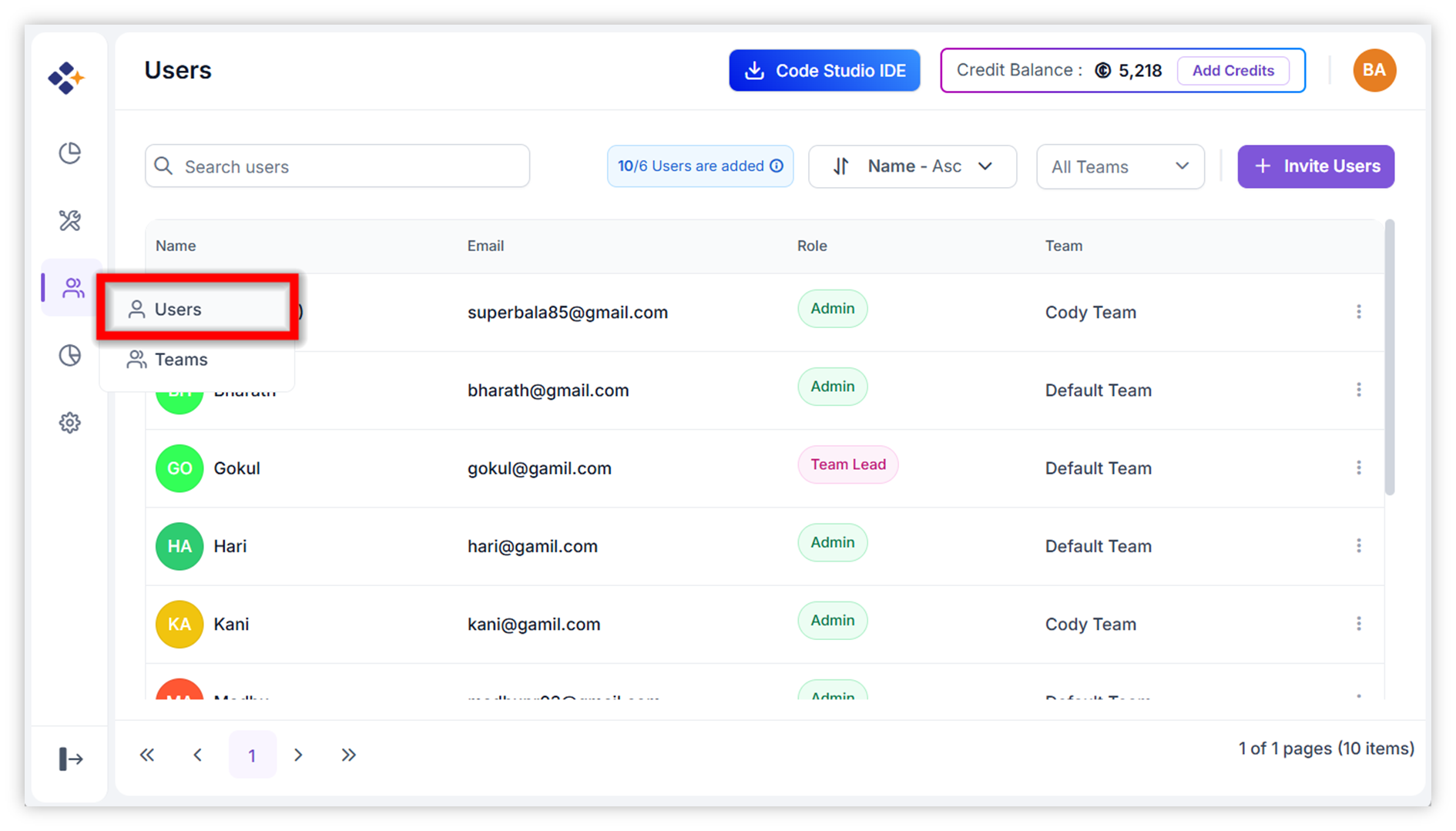
Step 3 : Click Invite Users
- Click the Invite Users button at the top of the Users List.
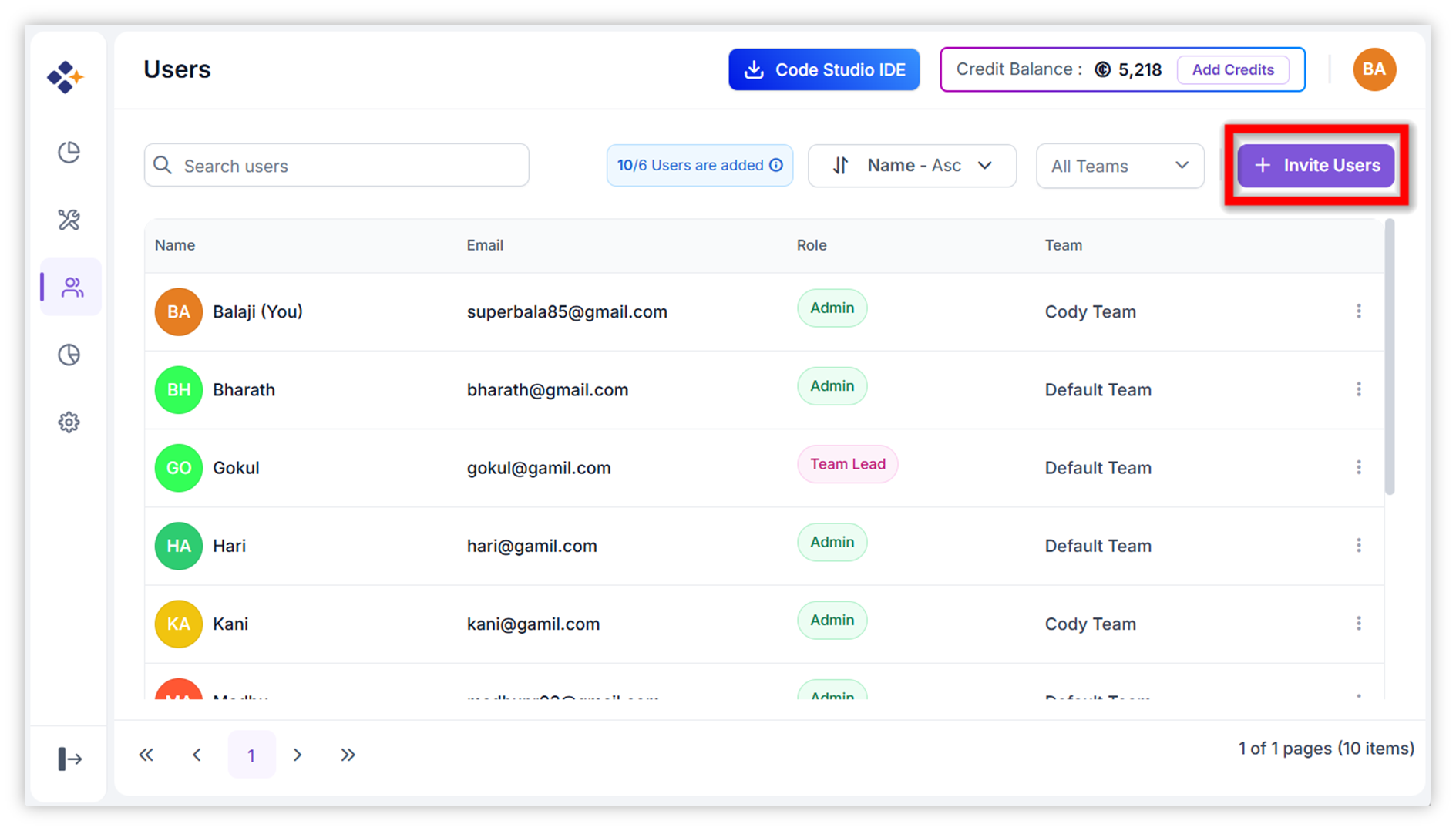
- A dialog box will appear.
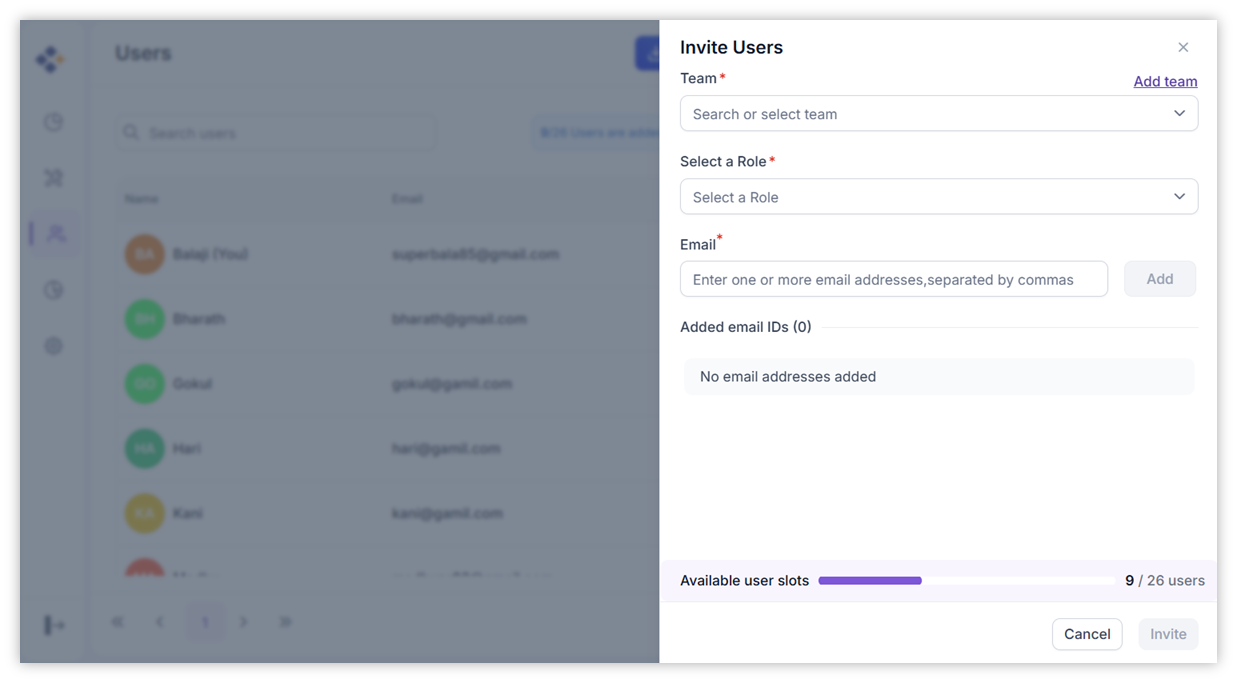
Step 4 : Select a Team
- Choose the team to which the new user should be added.
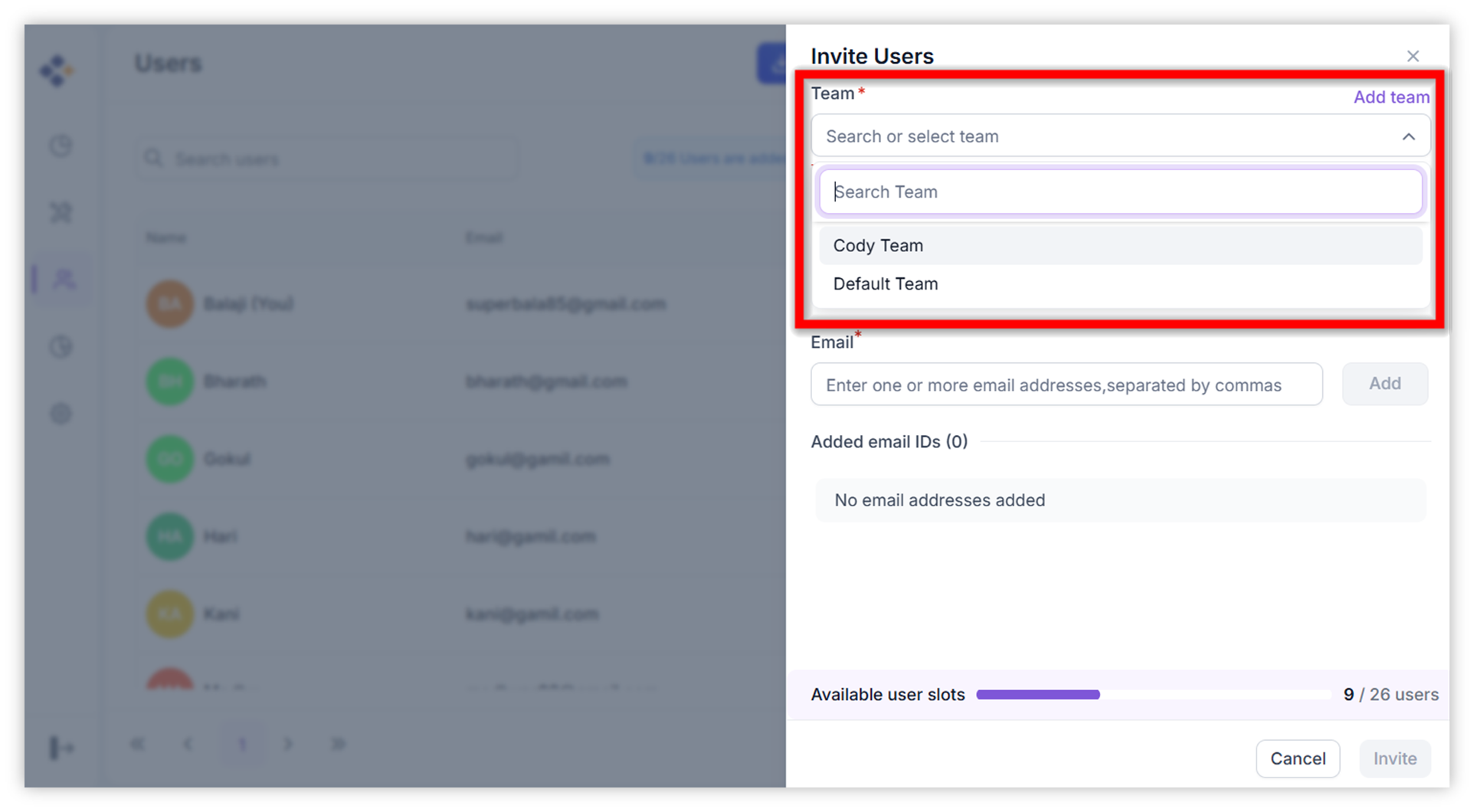
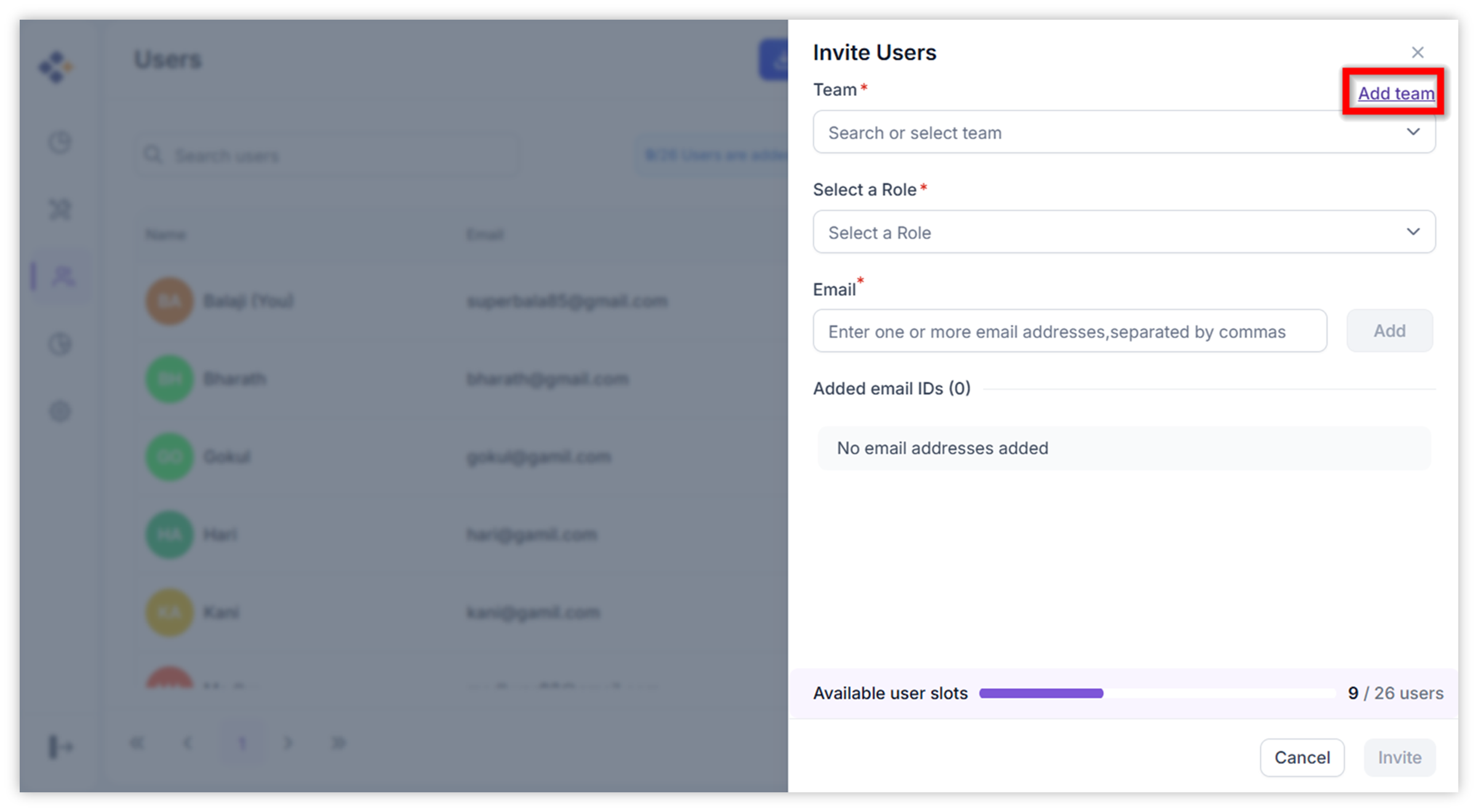
- If no teams exist, click Add Team.
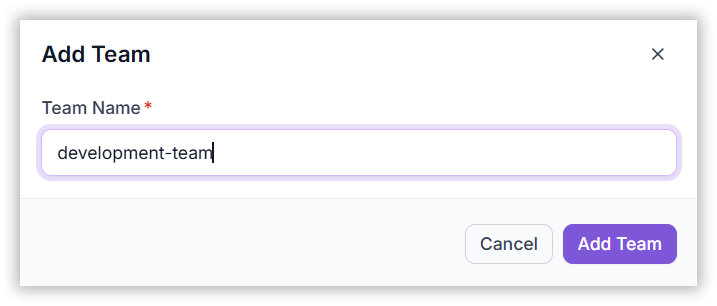
- Enter a team name and click Add Team.
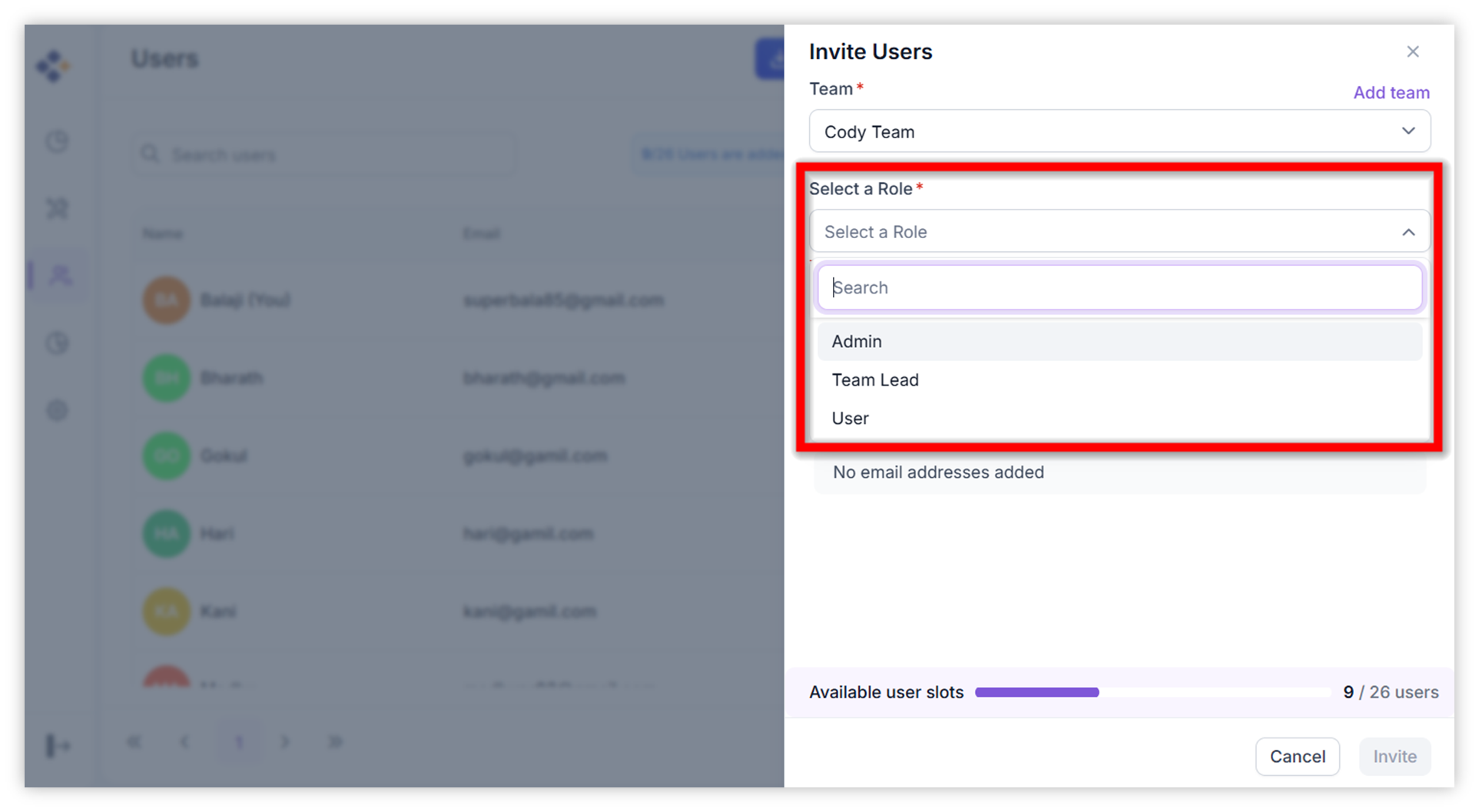
Step 5 : Select Role
- Choose the user’s role (e.g., User, Team Lead, Admin).
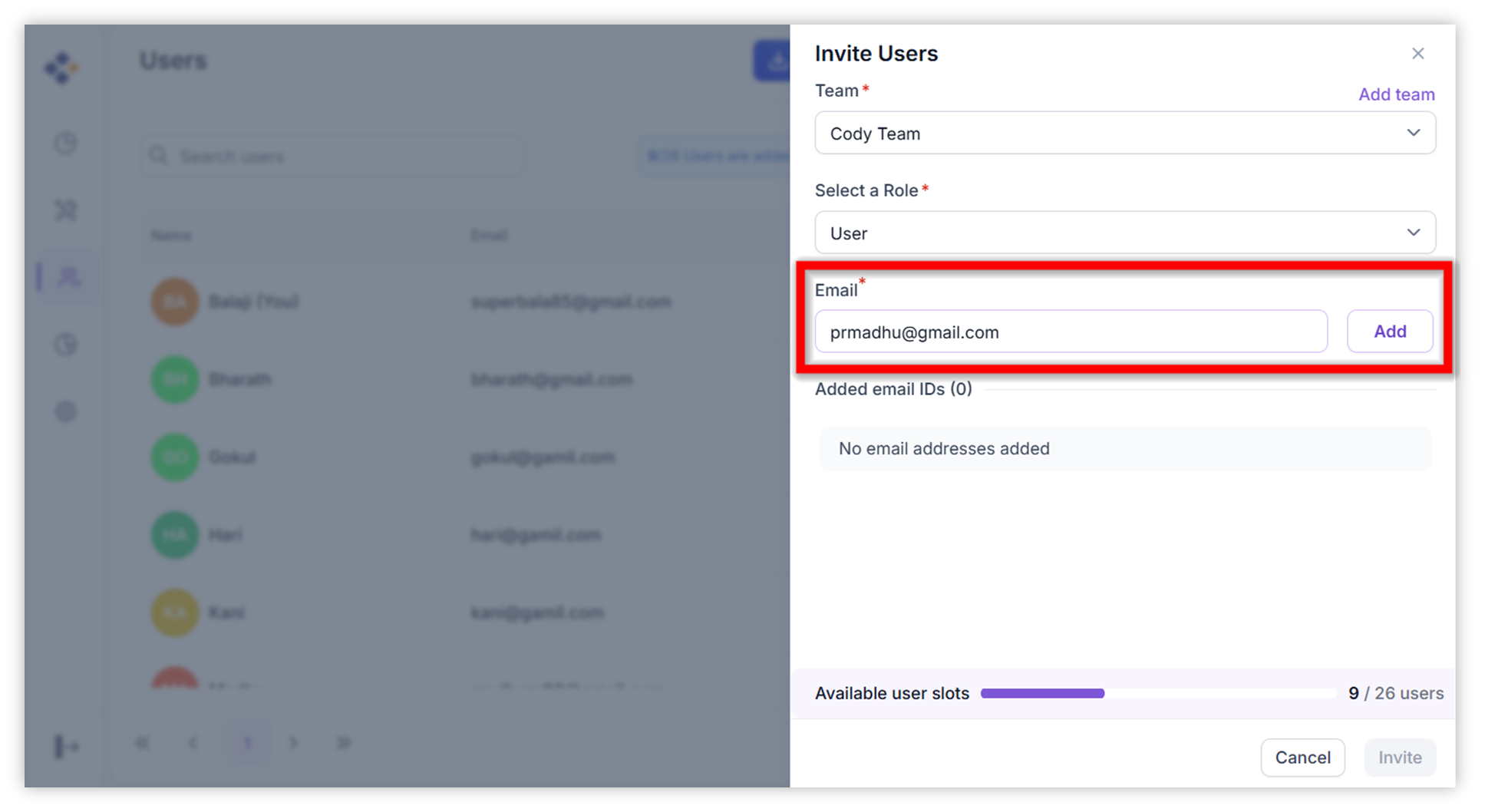
Step 6 : Enter User’s Email
- Type the email address of the person you want to invite and click Add.
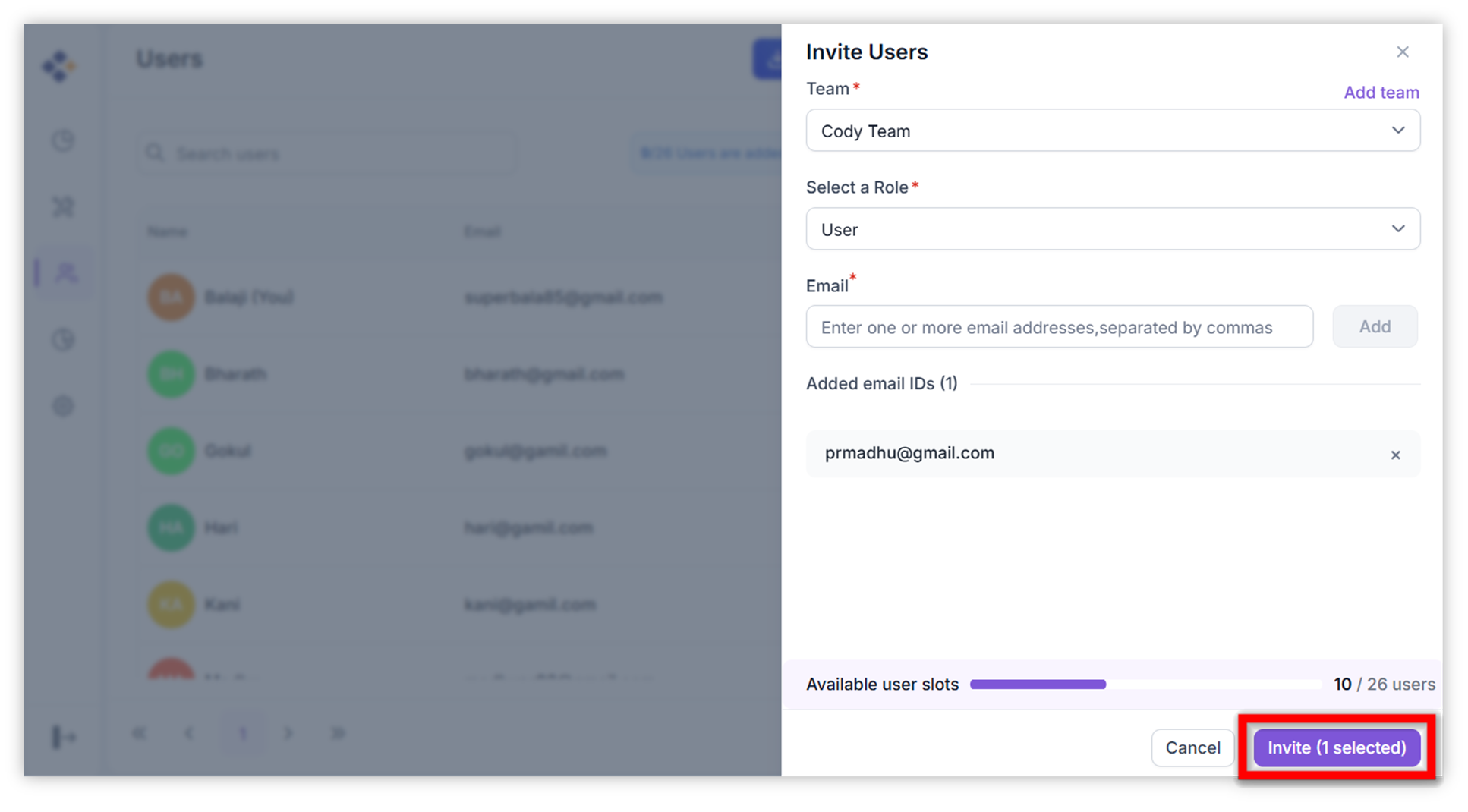
Step 7 : Send the Invitation
- Click Invite to send the request.
Step 8 : User Accepts the Invitation
The invited user receives an email with an “Accept Invite” link.
Once they complete onboarding:
- They appear in your organization
- They are added to the selected team
- Their assigned role is applied
The new user is now fully onboarded and ready to collaborate.