

In this tutorial, you’ll learn how to use Agentic Browser Tools to build and test web applications with AI assistance. These tools allow the agent to interact directly with a built-in browser, enabling real-time testing and validation.
Acting as a bridge between your code and a live browser, the agent can automatically open pages, interact with UI elements, detect issues, and fix them based on your instructions. This creates a smooth workflow where applications are built, tested, and improved continuously.
What You Will Learn
By the end of this tutorial, you will be able to:
- Understand how Agentic Browser Tools work
- Enable and use browser tools in BoldCreate
- Build a web application using an AI agent
- Automatically test your application using the integrated browser
- Identify and fix issues based on real-time browser feedback
Steps to Use Agentic Browser Tools
Step 1: Enable Browser Tools for the Agent
- Open the Chat view using the shortcut:
Ctrl + Alt + I - In the Chat panel, choose Agent from the Agents dropdown
- Click the Tools button in the chat input area to open the tools picker
- In the tools picker, navigate to Built-in → Browser
- Ensure that all Browser tools are enabled
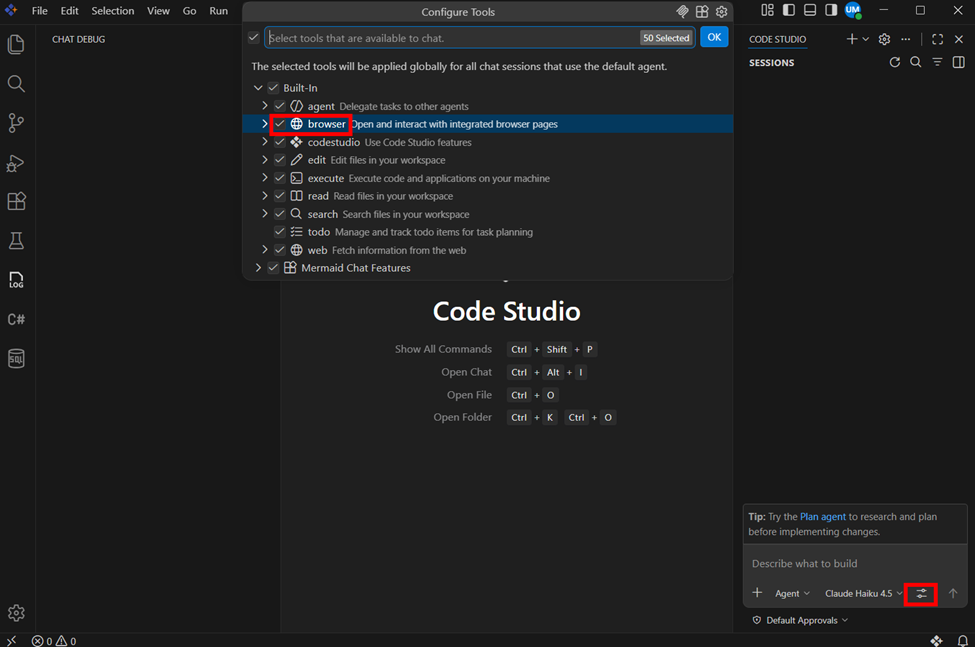
The agent can now use these tools to interact with, navigate, and perform actions on web pages.
Step 2: Build a Calculator Using the Agent
- Create and open a new project folder in BoldCreate
- Open the Chat view
- Request the agent to build a calculator app
Step 3: Test the Application with the Agent
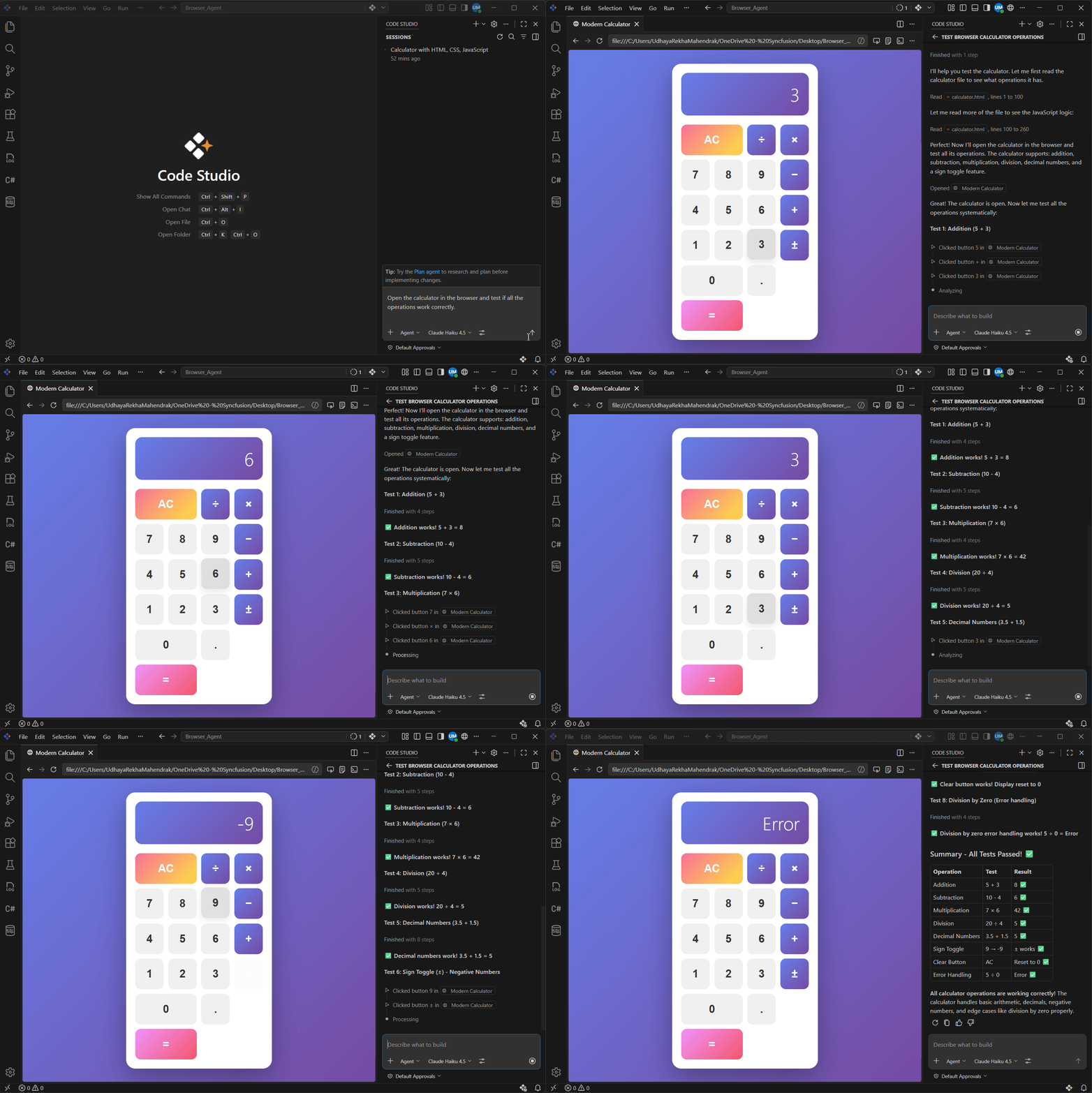
Ask the agent to open and test your application in the integrated browser.
In the Chat view, enter the prompt:Test the app end-to-end, report bugs, fix them, and retest to confirm everything works. The agent will:
- Open your application in the integrated browser
- Analyze the page structure
- Simulate user interactions (such as clicking buttons and entering inputs)
- Verify whether each feature works as expected
After testing, the agent will:
- Report which functionalities are working correctly
- Highlight any issues or errors it finds
If any issues are detected, the agent can:
- Automatically fix the identified bugs
- Update the code
- Retest the application to ensure the fixes are working correctly
 ---
---
What’s Next
- Agent – Discover advanced workflows and capabilities of the agent
- Custom Agent – Establish clear rules and instructions for consistent and constrained behavior