
What you’ll learn
- What MCP servers are
- How to add, check, and remove servers
- How to sign in to servers that need it
- How to manage servers inside a chat
- Where server settings are stored
For hands-on examples connecting GitHub and Playwright, see Connect MCP servers: examples.
What is an MCP server?
MCP (Model Context Protocol) is a common way to give an AI assistant extra tools. An MCP server is a small program or web service that offers tools, for example to work with GitHub, read documentation, or query a database.
| Kind | How it runs | Example |
|---|---|---|
| Command (stdio) server | BoldCreate starts a program on your computer. | npx -y @playwright/mcp@latest --headless |
| HTTP server | BoldCreate connects to a web address. | https://example.com/mcp |
Command overview
| Command | What it does |
|---|---|
boldcreate mcp list | Lists all servers and checks each one. |
boldcreate mcp get <name> | Shows one server in detail. |
boldcreate mcp add <name> … -- <command> | Adds a command server. |
boldcreate mcp add <name> --url <url> | Adds an HTTP server. |
boldcreate mcp remove <name> | Removes a server. |
boldcreate mcp trust | Allows this folder’s project servers to start programs. |
boldcreate mcp login <name> | Signs in to an HTTP server. |
boldcreate mcp logout <name> | Forgets sign-in for a server. |
boldcreate mcp --help | Shows help. |
All MCP commands accept --cwd DIR to act on another folder.
User servers and project servers
User servers are saved in ~/.boldcreate/mcp.json and work in every folder. This is the default.
Project servers are saved in .boldcreate/mcp.json inside the project folder and only work there. Add -l or --local to add and remove to use the project file.
Add a command (stdio) server
boldcreate mcp add <name> [-l] [--env KEY=VALUE]... [--description TEXT] -- <command> [args...]Everything after -- is the command that starts the server.
| Argument or flag | What it does |
|---|---|
<name> | Server name: letters, digits, _, and -. |
-l, --local | Save to the project file instead of your user file. |
--env KEY=VALUE | Environment variable for the server. Repeat as needed. |
--description TEXT | One-line note about the server. |
-- <command> [args...] | Program to run and its arguments. |
For example:
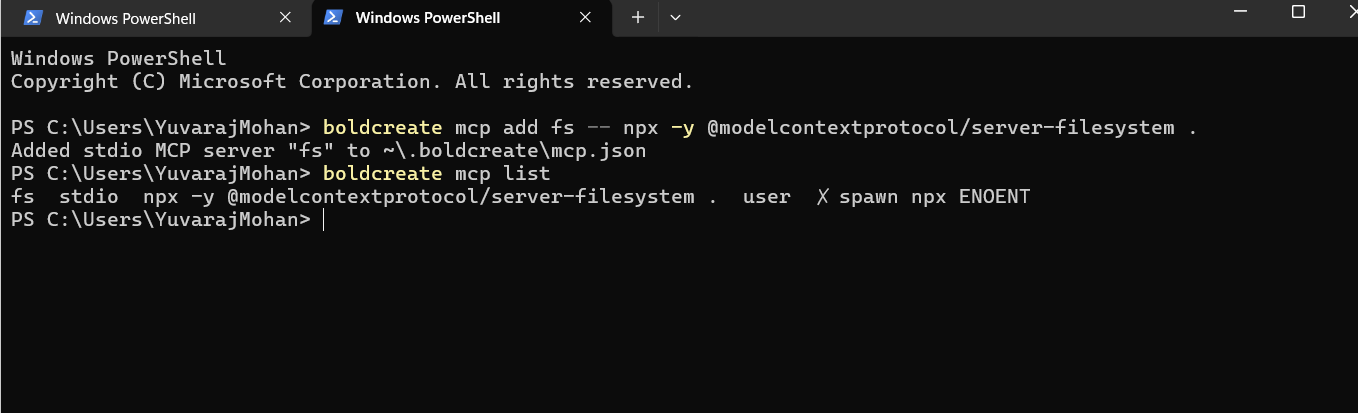
boldcreate mcp add playwright -- npx -y @playwright/mcp@latest --headlessOn Windows PowerShell, start npx through cmd /c, and quote -- and package names starting with @:
boldcreate mcp add playwright '--' cmd /c npx -y '@playwright/mcp@latest' --headless --browser msedgeAdd an HTTP server
boldcreate mcp add <name> [-l] --url <url> [--header 'Name: value']... [--bearer-token-env-var VAR] [--transport http|sse] [--description TEXT]| Flag | What it does |
|---|---|
--url <url> | Server address. |
--header 'Name: value' | HTTP header to send. Repeat as needed. |
--bearer-token-env-var VAR | Reads a token from environment variable VAR and sends it as a bearer token. The token itself is not saved in the file. |
--transport http|sse | Connection type. http is the default; use sse only if the server documentation says so. |
--description TEXT | One-line note about the server. |
Example:
export DOCS_TOKEN="..."
boldcreate mcp add docs --url https://example.com/mcp --bearer-token-env-var DOCS_TOKEN
In --env and --header values, ${VAR} is replaced with the environment variable each time the server starts. This keeps secrets out of the settings file.
Note: An HTTP server without an Authorization header signs in with your browser. See Sign in to a server.
Check server status
boldcreate mcp list [--json] [--no-check]| Flag | What it does |
|---|---|
--json | Prints the result as JSON. |
--no-check | Reads settings without connecting. |
The list shows each server’s name, connection type, command or address, scope (user or project), and state.
| State | Meaning |
|---|---|
✓ N tools | Connected. |
✗ <reason> | Could not connect. |
invalid: <reason> | Settings are wrong, for example, an environment variable is not set. |
disabled | Turned off. |
needs trust: boldcreate mcp trust | Project command server hasn’t been trusted yet. |
needs sign-in: boldcreate mcp login <name> | Server needs you to sign in. |
mcp list exits with code 1 if any server is invalid, fails, or needs sign-in. If no servers are configured, it prints a command to add one.
Get server details
boldcreate mcp get <name> shows a server’s settings, state, server name and version, instructions, and tools with short descriptions. Tools marked [read-only] only read data.
boldcreate mcp get playwright
boldcreate mcp get playwright --json
Trust project servers
A project’s MCP file can name any program. To protect you, command servers from project files don’t start until you trust the folder. User servers do not need trust.
boldcreate mcp trustTrust also covers folders inside the trusted folder. In an untrusted folder with project command servers, BoldCreate asks whether to trust the folder or run without those servers.
Note: Only trust folders whose contents you trust.
Sign in to a server
Some HTTP servers need you to sign in:
boldcreate mcp login docsYour browser opens. If it doesn’t, BoldCreate prints a link to open. Sign in and allow access. If the browser is on another computer, paste the address it ended up on (from its address bar) into the terminal. Press Ctrl+C to cancel.
To forget the sign-in:
boldcreate mcp logout docsManage servers inside a chat
Type /mcp to see servers and their states, with problems shown first. Choose a server to:
- See its tools and resources.
- Reconnect it if its connection failed.
- Enable or disable it.
- Disable in this project only for a user server, without affecting other projects.
- Trust the folder if a project server is untrusted.
- Sign in or sign out if the server requires authentication.
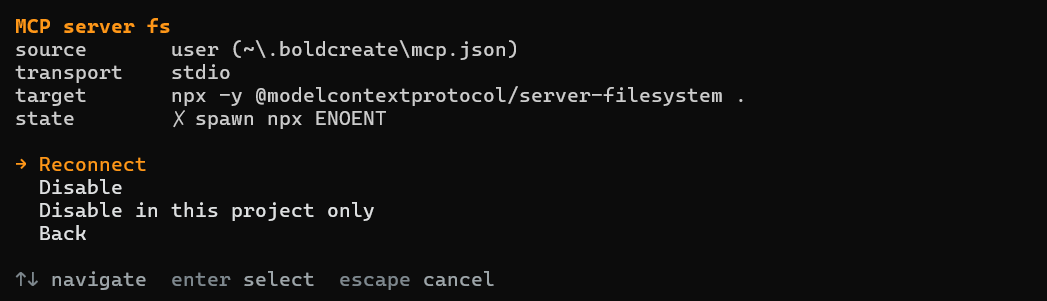
Changes apply from your next message. You can also use /mcp login <server> and /mcp logout <server>.
At startup, the header lists servers under [MCP] and failures under [MCP errors]. Tool calls appear as server › tool, for example github › create_issue.
In manual approval mode, BoldCreate asks before each MCP tool call. Use approval choices or patterns to allow selected tools. See Approvals and safety.
Server settings files
BoldCreate reads server files in this order. A later file wins when two servers have the same name.
| File | Scope |
|---|---|
~/.boldcreate/mcp.json | User (every folder) |
<project>/.boldcreate/mcp.json | Project (older location) |
<project>/.mcp.json | Project (shared with other MCP tools) |
<project>/.boldcreate/mcp.json | Project |
Example:
{
  "mcpServers": {
    "playwright": {
      "command": "npx",
      "args": ["-y", "@playwright/mcp@latest", "--headless"]
    },
    "docs": {
      "url": "https://example.com/mcp",
      "headers": { "Authorization": "Bearer ${DOCS_TOKEN}" }
    }
  }
}| Key | For | Meaning |
|---|---|---|
command | Command servers | Program name, not a whole shell line. |
args | Command servers | List of arguments. |
env | Command servers | Environment variables for the program. |
cwd | Command servers | Working folder, relative to workspace (~/ means your home folder). |
url | HTTP servers | Server address. |
headers | HTTP servers | HTTP headers to send. |
type | Both | Optional: stdio, http, streamable-http, or sse. |
enabled | Both | false keeps the entry but doesn’t connect. |
timeout | Both | Seconds to wait for each request (default 60). |
description | Both | One-line note. |
If a ${VAR} in env or headers isn’t set, that server is listed as invalid. Other servers continue to work.