
What you’ll learn
- Where conversations (sessions) are saved
- How to list, continue, and resume sessions
- How to name and export a session
- How to chat without saving anything
How sessions are saved
Every conversation is saved on your computer as a session. Each session has an ID and a title. The title comes from your first message or a name you give it.
Sessions are stored in one file:
- macOS:
~/.boldcreate/agent.db - Windows:
%USERPROFILE%\.boldcreate\agent.db
Sessions remember the folder they were started in. By default, BoldCreate shows sessions for the folder you are currently in.
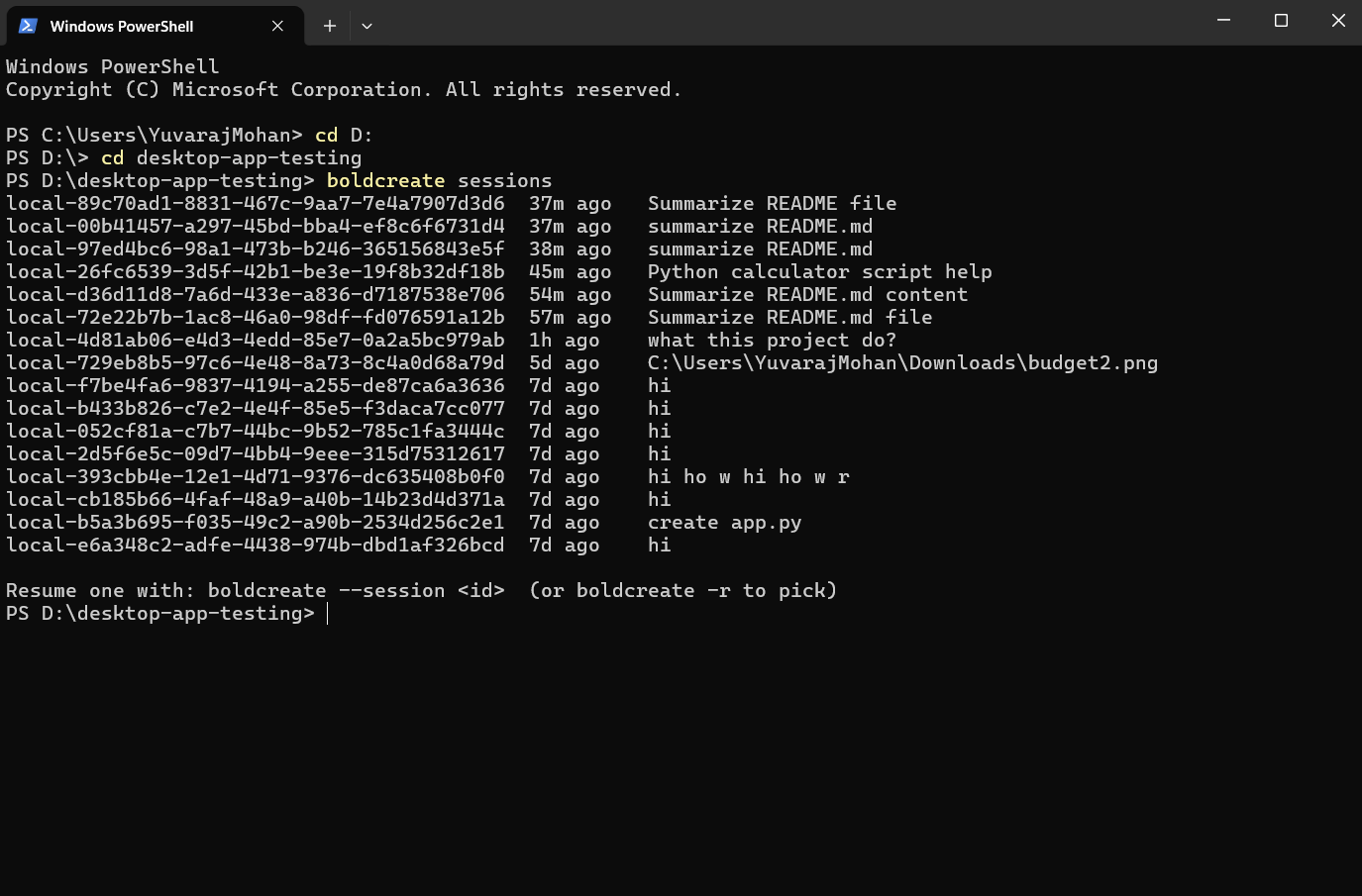
List sessions
boldcreate sessions [--all] [--json]| Flag | What it does |
|---|---|
--all | Lists sessions from every folder, with the folder shown at the end of each line. |
--json | Prints the list as JSON for scripts. |
Example:
<session id>  5m ago    Fix the date parsing bug
<session id>  2h ago    Explain the build pipeline
<session id>  3d ago    login refactor

Resume one with: boldcreate --session <id>  (or boldcreate -r to pick)
The age appears as “just now”, minutes, hours, or days. If there are no sessions for the current folder, BoldCreate suggests starting one or using --all.
Continue or resume a session
| Command | What it does |
|---|---|
boldcreate -c or boldcreate --continue | Continues the most recent session in this folder. |
boldcreate -r or boldcreate --resume | Opens a list so you can pick a session. |
boldcreate --session <ID> | Opens a specific session. Get the ID from boldcreate sessions. |
You can add a message to the same command:
boldcreate -c "now add tests for it"Inside a chat, /resume opens the same session picker. In print mode, use --session ID instead of -r, which opens an interactive picker.
Only one of -c, -r, and --session can be used at a time. --no-session cannot be combined with any of them.
Tip: Sessions are tied to the folder. If
-cdoesn’t find your session, change to the folder where you started it, or useboldcreate sessions --all.
Name a session
Names make sessions easier to find:
- When starting:
boldcreate -n "login refactor"(or--name). - Inside the chat:
/name login refactor. - In the session picker: select a session and press Ctrl+R.
The name appears in the status line, boldcreate sessions, and the session picker.
Export a session
Inside the chat, run:
/exportBy default, this saves a Markdown file named boldcreate-<session id>.md in the workspace. You can provide a file name or use .jsonl for JSON Lines:
/export notes/chat.md
/export chat.jsonl
If you haven’t sent a message yet, there is nothing to export.
Start fresh or don’t save a session
Inside the chat, /new starts a new session. The old one stays saved.
To chat without saving anything, start with:
boldcreate --no-session--no-session cannot be combined with -c, -r, or --session.