
What you’ll learn
- What you need before you install
- How to install BoldCreate CLI on macOS and Windows
- How to check that the installation worked
Before you install
- A supported computer: macOS on Apple silicon, Windows x64, or Windows ARM64. Intel Macs are not supported.
- An internet connection.
- On macOS,
curl(included with macOS). - On Windows, PowerShell (included with Windows).
You do not need administrator rights or sudo. BoldCreate installs for your user only.
Install on macOS
-
Open the Terminal app.
-
Run:
curl -fsSL https://downloads.boldcreate.ai/cli/install.sh | bash

-
Wait for the installer to finish. Output looks similar to:
Installing BoldCreate CLI 1.0.0 (darwin-arm64) into /Users/you/.local/bin Installed boldcreate 1.0.0: /Users/you/.local/bin/boldcreate Get started: boldcreate login -
If the installer says the folder is not on your
PATH, add~/.local/binto yourPATH.
The installer puts the program at ~/.local/bin/boldcreate. The ~ means your home folder.
Note: If you run the installer from a Rosetta terminal on an Apple silicon Mac, it still installs the Apple silicon version. That is expected.
Install on Windows
-
Open PowerShell from the Start menu. Do not choose Run as administrator.
-
Run:
irm https://downloads.boldcreate.ai/cli/install.ps1 | iex

-
Wait for the installer to finish. Output looks similar to:
Installing BoldCreate CLI 1.0.0 (windows-x64) into C:\Users\you\AppData\Local\Programs\boldcreate
Added C:\Users\you\AppData\Local\Programs\boldcreate to your user PATH. Open a new terminal to use it.
Installed boldcreate 1.0.0: C:\Users\you\AppData\Local\Programs\boldcreate\boldcreate.exe
Get started: boldcreate login
On an ARM64 computer, the output says
windows-arm64instead ofwindows-x64. -
Close PowerShell and open a new window. PATH changes only reach new windows.
The installer puts the program at %LOCALAPPDATA%\Programs\boldcreate\boldcreate.exe and adds that folder to your user PATH.
Note: The installer detects ARM64 Windows correctly, even when PowerShell itself runs in x64 emulation.
What the installer checks
Before it installs anything, the installer:
- Picks the right file for your computer.
- Checks the download’s checksum (a fingerprint that helps verify the file was not damaged or changed). If it does not match, nothing is installed.
- Starts the downloaded program once to make sure it works.
Running the installer again is safe. Use it to reinstall or switch versions.
Check the installation
Open a new terminal window and run:
boldcreate --versionThe command prints the installed version, for example:
0.1.0To see all commands and options:
boldcreate --help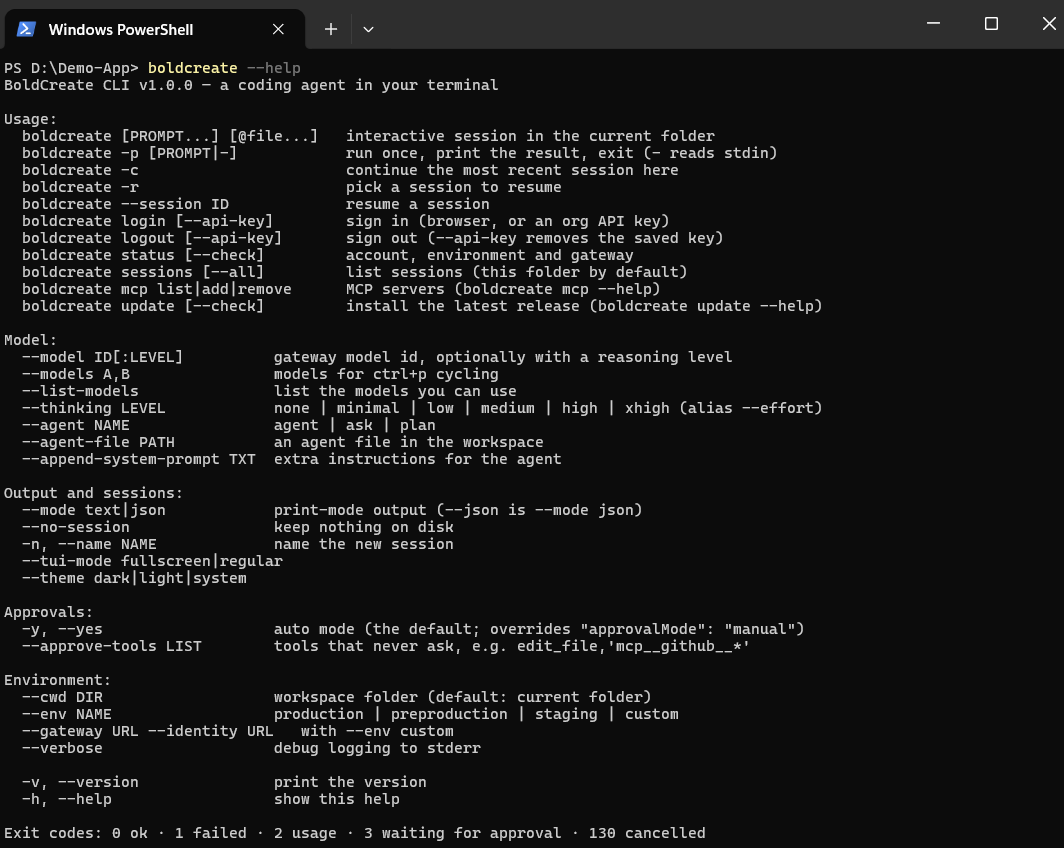
Note: When a CLI update is available, BoldCreate installs it in the background during a chat. You don’t need to download or install it manually. Automatic updates are enabled by default; see Configuration to change the
autoUpdatesetting.
Common installation mistakes
| Mistake | What to do |
|---|---|
Running the installer with sudo on macOS | Don’t. It installs for the root user, not for you. Run it as your own user. |
Typing boldcreate in the same window right after installing on Windows | Open a new PowerShell window first. |
command not found: boldcreate on macOS | The install folder may not be on your PATH. Add ~/.local/bin to your PATH. |
| Running the macOS command on Windows | Use the PowerShell installation command instead. |
For more help, see Troubleshooting.