
You can point the agent at files, attach screenshots, paste from the clipboard, and copy answers. Attachments are files on your own machine. The CLI sends their contents with your message to the model.
Attach text files from the command line
When you start the CLI, @path arguments add text file contents to your first message:
boldcreate "review this" @src/server.ts
boldcreate -p "summarize the changes" @CHANGELOG.md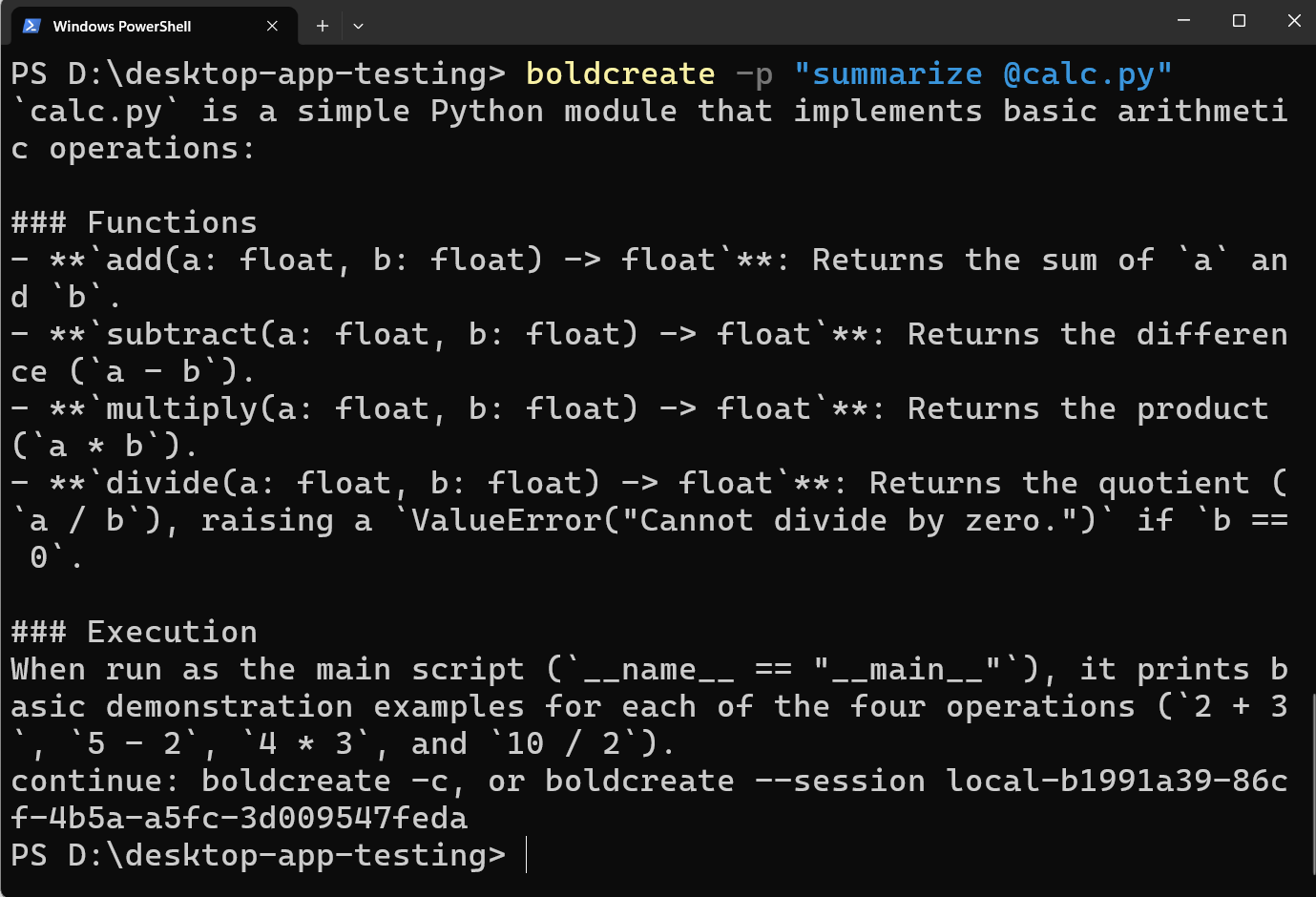
- Paths are relative to the workspace (the current folder or
--cwd). - A text file can be up to 256 KB. A larger or binary file stops the CLI with an error. For those, mention the path in your message and let the agent read the file itself.
- An
@word that doesn’t name an existing file stays as plain text.
Reference files in an interactive chat
In a session, type @ and part of a name to search the workspace, then press Tab to complete it. A text file used this way is not inlined; its path tells the agent what to read. This works well for larger files.
Attach images
The agent can look at screenshots, diagrams, and mockups.
| Limit | Value |
|---|---|
| Formats | PNG, JPEG, GIF, WebP |
| Size | Up to 5 MB per image |
| Count | Up to 10 attachments per message |
An image is attached when the CLI can resolve a path to an existing image. You can use an absolute path, ~/Desktop/shot.png, file:///..., or a path relative to the workspace with @, for example @docs/diagram.png. Quote paths that contain spaces.
A bare relative name such as logo.png is not attached. Use @logo.png. The path stays in your message, and the chat shows attached <file name> after sending.
Ways to add an image
-
Paste: press Ctrl+V on macOS and Linux, or Alt+V on Windows.
-
Drag and drop: drag an image file from your file manager into the terminal. Most terminals insert its path.
-
Type or paste a path: use one of the path forms above.
-
Print mode: pass the image as an argument:
boldcreate -p "what is wrong in this screenshot?" @shot.png
boldcreate -p "describe the layout" ~/Desktop/mockup.png
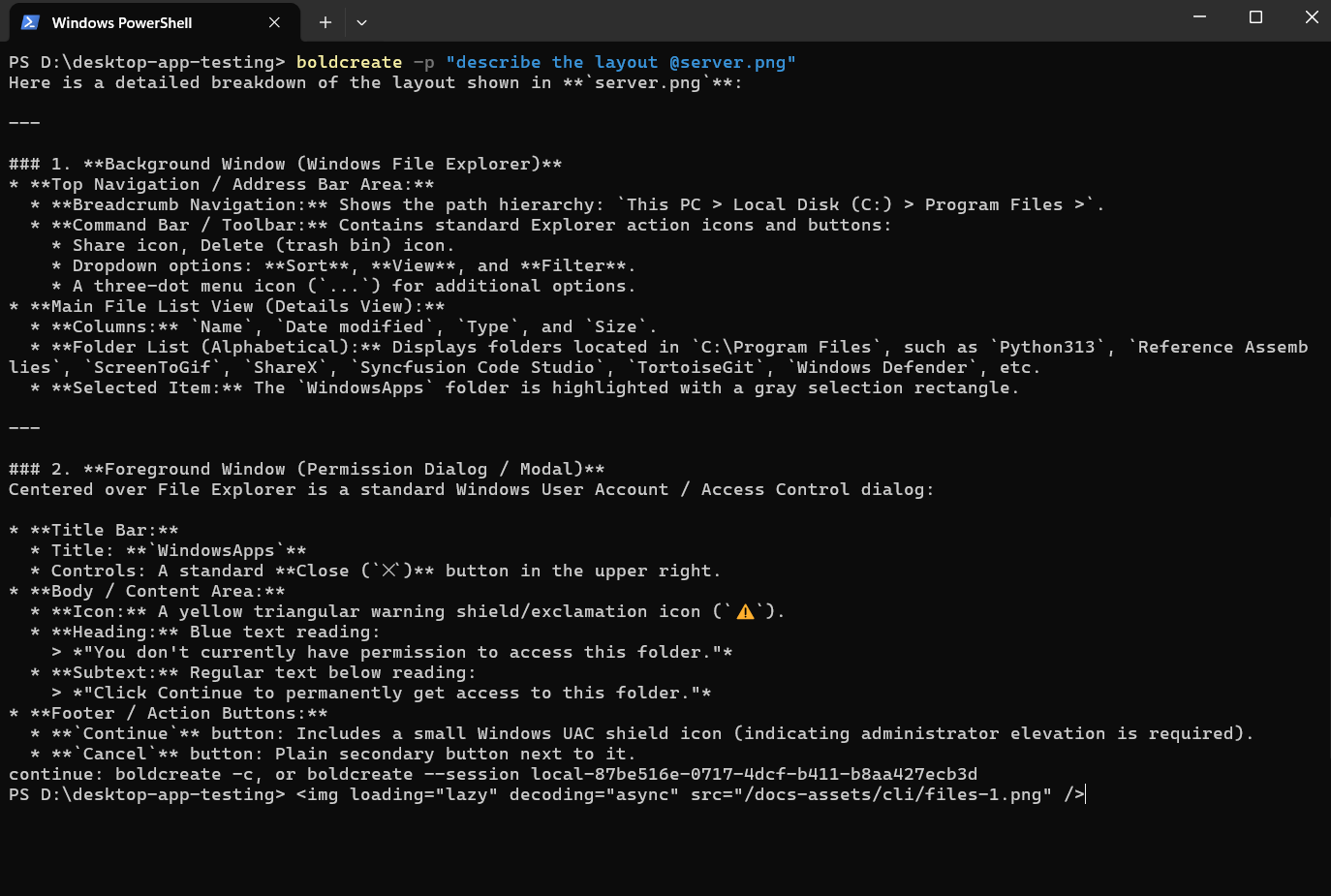
Images named inside piped standard input are not attached.
Tip: Choose a model that supports vision. See Models and agents.
Paste from the clipboard
Press Ctrl+V on macOS and Linux, or Alt+V on Windows. The CLI checks the clipboard in this order:
- Files copied in a file manager: their paths are inserted.
- An image: it is saved as
~/.boldcreate/attachments/paste-<time>-<id>.<ext>, and its path is inserted. PNG, JPEG, GIF, and WebP are accepted. For other formats, save the image as one of these and paste its path. - Text: pasted as usual.
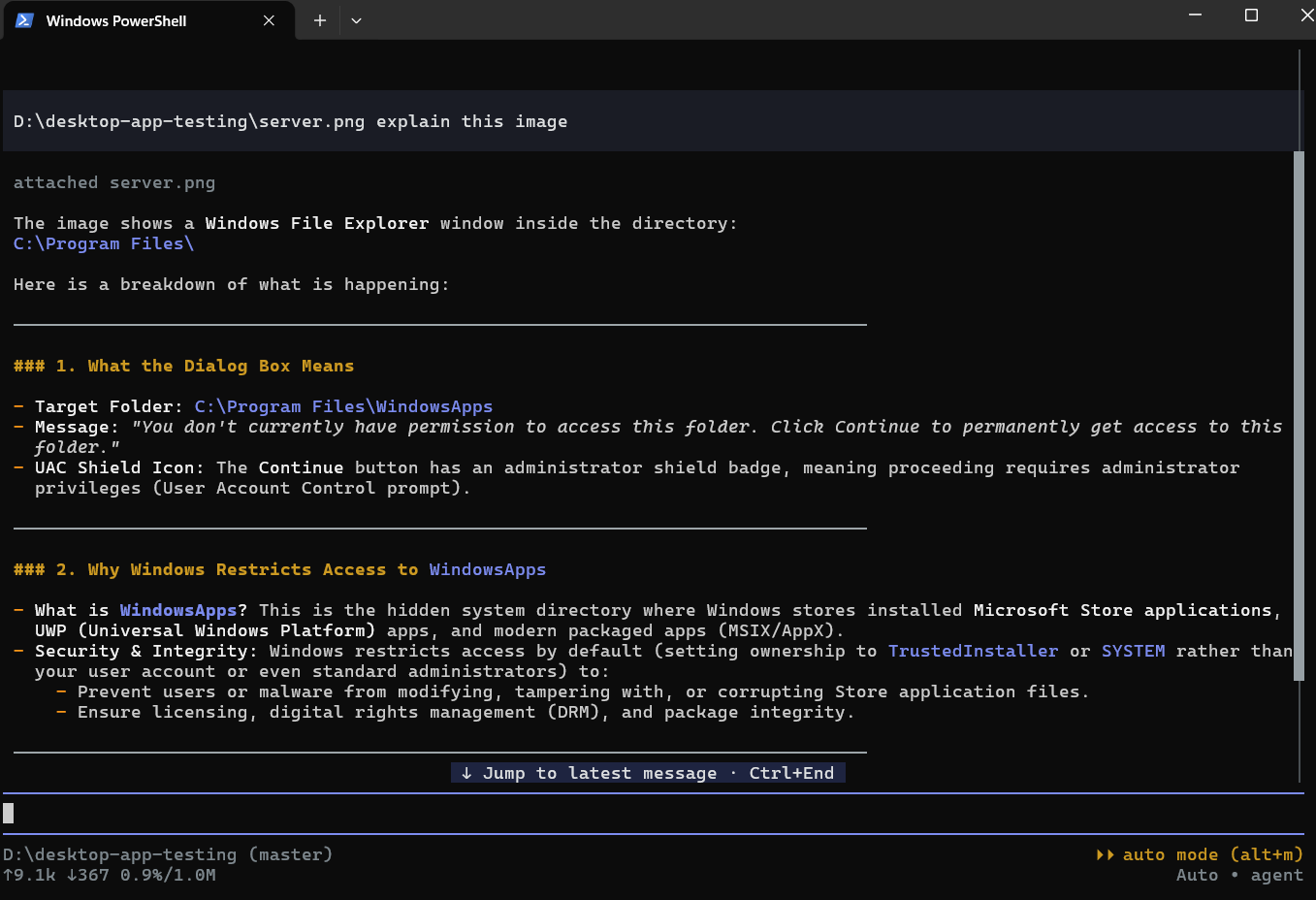
Reading images from the clipboard needs wl-paste (Wayland) or xclip (X11) on Linux. Under WSL, the CLI reads the Windows clipboard through PowerShell, so Windows screenshots (Win+Shift+S) work.
In fullscreen mode on Windows, a right-click pastes clipboard text into the editor.
Copy chat content
| To copy | Do this |
|---|---|
| Selected text in fullscreen mode | Select it with the mouse. |
| The selection, or the agent’s last answer | Press Ctrl+X. |
| The agent’s last answer | Type /copy. |
| The sign-in link in the sign-in dialog | Press Ctrl+X. |
The terminal shows a confirmation such as Copied.