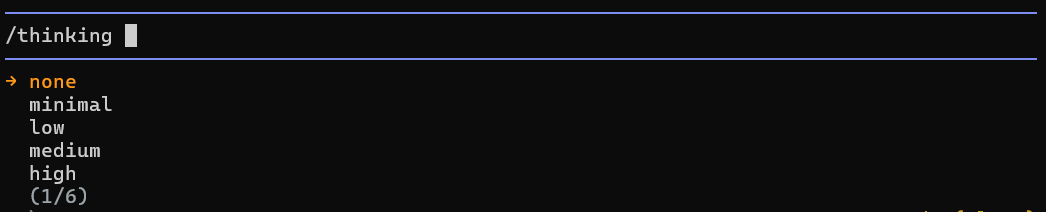
Each message runs with three choices: a model (which LLM answers), a reasoning level (how hard the model thinks), and an agent (what the assistant may do).
Models
BoldCreate uses models your account can access through the Syncfusion LLM gateway: the Syncfusion catalog and models your organization has added, filtered by your teams. One model is marked as the gateway default. If you don’t choose a model, that default is used.
List available models
boldcreate --list-models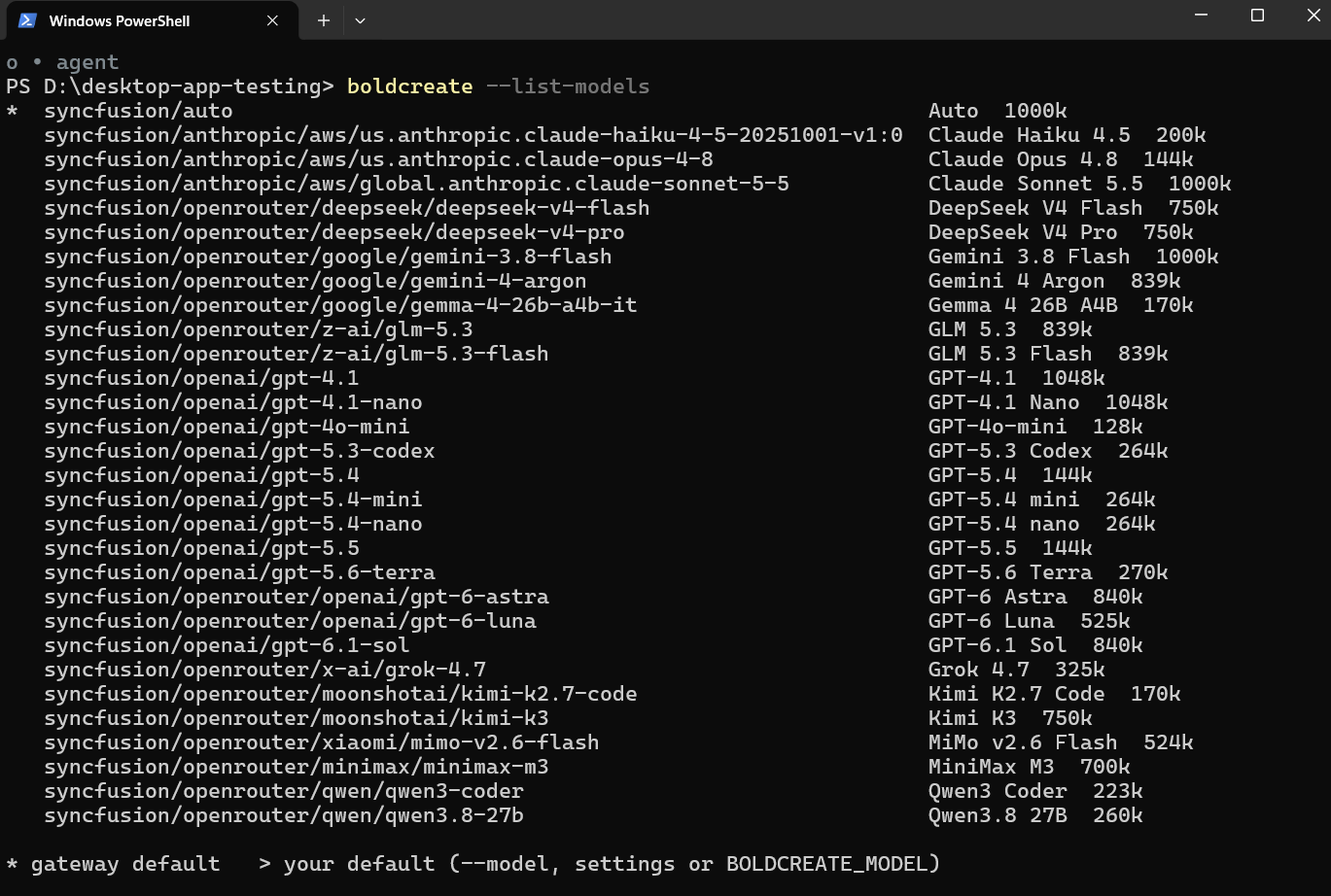
Each row shows the model ID, display name, and context window. * marks the gateway default; > marks your default. Add words to filter the list, or use --json for machine-readable output:
boldcreate --list-models claude
boldcreate --list-models --json
With browser sign-in, you can list available models. With an API key, the model list isn’t available.
Choose and save a model
Choose a model for one command:
boldcreate --model claude-sonnet-4-6
boldcreate -p "summarize the README" --model gpt-5.4-mini
Inside an interactive session, press Ctrl+L or type /model to open the picker. Type to search, use the arrow keys, and press Enter to use the model starting with the next message. Type /model <model-id> to switch directly.
In the picker, press Ctrl+S to save a model as the default in defaultModel in ~/.boldcreate/settings.json.
BoldCreate chooses a model in this order:
--modelon the command linedefaultModelin project settings, then user settingsBOLDCREATE_MODELenvironment variable- Model saved with an API-key login, if any
- Gateway default
Cycle between models
Ctrl+P switches to the next model; Shift+Ctrl+P switches to the previous one. By default, BoldCreate cycles through the available catalog. To use a shorter list for one session:
boldcreate --models claude-sonnet-4-6,gpt-5.4-miniOr set enabledModels in ~/.boldcreate/settings.json.
Models that can see images
Use a model with vision support for screenshots or other images. The image goes to the model selected for the session. If the model can’t read it, switch models with Ctrl+L and send the message again.
Reasoning levels
Models that support reasoning can think longer before they answer. More reasoning is slower and uses more tokens, but can improve answers to harder questions.
| Level | When to use it |
|---|---|
none | Quick lookups and simple edits. |
minimal | Very light reasoning. |
low | Routine coding tasks. |
medium | A good general default. |
high | Tricky bugs, design questions, and larger refactors. |
xhigh | The hardest problems, when time and tokens matter less. |
Set a level with --thinking high (or its alias --effort high), with a model using --model claude-sonnet-4-6:high, or inside a session with /thinking high or /effort high. Shift+Tab cycles through the levels. Use /settings to set the default with defaultThinkingLevel.
The editor border color shows the current level. Press Ctrl+T to show or hide the model’s reasoning as it streams.
Agents
The agent decides what the assistant may do in your workspace.
| Agent | What it does | Can change files or run commands? |
|---|---|---|
agent (default) | General software engineer: reads, searches, edits files, runs commands, tracks a todo list, and can start background helpers. | Yes |
ask | Answers questions about your code and cites files and lines. | No (read-only) |
plan | Produces a structured implementation plan without writing code. | No (read-only) |
In Ask and Plan, file writes, edits, and shell commands are blocked regardless of approval mode.
Choose an agent when starting:
boldcreate --agent plan "add rate limiting to the upload endpoint"
boldcreate -p --agent ask "where is the session token refreshed?"
In a session, use /agent plan, /agent ask, or /agent agent. The switch applies from your next message. Wait for the current run to finish, or press Esc, before switching. Set a default with /settings → Agent.

You can also switch to an agent from one of your installed plugins, for example /agent security-reviewer. See Plugins, skills, agents and rules.
For repository-defined agents, see Custom agent files.
Change the thinking level in a session
- Type
/thinkingand press Enter to open the level picker. - Use the arrow keys to choose a level:
none,minimal,low,medium,high, orxhigh. - Press Enter to apply it to your next message.