
BoldCreate is now an AI development team that works wherever you do. Assign a task in the cloud, on your own computer, or from the terminal. Agents plan the work, change the code, run the checks, and return a pull request for your team to review. BoldCreate Enterprise governs all of it from one dashboard, with one set of users, teams, budgets, model policies, and usage reports.
This release brings three ways to work, one place to customize them, and one place to manage them:
| Product | Where it runs | Best for |
|---|---|---|
| Cloud Agent | In the browser, in isolated cloud sandboxes | Parallel tasks that keep running after you log off, and scheduled or event-driven work with Automations |
| Desktop App | On Windows and macOS | Working against your local files, database, and services, or handing work to the cloud |
| CLI | In your terminal and CI pipelines | Interactive sessions, scripts, and pipeline checks |
| Customize | In the BoldCreate web app, applied everywhere | Plugins that add skills, agents, rules, and MCP tool servers for you, your team, or your organization |
| Enterprise | In the BoldCreate Dashboard, for admins and team leads | Users, teams, budgets, models, usage, and security |
BoldCreate Cloud Agent
Cloud Agent runs coding tasks in the BoldCreate cloud. Describe the work in the browser, and the agent reads the repository, makes the changes, runs the checks, and prepares a pull request. You don’t need a local clone or installed dependencies, and your computer doesn’t need to stay on.
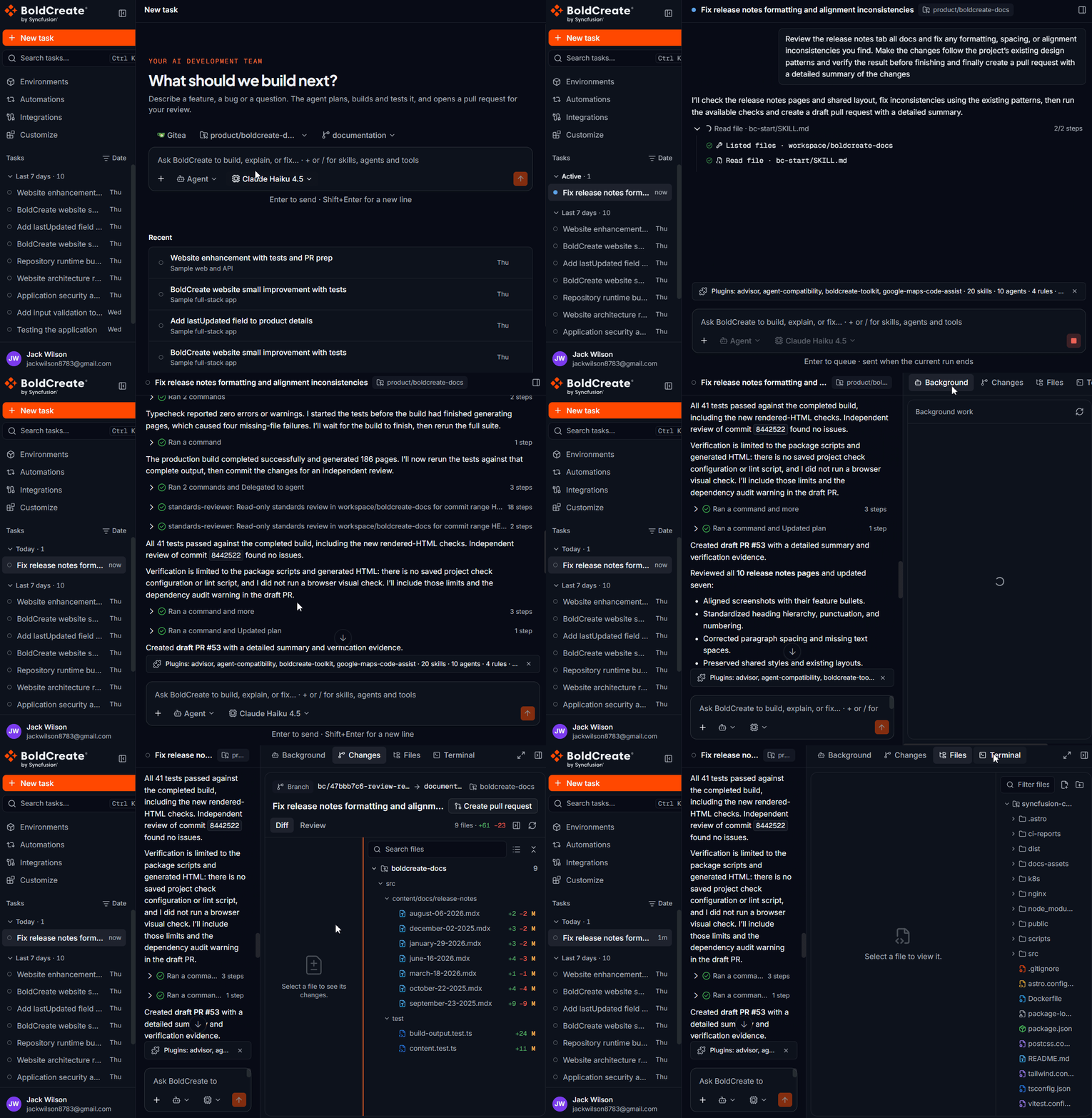
- An isolated sandbox for each task: every task runs in its own environment, with its own branch, so several tasks can run in parallel without interfering. Environments overview
- Reusable environments: describe the setup once, with environment variables, setup commands, and skills, and share it with your team. Create an environment
- Ask, Plan, and Agent: ask about a codebase, agree on an implementation plan, or let the agent make the changes. Agent · Plan · Ask
- GitHub, GitLab, and Gitea: connect repositories from any of the three providers, and work across several repositories in one task. Integrations
- Review before you merge: inspect file-level diffs and change summaries, and send line-level review comments back to the agent. Review changes · Pull requests
- Skills and plugins: package your team’s practices as skills, and add plugins from the marketplace. See Customize BoldCreate with plugins. Skills
- Live progress: follow each run in its thread and the workspace panel while it works. Threads · Workspace panel
Automations
Automations start Cloud Agent tasks for you, so recurring work doesn’t depend on someone remembering it.
- Three trigger types: run on a schedule (hourly, daily, on weekdays, weekly, or with a custom cron expression), on repository events such as pull requests, comments, reviews, and checks, or from a webhook called by your CI, monitoring tool, or ticket tracker.
- Built-in recipes: start from ready-made automations such as Fix failing CI, Review a pull request, Find vulnerabilities in a pull request, and Weekly dependency update, or describe the automation in one sentence.
- Test before you turn it on: run an automation once and review the task it produces.
- The same guardrails: each run uses its own sandbox, stays within the spending cap, and is recorded in the audit log. Code changes arrive as pull requests for your team to review.
BoldCreate Desktop App
The Desktop App brings tasks, agent progress, project files, and change review into one window on Windows and macOS. Each task runs either on This computer or in the Cloud.
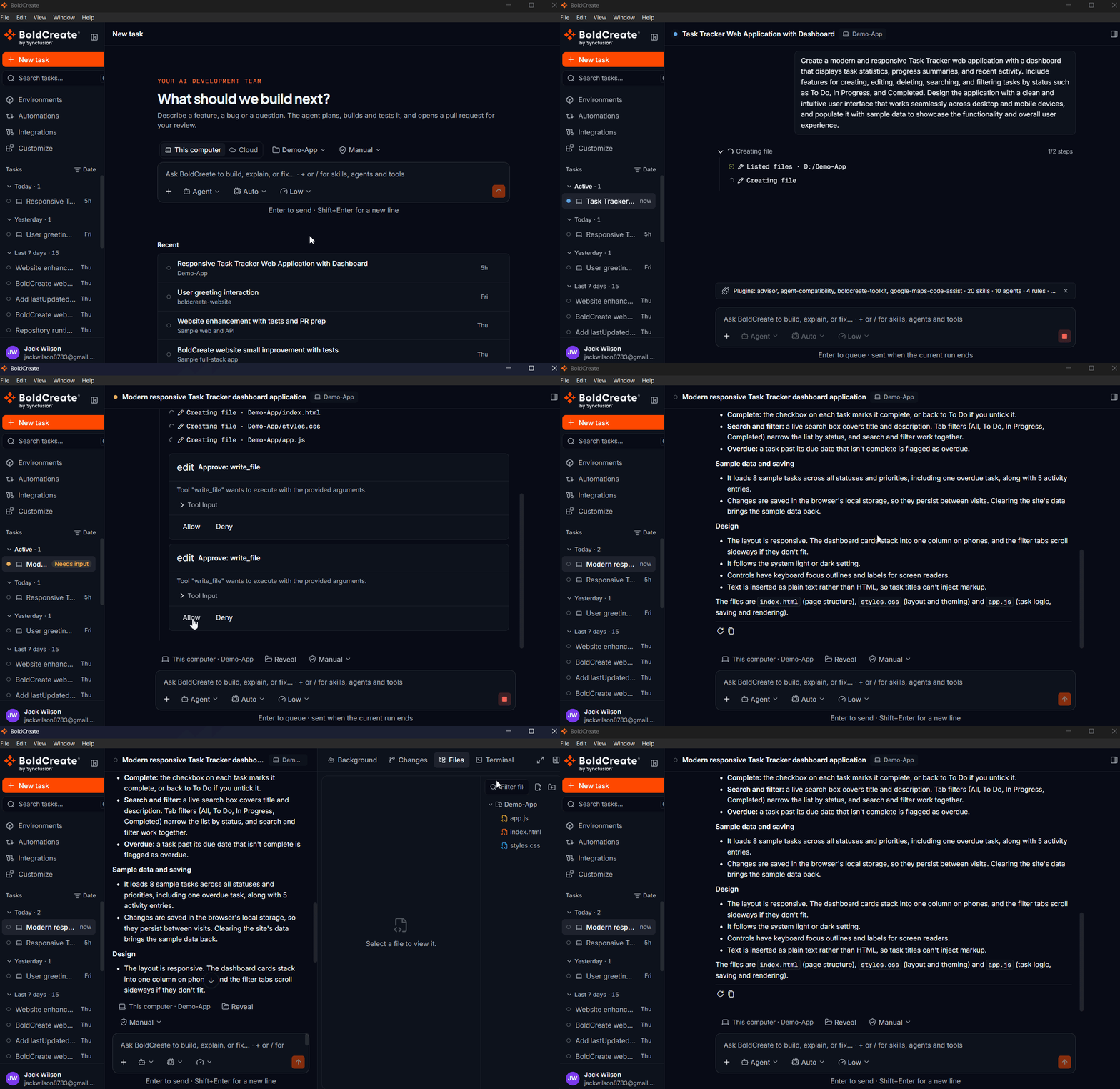
- Work on your own computer: the agent works in the folder you choose, with your local database, uncommitted changes, services behind your VPN, and your own toolchain. Run on your computer
- Stay in control of commands: in Manual mode, the default, the agent asks before it runs a command or changes a file. Switch a task you trust to Auto.
- Hand work to the cloud: run a task in a cloud sandbox so it keeps going after you close your laptop. Local and cloud tasks share one task list. Run in the cloud
- A complete workspace: browse and edit files, use multiple terminals, and review diffs with line-level comments before you create a pull request. Review changes · Terminal
- Agents, models, and plugins: choose Agent, Ask, or Plan, pick a model, and add plugins. Models and agents · Plugins
Requires Windows 10 (version 1809 or later) or macOS 12 Monterey or later. Install the Desktop App.
BoldCreate CLI
The CLI brings the same AI development team to your terminal and CI pipelines. Run boldcreate in a project folder to understand code, fix issues, build features, refactor, and write tests.
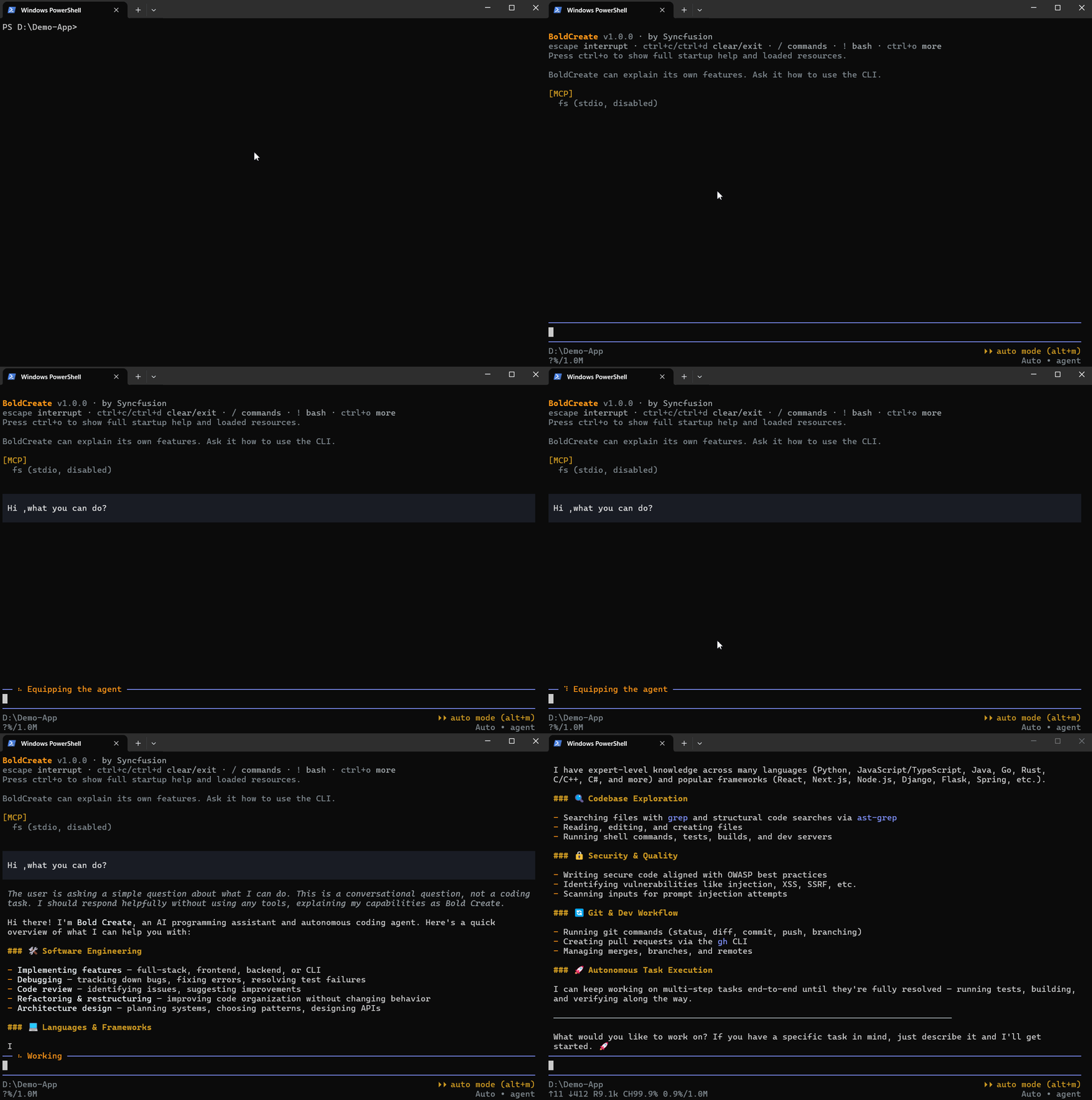
- Interactive sessions: plan, edit, and test with the agent, and resume earlier sessions with their history. Interactive chat · Sessions and history
- Agent, Ask, and Plan modes: build and change code, explore a codebase, or agree on an approach first. Models and agents
- Print mode and automation: run
boldcreate -pfor a one-off prompt,boldcreate -cto continue the last session, and--mode jsonfor scripts and CI/CD pipelines. Print mode and automation - Approvals and safety: decide which commands and file changes the agent may make without asking. Approvals and safety
- Extend the agent: connect MCP servers, and add custom agents, skills, plugins, and project instruction files. Extensibility overview
- Images and background tasks: share screenshots and images for analysis, and keep long-running work going in the background. Files, images, and clipboard · Background tasks
Install the CLI · CLI quickstart
Customize BoldCreate with plugins
The new Customize page lets you shape how the agents work for you, your team, or your whole organization. Open it from the BoldCreate sidebar or at app.boldcreate.ai/agent/customize.
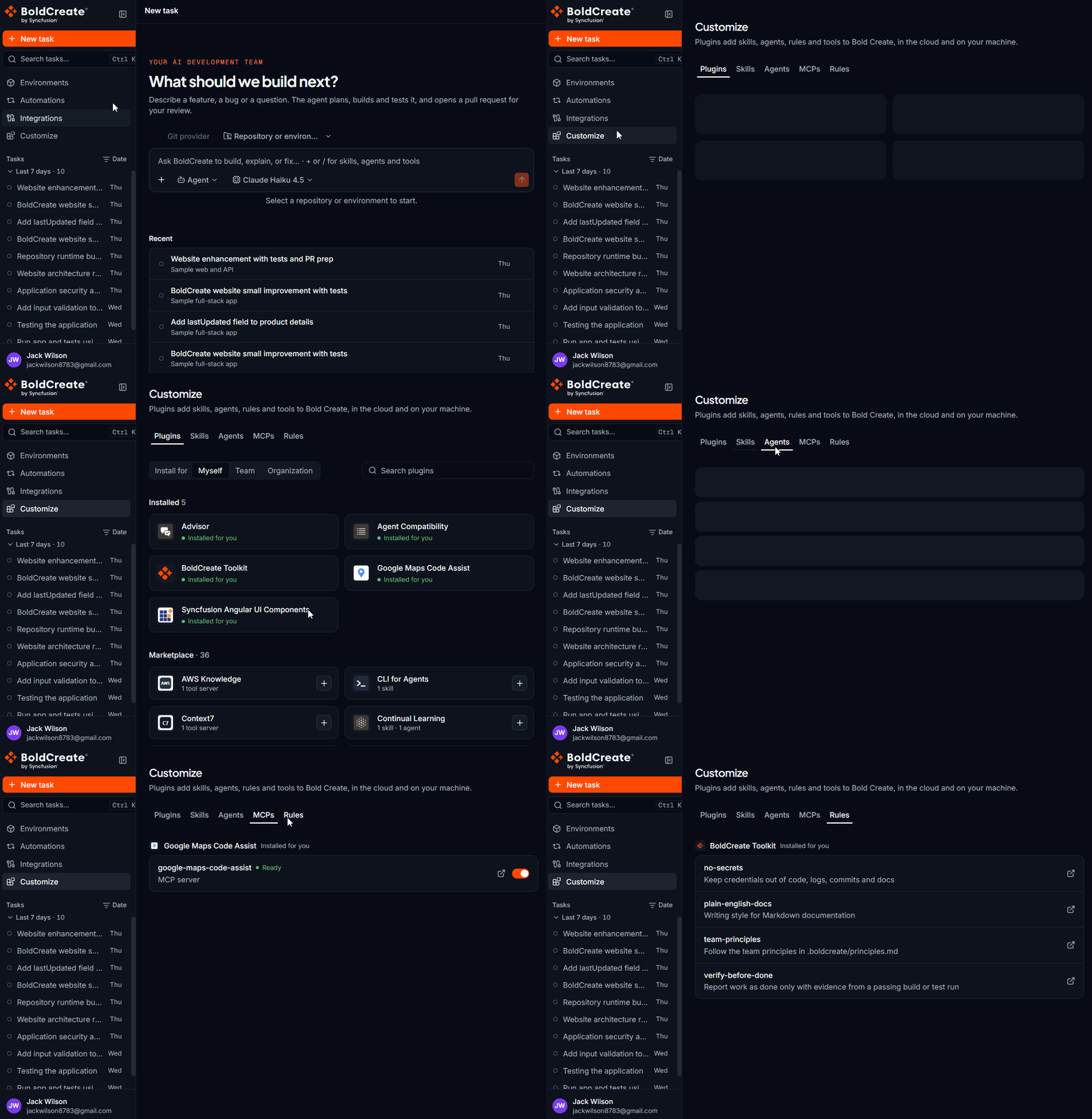
- One place for everything you add: the Plugins, Skills, Agents, MCPs, and Rules tabs show every plugin you installed and what it brought.
- A plugin marketplace: install plugins that bundle skills, agents, rules, and MCP tool servers, including the BoldCreate Toolkit, Context7, Linear, Notion, Stripe, Microsoft Learn, and AWS Knowledge.
- Install for the right people: choose Myself, Team, or Organization when you install, so you can try a plugin on your own tasks before you roll it out.
- Sign in to tool servers: select Connect for a tool server that needs your account, such as GitLab.
- Works everywhere you do: installed plugins apply to Cloud Agent tasks, the Desktop App, and the CLI.
Plugins in Cloud Agent · Plugins in the Desktop App · Plugins, skills, and tool servers in the CLI
BoldCreate Enterprise
Administrators and team leads govern BoldCreate across the organization from the Dashboard. Open it from the profile menu at the bottom of the BoldCreate sidebar, or go to app.boldcreate.ai/dashboard. The same users, teams, budgets, and model policies apply to Cloud Agent, the Desktop App, and the CLI. Learn more about BoldCreate for enterprises.
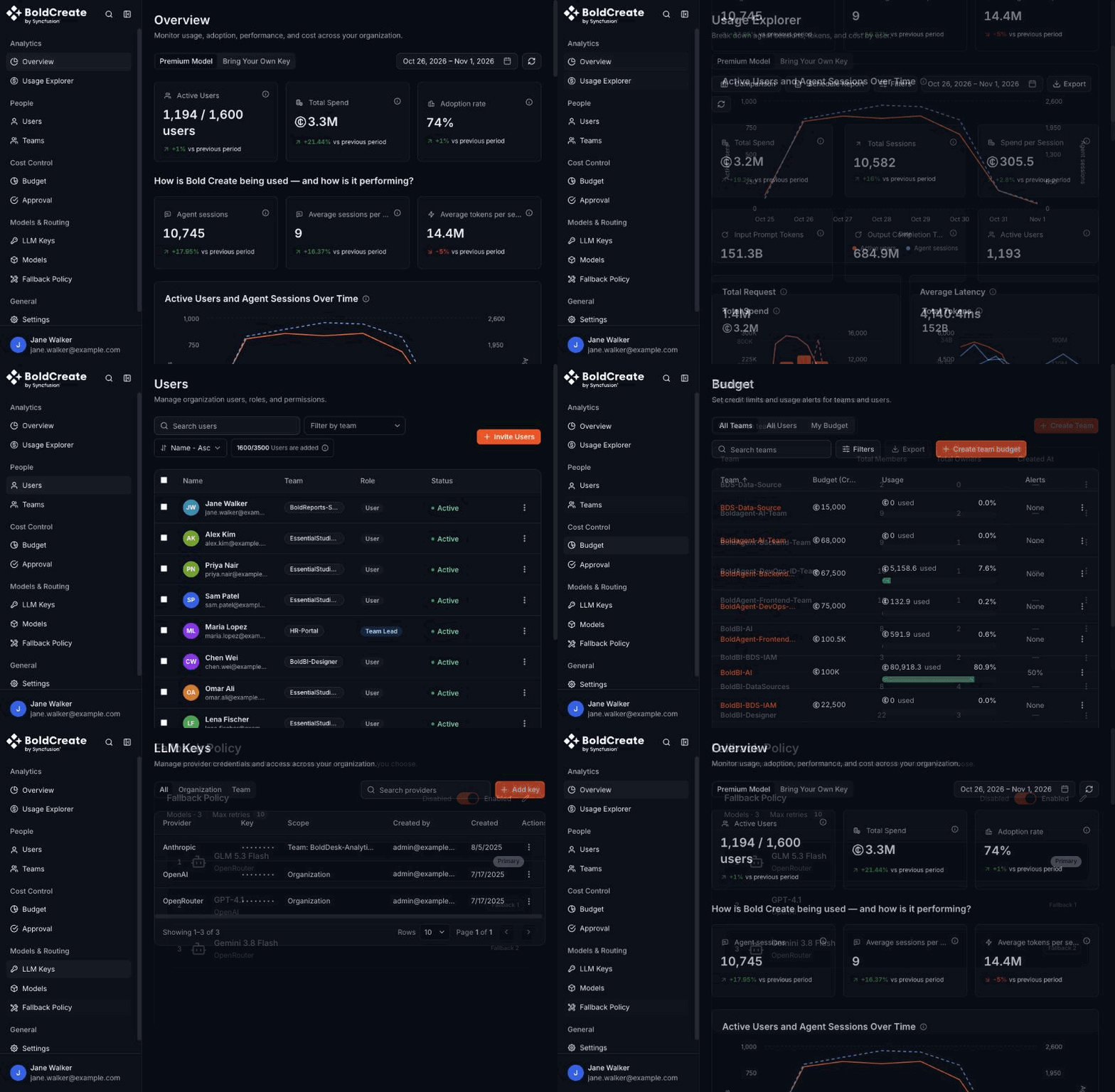
- Overview and Usage Explorer: track adoption, spend, agent sessions, tokens, requests, and latency, and break usage down by team, user, model, and session. Switch between Premium Model and Bring Your Own Key usage, compare periods, export data, and schedule reports. Dashboard · Usage Explorer
- Users and teams: invite users, organize them into teams, and assign team owners. User management · Teams management
- Budgets and approvals: set spending limits for teams and users, and review requests for more budget. Create a budget · Budget approval
- Models and routing: add LLM keys for your organization or specific teams, choose which models are available, and route failed requests to backup models with a fallback policy. Configure providers and models · Fallback policy
- Identity and security: sign in with single sign-on (SSO), provision users with SCIM, control permissions, and review the audit log and API keys. Settings · Security
- Plans, billing, and credits: choose an Individual, Small Team, Medium Team, Large Business, or Enterprise plan, manage invoices, see your remaining credits, and buy add-on credits under Settings > Credits. Settings · Check usage and credits
Get started with BoldCreate Enterprise
Code Studio IDE is discontinued
The Code Studio IDE is discontinued with this release and will no longer receive updates. AI development has moved from suggestions inside an editor to agents that plan, build, test, and deliver complete changes for your team to review. BoldCreate is built for that way of working: tasks run in parallel in isolated cloud sandboxes, on your own computer, or in your pipelines, and they are not tied to a single editor window.
Everything you relied on in Code Studio continues in BoldCreate, including Agent, Ask, and Plan, MCP servers, skills, custom agents, and project instructions, along with your organization’s users, teams, models, budgets, and usage reports in the Dashboard.
Move to BoldCreate with your purchased credits
Your Code Studio account, subscription, and purchased credits carry over to BoldCreate. You don’t need to buy new credits, and your organization’s users, teams, budgets, and LLM keys stay as they are.
- Sign in to BoldCreate with the same account you used for Code Studio.
- Choose how you want to work: start a Cloud Agent task, install the Desktop App, or install the CLI.
- Bring your project instructions, MCP servers, and skills with you. See CLI project context and instruction files and Cloud Agent skills.
- Check your remaining credits under Settings > Credits, and your usage on the Dashboard.
For help with your move, contact Syncfusion support.
Get started
- Start your first Cloud Agent task
- Install the Desktop App
- Install the CLI
- Set up BoldCreate Enterprise for your organization
- See product stories in What’s New, every version in the Release history, and plans on Pricing.