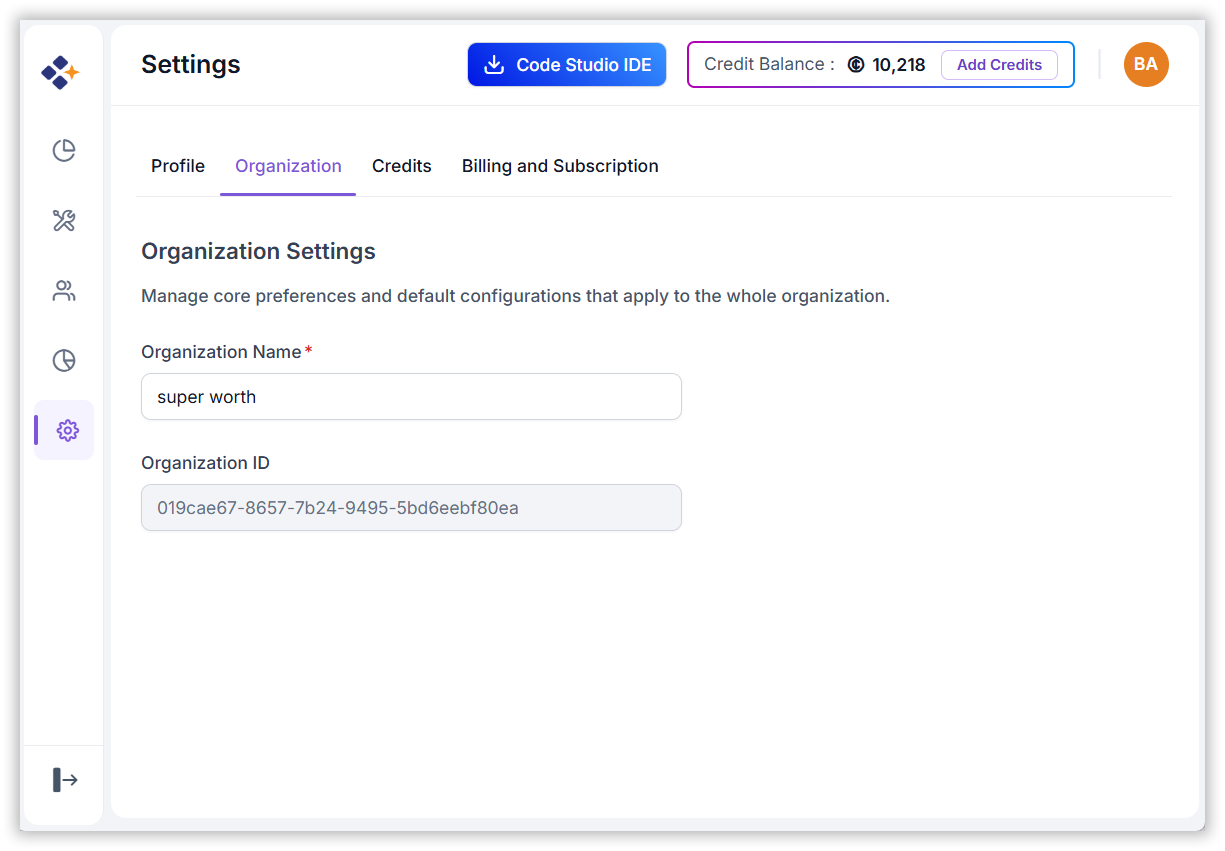
Sign in to BoldCreate, open the Dashboard where administrators and team leads manage the organization, and configure your settings.
1. Create and Access Your Account
To start using BoldCreate, visit: BoldCreate
Sign-In Options
You can sign in using one of the following methods:
- Email and password: Sign in with the email address and password of your BoldCreate account.
- Google Account: Sign in with your Google credentials.
- Microsoft Account: Use your personal, work, or school Microsoft credentials.
- GitHub Account: Sign in with your GitHub credentials.
- Syncfusion Account: Create a new account using your email and password.
- Single Sign-On (SSO): Sign in using your organization’s identity provider if SSO has been configured by your administrator. For detailed guidance on configuring Single Sign-On (SSO), see How to configure Single Sign-On (SSO)
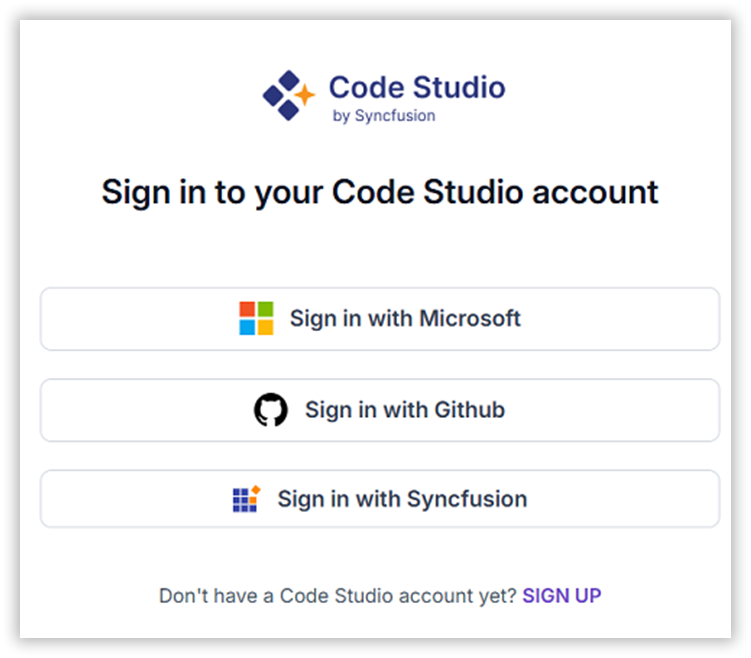
Note: If you don’t have an account, click “SIGN UP” to create one.
2. Open the Dashboard
After you sign in, BoldCreate opens the New task page, where you start Cloud Agent tasks.
- At the bottom of the sidebar, click your name to open the profile menu.
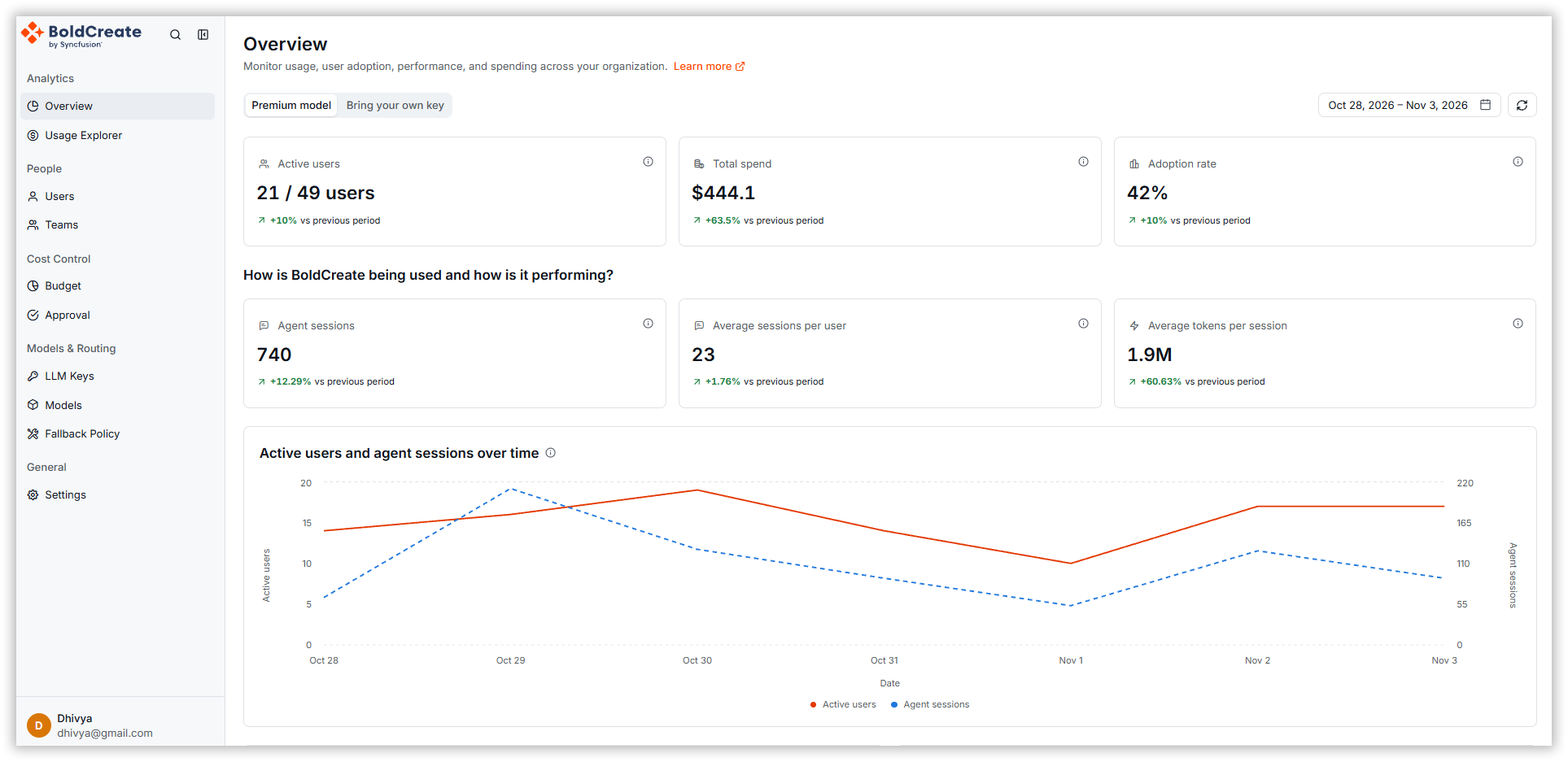
- Select Dashboard. The Overview page opens at app.boldcreate.ai/dashboard.
The profile menu also lets you switch the theme (Light, Dark, or System), open Settings, and Log out.
The Dashboard sidebar groups its pages as follows. The pages you see depend on your role.
| Group | Pages |
|---|---|
| Analytics | Overview, Usage Explorer |
| People | Users, Teams |
| Cost Control | Budget, Approval |
| Models & Routing | LLM Keys, Models, Fallback Policy |
| General | Settings |
3. Managing Settings
Select Settings under General in the Dashboard sidebar. You can also click your name at the bottom of the Dashboard sidebar and select Settings. The Dashboard profile menu also has Home, Download, Cloud agents, Documentation, Contact support, the theme switch, and Log out.
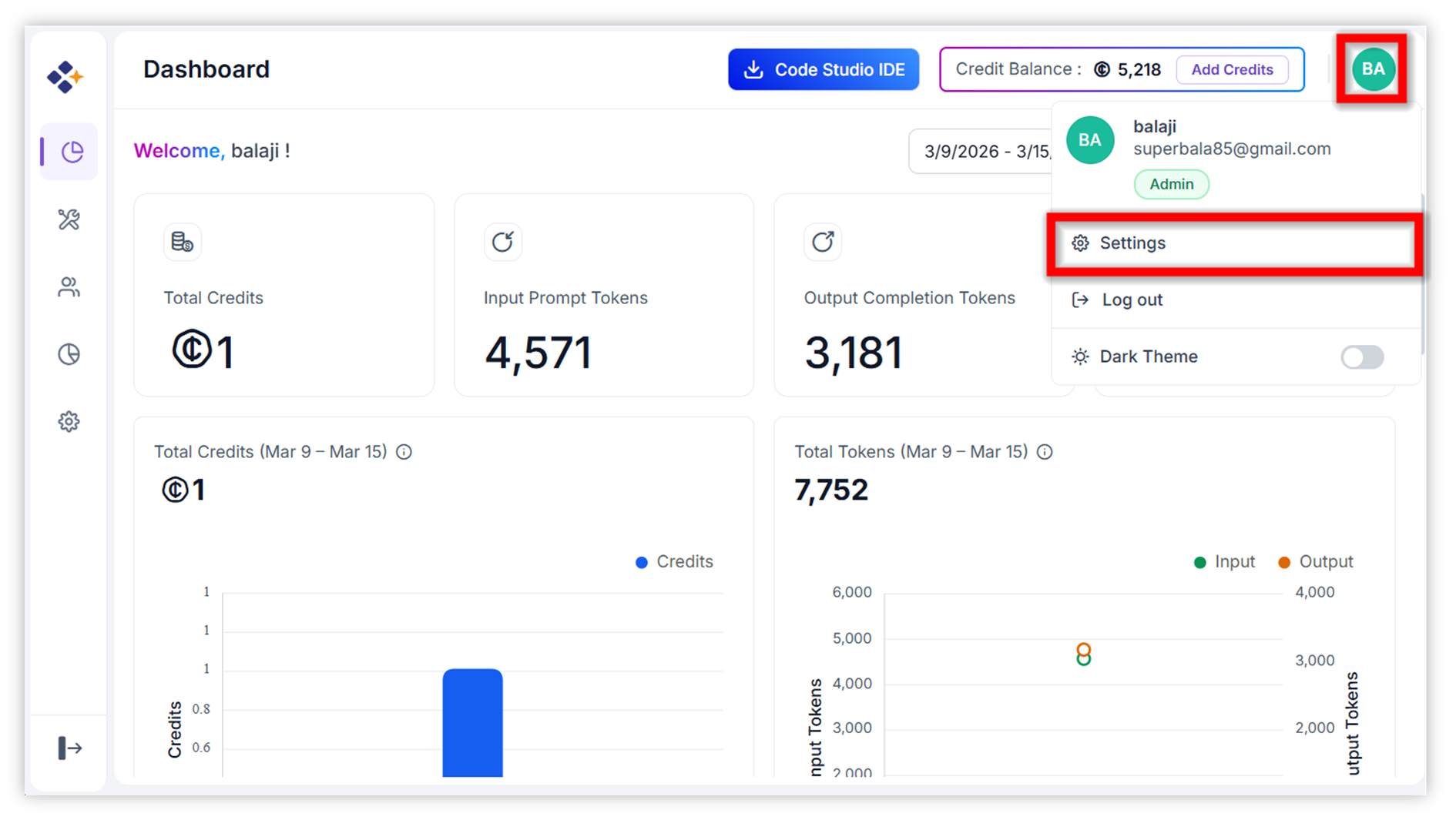
In Settings, you can:
- Update your Profile Information
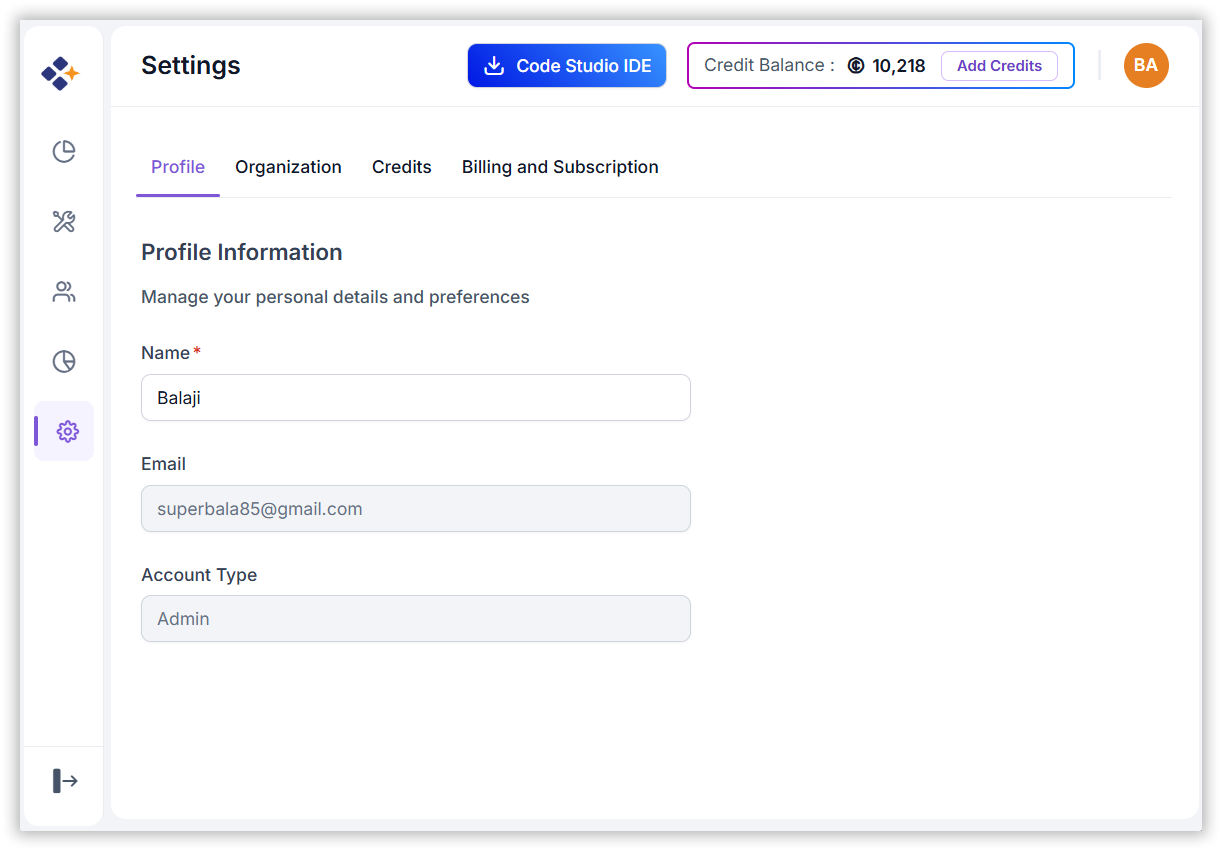
- Configure your Organization Settings