
What you’ll learn
- How to start an interactive session and read the chat screen
- How to send, queue, and edit messages
- How to reference files and attach images
- How to run commands from the chat
- How to handle long conversations and errors
Start a chat
Run boldcreate in the project folder:
boldcreate [PROMPT...] [@file...] [options]PROMPTis an optional first message sent as soon as the chat opens.@fileattaches a text file (up to 256 KB) or image to the first message.--cwd DIRusesDIRinstead of the current folder.--model ID[:LEVEL]selects a model and optionally its reasoning effort.--thinking LEVELsets reasoning effort.--agent NAMEstarts with theagent,plan, oraskagent.-yor--yesstarts in auto approval mode.-n NAMEor--name NAMEnames the session.
Examples:
boldcreate
boldcreate "why does the login test fail?"
boldcreate "review this file" @src/app.ts
boldcreate --cwd ~/code/other-project
boldcreate --model <MODEL_ID>:high
The chat opens only in a real terminal window. If you pipe input into boldcreate or redirect its output, it runs in print mode.
The chat screen
| Area | What it shows |
|---|---|
| Header | BoldCreate name and version, plus shortcut hints. Press Ctrl+O to see startup hints and loaded files, external tools, and skills. |
| Conversation | Your messages, the assistant’s answers, and actions such as file edits and commands. |
| Input box | Where you type. Its border color shows the reasoning effort. |
| Status line | The folder, Git branch, session name, approval mode, token usage, context gauge, model, reasoning effort, and agent. |
The context gauge turns yellow above 70% and red above 90%. When it gets high, use /compact.
Type and send messages
| To… | Do this |
|---|---|
| Send a message | Press Enter. |
| Add a new line | Press Shift+Enter or Ctrl+J. |
| Stop the assistant | Press Esc. |
| Send a follow-up while the assistant works | Type it and press Enter. It is queued until the current answer finishes. |
| Edit queued messages | Press Alt+Up. |
| Reuse an earlier message | Press Up / Down at the top or bottom edge of the input box. |
| Write a long message in your editor | Press Ctrl+G. BoldCreate uses VISUAL, EDITOR, or the externalEditor setting. |
On macOS, Alt is the Option key. Configure your terminal to send Option as Meta for Option shortcuts.
Refer to files
Type @ followed by part of a file name. Press Tab to complete it:
Example:
explain @src/utils/date.ts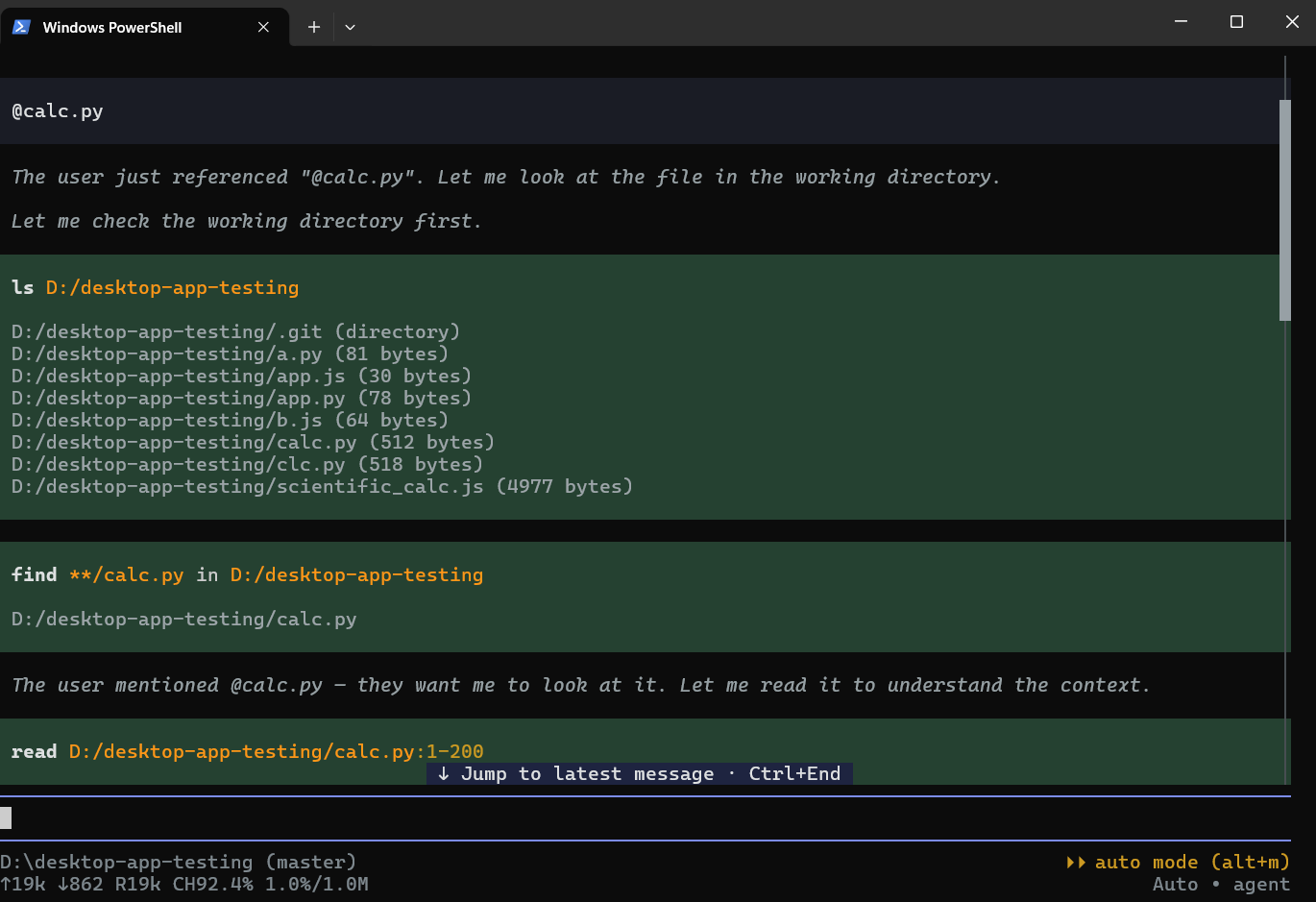
The path goes into your message so the assistant knows which file to read. For attachments and images, see Files, images, and clipboard.
Run your own commands
Start a line with ! to run a command on your computer yourself, without asking the assistant:
!git statusruns the command and sends its output to the assistant with your next message.!!git statusruns the command and shows its output only to you.
While a command runs, press Esc to stop it. After a ! command, the result is included with your next message. Type /new, or press Esc with an empty input box, to discard it.
These commands run without approval because you typed them.
Note: On Windows,
!commands run in Command Prompt (cmd.exe). Use!dir, not PowerShell commands such as!Get-ChildItem. Change the shell with theshellPathsetting.
Long conversations and errors
BoldCreate summarizes older parts of a long conversation automatically. To compact it yourself, enter:
/compactYou can add a focus, for example, /compact keep the database decisions. The full conversation remains saved; only the context sent next is shortened.
For temporary service or connection errors, BoldCreate retries automatically. If a run fails, use /retry. Errors appear with a hint, and the chat stays open.
Use /tasks to view and control background work. See Background tasks.