
The BoldCreate agent works directly on your machine. It can read your files, change them, and run commands in your terminal. Approvals determine whether it asks first.
What runs where
| On your machine | Sent to the cloud |
|---|---|
| The agent, every tool (read, search, write, edit, run commands), your session history, and MCP clients. | Model calls: your messages, file contents the agent reads, and tool results go to the Syncfusion LLM gateway so the model can answer. |
The agent works in the workspace folder: the current folder or the one given with --cwd. Commands run with your permissions. There is no operating-system sandbox; approvals are the safety mechanism.
Approval modes
| Mode | What happens |
|---|---|
auto (default) | Every tool call runs without asking. The footer shows auto mode in yellow. |
manual | The agent asks before it runs a command (execute), writes a file (write_file), edits a file (edit_file), or uses an MCP tool. Reads, searches, and todo updates don’t ask. |
Switch modes
| How | How long it lasts |
|---|---|
| Alt+M | Current session. |
/mode manual or /mode auto (/mode toggles) | Current session. |
/settings → Approval mode | Saved as your default in approvalMode in ~/.boldcreate/settings.json. |
-y or --yes | Starts this session in auto mode, even if your default is manual. |
Switching to auto prints a warning. A mode change applies from the next tool call that would ask.
To make manual your default, add this to your user settings:
{ "approvalMode": "manual" }The approval dialog
In manual mode, a dialog shows the action the agent wants to take, such as a diff for an edit, file contents for a write, or the command line for a command.
| Choice | Effect |
|---|---|
| Yes | Runs this one call. |
Yes, always allow <tool> this session | Allows this tool without asking until you leave or reset the session. |
Yes, always allow all <server> tools this session | For MCP, allows every tool from that server for this session. |
| No | Skips the call. The agent is told it was rejected. Esc also means No. |
| No, and tell the agent why… | Rejects the action and lets you explain why. |
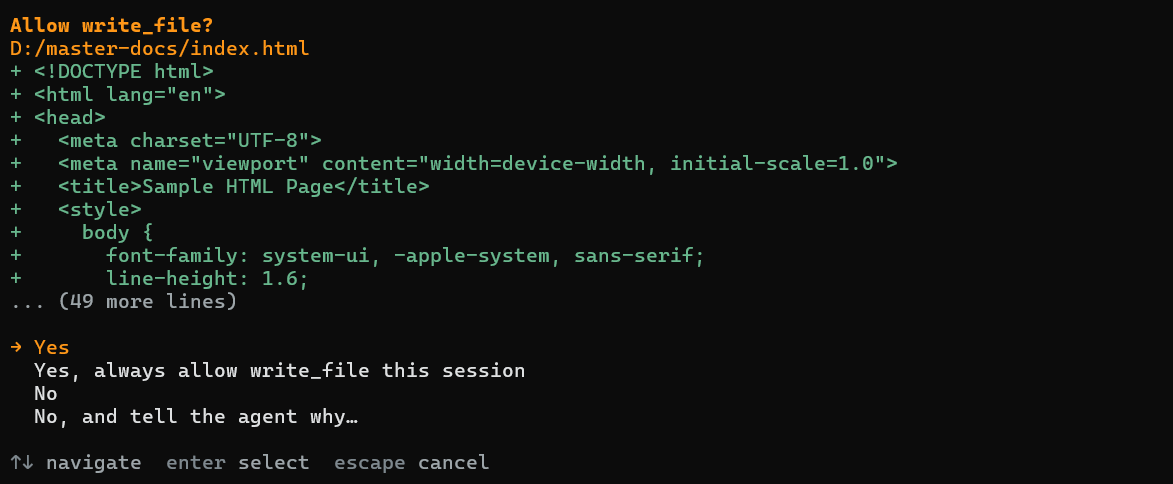
Use the arrow keys and Enter to choose. While the dialog is open, the editor border shows Waiting for approval.
/approvals lists tools allowed for the current session. /approvals reset forgets the “always allow” choices made in that session.
Allow specific tools without switching to auto
You can allow selected tools for one session:
boldcreate --approve-tools edit_file,write_fileOr permanently in your user settings:
{ "autoApproveTools": ["edit_file", "write_file", "mcp__github__*"] }Tool names include execute, write_file, edit_file, and mcp__<server>__<tool>. A * matches any characters. Quote patterns in the shell, for example, --approve-tools 'mcp__github__*'.
Why project settings can’t turn approvals off
Settings can be in your user file ~/.boldcreate/settings.json or a project file .boldcreate/settings.json. A project file comes with the code you clone, so approvalMode, autoApproveTools, and env are only read from your user file. If a project file sets them, BoldCreate ignores them and prints a warning.
Project MCP servers that start local commands are also held back until you trust the folder. See MCP servers.
Approvals in print mode and CI
Print mode has no one to answer an approval dialog. In auto mode (the default, or with --yes), every tool runs. In manual mode, tools must be allowed through --approve-tools or autoApproveTools; otherwise the run stops with exit code 3. See Print mode and automation.
Recommendations
- Commit or stash your work before using auto mode, so you can review exactly what changed.
- Prefer allowing specific tools over permanently allowing
execute. - In CI, use a disposable checkout or container, and give the job an API key with the least access it needs.
- Keep secrets out of the workspace. The agent reads files to do its work, and their contents may be sent to the model.