
When you start a task in BoldCreate Desktop, the message box gives you controls to choose who does the work and which AI engine powers it.
Before sending your request, you can pick:
- The agent that handles the task
- The model that answers the request
- The thinking effort for compatible models
These choices are part of setting up a task. See Start a task for the full workflow.
What you’ll learn
- How to choose an agent for a task
- How to select a model
- How to set thinking effort when a model supports it
- Which agents and models work best for common tasks
Choose an agent
From the Home page, click New task and start a new task.
- Choose where the task runs: This computer or Cloud.
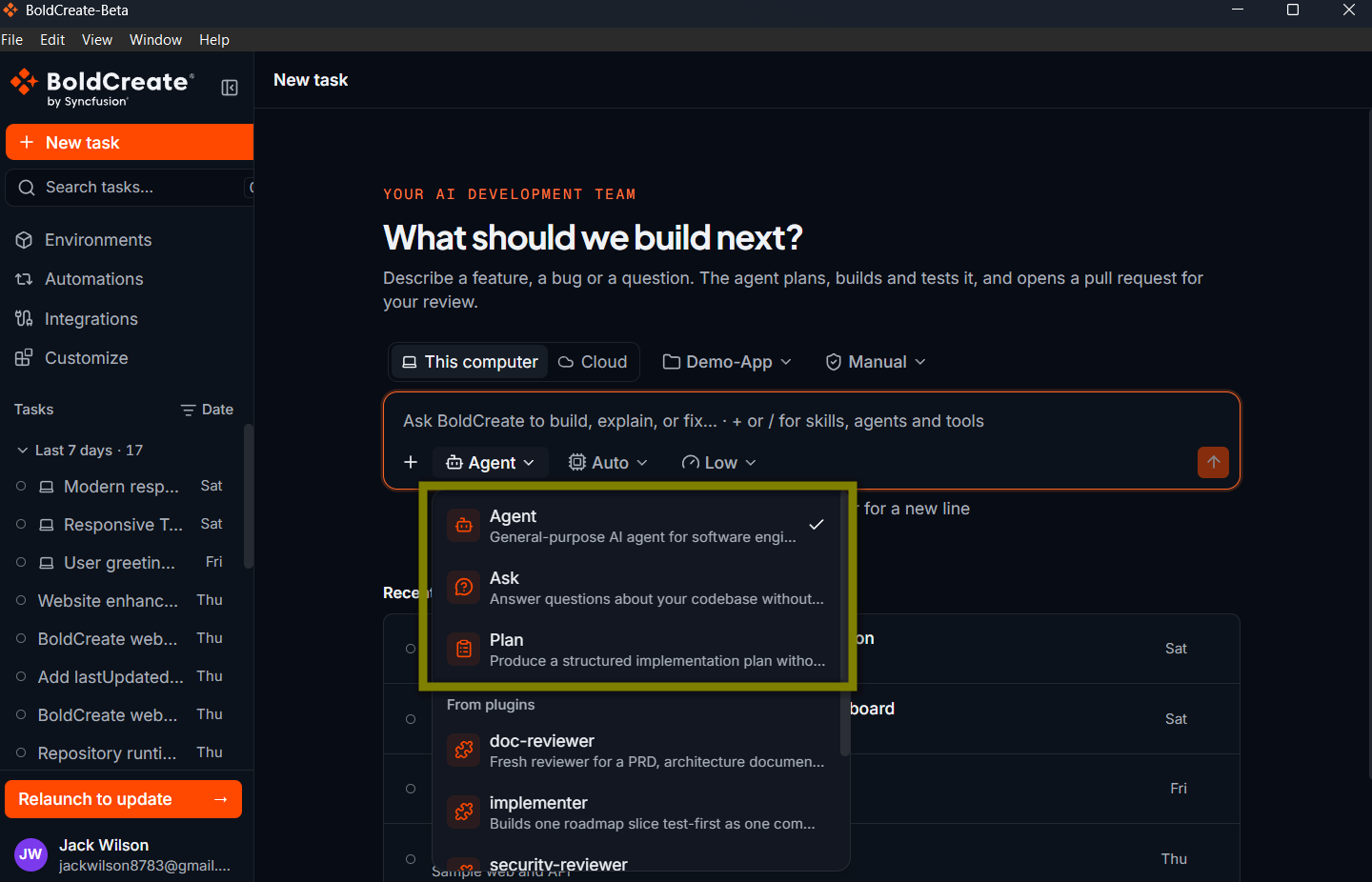
- Click the agent button in the message box.
- Pick the agent you want to use.
The agent list is grouped into:
- Built-in: Agent, Ask, and Plan
- Cloud agents: agents your organization has set up
- Repository agents: agents defined inside your project
- Search agents: search for an agent by name
Built-in agents
| Agent | What it does |
|---|---|
| Agent | Reads files, changes files, and runs commands to complete the task. |
| Ask | Answers project questions without changing anything. |
| Plan | Writes an implementation plan with an overview, steps, file impact, risks, and validation. It does not change anything. |
Use Ask for questions and exploration, Plan to review a design and validation approach before editing, and Agent for code changes and task completion.
Choose a model
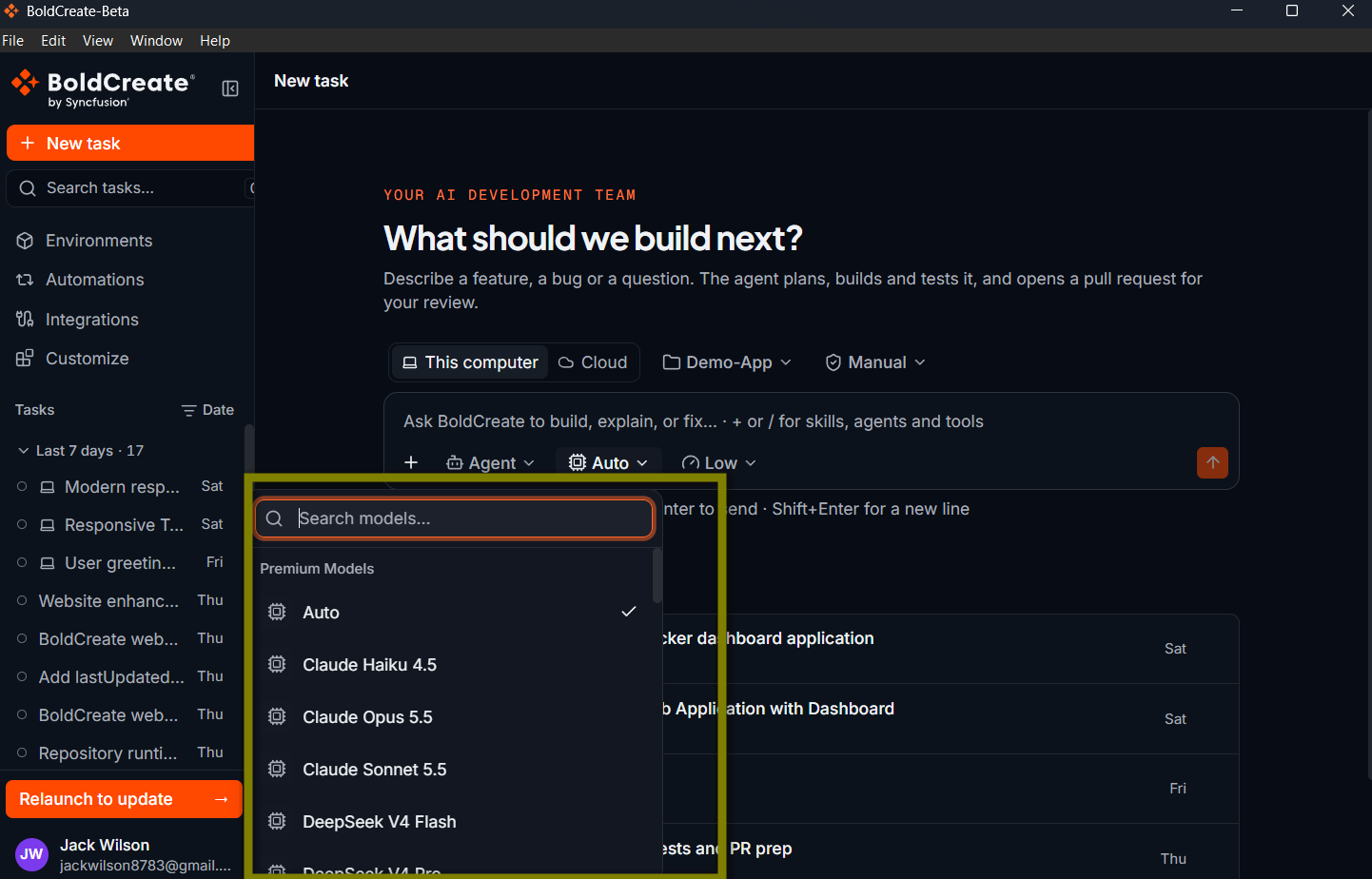
Click the model button in the message box to choose the AI engine.
The available models are grouped into:
- Premium Models: models provided through BoldCreate
- BYOK Models: models that use your own AI provider key
- Search models: find a model by name
Set thinking effort
Some models support a longer reasoning phase before answering. When supported, a Thinking effort button appears next to the selected model.
Available values depend on the model and usually include:
- Low: routine coding tasks
- Medium: a good general default
- High: tricky bugs, design questions, and larger refactors
- None: no extra reasoning for quick lookups and simple edits
Higher effort can improve quality on harder tasks, but it takes longer. BoldCreate remembers your choice for each model.
Recommended workflow
- Open New task.
- Choose where the task runs.
- Pick the right agent.
- Pick the model.
- Set a thinking effort if supported.
- Write your request clearly.
- Send the message and monitor the agent.
Write a clear request
A strong request explains the result, scope, and context. For example:
Add a "Forgot password" link to the sign-in page that sends a reset email.This is easier for the agent to act on than a vague request because it defines the outcome and expected behavior.
Choose a combination for your task
| Goal | Best combination |
|---|---|
| Learn about the project | Ask + a suitable model |
| Review the plan before editing | Plan + a capable model |
| Implement a code change | Agent + a coding model |
| Work with screenshots or images | A model that supports image attachments |
Note: Some models cannot read image attachments. If you attach an image while using one of these models, BoldCreate marks the attachment as unsupported. Choose a different model or remove the image.