
What you’ll learn
- How to see every file the agent changed
- How to read the differences between the old and new versions
- How to look at the agent’s commits for cloud tasks
- How to leave comments on specific lines and send them to the agent
Open the Changes tab
- Open a task.
- If the workspace panel is closed, click Open workspace panel at the top of the task.
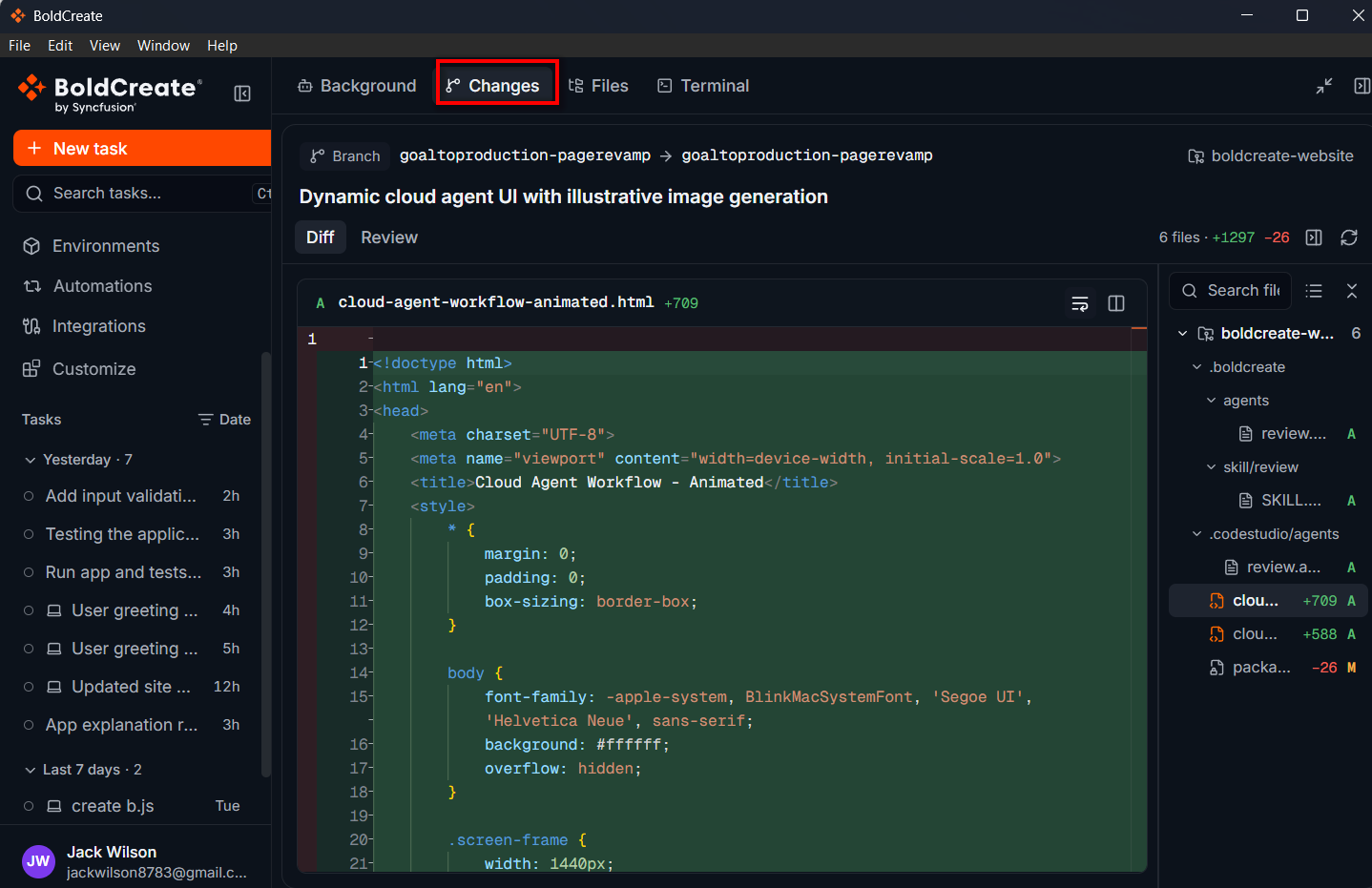
- Click the Changes tab.
A number on the tab shows how many changes you haven’t looked at yet. The Changes tab stays up to date while the agent works. To check for new changes yourself, click Refresh.
Note: Before the agent changes anything, the tab shows “No changes yet” – “Changes will appear here once the agent starts modifying files.”
The list of changed files
The left side of the tab lists the files that changed. Each file shows its status:
| Status | Meaning |
|---|---|
| Added | A new file. |
| Modified | An existing file that was changed. |
| Deleted | A file that was removed. |
| Renamed | A file that was given a new name or moved. |
| Copied | A new file copied from an existing one. |
| Type changed | The kind of item changed, for example, a file became a link. |
You can also see how many lines were added (+) and removed (−).
Useful controls:
- Search files: type part of a file name to filter the list.
- Show as tree / Show as list: show files inside their folders, or as one flat list.
- Collapse all: close all folders in the tree.
- Hide files / Show files: hide the list to give the differences more room.
- Repository menu: if the task uses more than one repository, choose All repositories or just one. The menu also shows each repository’s branch.
Read the differences
Click a file in the list to see what changed. Removed lines are highlighted on the old side and added lines on the new side.
| Control | What it does |
|---|---|
| Show inline | Shows old and new lines in one column, one above the other. |
| Show side by side | Shows the old version on the left and the new version on the right. |
| Word wrap | Wraps long lines so you don’t need to scroll sideways. |
You may also see these messages:
| Message | Meaning |
|---|---|
| “Select a file to see its changes.” | Click a file in the list. |
| “A binary file: its change can’t be shown.” | The file isn’t text, for example, an image, so the differences can’t be displayed. |
| “Only the file’s mode changed.” | Only the file’s settings changed, not its content. |
| “This file is too large to show side by side.” | Use Show inline instead. |
Look at commits (cloud tasks)
In cloud tasks, a Commits section lists saved snapshots of the project.
- Uncommitted changes – “Changed since the last commit”: changes the agent hasn’t saved as a commit yet. This is what you see by default.
- Commits marked new are the agent’s work that isn’t on your original branch yet.
- Commits under Already on
{branch}were already part of your branch.
Click a commit to see only the changes in that commit. Click Back to uncommitted changes to return.
Comment on changes and send them to the agent
You can review the agent’s work like a teammate’s: leave comments on specific lines, then send them all to the agent in one message.
- Open a file’s differences.
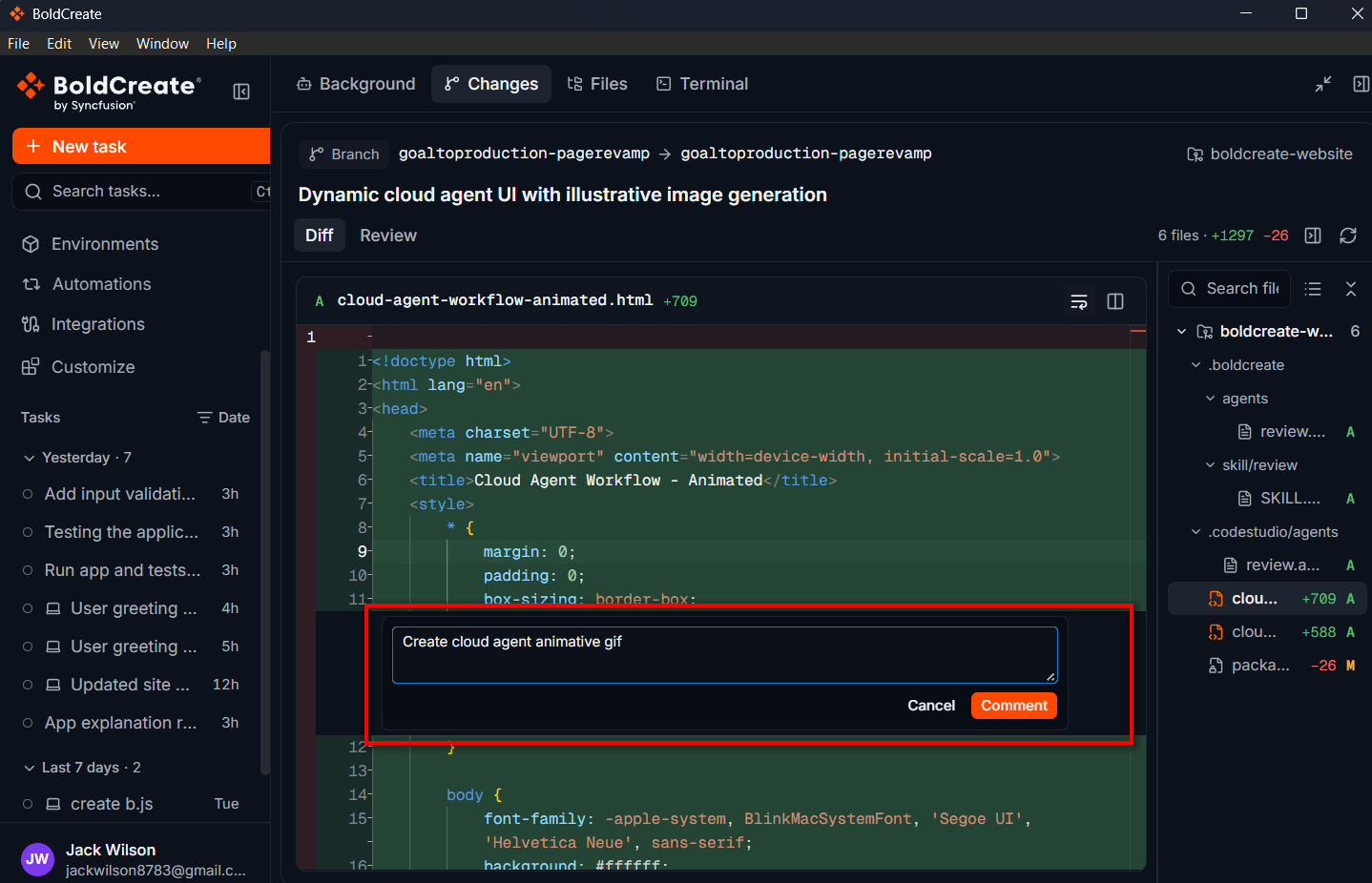
- Hover over a line and click the + that appears beside it.
- Type your comment in the box (Comment on line
{number}…). - Click Comment, or press Ctrl+Enter (Windows) or Cmd+Enter (macOS). Press Esc or click Cancel to discard it.
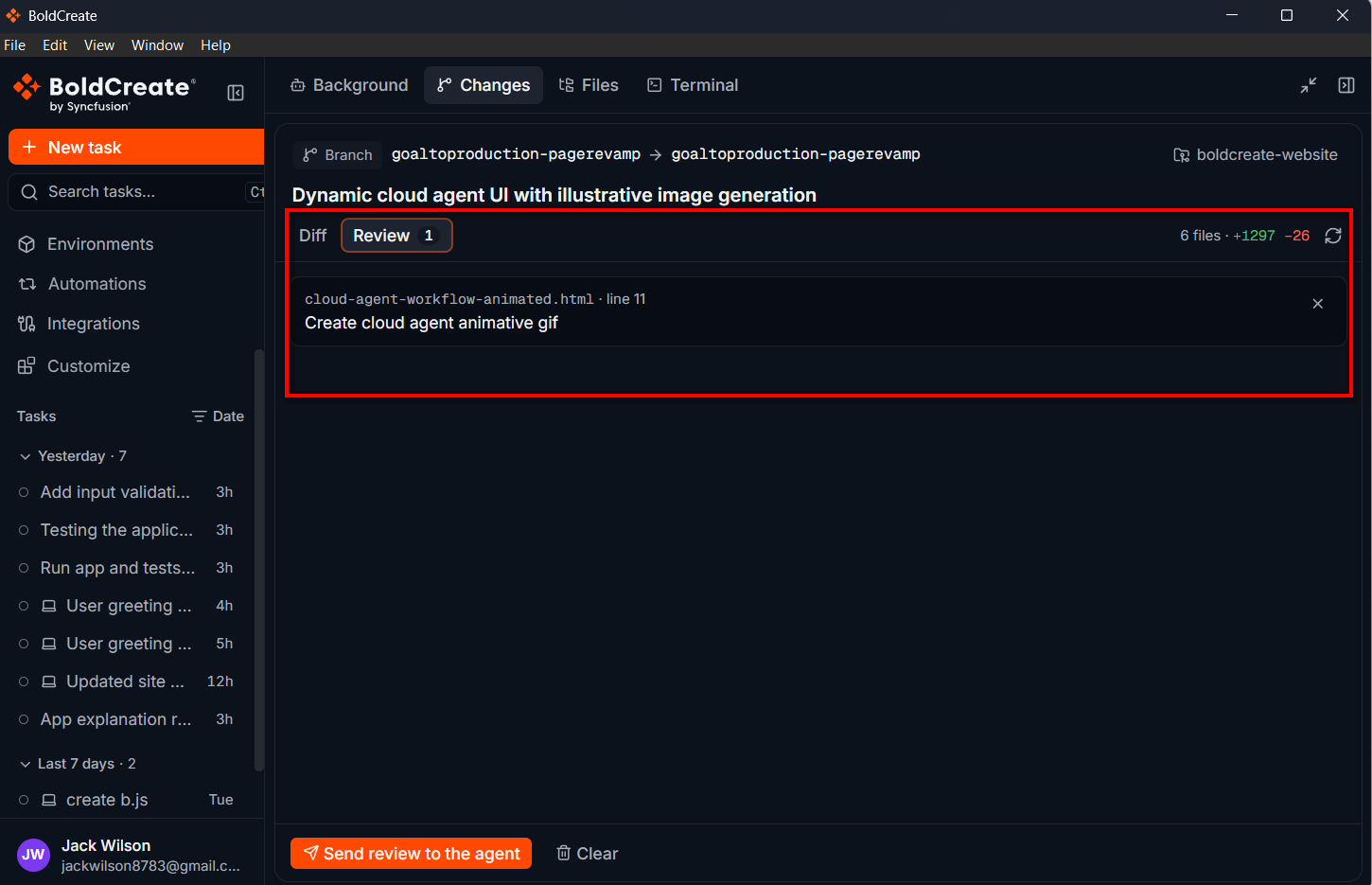
- Repeat for other lines and files. A bar at the bottom shows how many review comments you have. Click it to see them all, and click the trash icon to remove one.
- When you’re done, click Submit Review to Agent.
Your comments are placed in the message box as one Code Review message, grouped by file. Read it, change it if you like, and press Enter to send it. The agent then works through your comments.
To discard all your comments instead, click Clear.
Tip: Comments are linked to the view you wrote them in. If you leave a comment while looking at a single commit, it refers to that commit’s version of the file.
If your folder isn’t a Git repository
For tasks on your computer, the Changes tab uses Git to work out what changed. If the folder doesn’t use Git, you see:
“This folder isn’t a Git repository” – “Changes are shown against the last commit. Run git init in the folder to see them here.”
Set up Git in the folder, or ask the agent to do it, for example, “Set up Git in this folder”, then click Refresh.
Note: For tasks on your computer, the Changes tab shows changes made since the folder’s last commit. It doesn’t show a list of commits.