
What you’ll learn
- How to connect your GitHub, GitLab, or Gitea account
- How to start a task on an online project
- What happens to the agent’s changes
- How to use Agent Validation to test the agent’s work
About cloud tasks
With a Cloud task, the agent works on a copy of your online project on BoldCreate’s secure servers. Your computer doesn’t need a copy of the project.
Before you start, connect the service where your project is stored. BoldCreate works with GitHub, GitLab, and Gitea, including Gitea servers your company runs itself.
Connect GitHub or GitLab
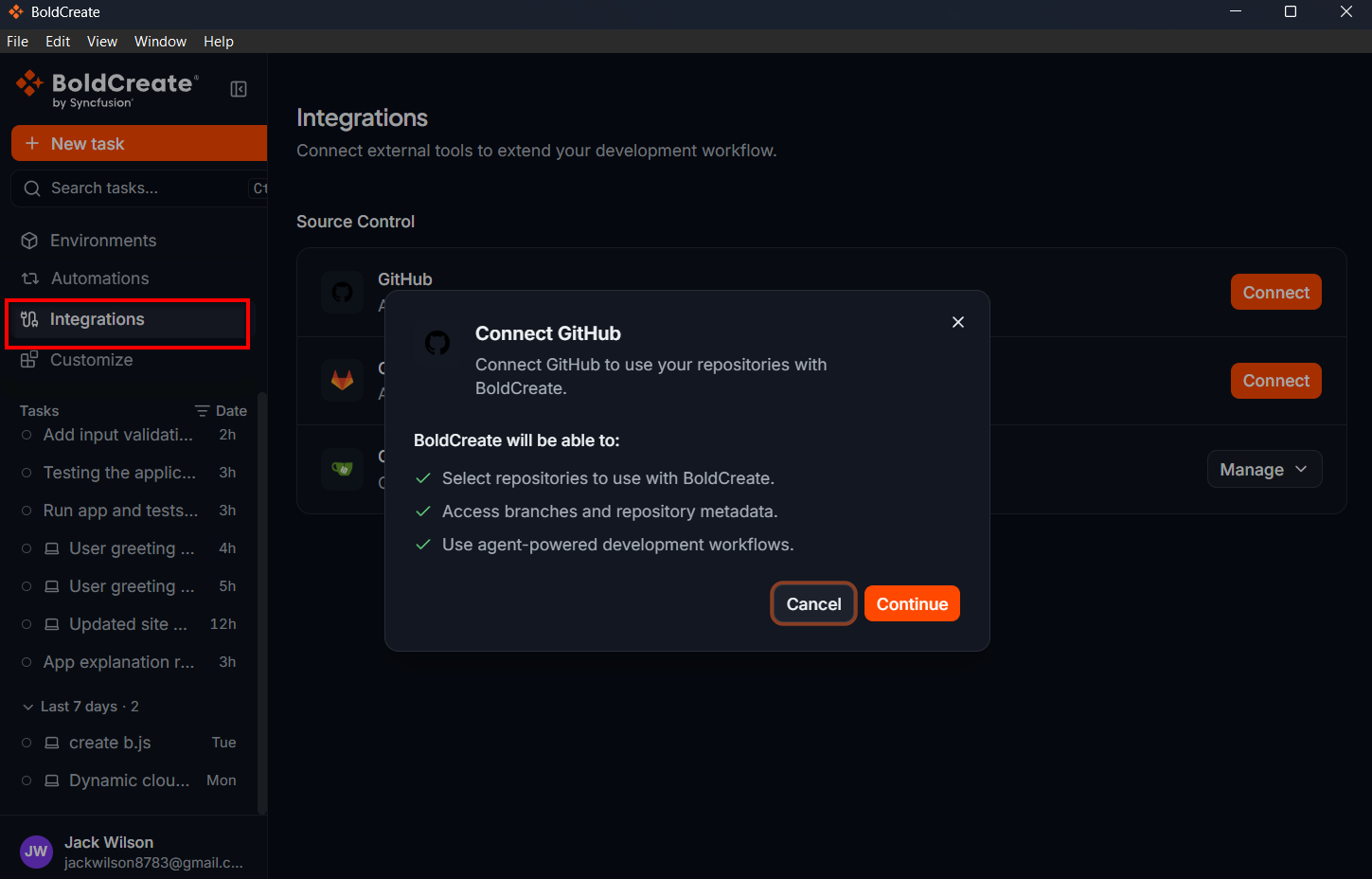
- In the sidebar, click Integrations.
- Under Source Control, find GitHub or GitLab and click Connect.
- Read the window explaining what BoldCreate will be able to do, for example, “Select repositories to use with Bold Create”. Click Continue.
- Your web browser opens. Sign in to GitHub or GitLab if asked, and approve access.
- When the browser shows Connected, close the tab and go back to BoldCreate.
The provider now shows a Connected label and “Connected to {site}”. You also see a message such as “GitHub connected successfully.”
Note: If the browser shows Connection did not complete, go back to BoldCreate and click Connect again.
Connect Gitea
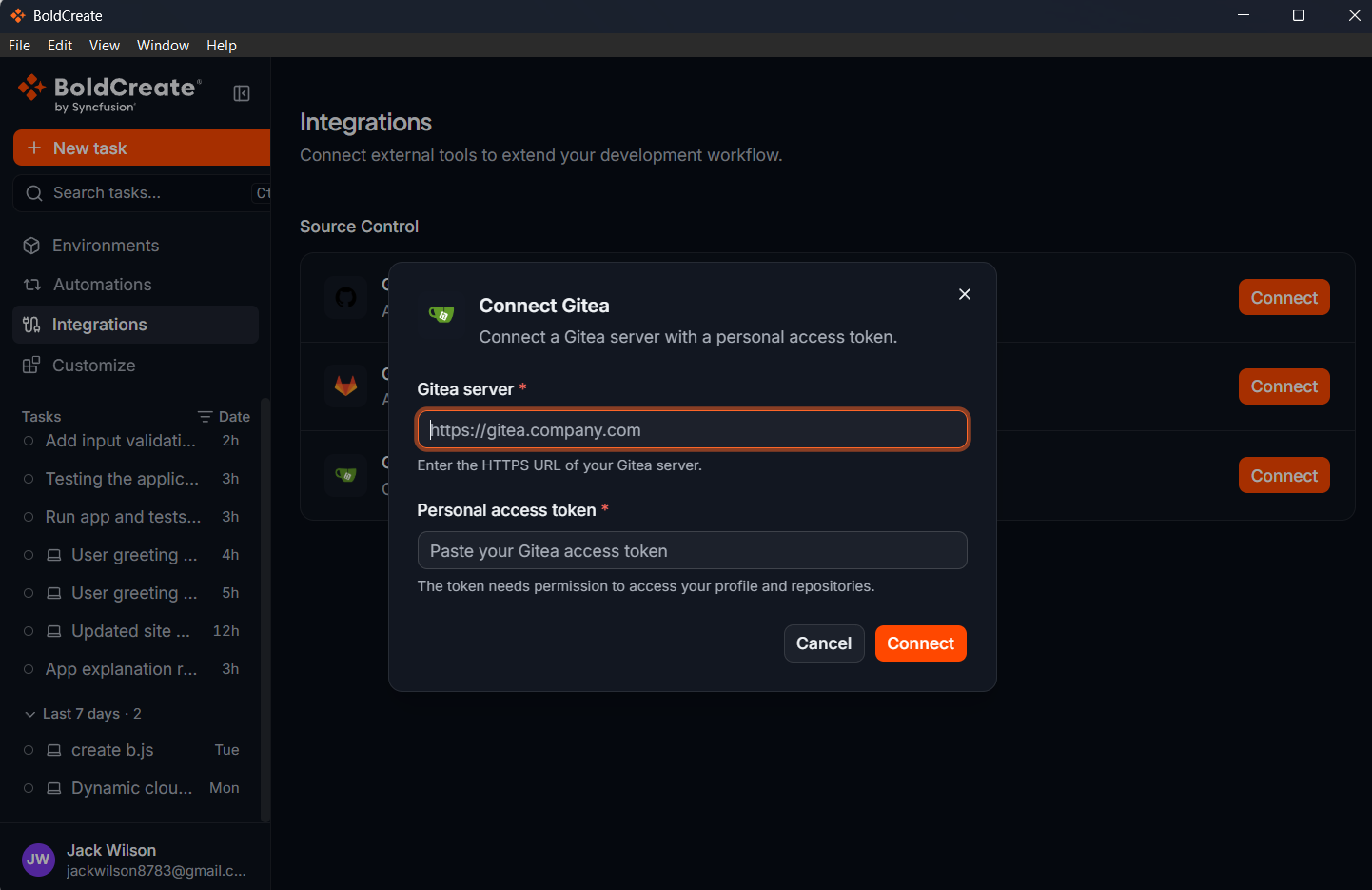
Gitea uses a personal access token: a password-like code that you create in Gitea for BoldCreate to use.
- In Gitea, create a personal access token that can access your profile and repositories. See your Gitea server’s help if you’re not sure how.
- In BoldCreate, click Integrations in the sidebar.
- Next to Gitea, click Connect.
- In Gitea server, enter your Gitea web address. It must start with
https://. - In Personal access token, paste your token.
- Click Connect.
| Message | What to do |
|---|---|
| “Enter a valid HTTPS Gitea server URL.” | Check the address and make sure it starts with https://. |
| “Enter a personal access token.” | Paste your token into the field. |
| “Gitea could not be connected. Check the server URL and access token, then try again.” | Check both values. Make sure the token can access your profile and repositories. |
Disconnect a service
- On the Integrations page, click Manage next to the connected service.
- Click Disconnect.
- Click Disconnect again to confirm.
BoldCreate will no longer be able to use repositories from that service, and tasks that are running may be interrupted.
Start a cloud task
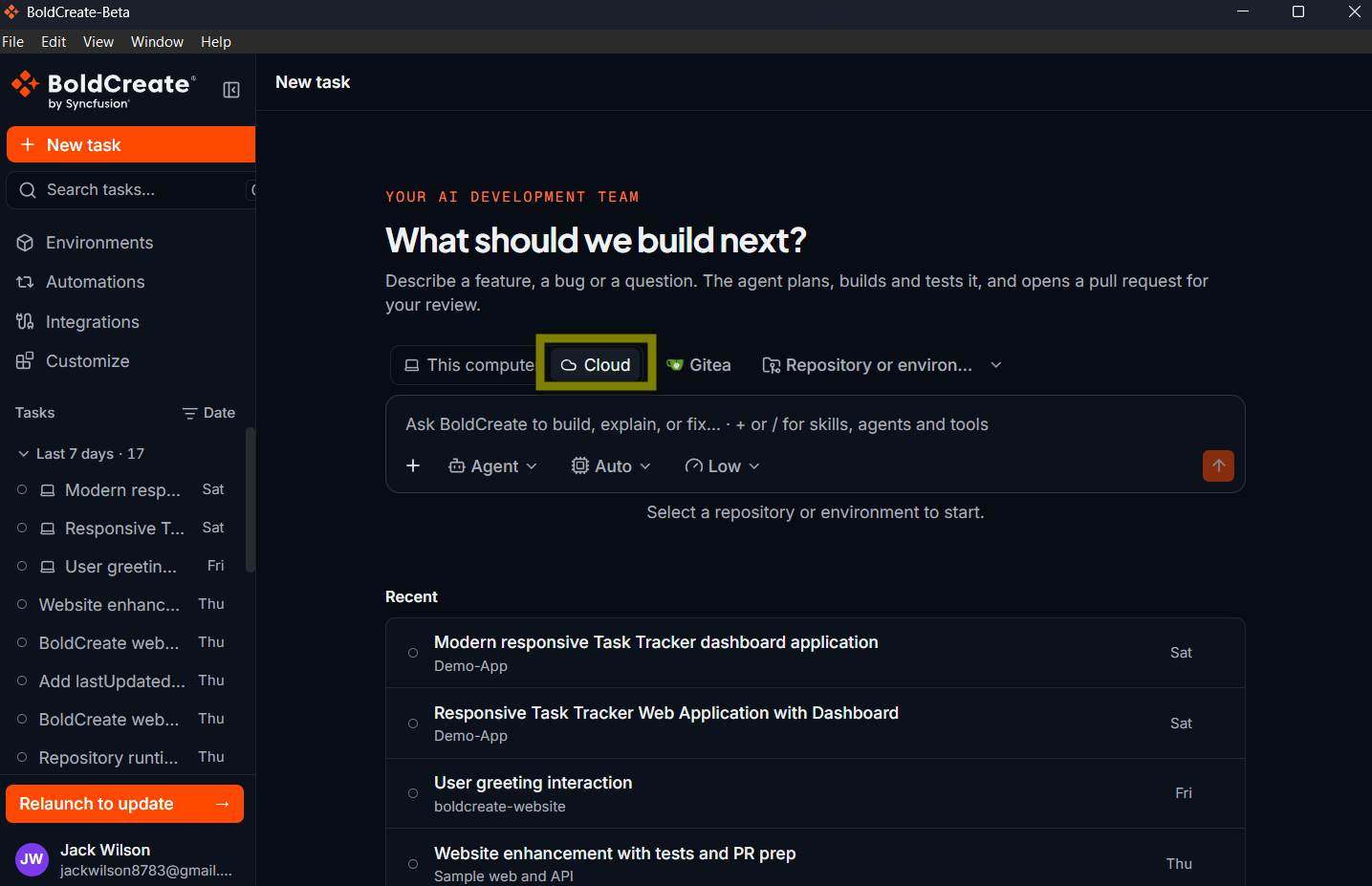
- Click New task in the sidebar.
- Under Start a new task, select Cloud.
- Choose your Git service: GitHub, GitLab, or Gitea.
- Click the repository button and select your repository. Type in the search box to find it quickly.
- Click the branch button and select the branch to work from. Type in Search branches… to find it.
- Choose an agent and a model, type your request, and press Enter.
Note: If you see “Connect a Git provider to use this repository”, connect the service first on the Integrations page.
Tip: Your last choices are kept, so starting the next task on the same project is quick.
What happens to the agent’s changes
- The agent works on its own branch (its name starts with
bc/), so the branch you picked isn’t changed directly. - You can follow every change in the Changes tab, including the commits the agent makes. See Review changes.
- When the work is ready, the agent can create a pull request in your Git service, so you and your team can review it and add it to your project.
- If a task shows Needs PR details, open it and give the agent the information it asks for.
Note: Cloud tasks run without approval prompts. The agent works on its own copy of the project, so nothing changes in your repository until you accept the pull request.
Test the agent’s work with Agent Validation
After the agent finishes some tasks, it may offer to test its work. A Run Agent Validation button appears at the end of the conversation.
- Click Run Agent Validation. You see “Starting agent validation…”.
- The agent shows a Test plan, a checklist of what it will check.
- As it tests, you may see screenshots or a video of the app being tested.
- When it’s done, you see a Test report with the results.
- If something failed, click Fix It to ask the agent to fix the problem.