
What you’ll learn
- How to run a task in a folder on your own computer
- How to choose how often the agent asks for your permission
- How to approve or deny the agent’s actions
- How to find the task’s folder and what to do if it moves
About tasks on your computer
With a This computer task, the agent works directly in a folder you choose on your computer. It can read the files in that folder, change them, and run commands, just as you would.
Everything you need is included with BoldCreate. You don’t need to install anything else.
Tip: If your folder uses Git, BoldCreate can show you exactly what the agent changed. If it doesn’t, the Changes tab shows “This folder isn’t a Git repository”. See Review changes.
Start a task on your computer
- Click New task in the sidebar.
- Under Start a new task, select This computer.
- Click Choose folder…. A window titled Choose a folder for local runs opens.
- Select your project folder and confirm.
- Check the approval mode. Manual is selected unless you changed it.
- Type your request and press Enter.
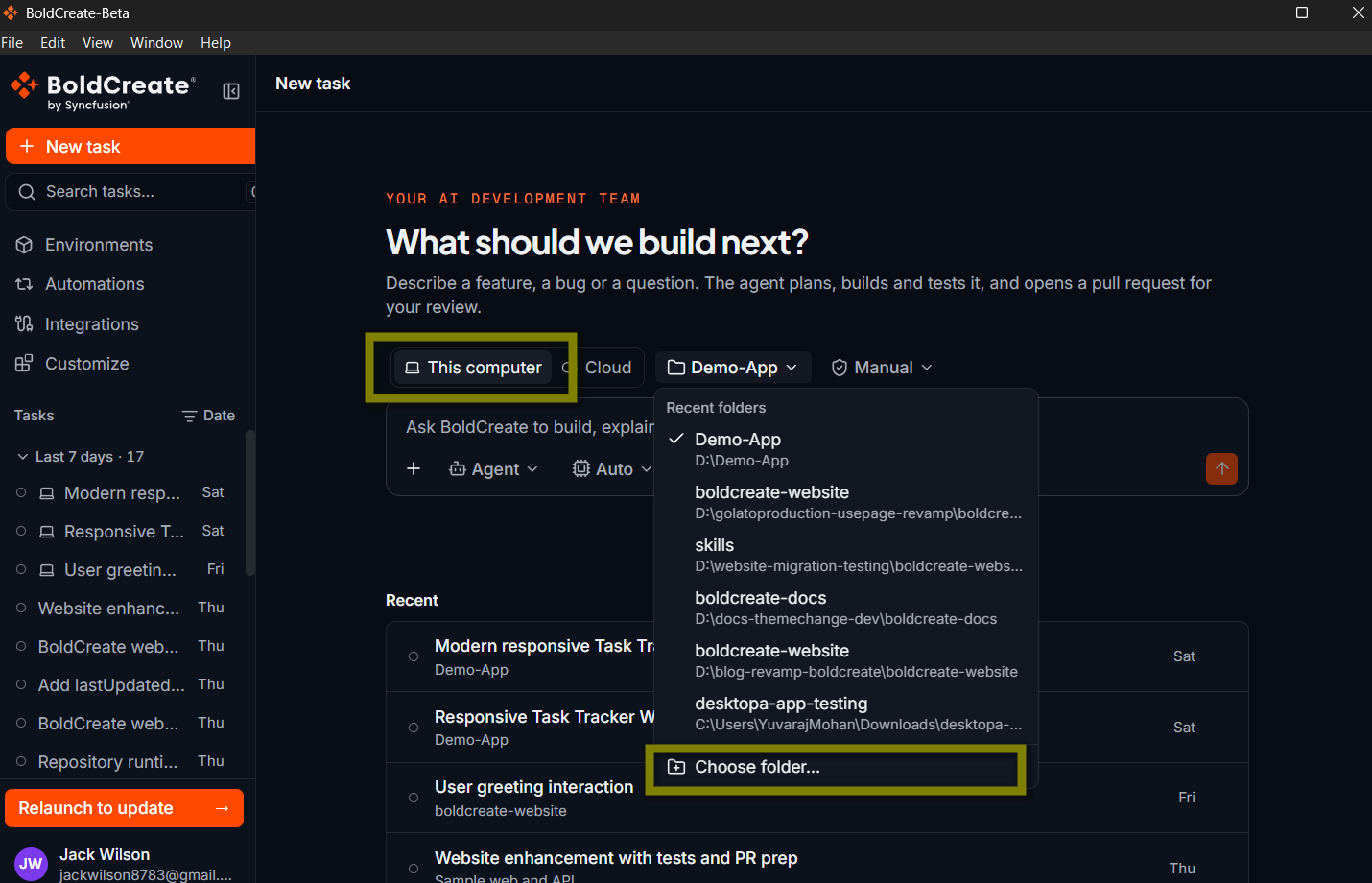
Tip: BoldCreate remembers the folders you’ve used. Click the folder button and pick one from Recent folders to skip the folder window.
Note: BoldCreate remembers whether you last chose This computer or Cloud, and selects it for your next task.
Choose an approval mode
The approval mode decides whether the agent asks before it runs commands or changes files. You choose it for each folder, using the approvals button next to the folder.
| Mode | What happens |
|---|---|
| Manual (default) | The agent asks before running commands or changing files, then waits for you to click Allow or Deny. |
| Auto | BoldCreate runs commands and changes files without asking. |
Turn on Auto
- Click the approvals button and choose Auto.
- Read the Turn on Auto approvals? message. It explains that the agent will run commands and change files in that folder without asking first.
- Click Use Auto to confirm, or Keep Manual to cancel.
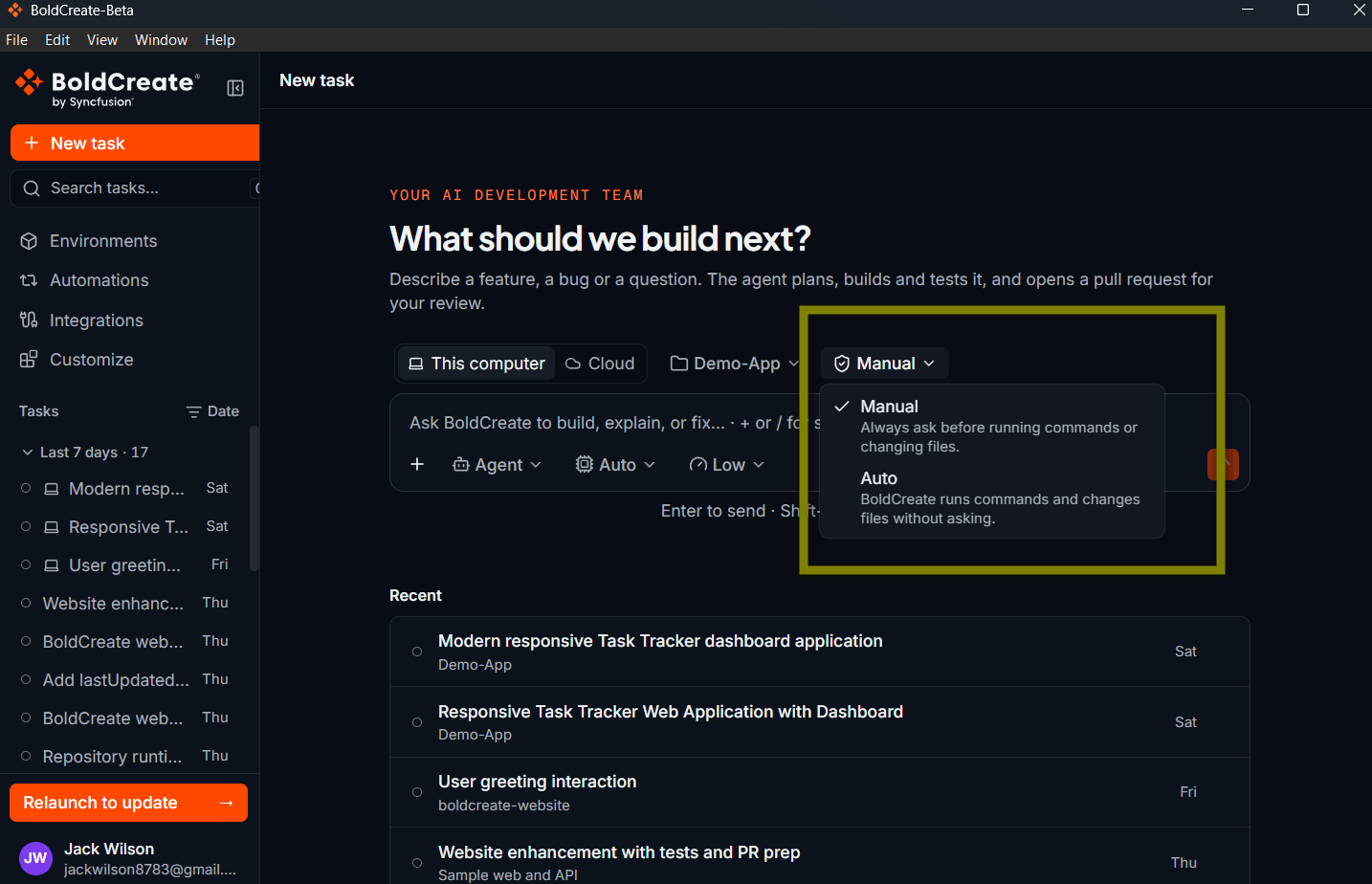
You can switch back to Manual at any time.
Tip: Start with Manual until you’re comfortable with how the agent works. Switch to Auto for folders where you’re happy to let it work on its own.
Note: Your choice is saved for that folder. Tasks in other folders keep their own setting.
Approve or deny an action
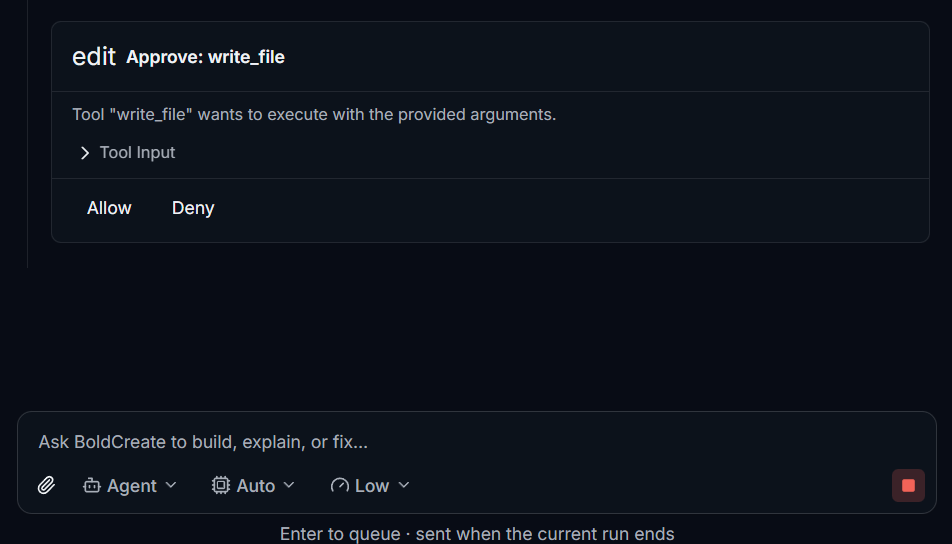
In Manual mode, the agent stops before it runs a command or changes a file. An approval card appears in the conversation. Its title starts with Approve: followed by the action, for example:
- execute: run a command
- write_file: create a file or replace its content
- edit_file: change part of a file
Click Tool Input to see details, such as the command or the file and new text. Then choose:
- Allow: the agent goes ahead.
- Deny: the agent doesn’t do it. You can send a message to tell it what to do instead.
After you choose, the card shows that the approval is resolved and the agent continues.
Tip: If you’re working in another app, BoldCreate can show an Approval needed notification when a task is waiting for you. See Manage tasks.
Things to know
- Attachments: tasks on your computer accept images only (PNG, JPEG, GIF, or WebP). See Start a task.
- Signing out or quitting stops any task that is running on your computer. Your tasks and their history are kept.
- History stays on your computer. The conversations for these tasks are saved on this computer.
- Deleting a task removes the conversation only. Files in the folder are not changed.