What you’ll learn
- Where to find your profile menu
- How to change BoldCreate’s appearance
- How to open your account settings and dashboard
Open your profile menu
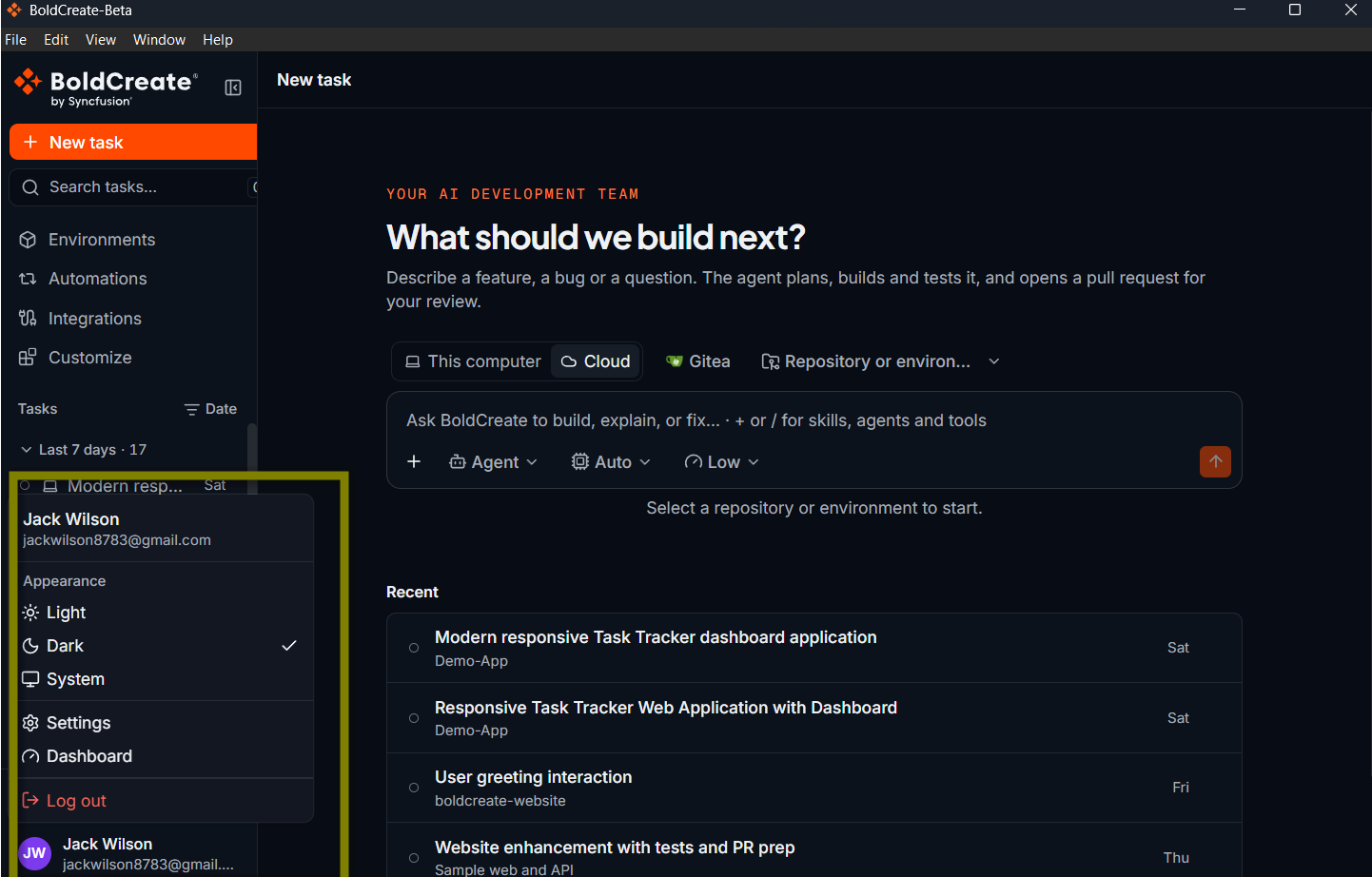
Your name and picture, or your initials, appear at the bottom of the sidebar. Click them to open your profile menu.
| Option | What it does |
|---|---|
| Appearance | Choose Light, Dark, or System (follows your computer’s setting). |
| Settings | Opens your BoldCreate account settings in your web browser. |
| Dashboard | Opens your BoldCreate dashboard in your web browser. |
| Log out | Signs you out of BoldCreate. |
Choose an appearance
- Click your name at the bottom of the sidebar.
- Select Appearance.
- Choose Light, Dark, or System.
System follows your computer’s appearance setting. BoldCreate starts in Dark. The menu bar and title bar follow the appearance you choose.
Open account settings or your dashboard
- Click your name at the bottom of the sidebar.
- Choose Settings to open your BoldCreate account settings in a browser, or choose Dashboard to open your BoldCreate dashboard.
To sign out, use Log out in this menu. Signing out stops any task that is running on your computer and closes open terminals; it does not delete your tasks. See Sign in.