
What you’ll learn
- What your computer needs to run BoldCreate
- How to download the right installer
- How to install BoldCreate on macOS and Windows
- How to open BoldCreate for the first time
Before you begin
Check that your computer meets these requirements.
| Requirement | macOS | Windows |
|---|---|---|
| System version | macOS 12 (Monterey) or later | Windows 10 (version 1809 or later) or Windows 11 |
| Processor | Apple silicon (M1 or newer) | 64-bit Intel/AMD (x64) or ARM64 |
| Installer file | BoldCreate.dmg | BoldCreate.exe |
You also need an internet connection and a Syncfusion account to sign in.
Note: BoldCreate for macOS runs on Macs with Apple silicon only. It does not run on Macs with Intel processors.
Tip: To check which Mac you have, open the Apple menu and choose About This Mac. If the Chip line says “Apple M1” or newer, you can use BoldCreate.
Step 1: Download BoldCreate
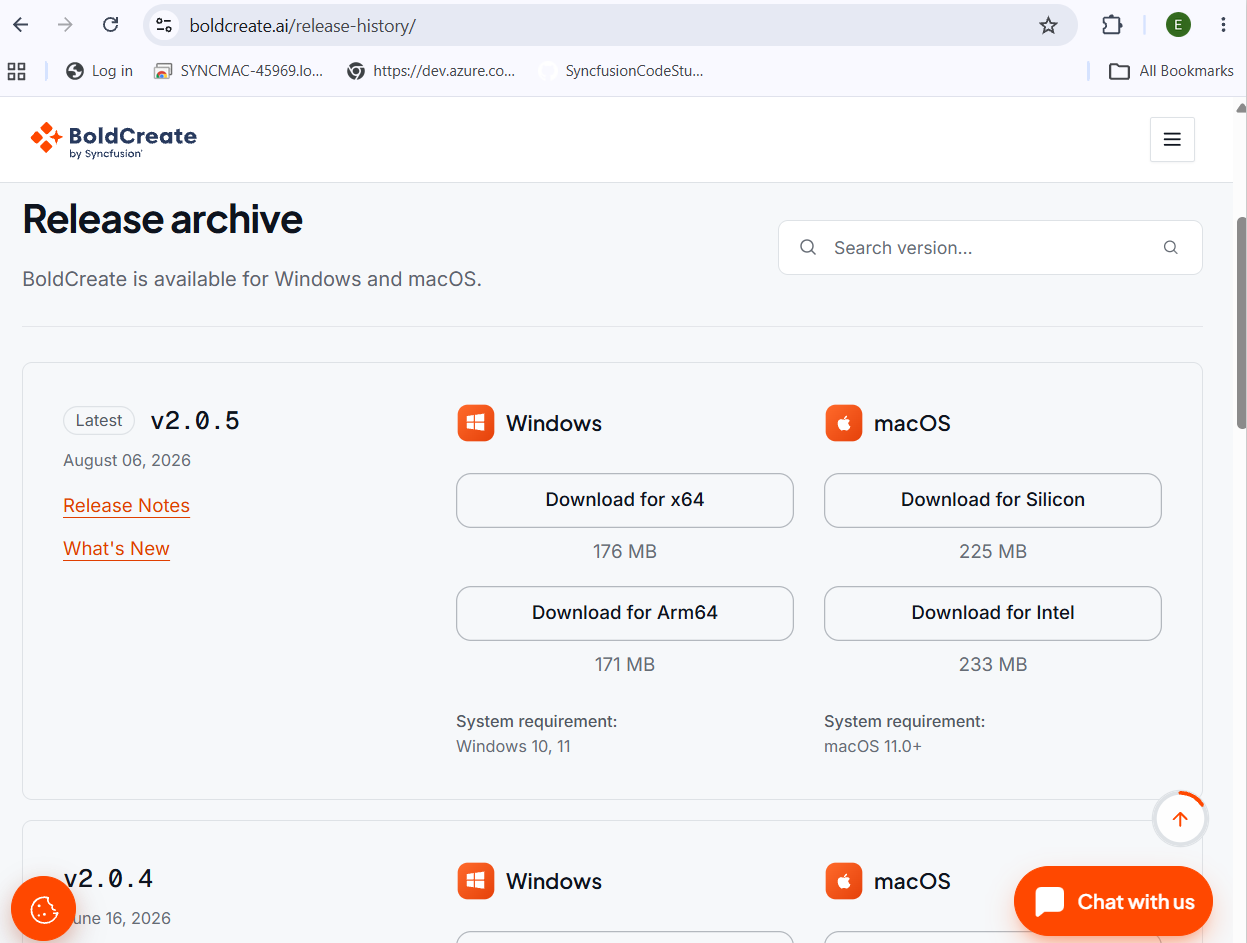
- Go to the BoldCreate release history page: Release history.
- Choose the installer for your operating system from the latest version.
- Save the file to your computer, for example, to your Downloads folder.
Step 2: Install BoldCreate
On macOS
- Open your Downloads folder and double-click BoldCreate.dmg.
- In the window that opens, drag the BoldCreate icon onto the Applications folder.
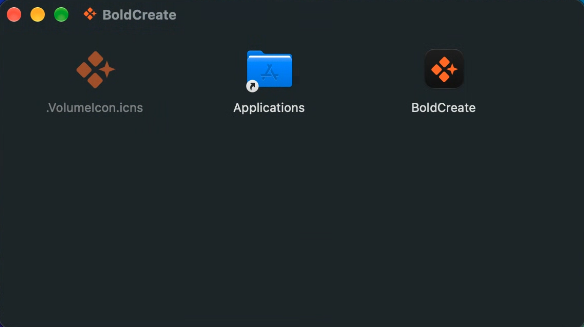
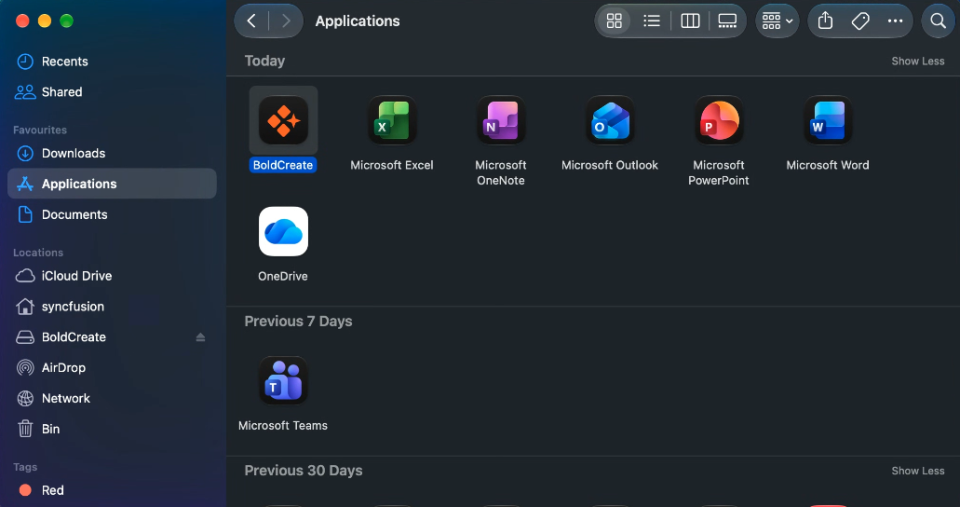
- Wait for the copy to finish, then eject the BoldCreate disk image by clicking the eject button next to it in Finder’s sidebar.
On Windows
- Open your Downloads folder and double-click BoldCreate.exe.
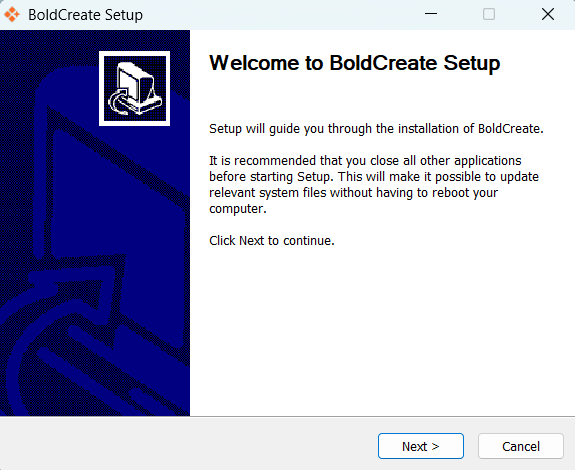
- Follow the steps in the installer.
- When the installer finishes, BoldCreate is added to your Start menu.
Note: BoldCreate installs just for your Windows user account, so you don’t need administrator rights.
Note: BoldCreate needs a Windows component called Microsoft Edge WebView2, which most Windows computers already have. If yours doesn’t, the installer downloads it for you. Stay connected to the internet while you install.
Step 3: Open BoldCreate for the first time
| System | How to open BoldCreate |
|---|---|
| macOS | Open Applications and double-click BoldCreate, or search for “BoldCreate” in Spotlight. |
| Windows | Open the Start menu and select BoldCreate. |
Note: On macOS, the first time you open BoldCreate you may see a message saying it was downloaded from the internet. This is a normal macOS check. Click Open to continue.
BoldCreate opens to the sign-in screen. Continue with Sign in.
Tip: BoldCreate opens in one window only. If you try to open it again while it’s running, the window that’s already open comes to the front.