
What you’ll learn
- The main areas of the BoldCreate window
- What you’ll find in the sidebar, the Home page, and the task view
- What the right-hand workspace panel is for
- What’s in the menu bar
The BoldCreate window at a glance
The BoldCreate window has three main areas:
- Sidebar (left): start new tasks, open past tasks, and go to other pages.
- Main area (center): the Home page or the conversation for the task you opened.
- Workspace panel (right): shows the agent’s changes, the project’s files, and terminals for an open task.
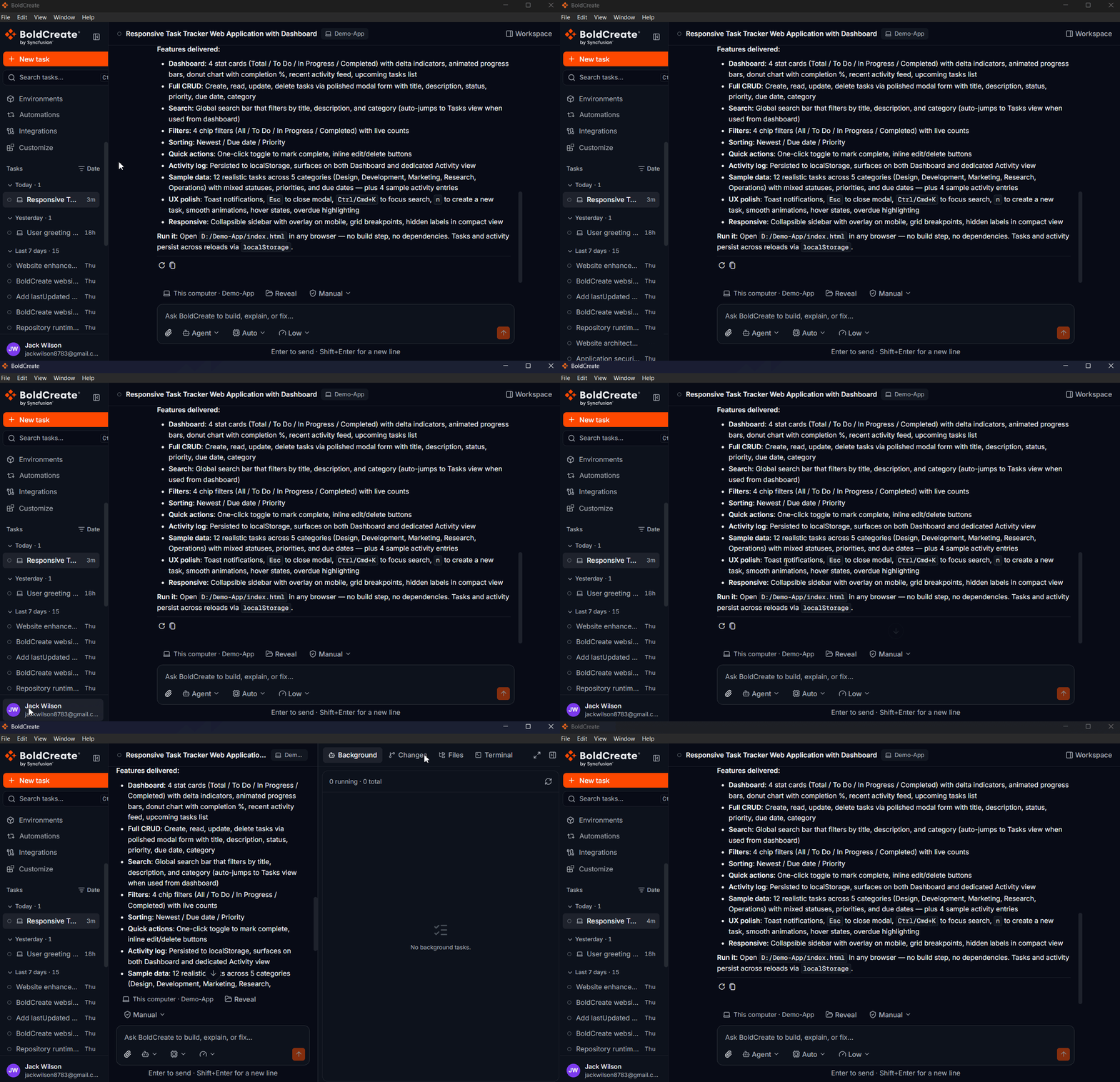
The sidebar
| Item | What it does |
|---|---|
| Search tasks (magnifying glass) | Shows a search box to find a task by its name. |
| Close sidebar | Hides the sidebar to give you more room. Side bar can be opened again by either clicking the boldcreate icon or clicking ctrl+B button. . |
| New task | Goes to the Home page to start a new task. |
| Environments | Creates and manages cloud environments. See Environments. |
| Automations | Starts cloud tasks on a schedule, from repository events, or from a webhook. |
| Integrations | Connects your GitHub, GitLab, or Gitea account. See Run in the cloud. |
| Customize | Adds plugins and shows your skills, agents, MCP servers, and rules. See Customize page and plugins. |
| Tasks | Lists your tasks. Click one to open it. |
| Your name (bottom) | Opens your profile menu: Appearance, Settings, Dashboard, and Log out. |
Each task in the list shows a small icon for its status, and a laptop icon if it runs on this computer. Learn more in Manage tasks.
The Home page
The Home page is where you start new work. It opens when you sign in and when you click New task.
- Start a new task: the message box where you describe your task and choose where it runs.
- In progress: up to 4 tasks that are running right now.
- Recent tasks: up to 6 of your latest tasks.
Click any task card to open it. See Start a task to learn how to begin.
The task view
When you open a task, the main area shows the conversation:
- Title bar: the task’s name, plus buttons to open the sidebar and the workspace panel.
- Conversation: your messages (marked You) and the agent’s replies (marked Bold Create). While the agent works, you see each step it takes.
- Message box (bottom): send follow-up messages, or stop the agent.
See Start a task to learn how to use the message box and follow the agent’s work.
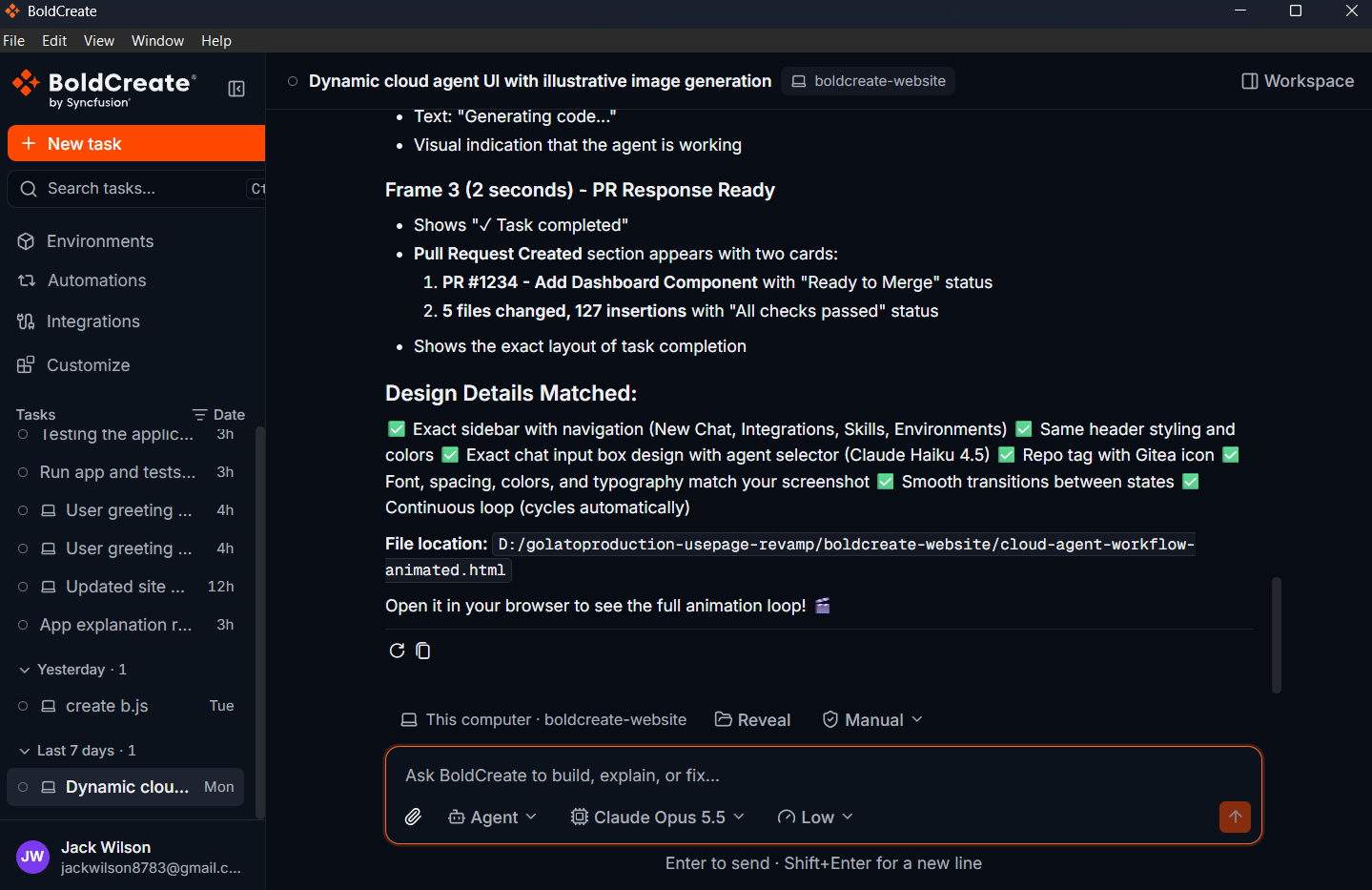
The workspace panel
The workspace panel opens on the right when you have a task open. It has up to three tabs:
| Tab | What it shows | Learn more |
|---|---|---|
| Changes | Every file the agent added, changed, or deleted, with the differences highlighted. | Review changes |
| Files | All the files in the task’s project. You can open, edit, and save them. | Browse files |
| Terminal | Command windows where you can type your own commands. | Terminal |
You can make the panel wider or narrower by dragging its edge. Use Maximize panel to make it fill the window, and Restore panel size to go back.
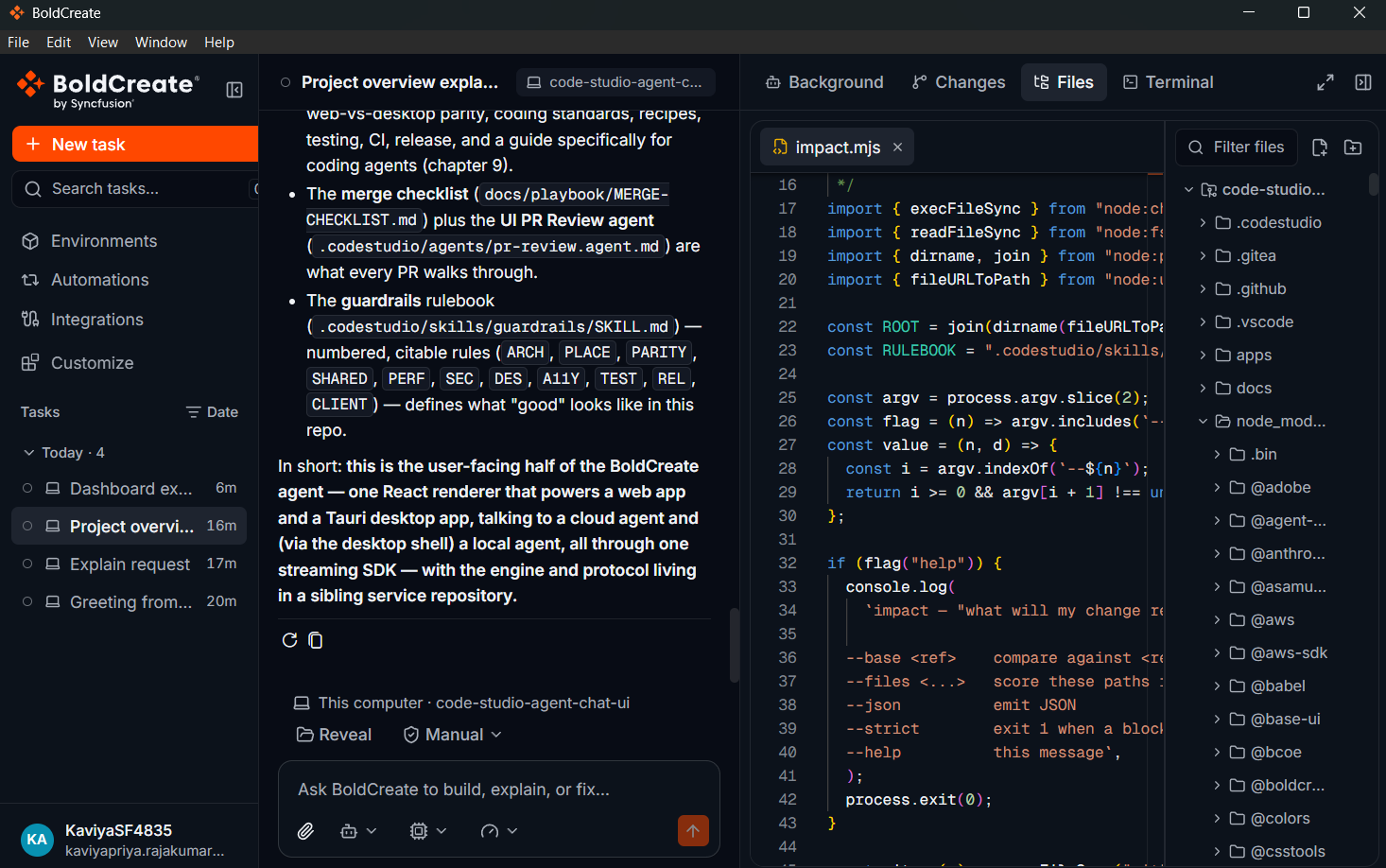
The menu bar
| Menu | Items |
|---|---|
| Bold Create (macOS only) | About, Hide, Quit, and other standard macOS items. |
| File | Sign Out; Close Window (macOS) or Quit (Windows). |
| Edit | Undo, Redo, Cut, Copy, Paste, Select All. |
| View | Reload (reloads the window), Enter Full Screen. |
| Window | Minimize, Maximize. |
| Help | Bold Create on the web (opens the BoldCreate website), Check for Updates…, and About (Windows). |
Tip: The menu bar and title bar follow the appearance you choose: Light, Dark, or System. See Settings and preferences.