
What you’ll learn
- What the Terminal tab is for
- How to open, switch between, and close terminals
- What happens to terminals while the agent works
- What the messages in the Terminal tab mean
About the terminal
A terminal is a window where you type text commands, for example, to run your project, run its tests, or check a file. The Terminal tab gives you terminals that open directly in the task’s project, so you can check the agent’s work yourself.
| Task type | Where the terminal runs |
|---|---|
| This computer | On your computer, in the task’s folder. It uses your usual command shell: PowerShell on Windows or your default shell on macOS. |
| Cloud | On BoldCreate’s servers, in the task’s copy of the project. |
Note: Commands you type in the terminal run for real. On a task on your computer, they can change files on your computer, just as if you typed them in your own terminal app.
Open the Terminal tab
- Open a task.
- If the workspace panel is closed, click Open workspace panel at the top of the task.
- Click the Terminal tab.
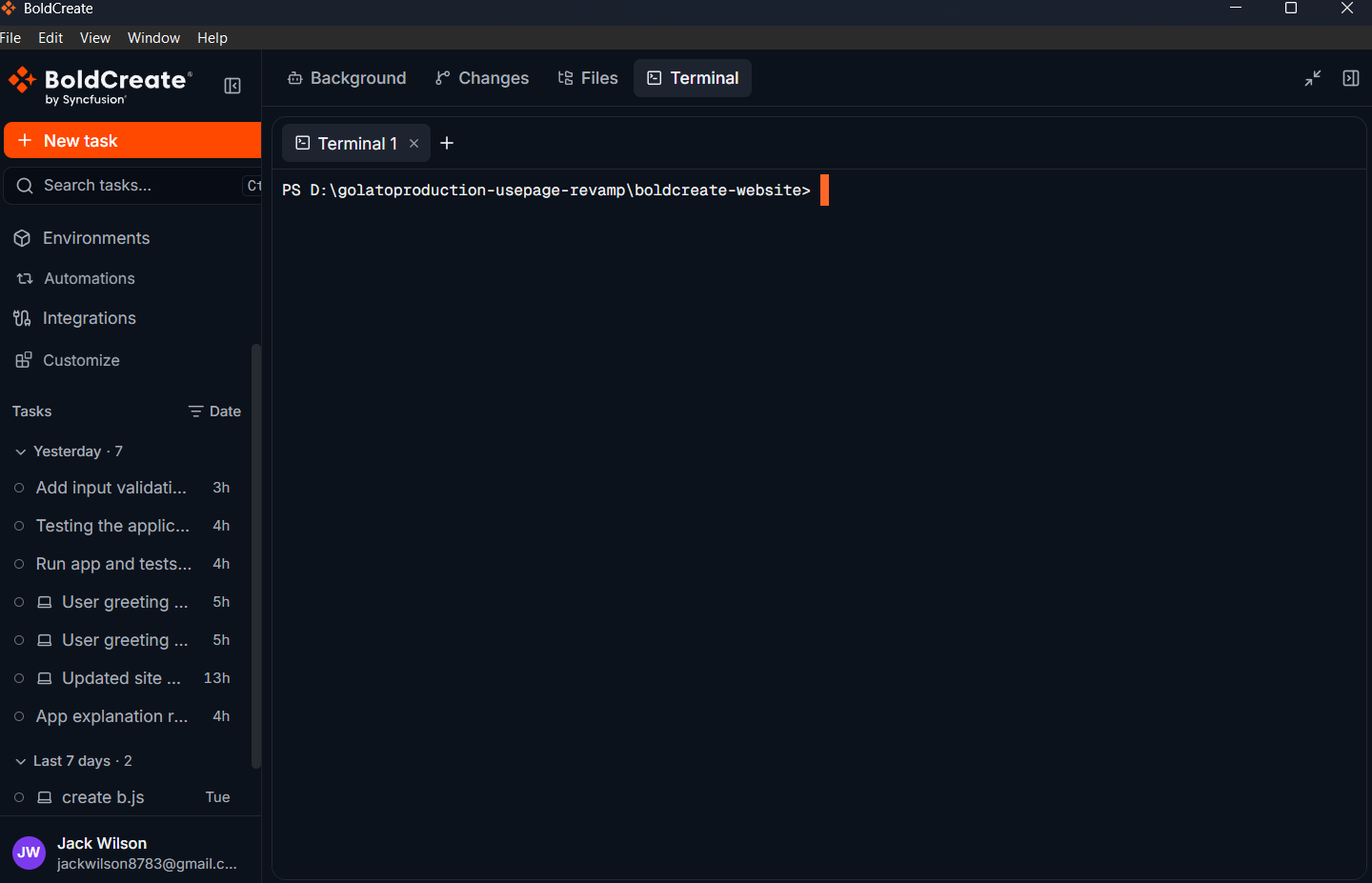
A terminal starts automatically. You see “Starting the terminal…” for a moment, and then a command prompt where you can type.
Note: The Terminal tab appears once the task’s workspace is ready. For a new cloud task, you may see “The workspace starts with the thread’s next message.”
Run a command
- Click inside the terminal.
- Type your command, for example, a command to run your project’s tests.
- Press Enter.
The output appears in the terminal as the command runs.
Tip: Not sure which command to use? Ask the agent, for example, “How do I run this project’s tests?” You can also ask the agent to run it for you.
Work with several terminals
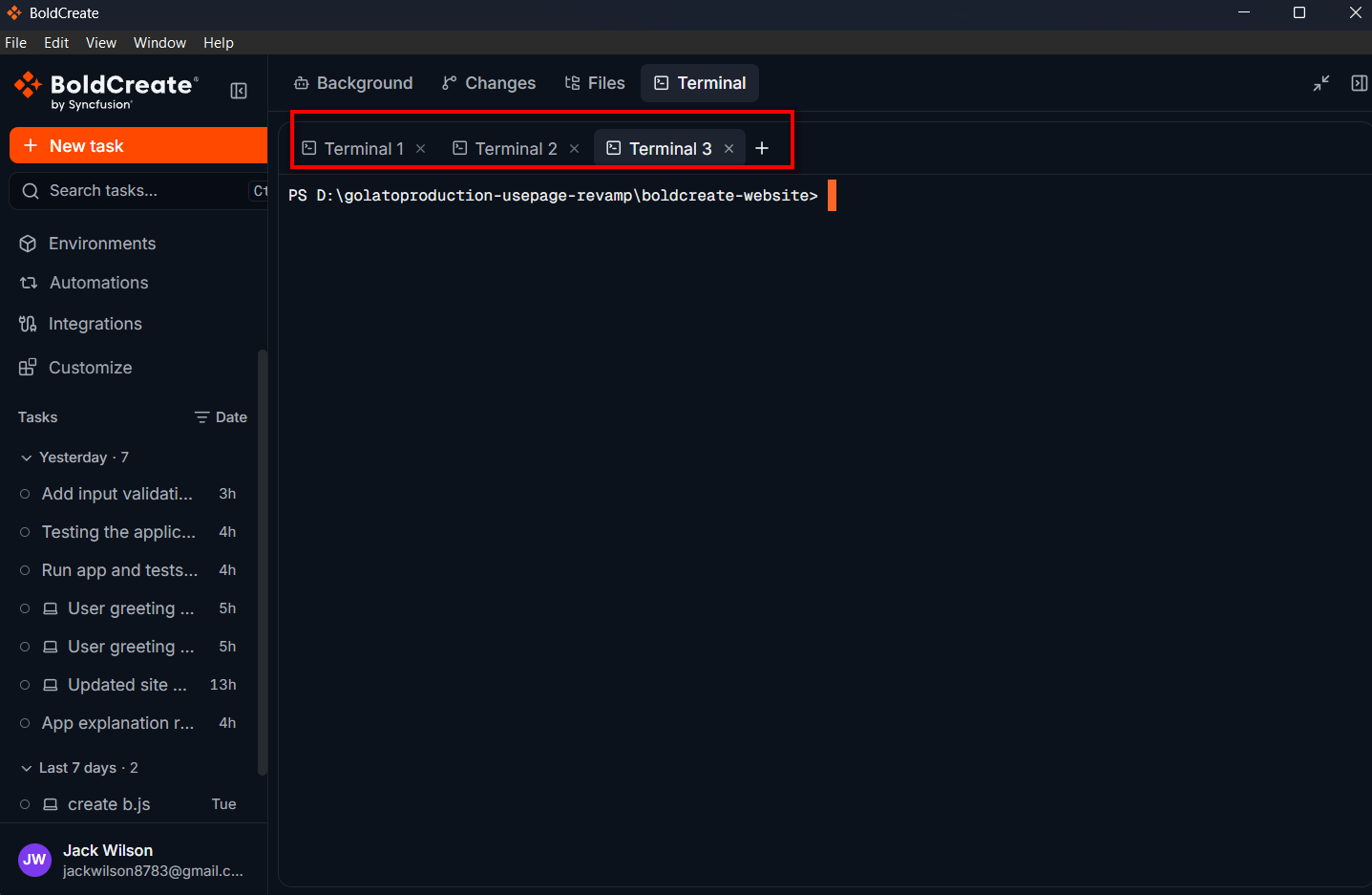
You can have up to 6 terminals open for a project, each in its own tab (Terminal 1, Terminal 2, and so on).
| To… | Do this |
|---|---|
| Open another terminal | Click New terminal (+) next to the tabs. |
| Switch terminals | Click a terminal’s tab. |
| Close a terminal | Click ✕ on its tab (End this terminal). This stops anything running in it. |
When a terminal’s command shell stops, for example, because you typed exit, its tab shows (ended) and you see “The shell ended.” or “The shell exited with code {number}.”
Tip: Use one terminal for a long-running command, such as starting your app, and another for quick checks.
While the agent is working
The agent’s commands run separately from your terminals, so you don’t see its commands here. To see what the agent ran, click Ran command in the conversation.
For some tasks, a terminal becomes read-only while the agent works. You see “Read-only while the agent works.” You can type again once the agent finishes.
When terminals stop
- For tasks on your computer, terminals stop when you sign out or quit BoldCreate.
- If you switch to another task and come back, your terminals are still there, with their recent output.
Messages you might see
| Message | What it means |
|---|---|
| “Starting the terminal…” | The terminal is opening. Wait a moment. |
| “Connection lost. Reconnecting…” | The connection dropped. BoldCreate reconnects on its own. |
| “The terminal is disconnected.” | Click Reconnect. |
| “Disconnected after a period of inactivity.” | Click Reconnect. |
| “The workspace paused.” | The cloud workspace paused. Click Reconnect. |
| “This IDE session was ended.” | Click Reconnect. |
| “A workspace can have at most 6 terminals. Close one to open another.” | Close a terminal you don’t need, then open a new one. |
| “This terminal is open in too many places. Close it elsewhere first.” | Close the terminal in the other places where it is open, then try again. |
| “Couldn’t open the terminal: …” | The terminal couldn’t start. Close its tab and open a new terminal. |