
What you’ll learn
- How to browse and find the files in a task’s project
- How to open, edit, and save files
- How to create, rename, copy, download, and delete files and folders
- What the messages in the Files tab mean
Open the Files tab
- Open a task.
- If the workspace panel is closed, click Open workspace panel at the top of the task.
- Click the Files tab.
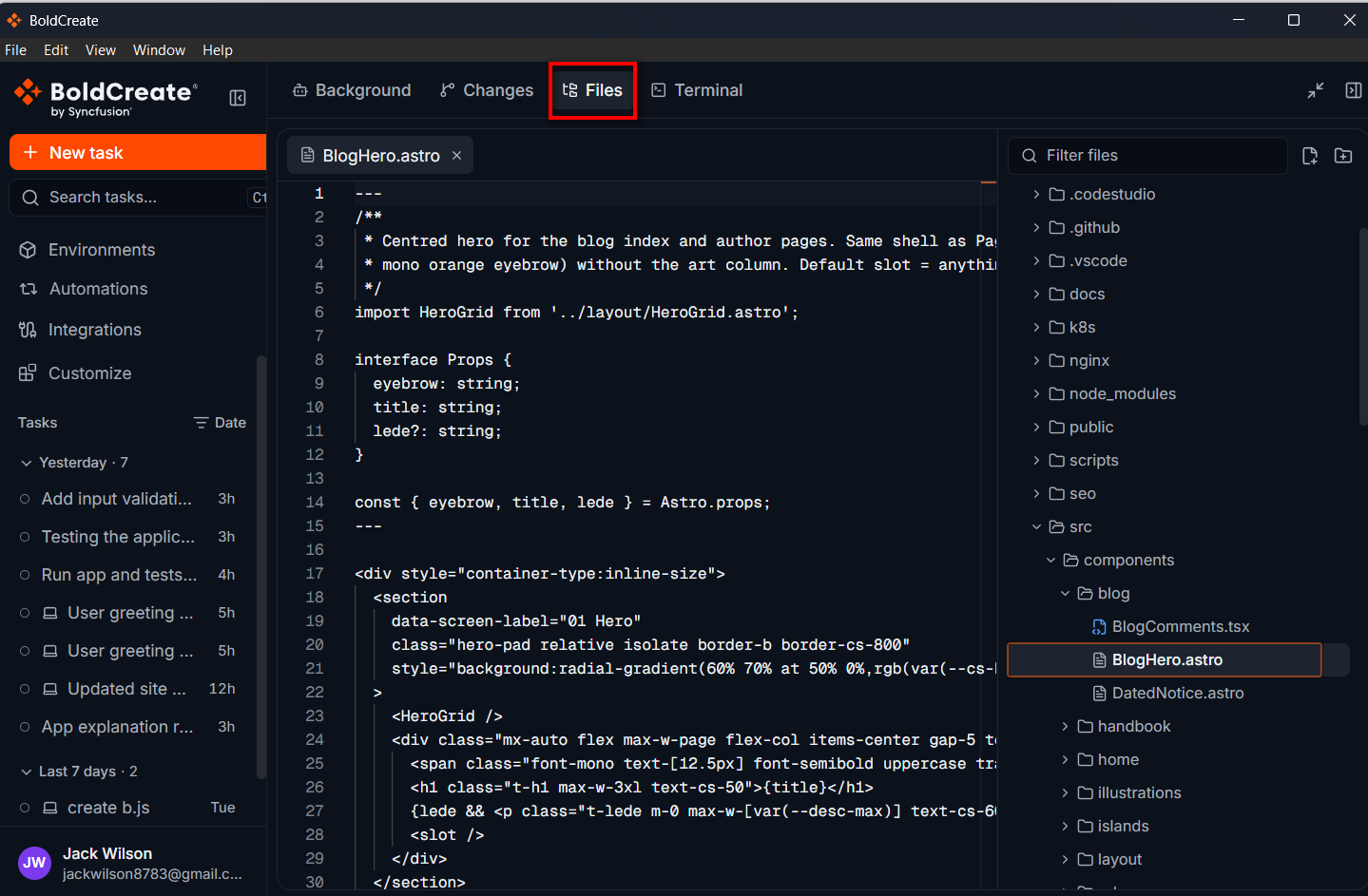
The Files tab has two parts:
- The file explorer (left): all the files and folders in the task’s project.
- The editor (right): the files you open, each in its own tab.
Note: For a task on your computer, the Files tab shows the task’s folder. For a cloud task, it shows the project on BoldCreate’s servers. If the project has more than one repository, each one has its own top-level folder.
Note: The Files tab appears once the task’s workspace is ready. For a new cloud task, you may see “The workspace starts with the thread’s next message.”
Browse and find files
- Click a folder to open or close it.
- Click a file to open it in the editor.
- To find a file by name, type in Filter files at the top. Matching files appear as you type. Use the Up and Down arrow keys to move through the results, and press Enter to open one. Press Esc or click Clear filter to go back to the full tree.
Tip: You can type several words in Filter files, in any order. Files whose names match appear first.
The first time you filter, you may briefly see “Indexing files…” while BoldCreate builds the list of files. If nothing matches, you see “No files match.”
Open and edit files
- Click a file in the explorer. It opens in a new tab in the editor.
- Click in the file and make your changes. A dot on the file’s tab shows that it has unsaved changes.
- To save, click Save, or press Ctrl+S (Windows) or Cmd+S (macOS).
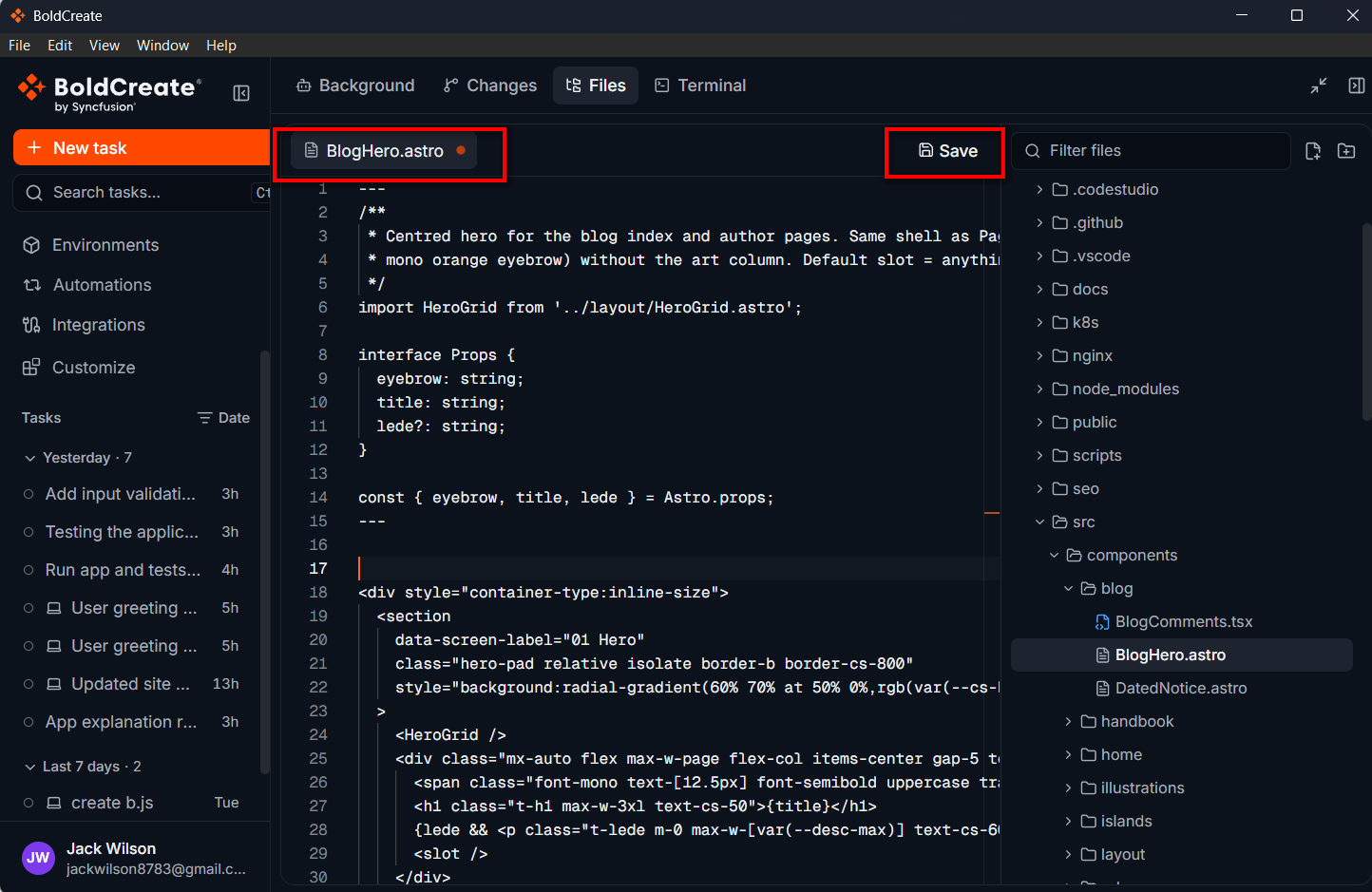
To close a file, click ✕ on its tab. If it has unsaved changes, BoldCreate asks Discard unsaved changes? Click Discard to close it without saving, or Cancel to keep it open.
Tip: Your unsaved changes are kept when you switch to another task and back.
Note: BoldCreate can open files up to 5 MB. Larger files show “
{file}is too large to show”. Files that aren’t text, such as images, show “{file}is a binary file”.
While the agent is working
To avoid clashing with the agent, files are read-only while it works. You see:
“The agent is working: files and terminals are read-only until it finishes.”
You can still browse and open files. You can edit again once the agent finishes.
When a file changes on disk
If a file you have open is changed by someone else, for example, by the agent or another program, BoldCreate lets you know.
| Message | What you can do |
|---|---|
“{file} changed on disk. Your unsaved edits are kept.” | Reload to load the new version and drop your edits, or Keep mine to keep your edits. |
“{file} changed on disk since you opened it.” (when you save) | Reload to load the new version and drop your edits, or Overwrite to replace the new version with yours. |
“{file} was deleted on disk.” | Discard mine to close your version, or Save mine to save your version as a new file. |
“{file} was deleted on disk. Save to create it again.” | Save the file if you want to keep it. |
If you have no unsaved changes, an open file simply updates to the new version.
Create, rename, and delete files and folders
Create a file or folder
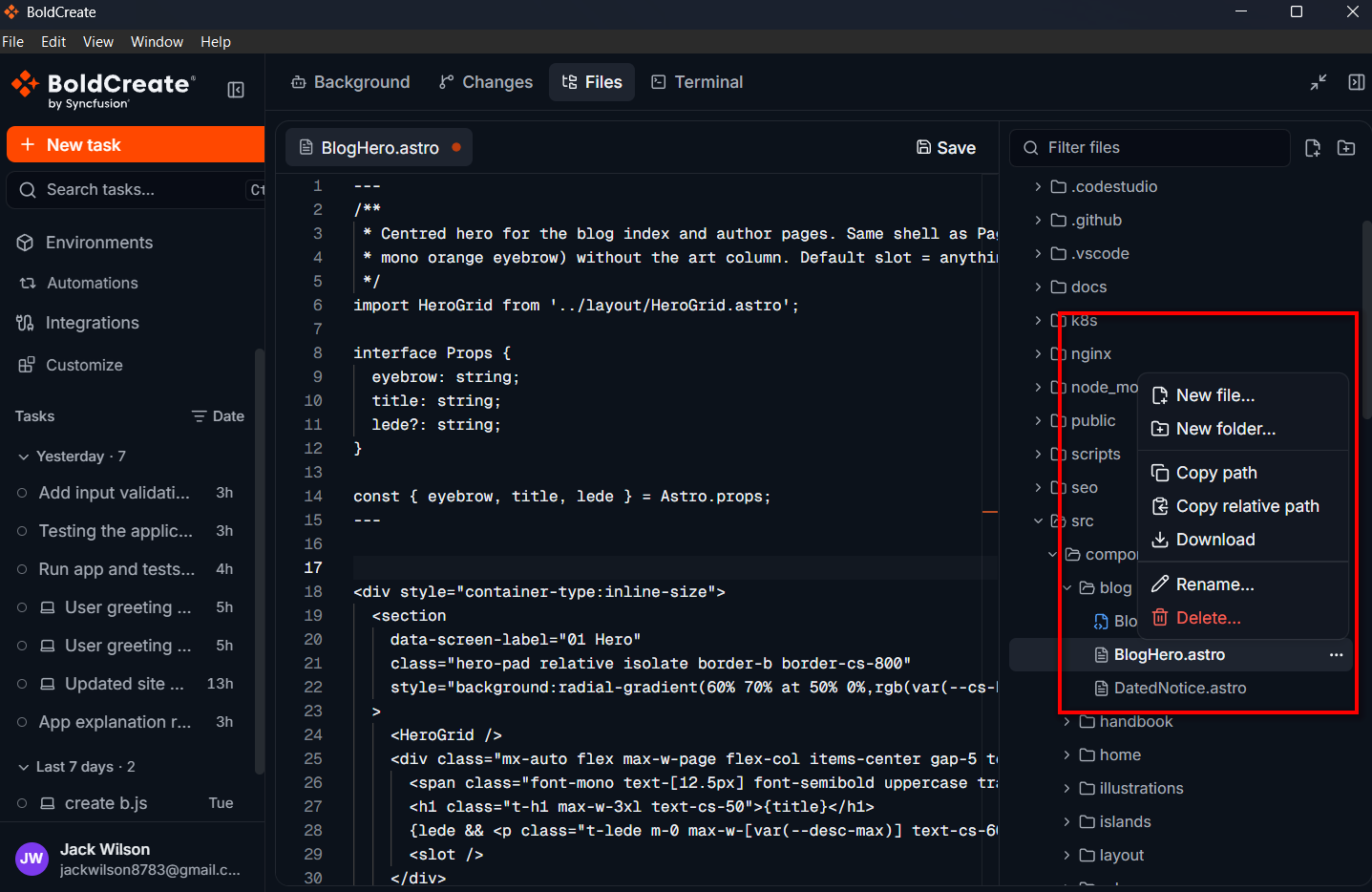
- Click New file or New folder at the top of the explorer. Or, to create it inside a particular folder, hover over the folder, click ⋯ (or right-click the folder), and choose New file… or New folder….
- Type a name. You can include folders in the name, for example,
docs/notes.txt. - Click Create.
Rename a file or folder
- Hover over the item, click ⋯ (or right-click it), and choose Rename….
- Type the new name and click Rename.
Any open tabs for the file follow the new name.
Delete a file or folder
- Hover over the item, click ⋯ (or right-click it), and choose Delete….
- Read the message. Deleting a folder also deletes everything in it.
- Click Delete.
Note: You can’t create, rename, or delete files while the agent is working.
Copy a path or download a file
From a file’s or folder’s ⋯ menu, or by right-clicking it:
| Option | What it does |
|---|---|
| Copy path | Copies the item’s full location. |
| Copy relative path | Copies the item’s location inside its project, for example, src/app.js. |
| Download | Saves a copy of the file to your computer. Files up to 90 MB can be downloaded. |
A short message under the file tree confirms what happened, for example, “Copied path” or “Downloading {file}…”.
Tip: Paste a copied path into your message to point the agent at a specific file.
Messages you might see
| Message | What it means |
|---|---|
| “Select a file to view it.” | No file is open. Click a file in the explorer. |
| “Read-only: this session can’t change files.” | You can look at files but not change them. |
“Couldn’t open {file}: …” | The file couldn’t be opened. Try again, or check that it still exists. |
“Couldn’t save {file}: …” | The file couldn’t be saved. Check the message, then try again. |
| “Connecting to the workspace…” | BoldCreate is connecting to the project. Wait a moment. |
| “Connection lost. Reconnecting…” | The connection dropped. BoldCreate reconnects on its own. |
| “Disconnected after a period of inactivity.” | Click Reconnect. |
| “The workspace is paused.” | Click Resume. |
| “Couldn’t open the workspace.” | Click Try again. |
| “The task’s folder no longer exists on this computer.” | The folder was moved or deleted. |