
What you’ll learn
- How to start a new task and write a good request
- How to choose the agent, model, and thinking effort
- How to add files, images, and skills to your message
- How to follow the agent’s progress, stop it, and continue the conversation
- What to do if you run out of credits
Start a new task
- In the sidebar, click New task. The Home page opens with Start a new task at the top.
- Choose where the task runs: This computer or Cloud.
- This computer: choose a folder on your computer. See Run on your computer.
- Cloud: choose a repository and a branch. See Run in the cloud.
- Choose an agent and a model, or keep the ones already selected. See Models and agents.
- In the message box, describe what you want the agent to do.
- Press Enter, or click the Send message arrow.
The task opens and the agent starts working. A new task gets its name from the start of your first message.
Note: If the Send message button is not available, read the hint under the message box. It tells you what’s missing, for example, “Choose a folder on this computer to start” or “Select a branch to start.”
Tips for a good request
- Say what you want as the result, for example, “Add a ‘Forgot password’ link to the sign-in page that sends a reset email.”
- Give details that matter: file names, page names, expected behavior, or an error message you saw.
- One goal per task works best. Start a new task for unrelated work.
- Ask questions first if you’re unsure. Use the Ask agent to explore the project, or Plan to see a plan before any changes are made.
Choose an agent
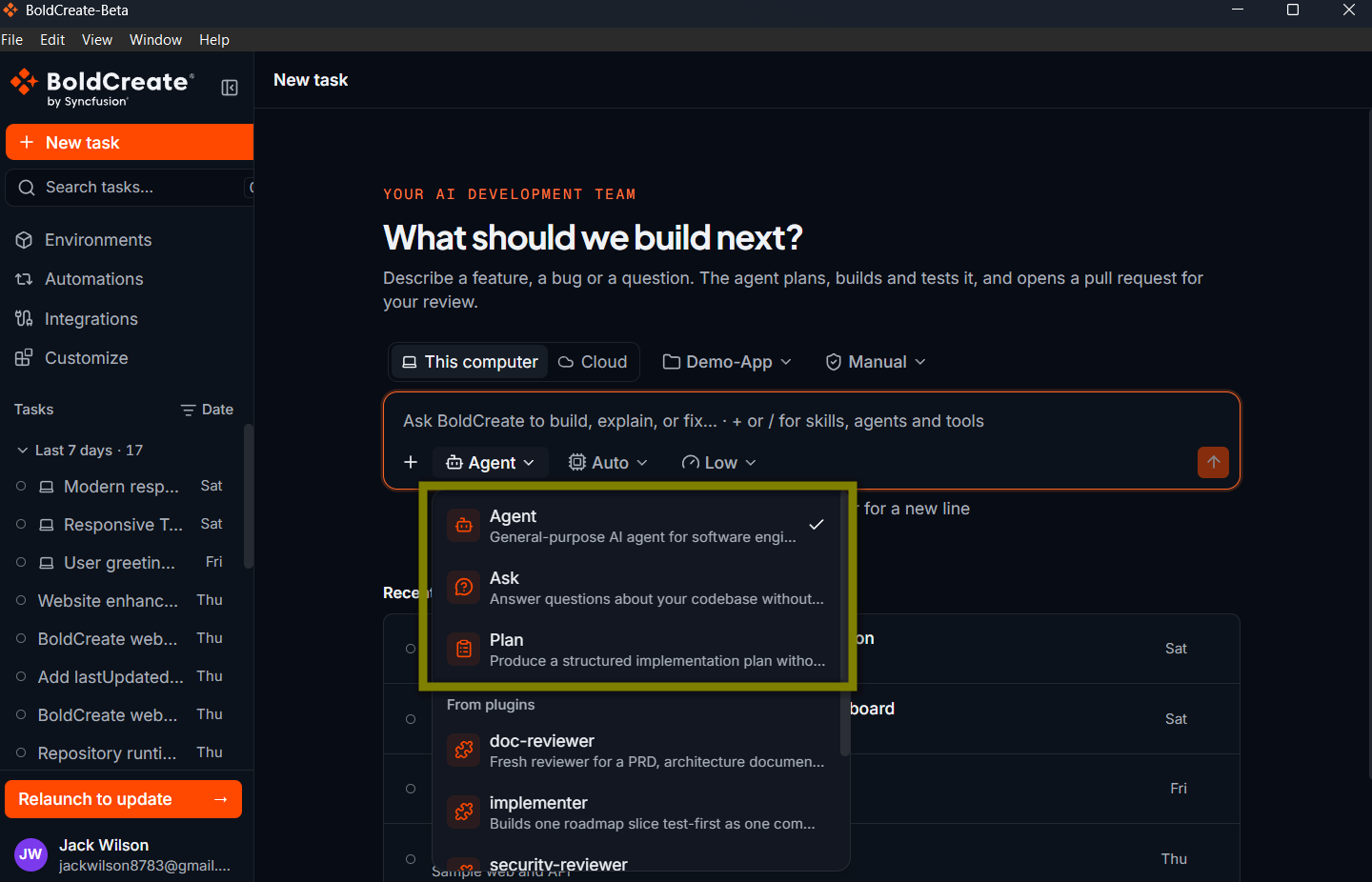
Click the agent button in the message box to choose who does the work.
| Agent | What it does | Message box hint |
|---|---|---|
| Agent (default) | Completes the task: reads files, changes files, and runs commands. | “Type / for commands, or ask Agent to build, explain, or fix…” |
| Ask | Answers questions about your project without changing anything. | “Ask a question about your codebase…” |
| Plan | Writes a plan with an overview, files to change, steps, risks, and how to check the result. It doesn’t change anything. | “Describe what you want to plan or implement…” |
The list is split into Built-in (Agent, Ask, and Plan), Cloud agents (agents your organization has set up), and Repository agents (agents defined inside your project, if any). Use Search agents… to find one quickly.
Choose a model
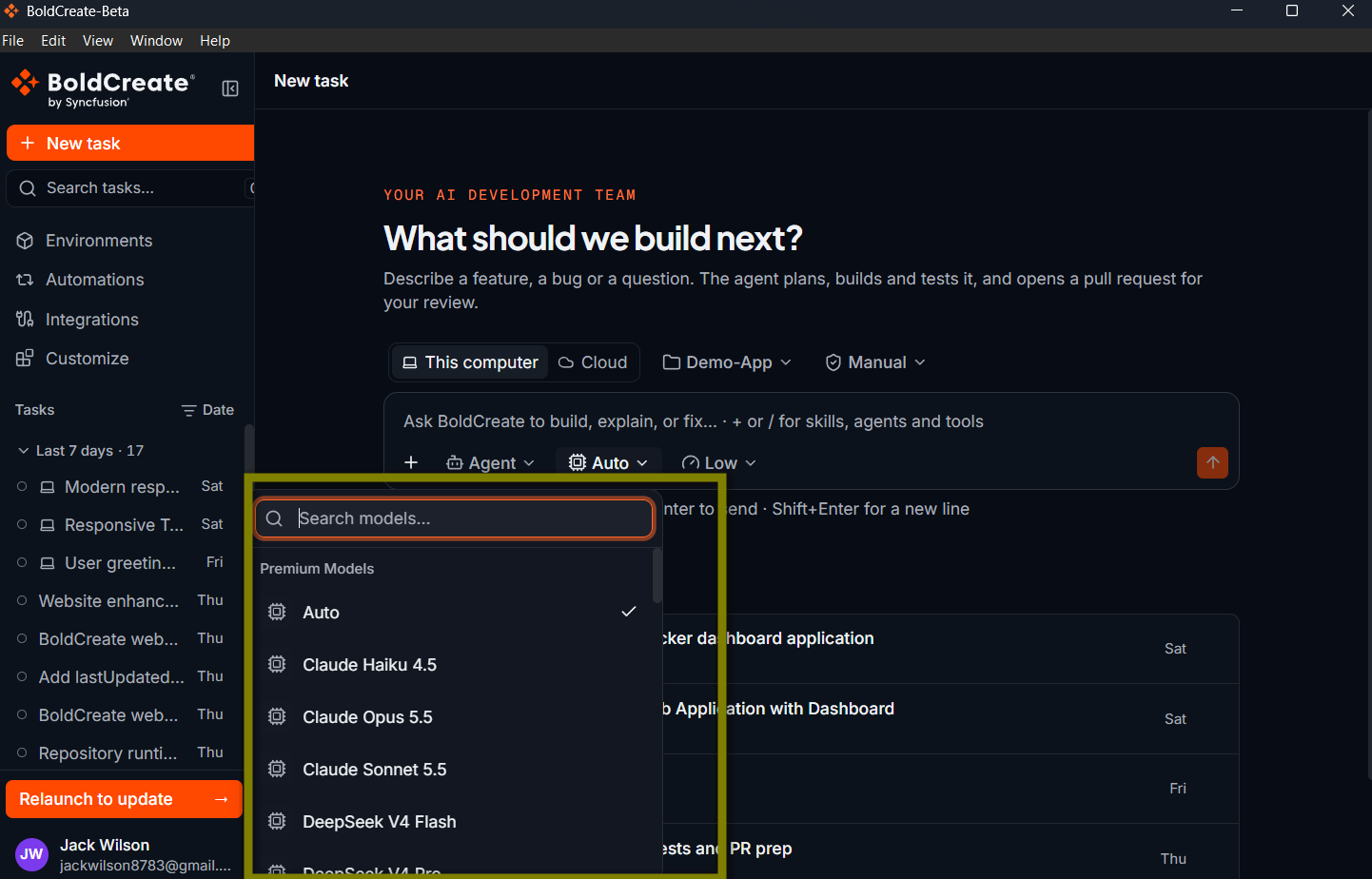
The model is the AI engine the agent uses. Click the model button in the message box to choose one.
- Premium Models are provided through BoldCreate.
- BYOK Models use your own AI provider key (“Bring Your Own Key”), if your account has any set up.
- Use Search models… to find a model by name.
BoldCreate remembers the model you chose last time.
Thinking effort
Some models can “think” longer before answering. For these models, a Thinking effort button appears next to the model.
- Choose Low, Medium, or High. The options depend on the model.
- The model’s standard setting is marked Default.
- Higher effort can give better answers for hard tasks, but takes longer.
BoldCreate remembers your choice for each model.
Add files, images, and skills
Attach files and images
You can give the agent files to look at, such as a screenshot of a bug or a sample data file. To attach a file:
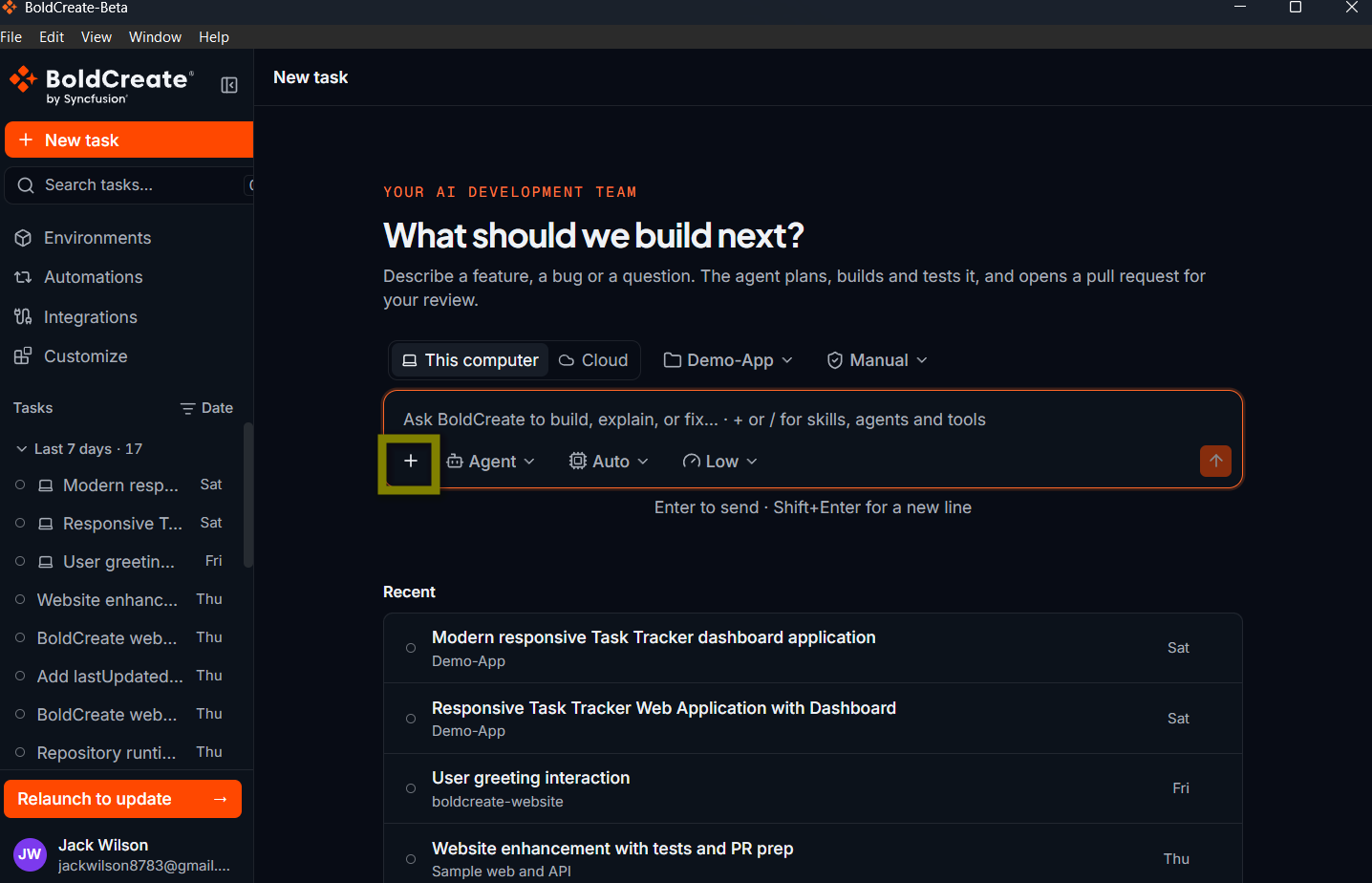
- Click Quick actions (pin button) and choose Files.
- Drag files from your computer onto the message box. You see “Drop files to attach”.
- Paste an image you copied, for example, a screenshot.
Attached files appear above your message. Click ✕ on a file to remove it.
| Cloud tasks | Tasks on this computer | |
|---|---|---|
| What you can attach | Images (PNG, JPEG, WebP, GIF, SVG), text and code files, JSON, XML, and Excel files | Images only (PNG, JPEG, GIF, or WebP) |
| Size limit | Images up to 50 MB each; other files up to 5 MB each | Up to 5 MB per image and 10 MB in total per message |
| Number of files | Up to 5 per message | Up to 5 per message |
Note: Some models can’t look at images. If you attach an image while using one of these models, the image is crossed out with the message “
{model}does not support image attachments”. Choose a different model to include it.
Follow the agent’s progress
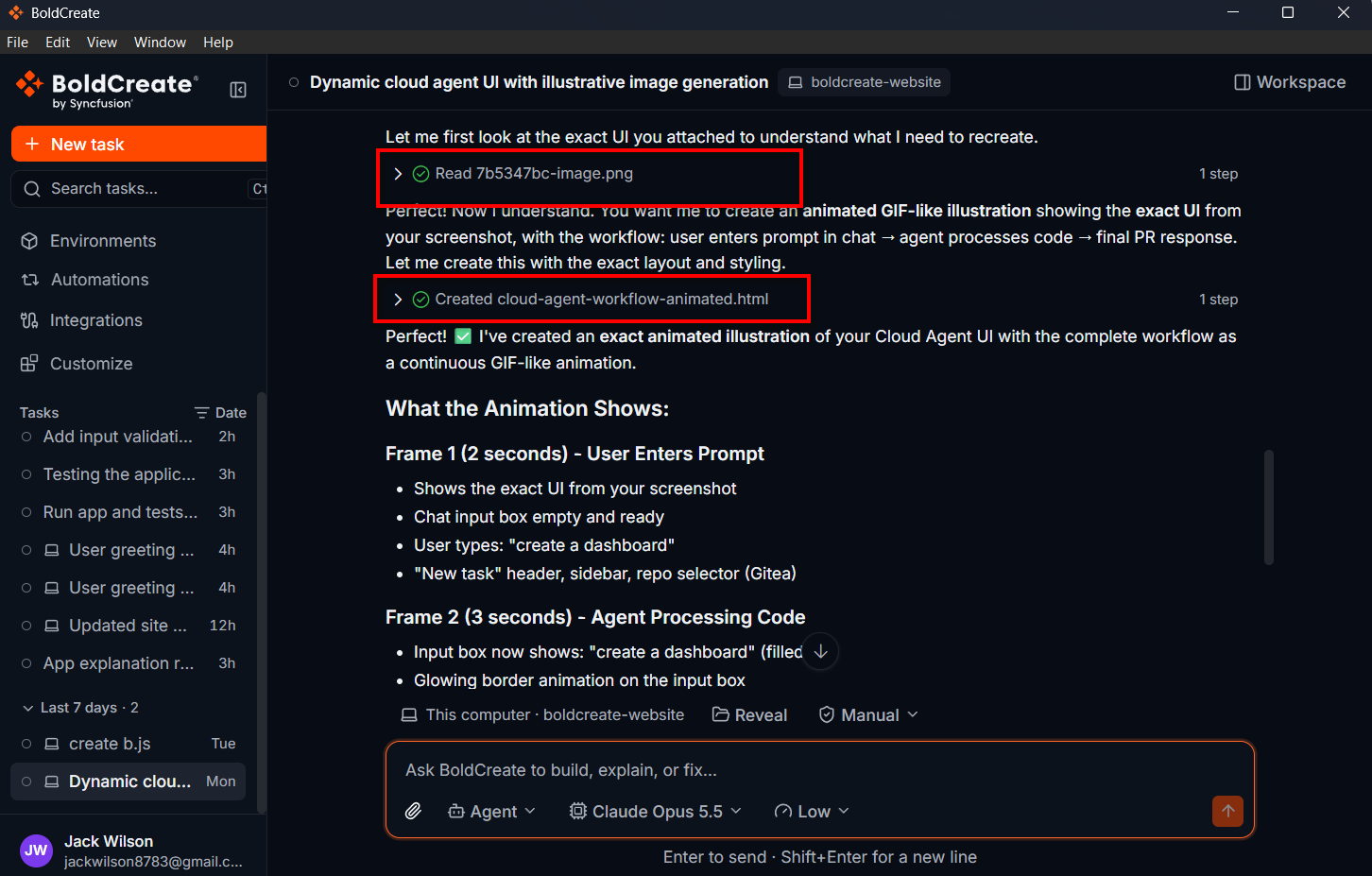
While the agent works, you can watch each step in the conversation:
- Getting ready appears while the agent starts.
- Thought process or Thinking… shows the agent’s reasoning. Click it to expand.
- Steps have labels such as Read file, Created file, Updated file, Searched code, Listed files, Ran command, or Ran tests. Click Ran command to see the command and its output.
- When a group of steps ends, it is summarized, for example, “Finished 6 steps”.
- A Todos list may appear at the bottom, showing the agent’s work as Not started, In progress, or Completed.
Open the Changes tab in the workspace panel to see file changes as they happen. See Review changes.
When the agent asks for approval
For tasks on your computer, the agent may stop and ask before it runs a command or changes a file. You see a card titled Approve: followed by the action. Click Allow or Deny. Learn more in Run on your computer.
Stop, retry, and continue
| To… | Do this |
|---|---|
| Stop the agent | Click the red Stop response button in the message box. |
| Ask for changes or more work | Type a follow-up message and press Enter. |
| Get a new answer | Click Retry under the agent’s last reply. |
| Copy a reply | Click Copy Response under the reply. You see “Copied!”. |
| Copy a piece of code | Click Copy on the code block. |
| Try again after an error | Click Try Again under the error message, if shown. |
Tip: Press Shift+Enter to add a new line in your message without sending it.
If you run out of credits
If there aren’t enough credits left, the agent stops and shows a message:
| Message | What it means |
|---|---|
| “Insufficient credits to complete this request.” | Your account doesn’t have enough credits for this request. |
| “Your personal monthly budget limit has been reached.” | You’ve reached the monthly spending limit set for you. |
| “Your team’s monthly budget limit has been reached.” | Your team has reached its monthly spending limit. |
Add credits to your account, or ask your organization’s administrator to raise your budget limit. You can manage this at budget tab. Then return to your task and click Retry, or send your message again. Your tasks and the agent’s earlier work are kept.