
Overview
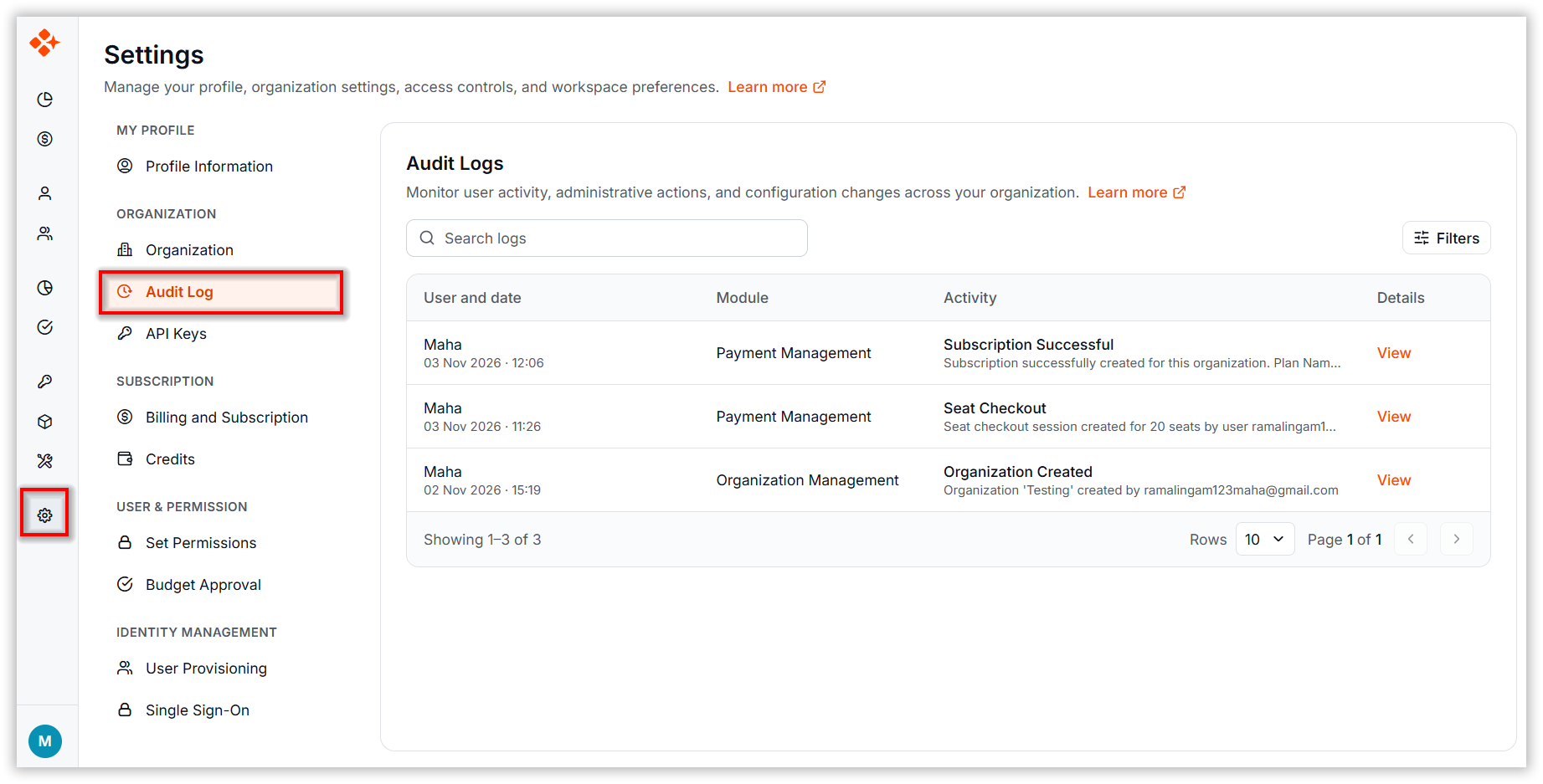
The Audit Log page provides a record of user activity across the application. Significant actions, such as creating, modifying, or deleting resources, are captured as audit entries. Each entry includes details about who performed the action, when it happened, which module it affected, and what changed.
Purpose
The Audit Log page is designed to:
- Provide a searchable history of user actions performed in the application.
- Identify who performed each action, when it happened, and its source, including the IP address and browser.
- Narrow down activity history by time range, module, activity type, and user.
- Support compliance, security reviews, and troubleshooting.
When to Use
Use the Audit Log when you need to:
- Monitor user activity across the organization.
- Review changes made to users, teams, settings, budgets, and other resources.
- Investigate unexpected behavior or configuration changes.
- Identify who performed a specific action and when it occurred.
- Support security reviews, audits, and compliance requirements.
- Troubleshoot issues by reviewing historical activity records.
Note: The Audit Log page is visible only to organization administrators.
View Organization Activity
Audit entries appear in a grid with the following information:
- User and Date: The display name of the user who performed the action, with the date (for example, 28 Sep 2026) and time shown beneath the name. Hover over the user’s name to view their name and email address.
- Module: The area of the application affected by the action.
- Activity: The action performed, with a short summary of what changed. Hover over the summary to view the full text when it does not fit.
- Details: A View link that opens the full details of the selected audit entry in a dialog.
Filter Audit Log Entries
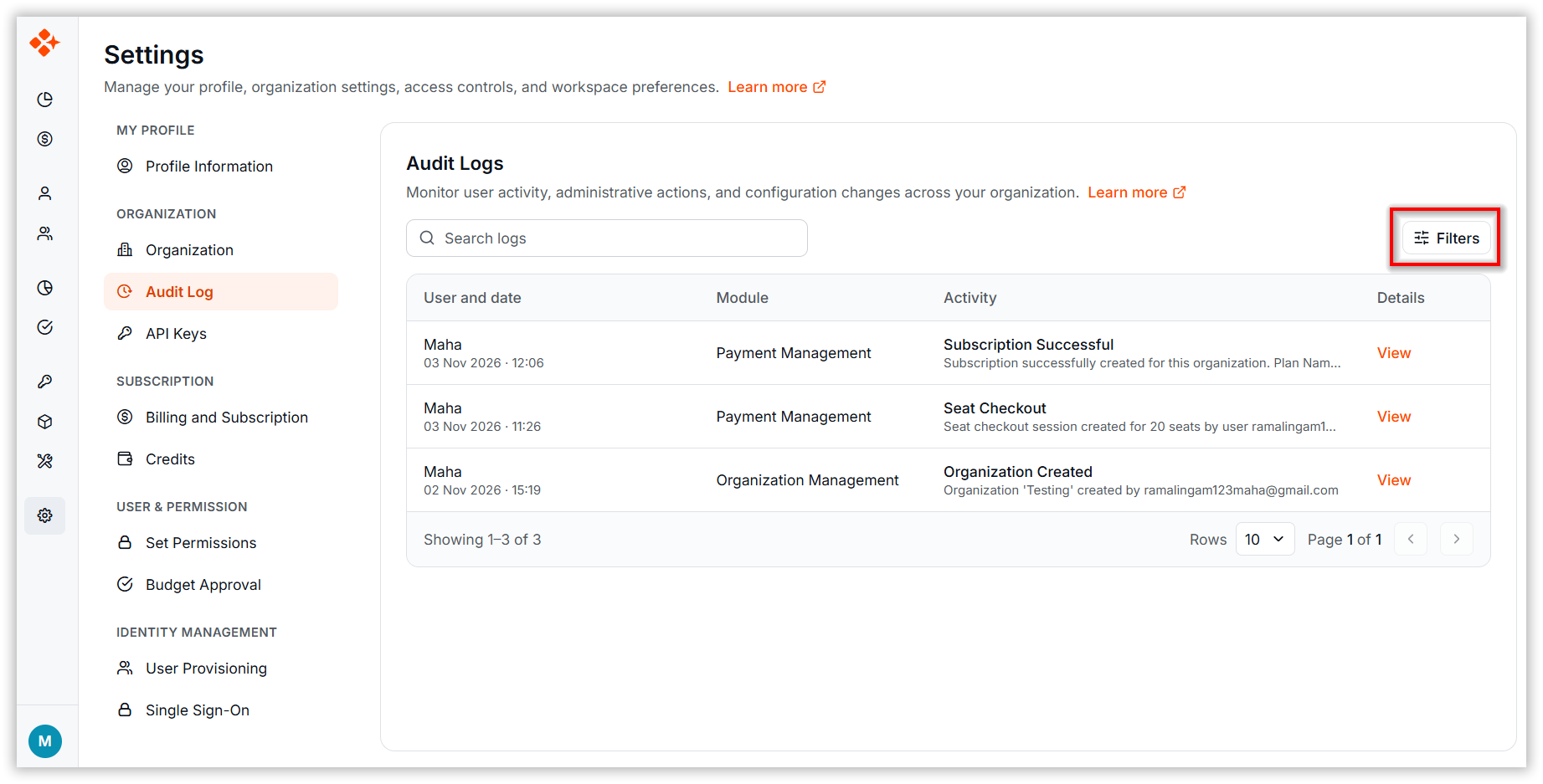
Click Filters in the option to open the Filters side panel on the right side of the screen.
The panel contains:
- Time: A date range picker with the Date Range placeholder. Choose a predefined preset or a custom range.
- Module: A multi-select dropdown for choosing one or more modules to include in the results.
- Activity: A multi-select dropdown with checkboxes and the Select activity placeholder. Choose one or more activities.
- User: A multi-select dropdown for choosing one or more users whose activity you want to review.
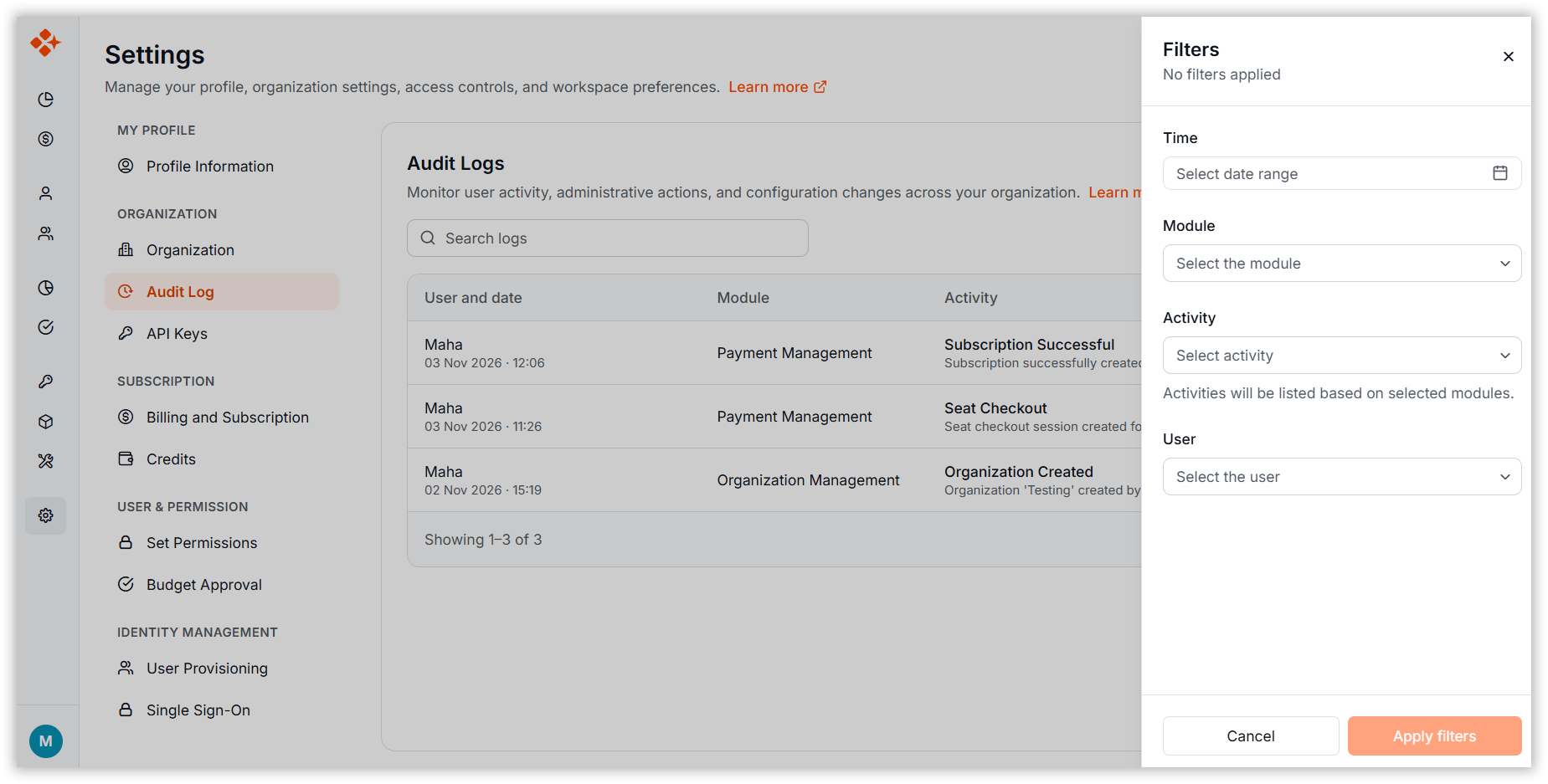
Note: Filters are applied immediately as you select them. There is no Apply or Save button; each filter change refreshes the audit list automatically.
Review Audit Log Details
Click the View or row of the grid on an audit entry to open the detailed activity information.
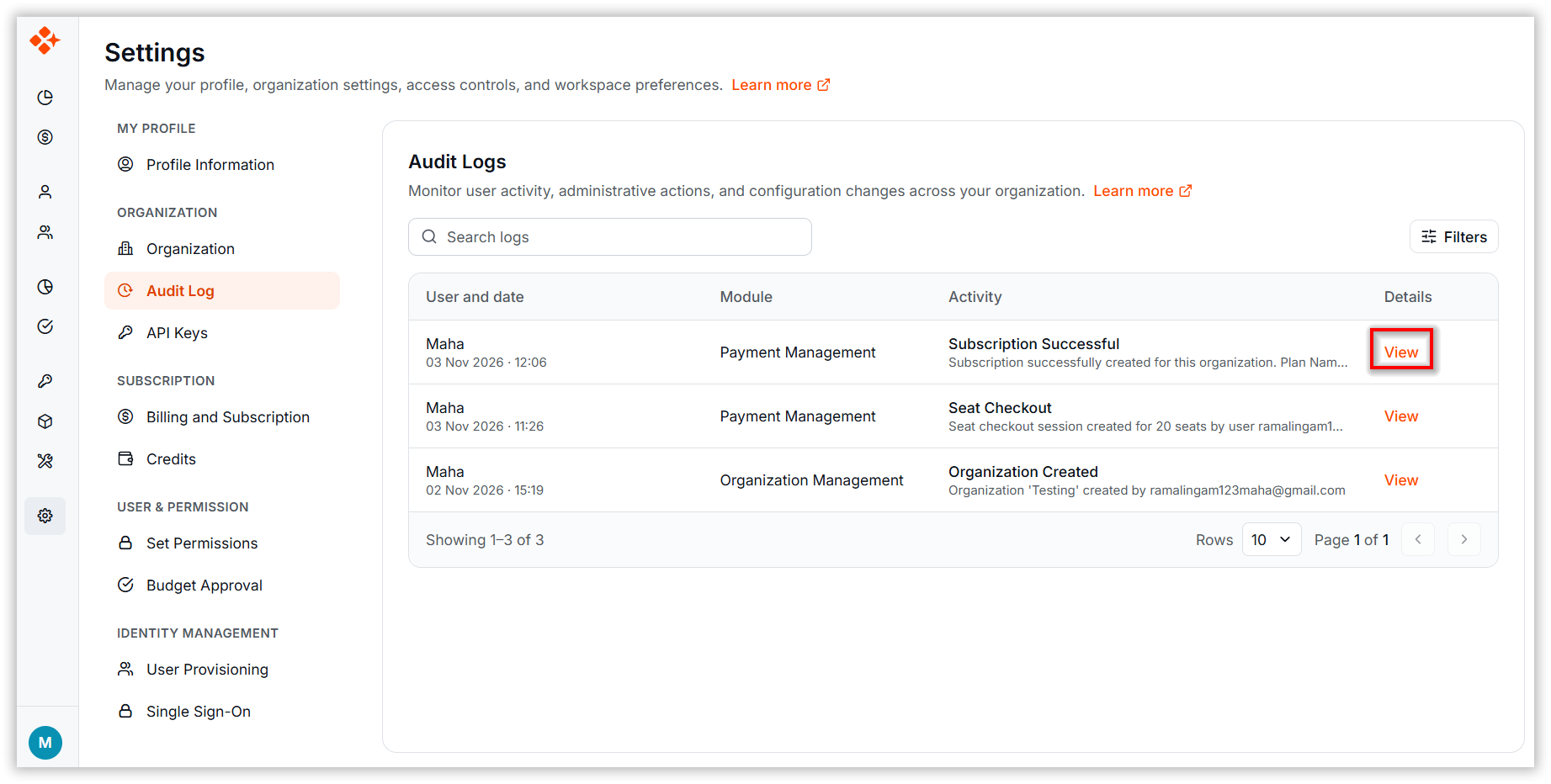
The detailed activity information contains:
- Date: The date on which the activity occurred.
- Time: The time at which the activity occurred, shown in your local time zone.
- Module: The application module affected by the activity.
- User: The display name of the user who performed the activity.
- Mail ID: The user’s email address.
- IP: The IP address from which the activity originated.
- Browser Details: Information about the browser used for the activity, such as its name, version, and operating system.
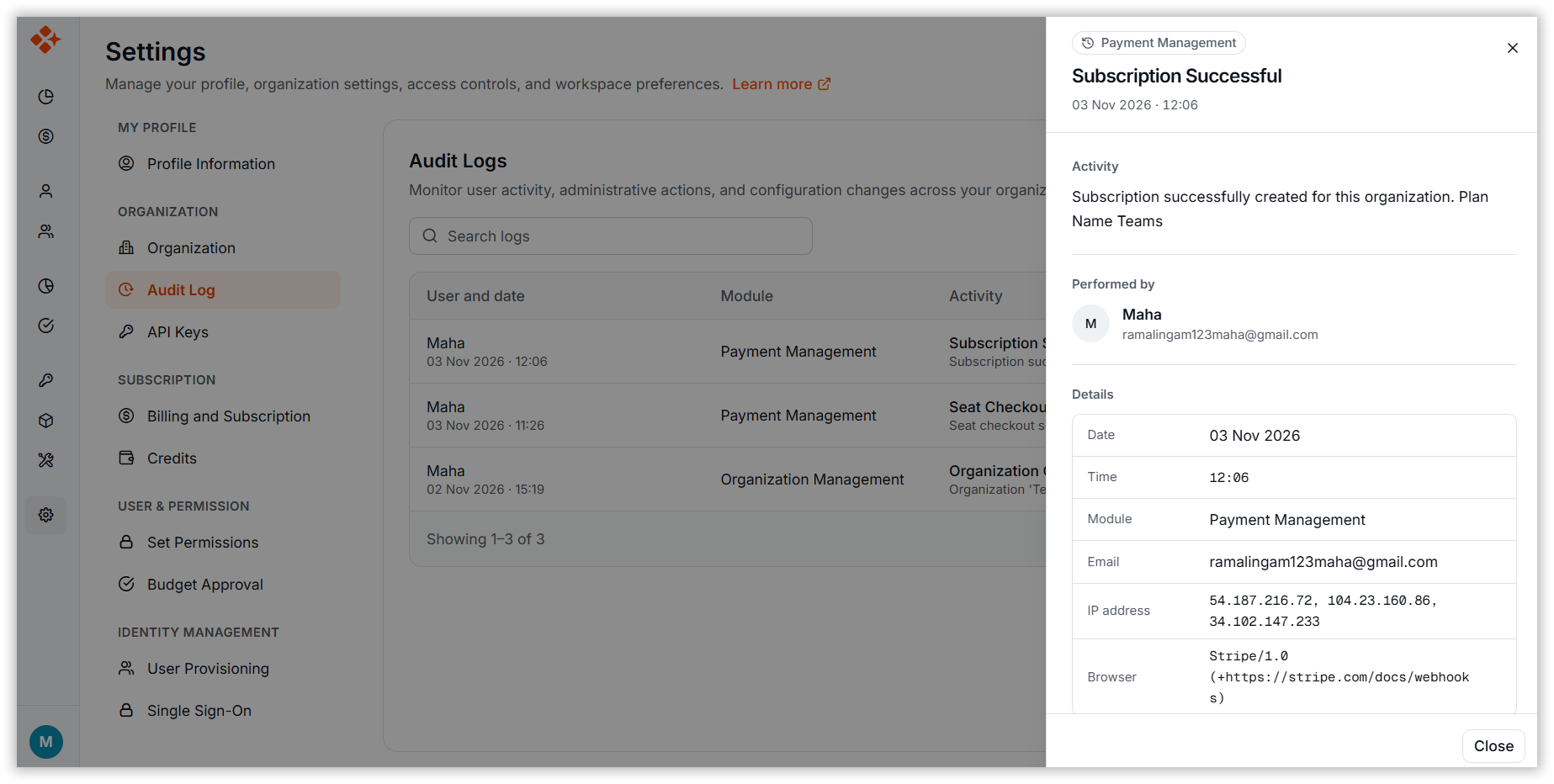
Note: Times in the audit list are displayed in UTC, while the time in the details dialog is displayed in your local time zone. Keep this difference in mind when comparing times.
Best Practices
- Filter by module before activity. Available activities depend on the selected modules, so choosing modules first helps show relevant options in the Activity dropdown.
- Combine search with filters. Search for keywords such as a name or resource, and use filters for structured criteria such as time, module, activity, and user.
- Document findings from the details dialog. For compliance purposes, record the user, date, time, IP address, and browser details rather than relying on truncated information in the list.