
Overview
The Set Permissions page helps administrators control what Team Leads and Users can access and manage within the organization.
When to Use
Use the Set Permissions page when you need to:
- Allow or restrict Team Leads from managing budgets, managing roles, and inviting users.
- Allow or restrict Users from editing their own budgets.
- Adjust permissions as organizational needs change.
Note: The Set Permissions page is visible only to organization administrators.
Purpose
The Set Permissions page is designed to:
- Organize permissions by role so administrators can manage access for Admins, Team Leads, and Users in one place.
- Allow fine-grained control over capabilities such as budget management, role management, and user invitations.
- Apply permission changes organization-wide so affected features are immediately available or hidden for the relevant roles.
- Show the Admin role’s full default access, which cannot be reduced.
The Set Permissions page allows administrators to manage permissions for different roles within the organization.
Select a role tab to view and manage the permissions assigned to that role
- Team Lead: Manage permissions available to Team Leads.
- User: Manage permissions available to Users.
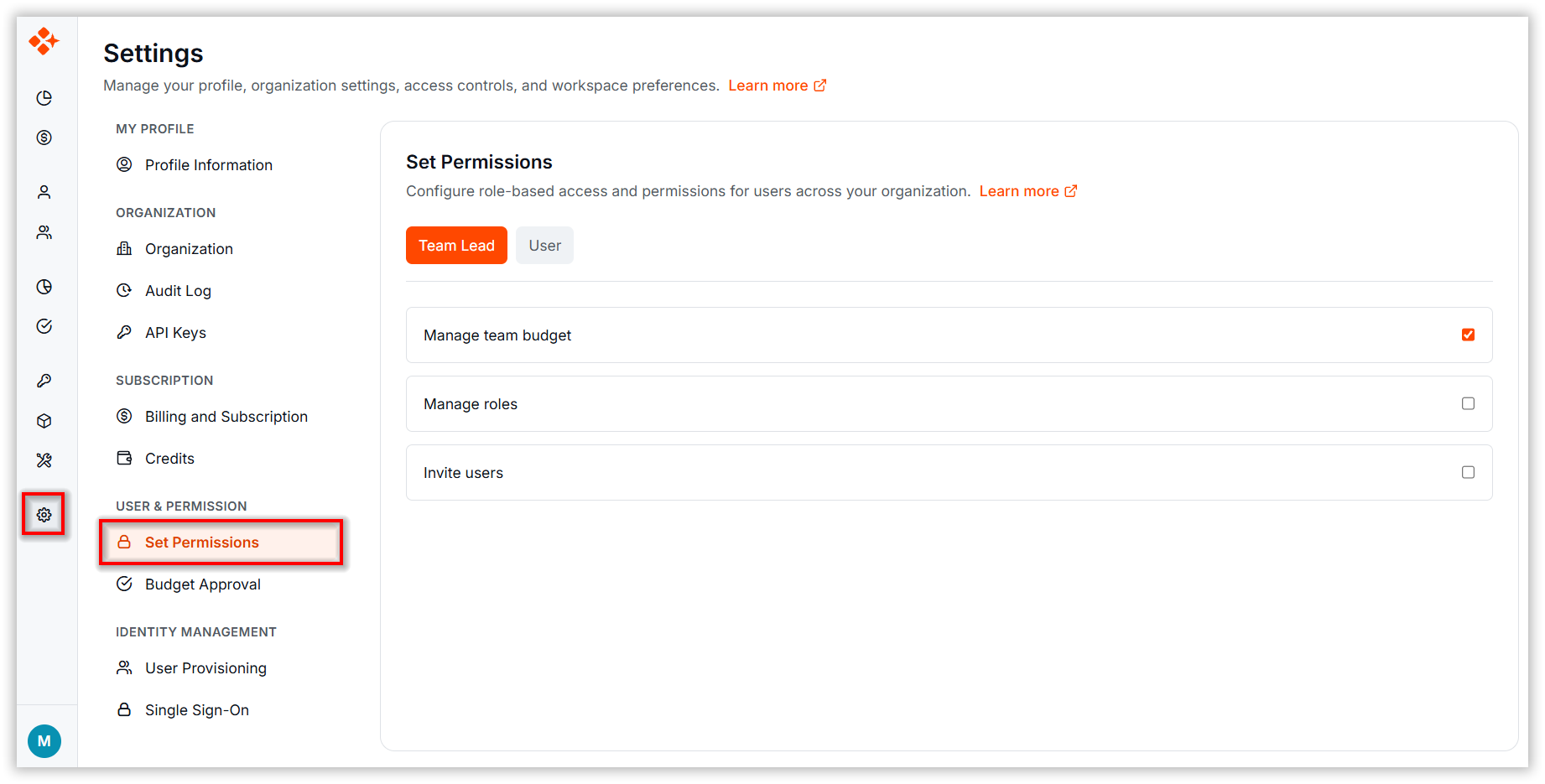
Note: The Admin role has all permissions enabled by default, and they cannot be disabled.
Permission Settings
Each permission is displayed as a checkbox.
- Checked – The permission is enabled for the role.
- Unchecked – The permission is disabled for the role.
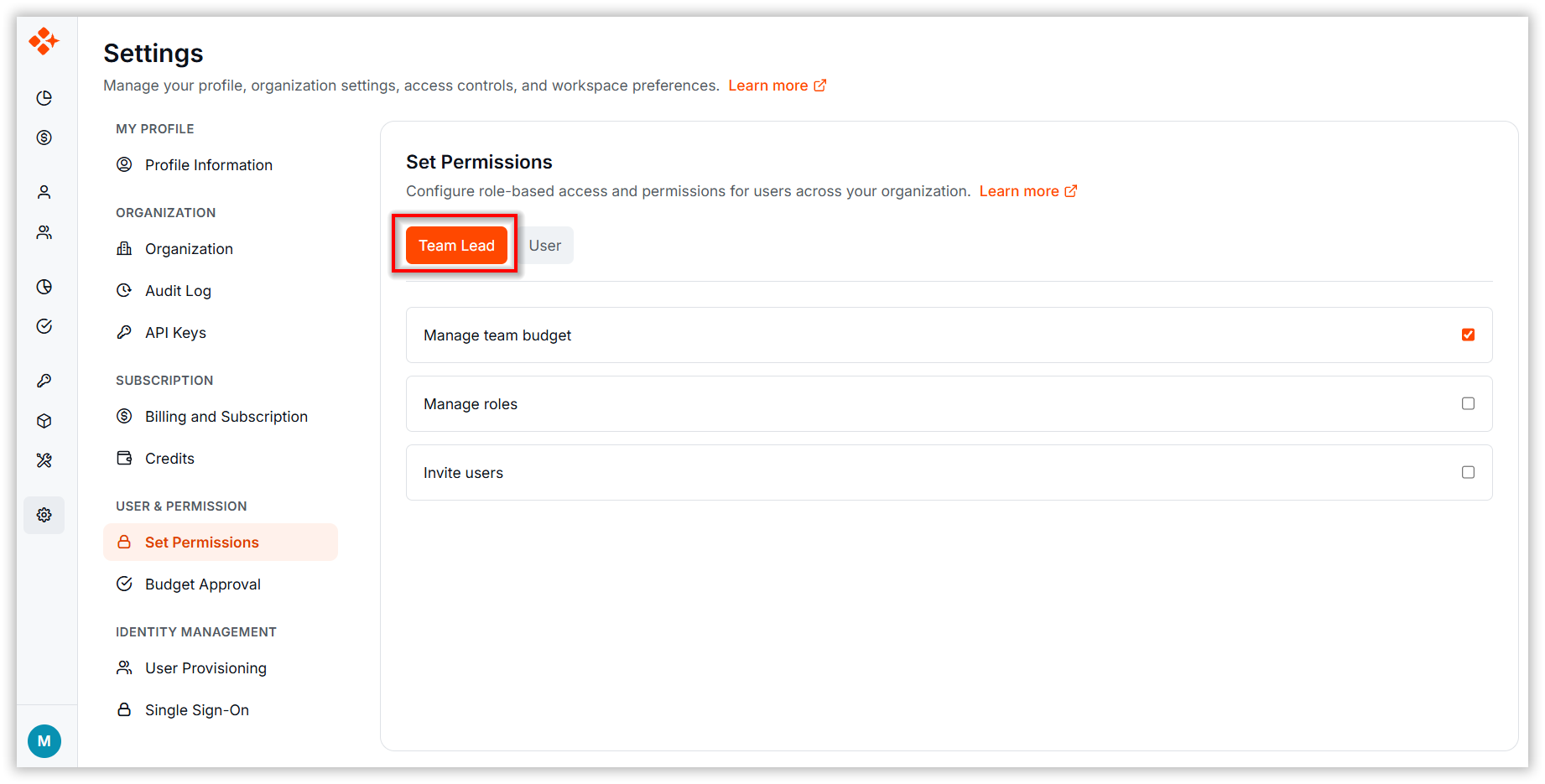
Team Lead Permissions
The following permissions can be configured for Team Leads:
- Manage Team Budget: Allows the Team Lead to manage budgets and alerts for their team.
- Manage Role: Allows the Team Lead to manage user roles.
- Invite User: Allows the Team Lead to invite new users.
User Permissions
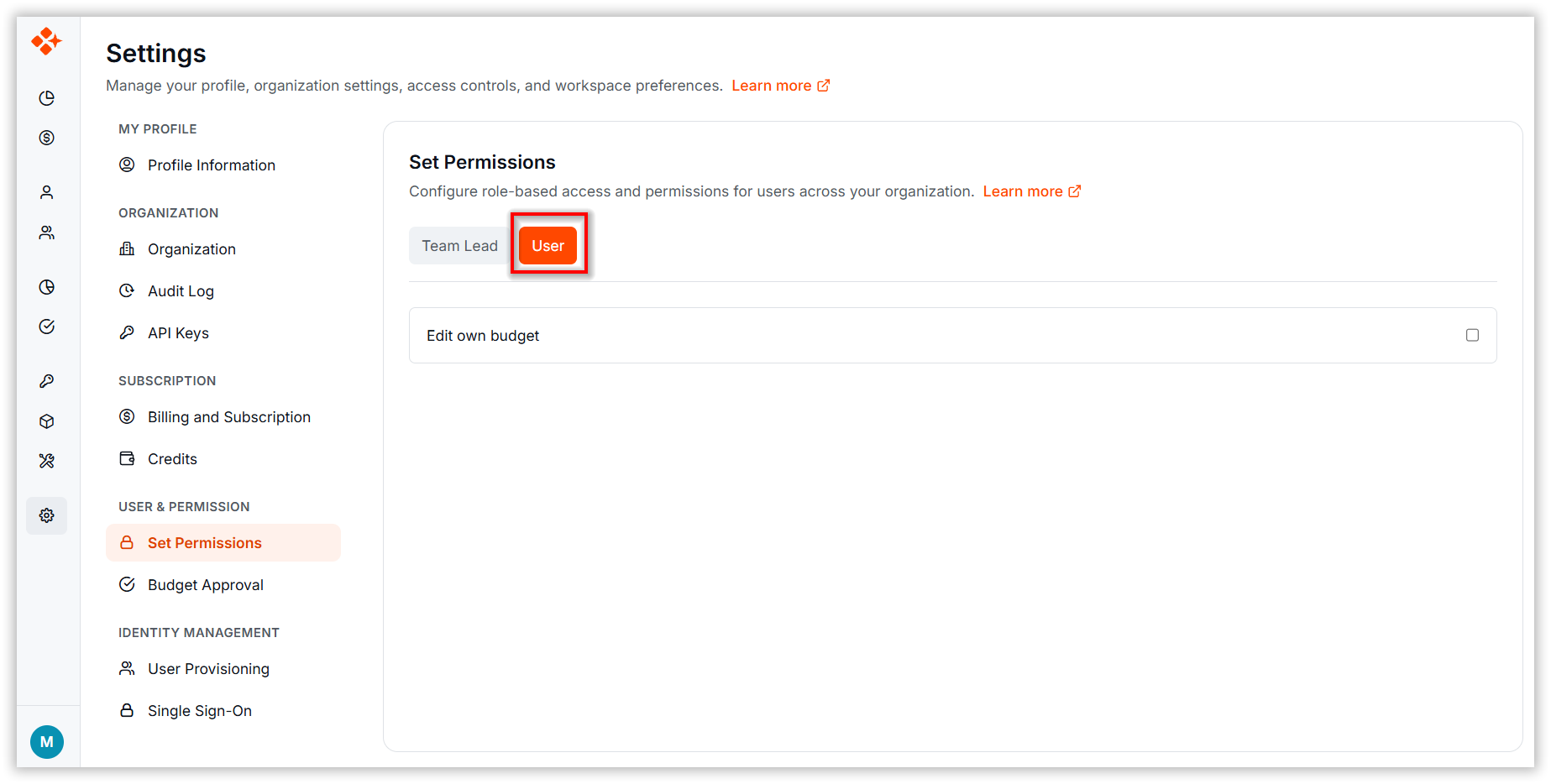
The following permission can be configured for Users:
- Edit Budget: Allows users to edit their assigned budgets.
Saving Changes
When one or more checkboxes differ from the last saved state, a footer appears with the following actions:
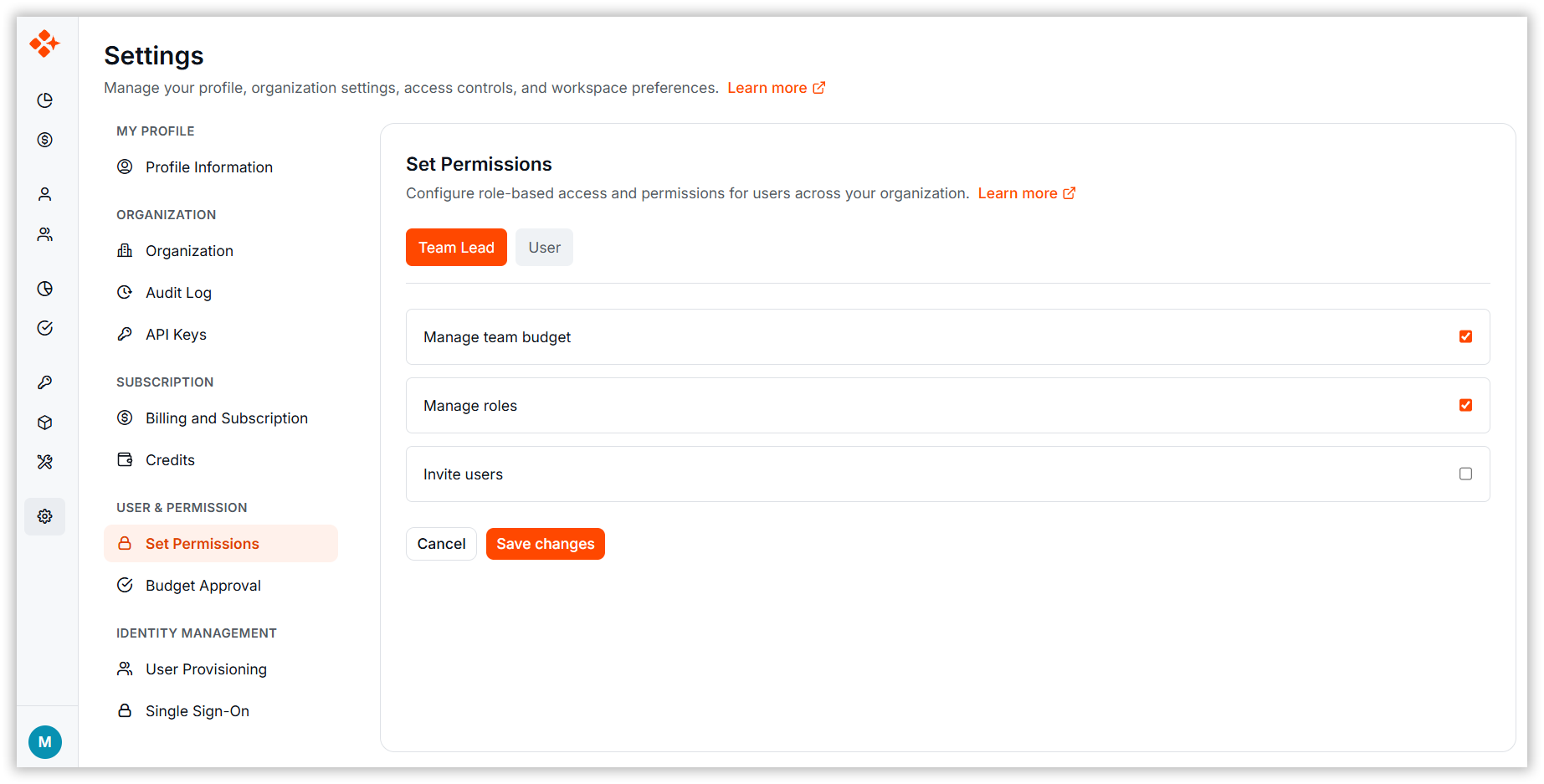
- Save: Applies the changes. A confirmation message is displayed after the changes are saved successfully.
- Cancel: Cancel unsaved changes and restores the previously saved permission settings.
Note: Changes are not saved automatically. If you navigate away from the page before saving, any unsaved changes will be lost.
Best Practices
-
Review permissions when roles change. When a user is promoted to a Team Lead role, ensure that the assigned permissions align with their responsibilities.
-
Start with limited access, then expand as needed. Grant only the permissions required for a role and enable additional capabilities only when necessary.
-
Review permission descriptions before enabling them. Make sure you understand what each permission allows before granting access.
-
Save changes carefully. Review all permission updates before clicking Save, as the changes take effect immediately for all users assigned to the selected role.