
- Automatic User Provisioning — new users in your IdP are automatically added to BoldCreate
- Automatic User Deprovisioning — users removed from your IdP are automatically disabled/removed from BoldCreate
- Attribute Synchronization — user profiles (name, email, team membership) stay in sync automatically
- Reduced Manual Work — no need to manually add/remove users
Requirements
Before setting up Microsoft Entra ID User Provisioning in BoldCreate, ensure the following:
- You have an active paid BoldCreate subscription
- You are an account administrator in BoldCreate
How to Enable Microsoft Entra ID User Provisioning
Follow these steps to enable and configure the integration:
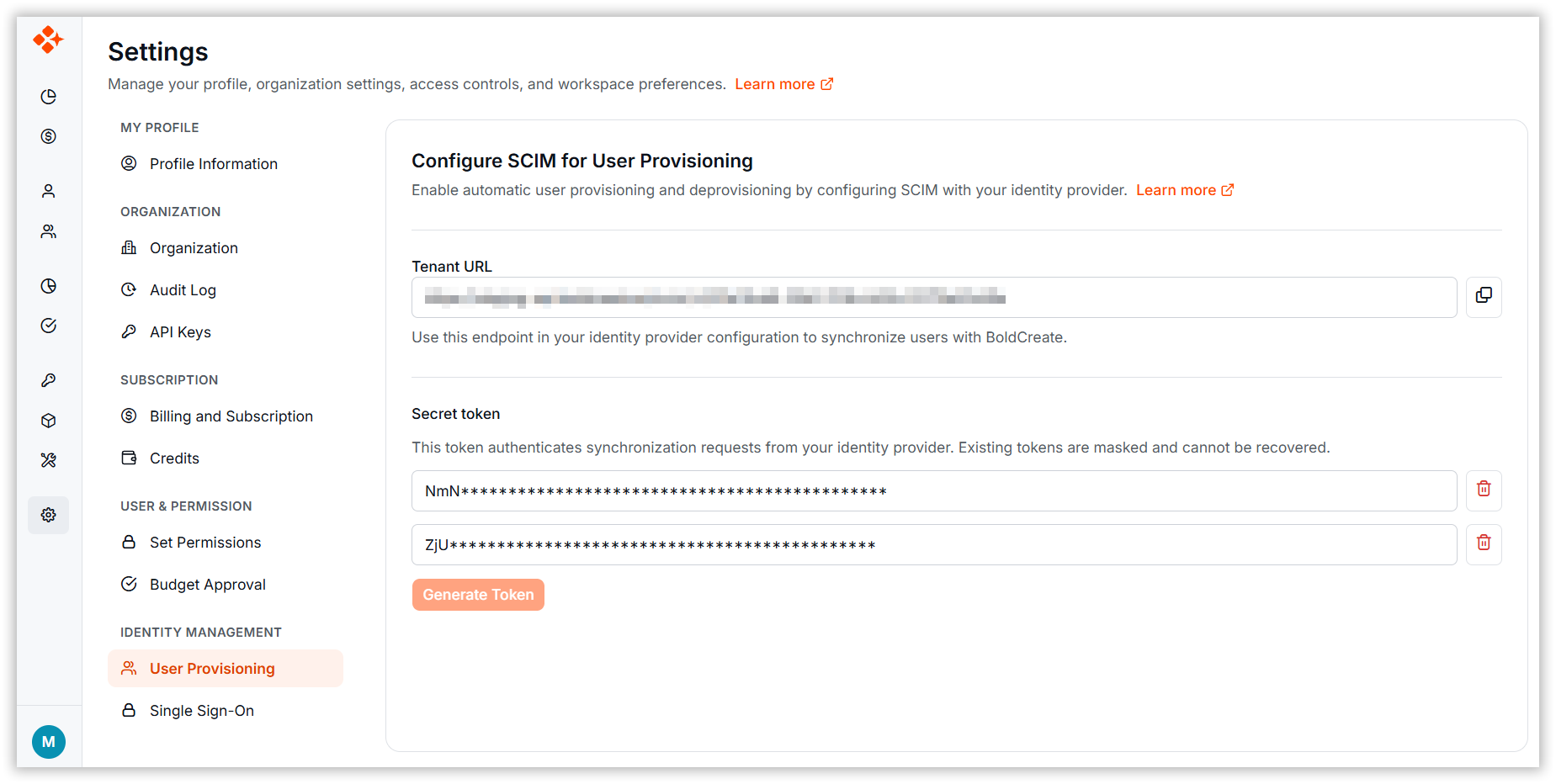
- Navigate to Settings.
- Click User Provisioning under the Identity Management section.
- You will see the Tenant URL and Generate Token options.
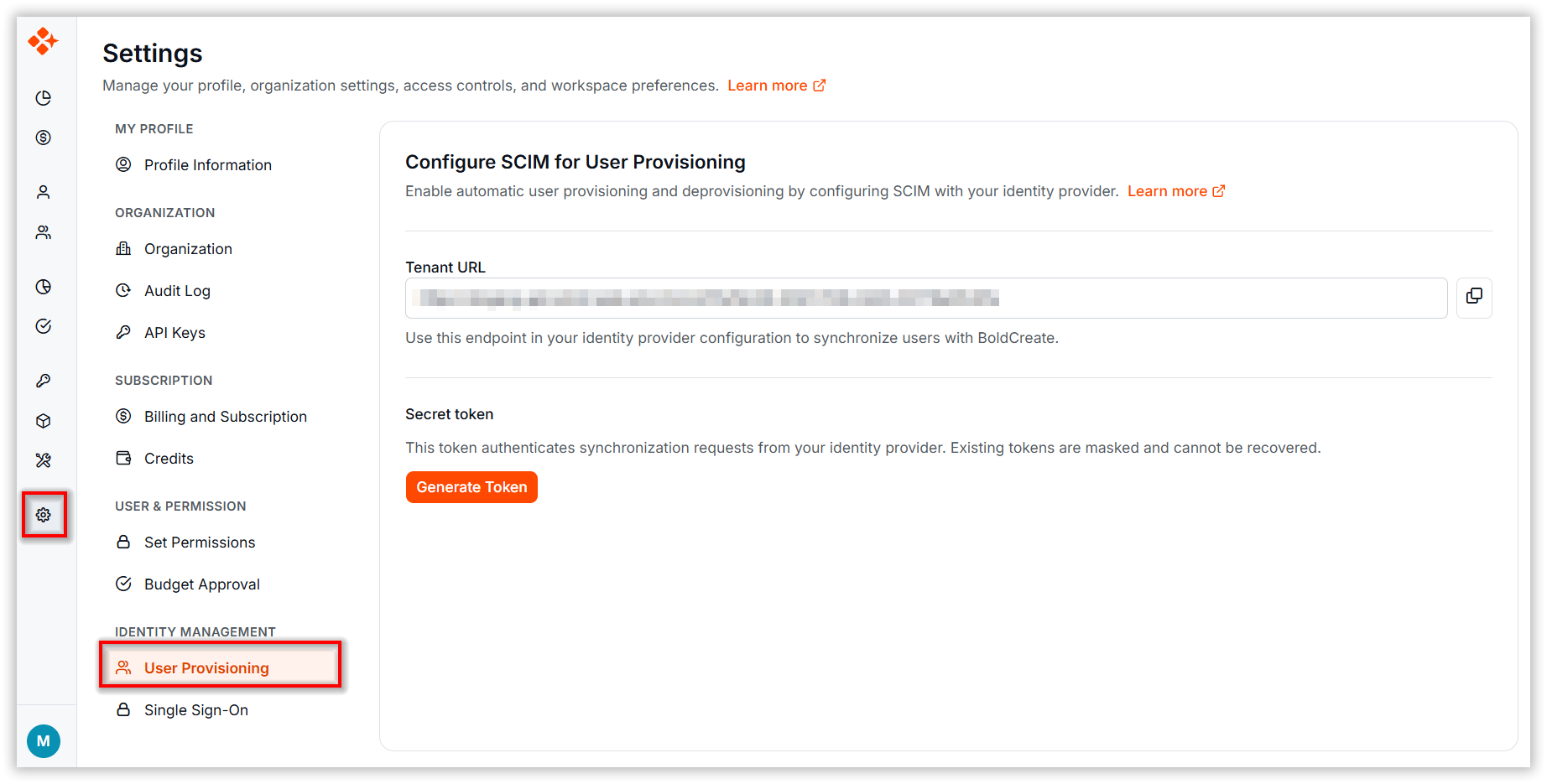
Note: A SCIM secret token is generated during this process. It is long-lived and does not expire. You can maintain up to two active tokens for key rotation and to avoid downtime.
- Scroll to the Secret Token section.
- Click Generate Token to initiate the token creation process.
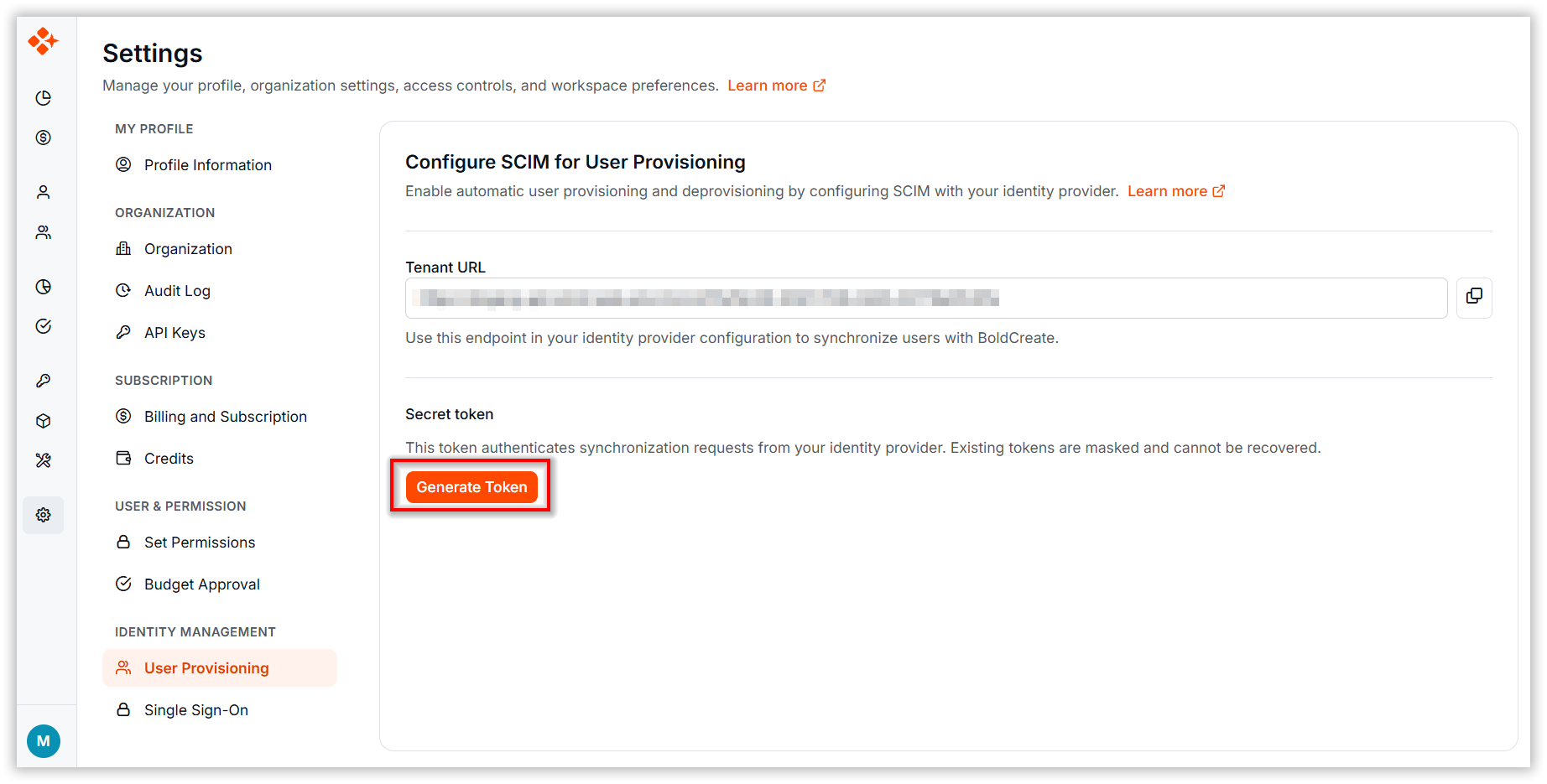
- A new token is created and displayed in a Copy Secret Token dialog.
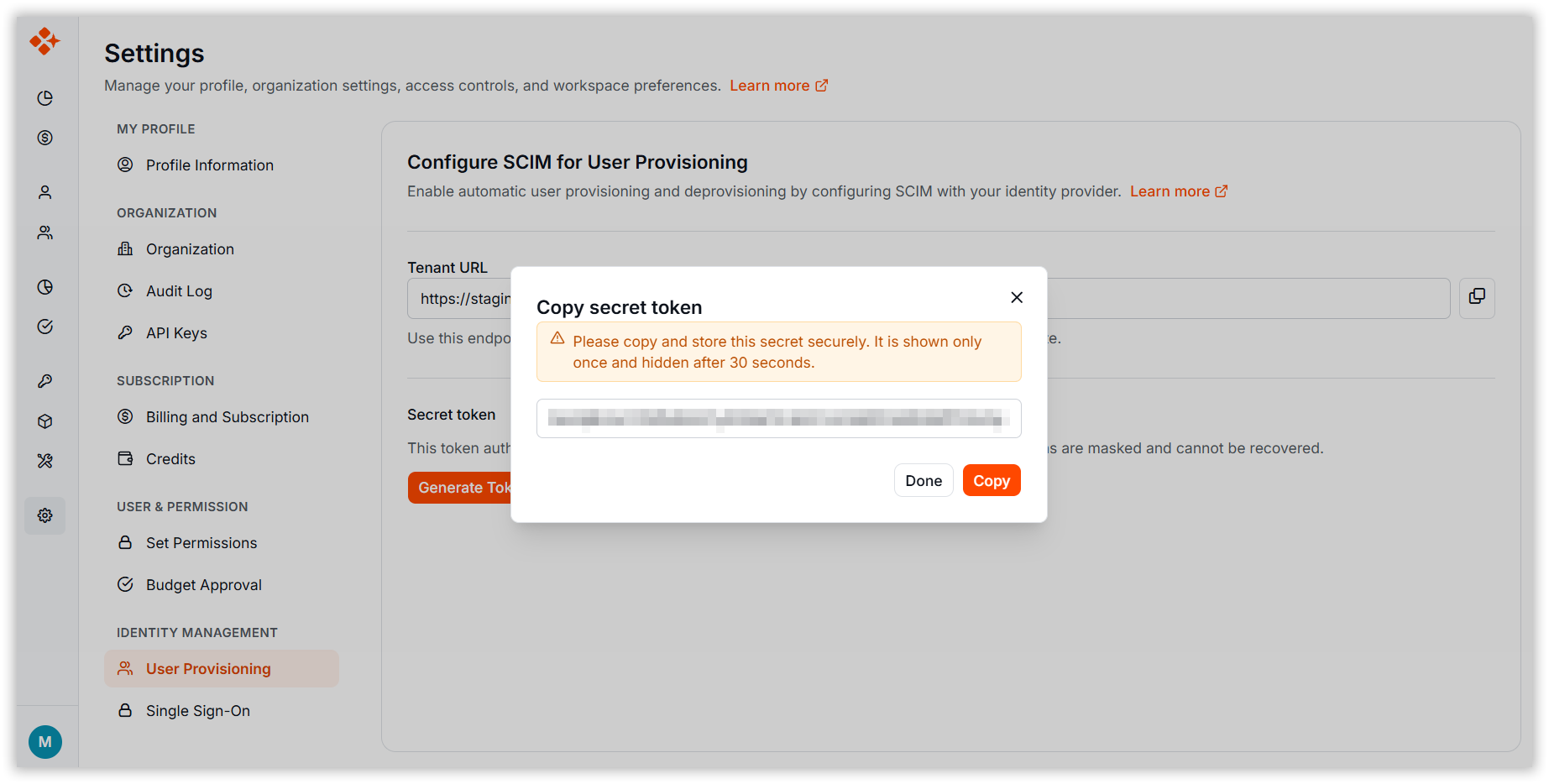
Note: The token is shown only once at the time of generation. Be sure to copy and store it securely. Afterward, it will appear as a hashed value. BoldCreate Support cannot retrieve or recover this token. If you don’t save it, you’ll need to generate a new one.
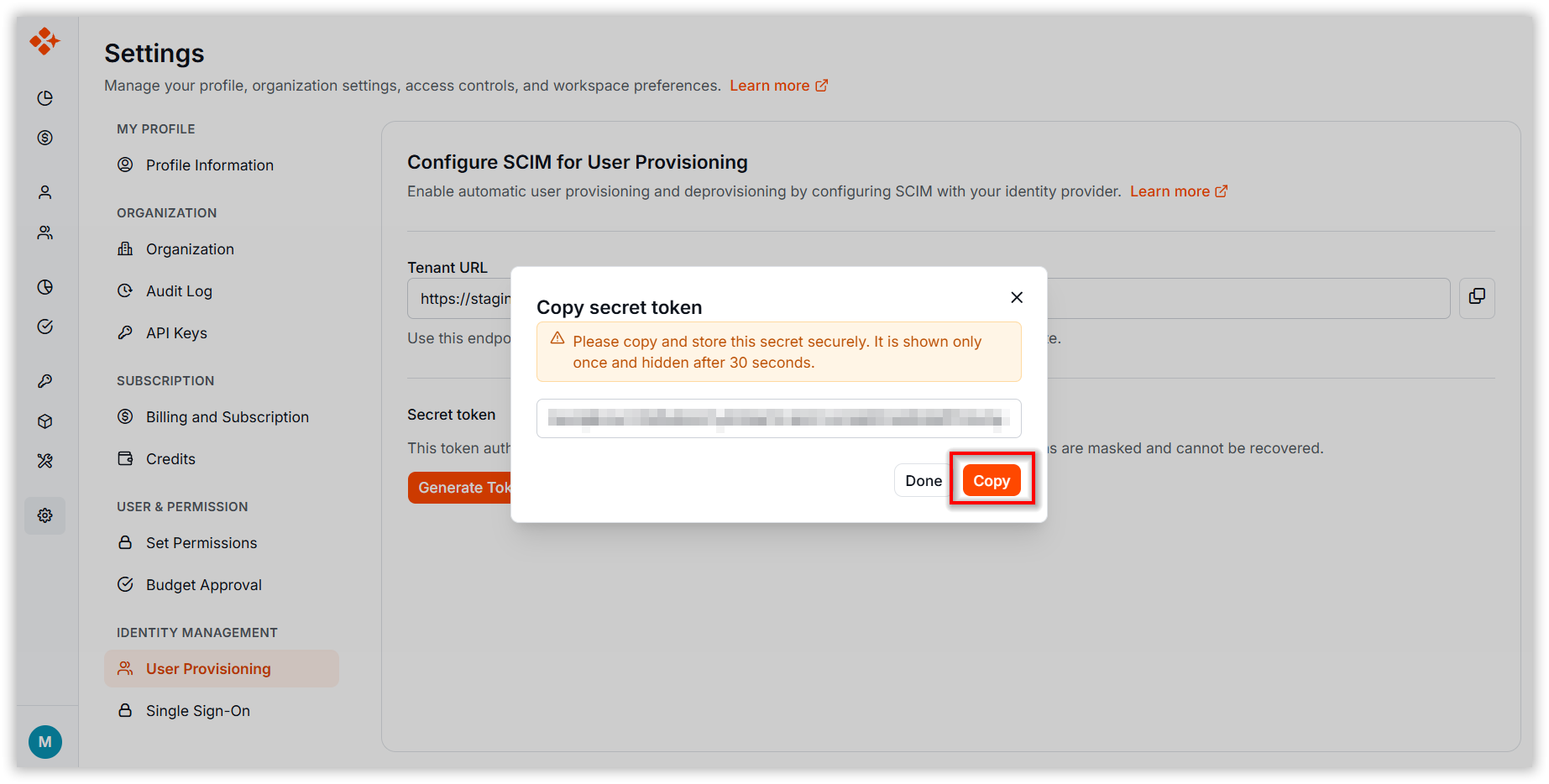
- In the Copy Secret Token dialog, click Copy or manually select and copy the token text.
- Make sure to securely back up the generated Secret Token, as it will be required for configuring synchronization between Microsoft Entra ID and BoldCreate.
- Close the dialog.
- In the Secret Token list, click the Delete option next to the token you want to remove.
- A confirmation dialog appears.
- Click Delete to confirm.
Warning: Deleting a token disables the associated SCIM endpoint. Synchronization will stop working until a new token is generated and configured.
Security Best Practices
1. Store Tokens Securely
- Use a password manager or secrets vault.
- Never commit tokens to version control.
- Never paste tokens in emails or chat.
2. Rotate Tokens Regularly
- Delete old tokens and generate new ones periodically (e.g., annually).
- Update your IdP configuration with the new token.
3. Monitor Token Usage
- Keep only the tokens you are actively using.
- Delete tokens if provisioning is no longer needed.
4. Restrict Access
- Only Admins can manage SCIM settings.
- Limit who has access to your identity provider’s provisioning configuration.