
The Team Management module enables administrators and authorized users to efficiently create, organize, manage, and monitor teams. It provides centralized control over team structure, membership, roles, permissions, and team-related activities.
Key Benefits
- Streamlined Control: Centralized management for team structure and collaboration.
- Easy Team Management: Create and manage teams from a centralized location.
- Improved Collaboration: Group users into teams for better coordination and productivity.
- Role-Based Security: Control access and actions based on user roles and permissions.
Access and Permissions
Note: Only Admins and Team Owners can manage teams and team members. Team Owner can manage teams based on the permissions assigned to their role through the Set Permissions. Team Leads and Users can view team information but cannot perform team management actions.
1. Viewing Teams
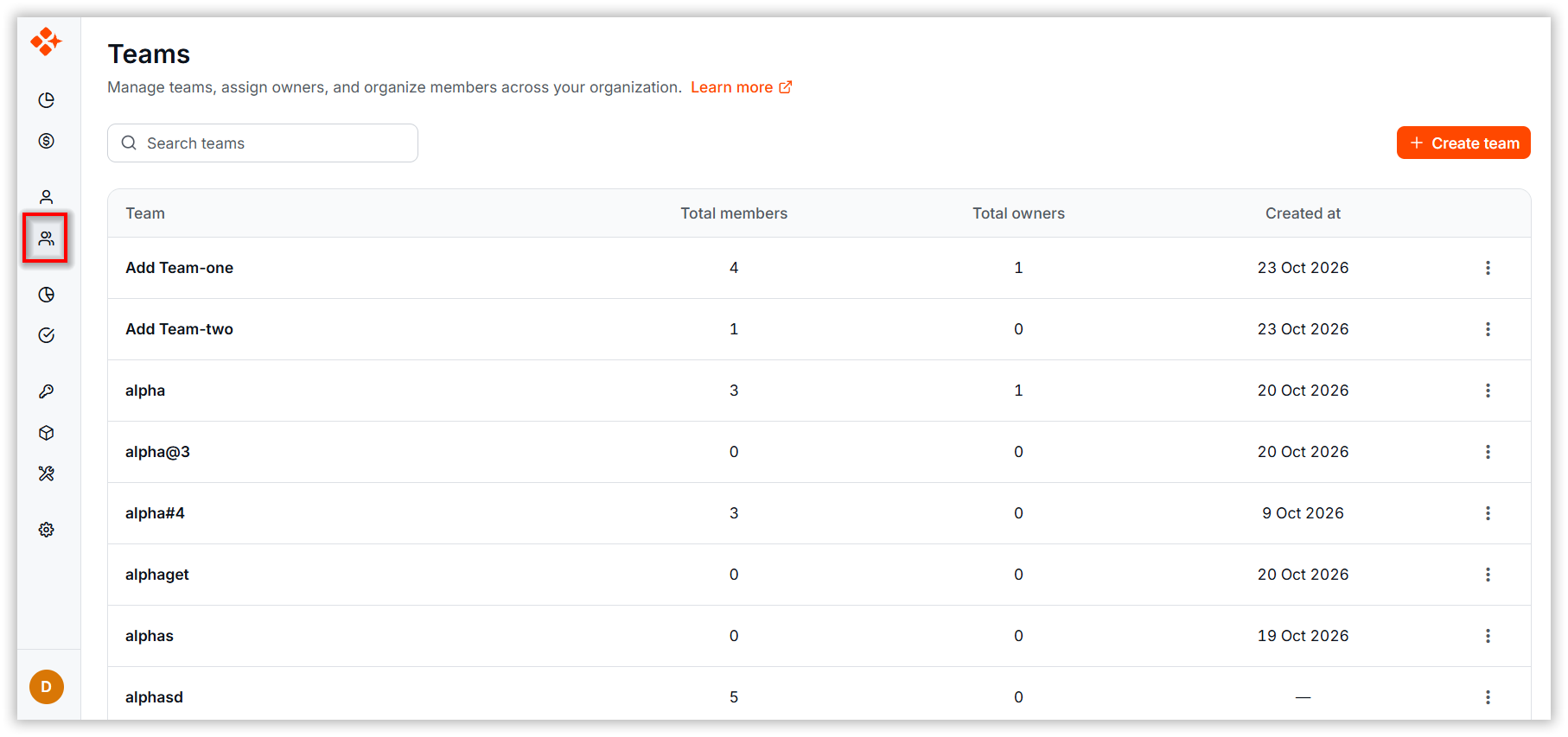
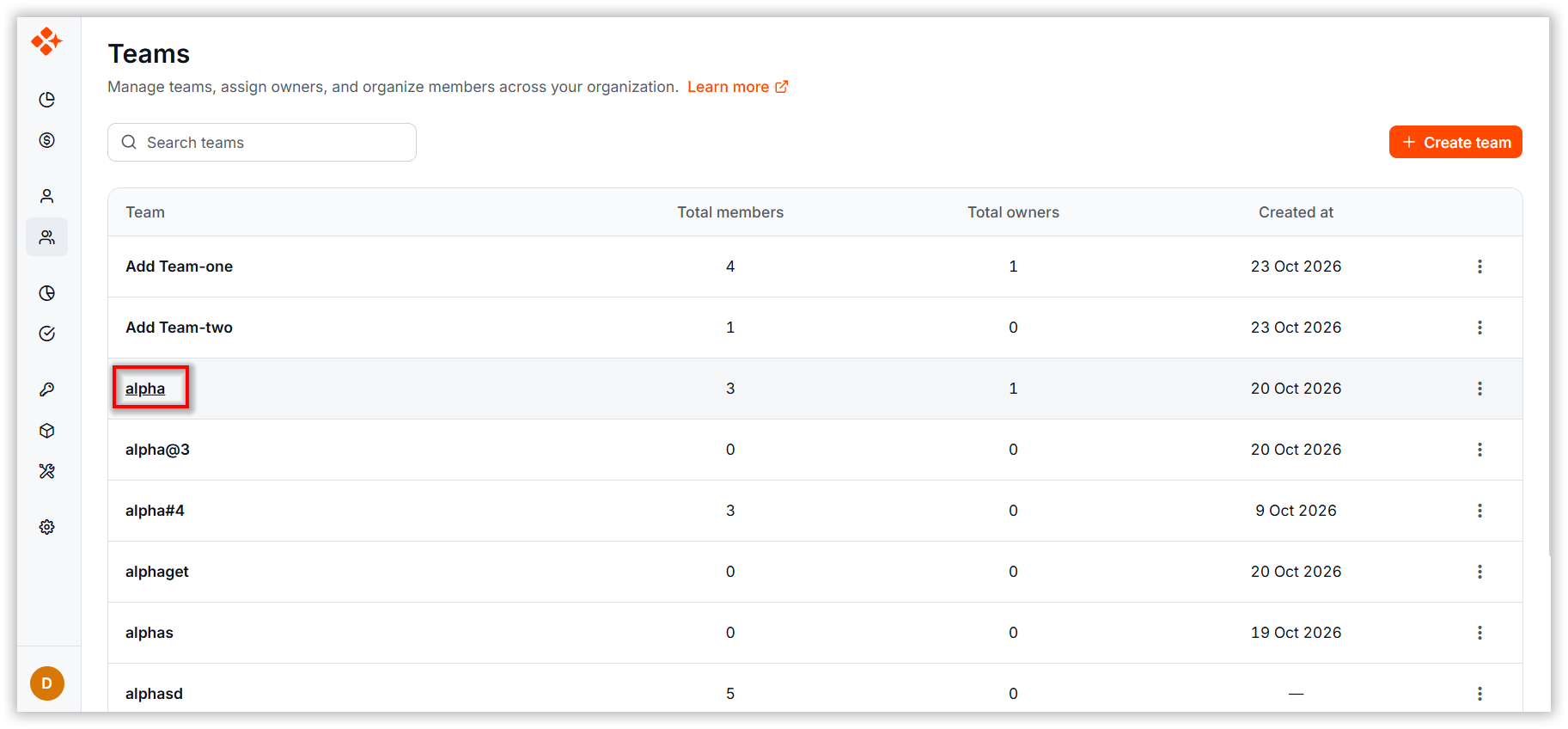
The Teams List view shows every team in the organization as rows in a table.
-
Navigate to the Teams page.
2. Creating a Team
-
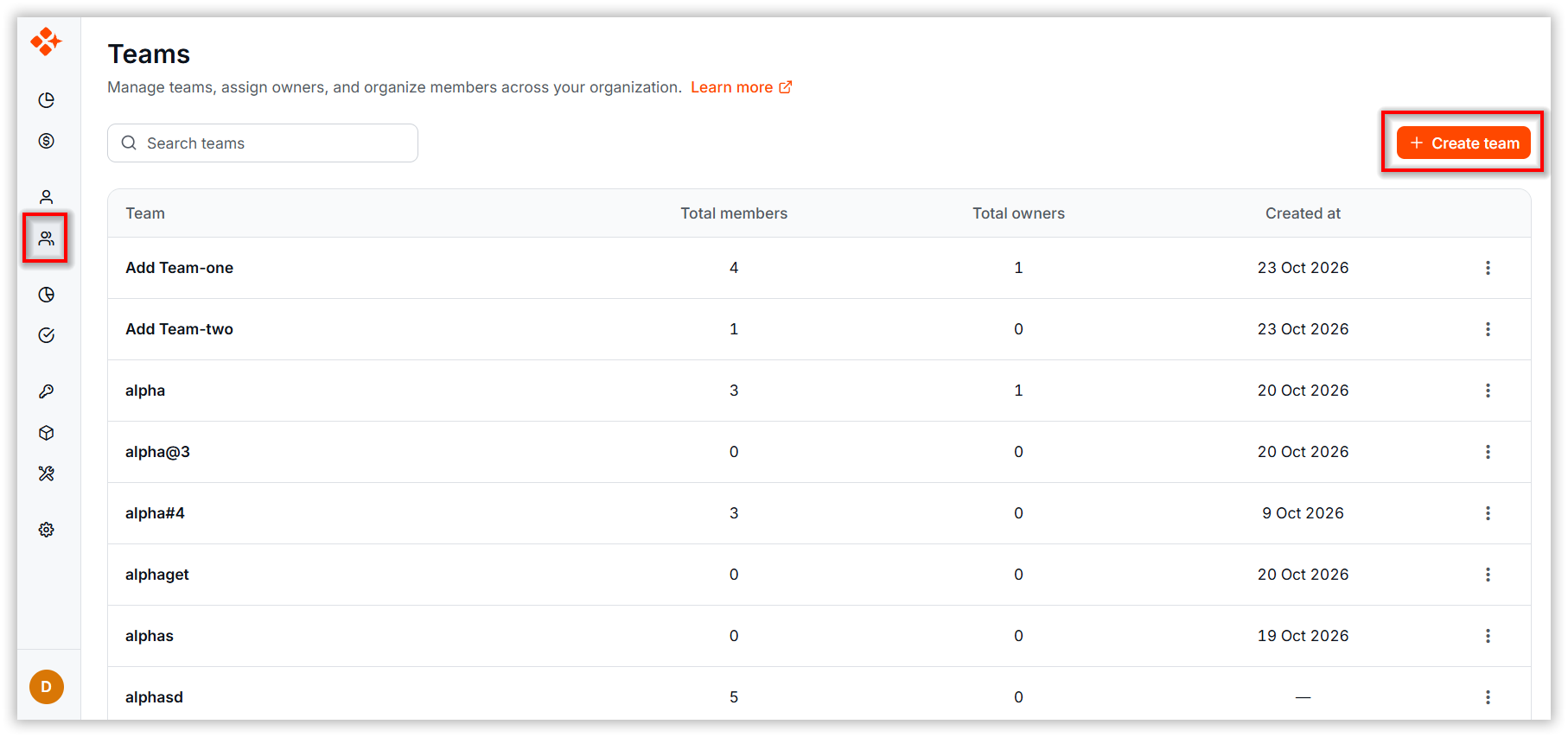
Click Create Team to open the Add Team dialog,
-
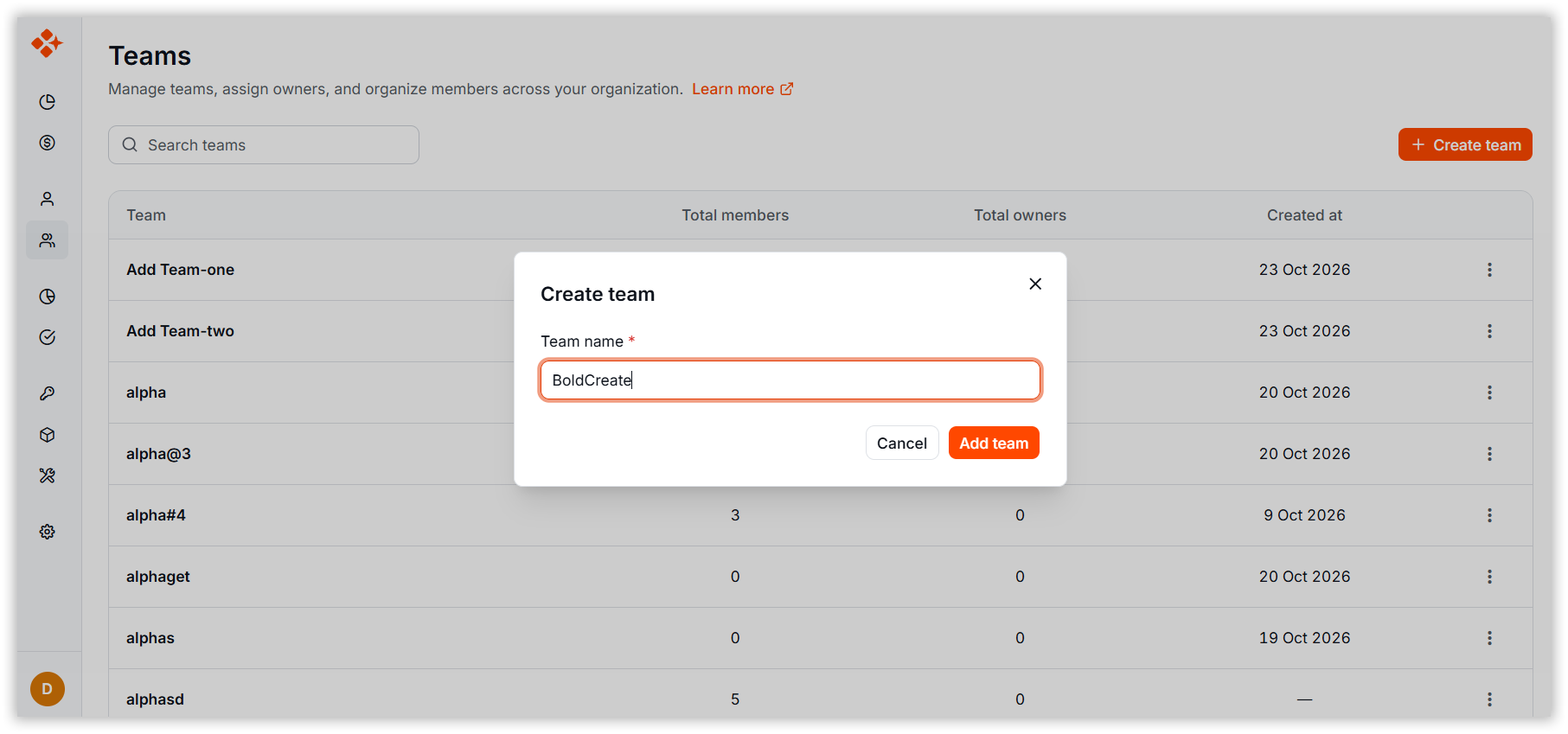
Enter the team name, and click Add Team.
3. Team Actions
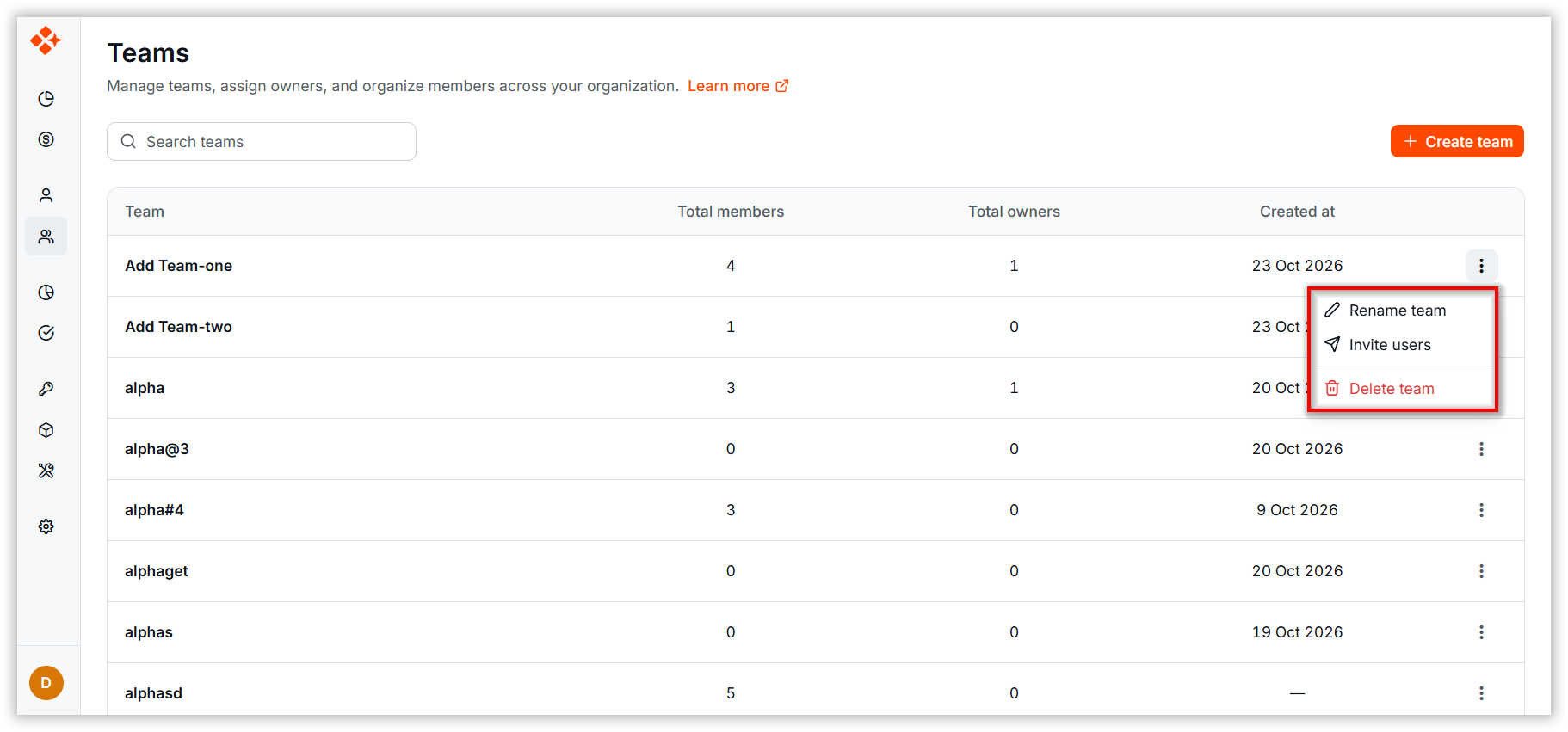
Use the three-dot menu in each row’s Actions column to:
-
Rename Team: Update the team name.
-
Delete Team: Remove the team.
-
Invite Users: Invite users to join the team.
4. Team Details View
-
Click a team name in the list to open the Team Details View. From here you can manage members, assign team owners, invite users, and access team-level analytics.
4.1. Team Member Actions
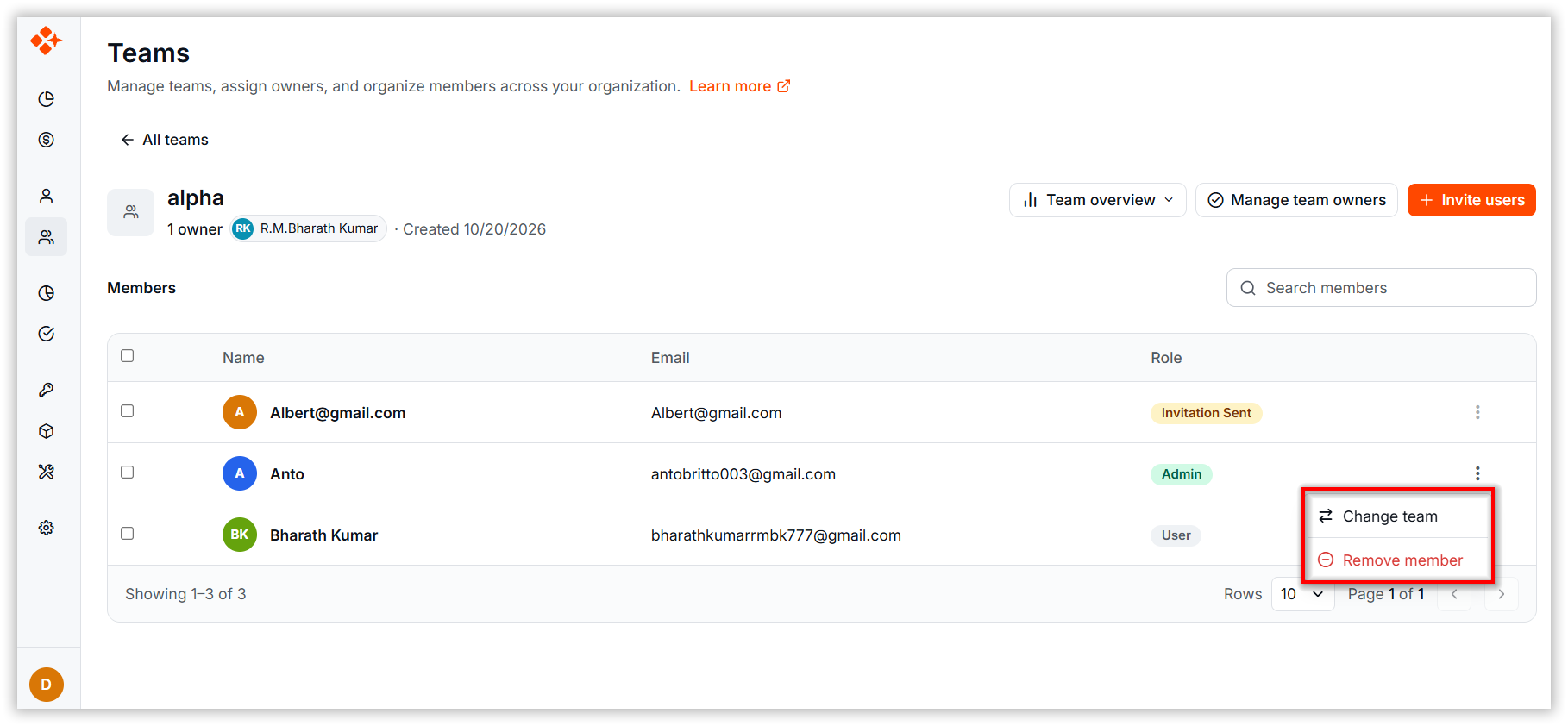
The per-row three-dot menu in the Members table offers these actions:
-
Change Team: Move a user from one team to another.
-
Remove Member: Remove a user from the selected team.
4.2. Bulk Member Actions
Admins and Team Leads can update multiple users at once using the Bulk Actions bar. Select users using the checkboxes, then choose the required action.
Access Permissions
- Admins can change teams and add budgets for multiple team members at once.
- Team Leads can:
- Add budgets only when the Manage Team Budget permission is enabled.
- Change teams for selected users.
- Users do not have access to bulk actions.
Note: If any selected user has a pending invitation, only the Delete action remains available for Admins. Other bulk actions are disabled.
Selecting Users
-
Select one or more users using the row checkboxes.
-
Use the header checkbox to select or clear all users on the current page.
-
The number of selected users is displayed in the bulk action bar.
-
Click the Clear Selection icon to clear the selection.
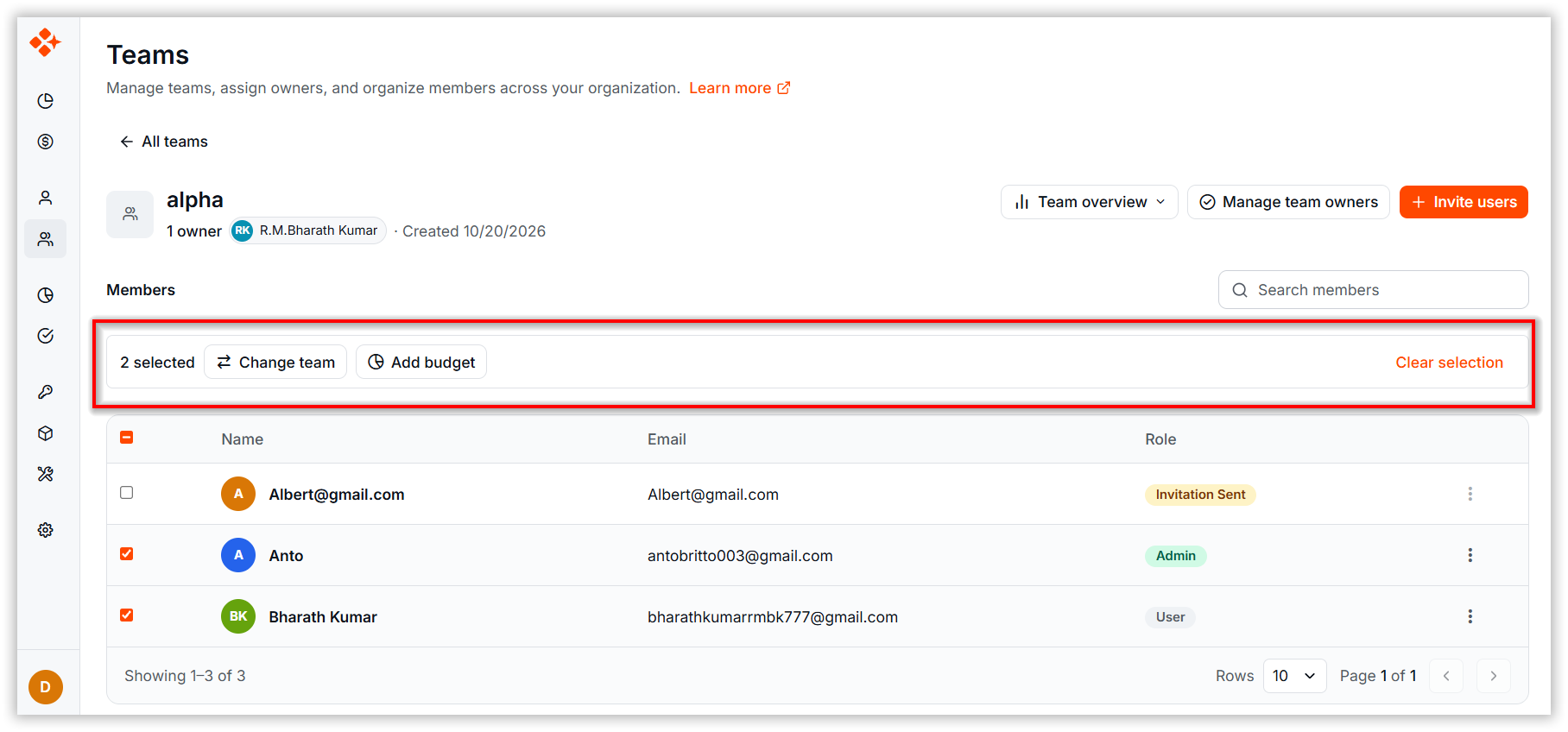
Note: If any selected user has a pending invitation, the Change Team button is disabled with the tooltip “Bulk actions are not available when Invitation Sent users are selected.” The clear-selection link remains enabled.
4.3. Invite Users
-
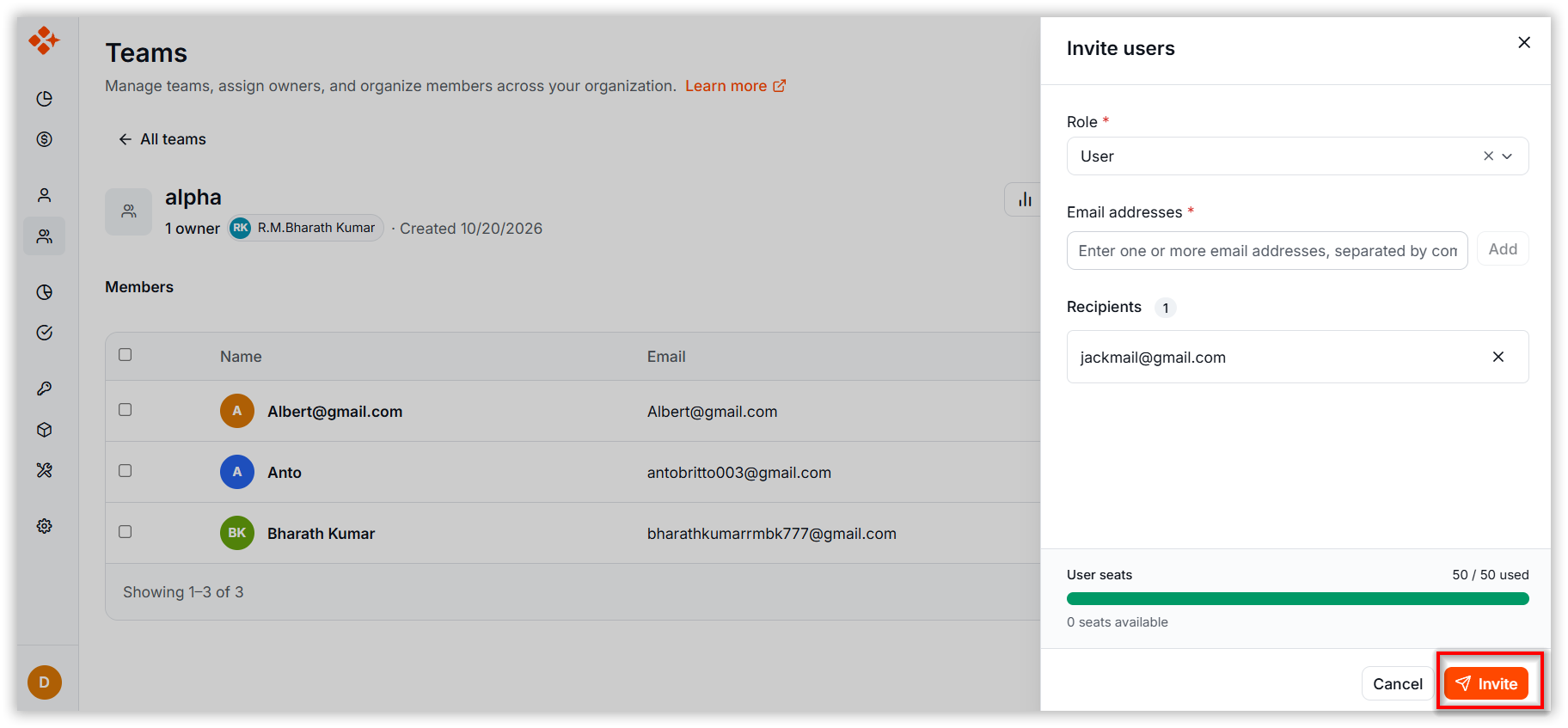
Click Invite Users from the team detail header or Click Invite Users from the team grid. This option is only visible to users who can invite.
4.4. Manage Team Owners
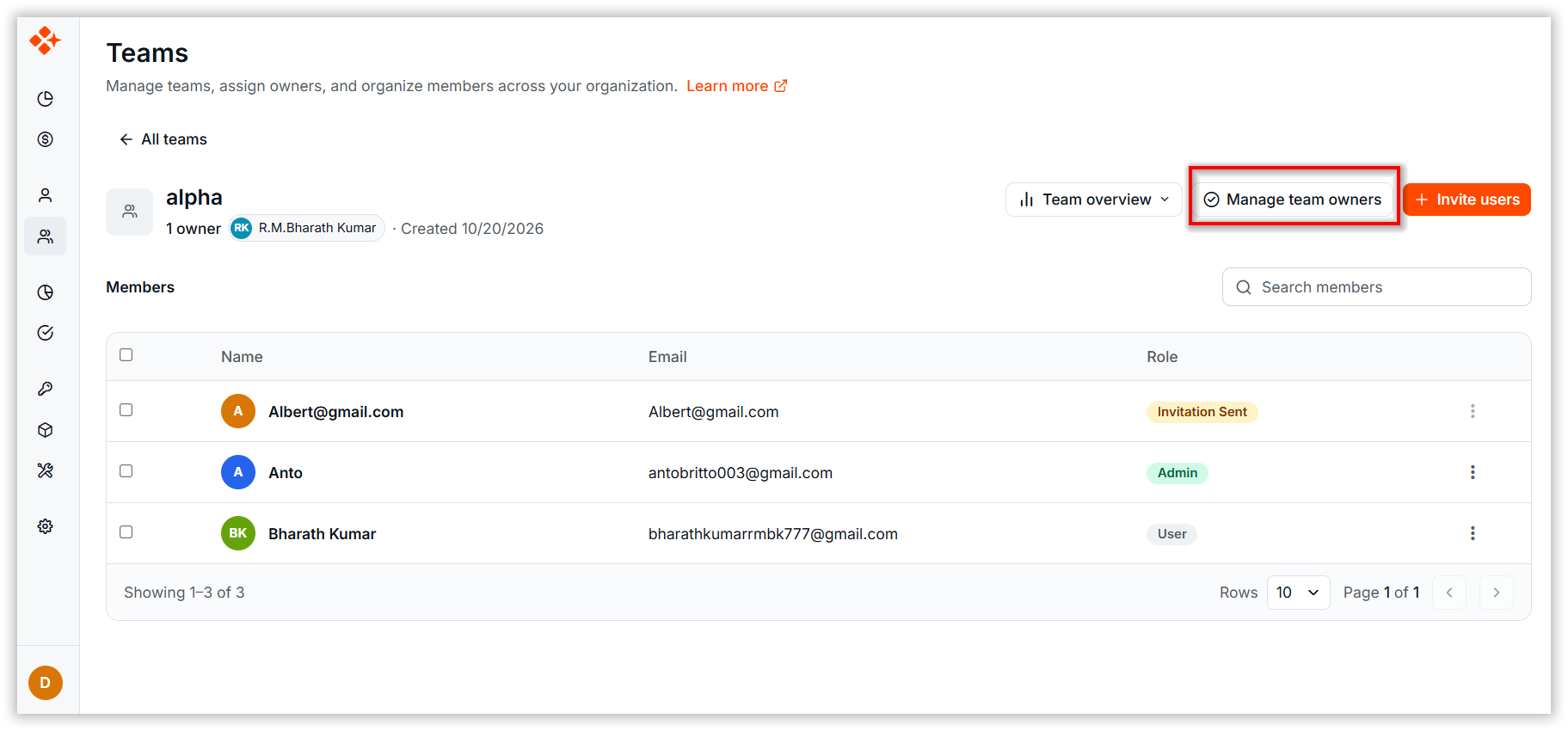
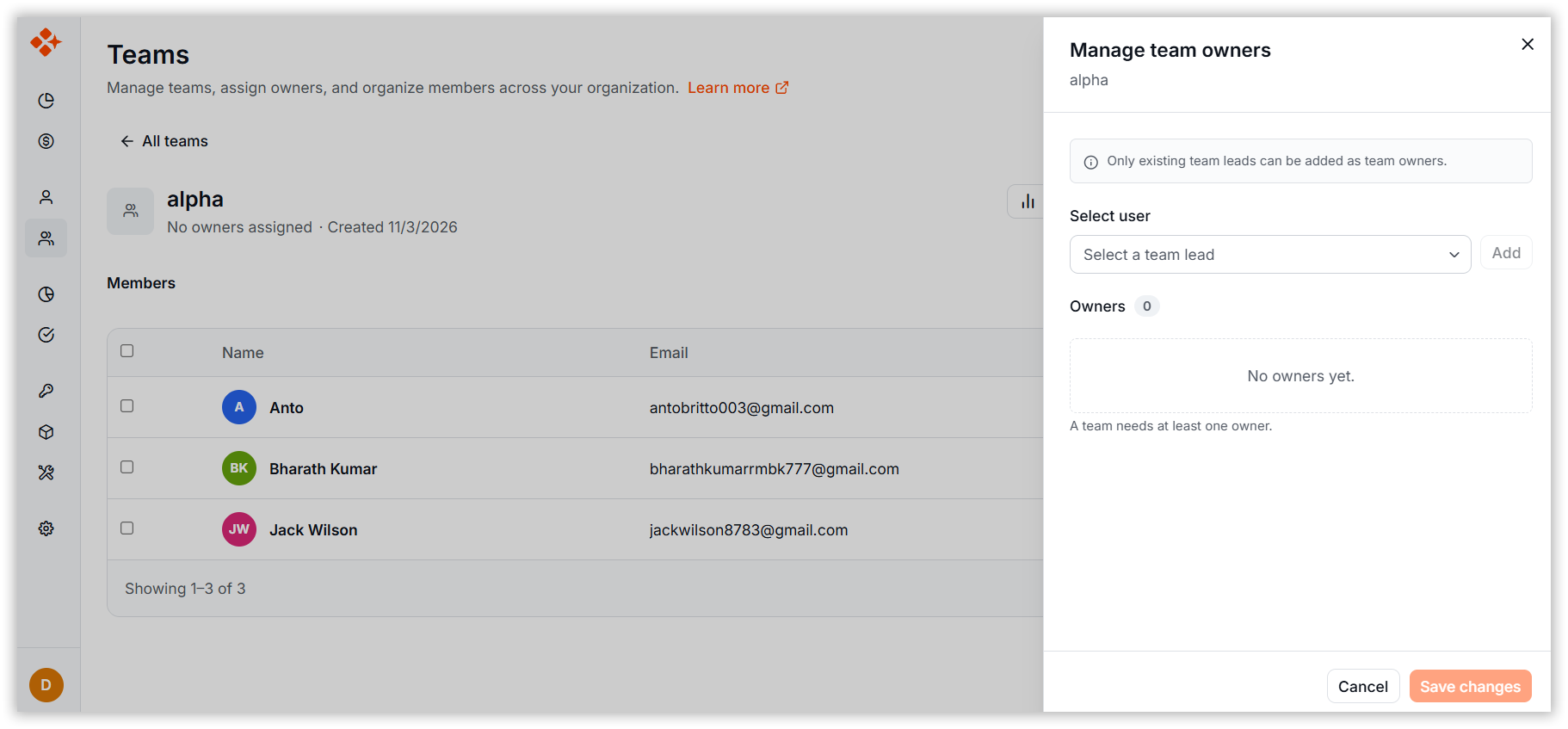
The Manage Team Owners feature allows administrators to assign selected team leaders as Team Owners so they can monitor work, manage editable access, maintain team structure, and support operations more effectively.
Purpose of Team Owners
- Visibility: See and track activity in their teams.
- Control: Edit and manage their teams and help ensure they are properly structured.
- Accountability: Act as the authority responsible for team-level decisions.
Note: Team Owners are not limited to a single team. They can be assigned to multiple teams, except their own. They have Admin-level access only within the teams they manage. A Team Owner can add budgets and set alerts for their users, but not for the entire team.
How to Assign Team Owners
-
Navigate to the Teams page and select a team.
-
Click the Manage Team Owners button.
-
The Manage Team Owners panel opens as a right-side drawer.
-
Use the dropdown to select one or more leads.
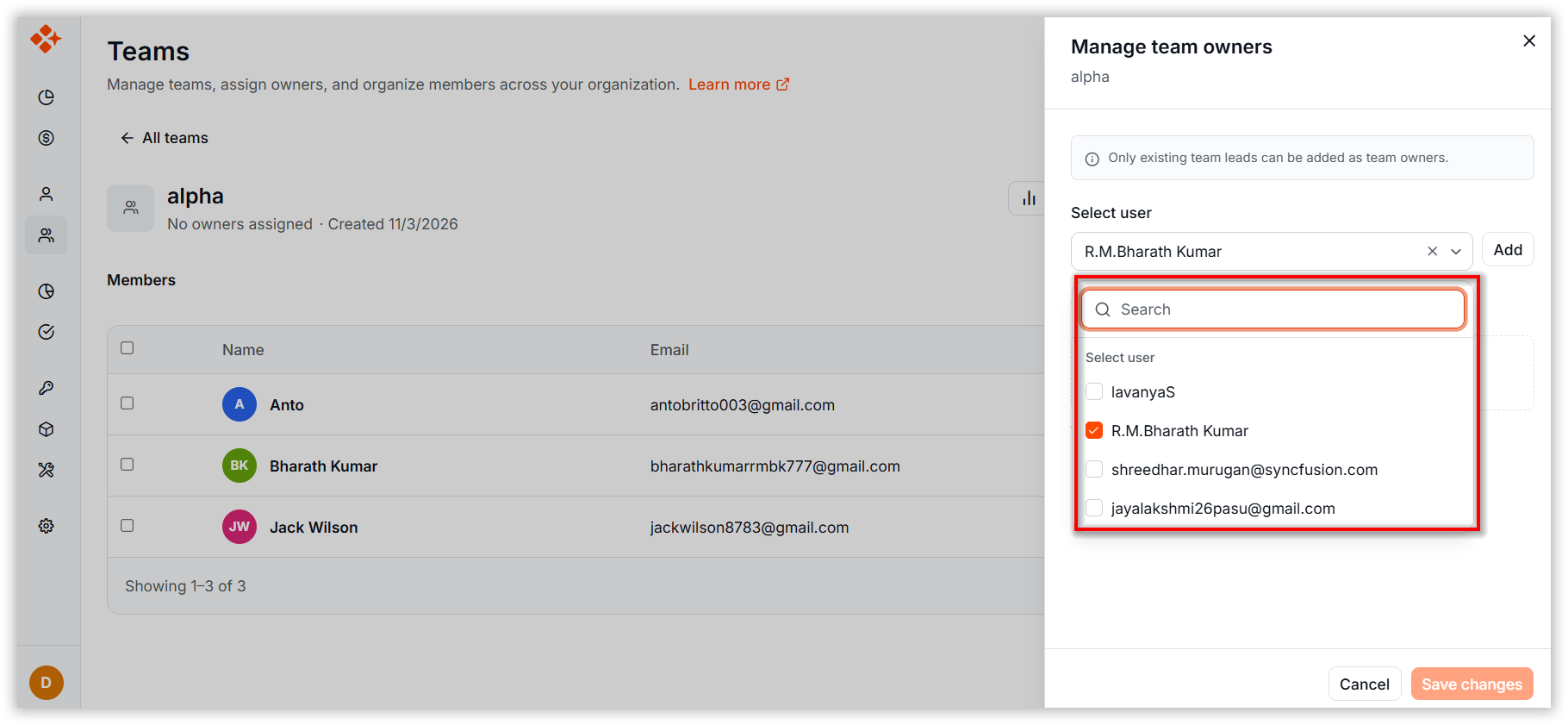
Note: Only existing Team Leads are available for selection.
-
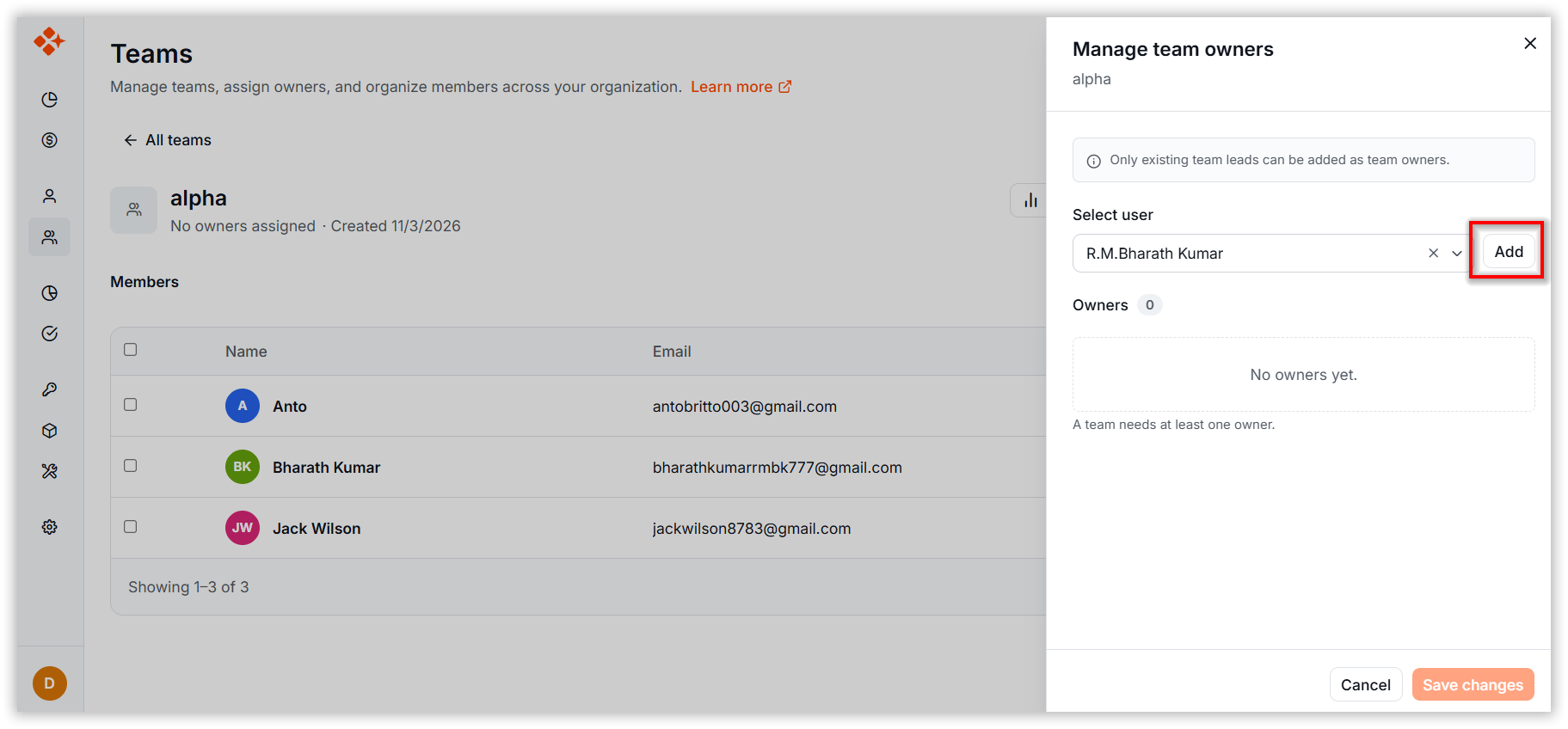
Click Add to assign them as owners.
-
Review the list of added owners. Additional owners can be removed if needed.
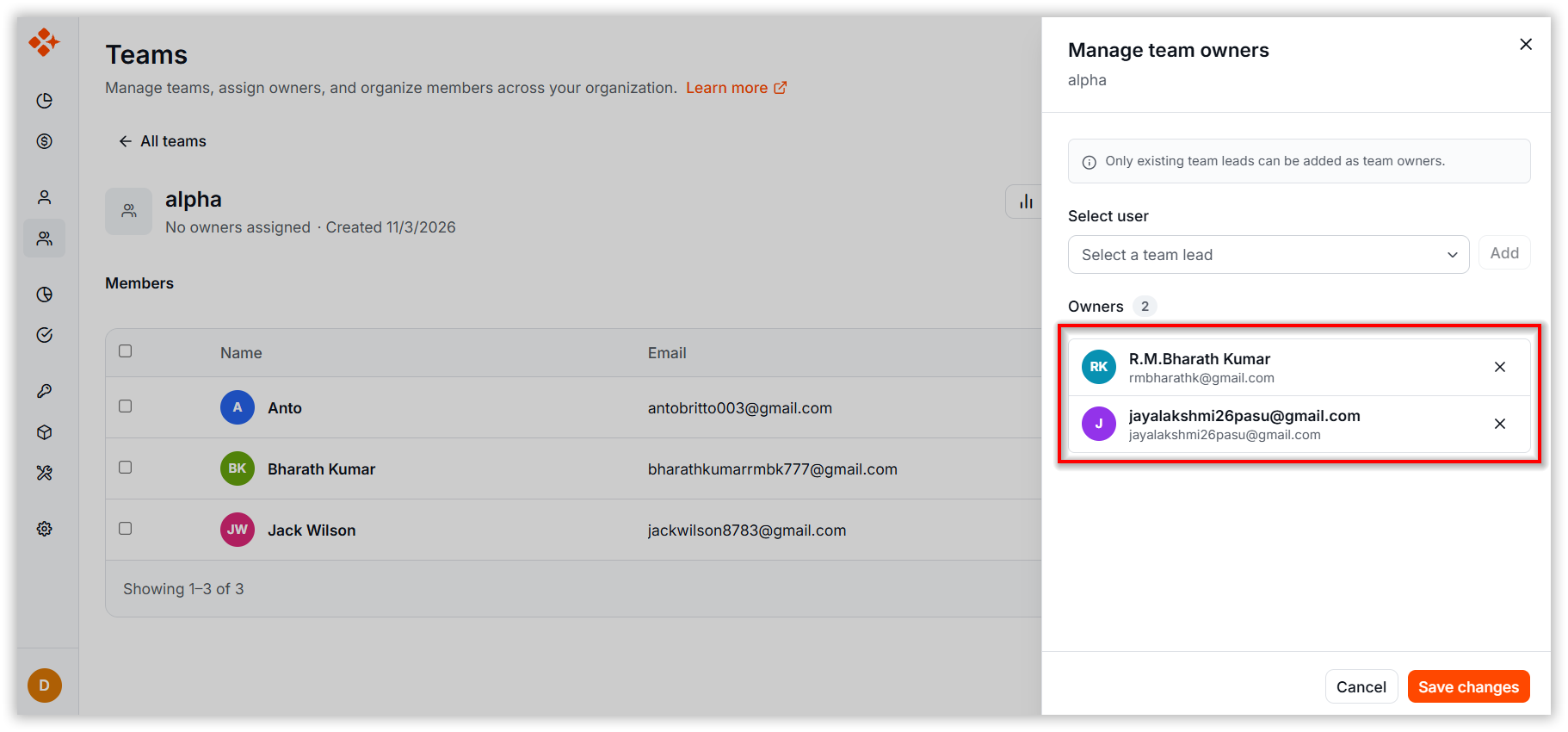
-
Click Save Changes to confirm changes. The page refetches the team directory and the member list.
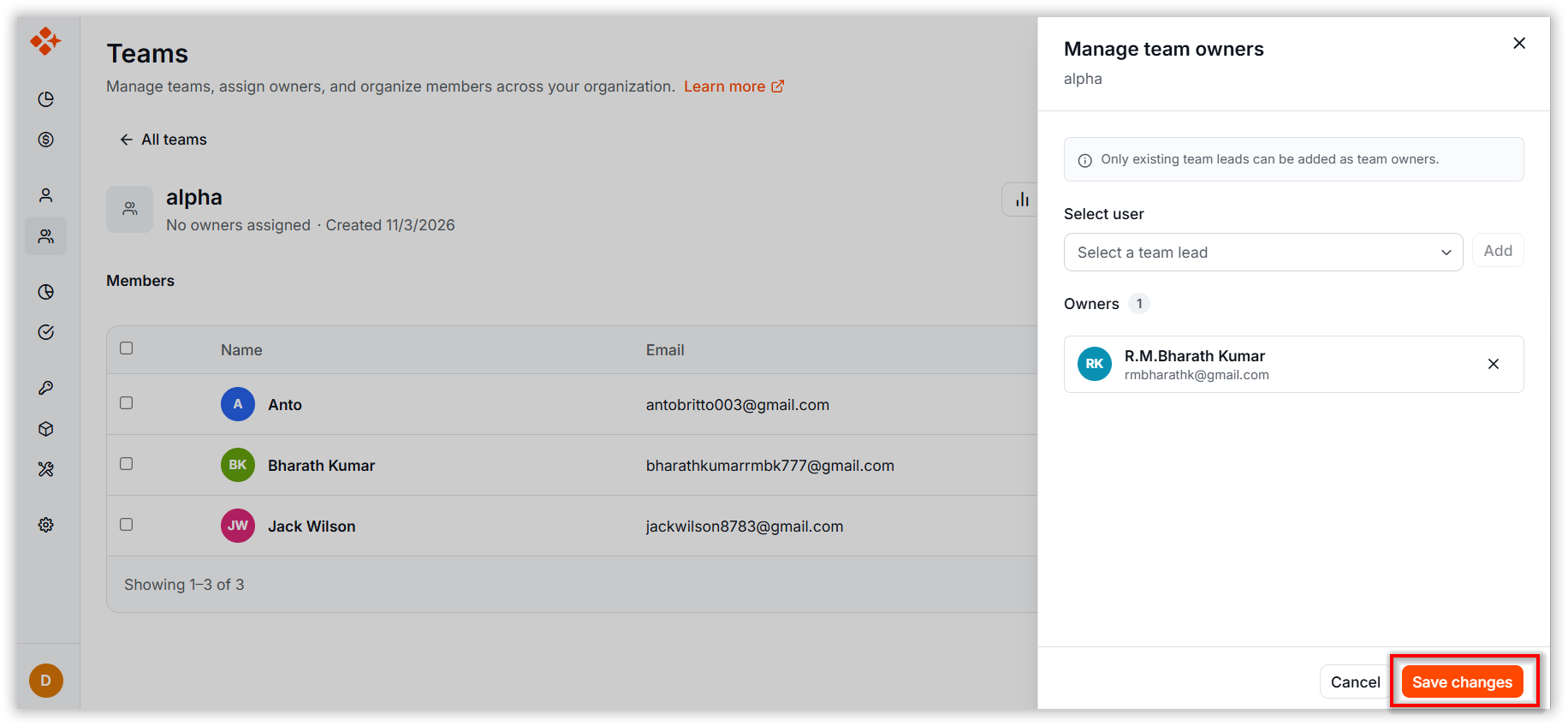
Team Leads see the same button labeled Team Owners and can open the drawer in read-only mode to review current owners.
4.5. Team Overview
The Team Overview dropdown in the team header gives you direct access to the selected team’s budget and usage insights. It is only visible when a team is selected.
-
Budget Detail: Opens the Budget page with the selected team pre-applied as a filter.
-
Usage Analytics: Opens the Usage Explorer grouped by team, with the selected team pre-applied as a filter.
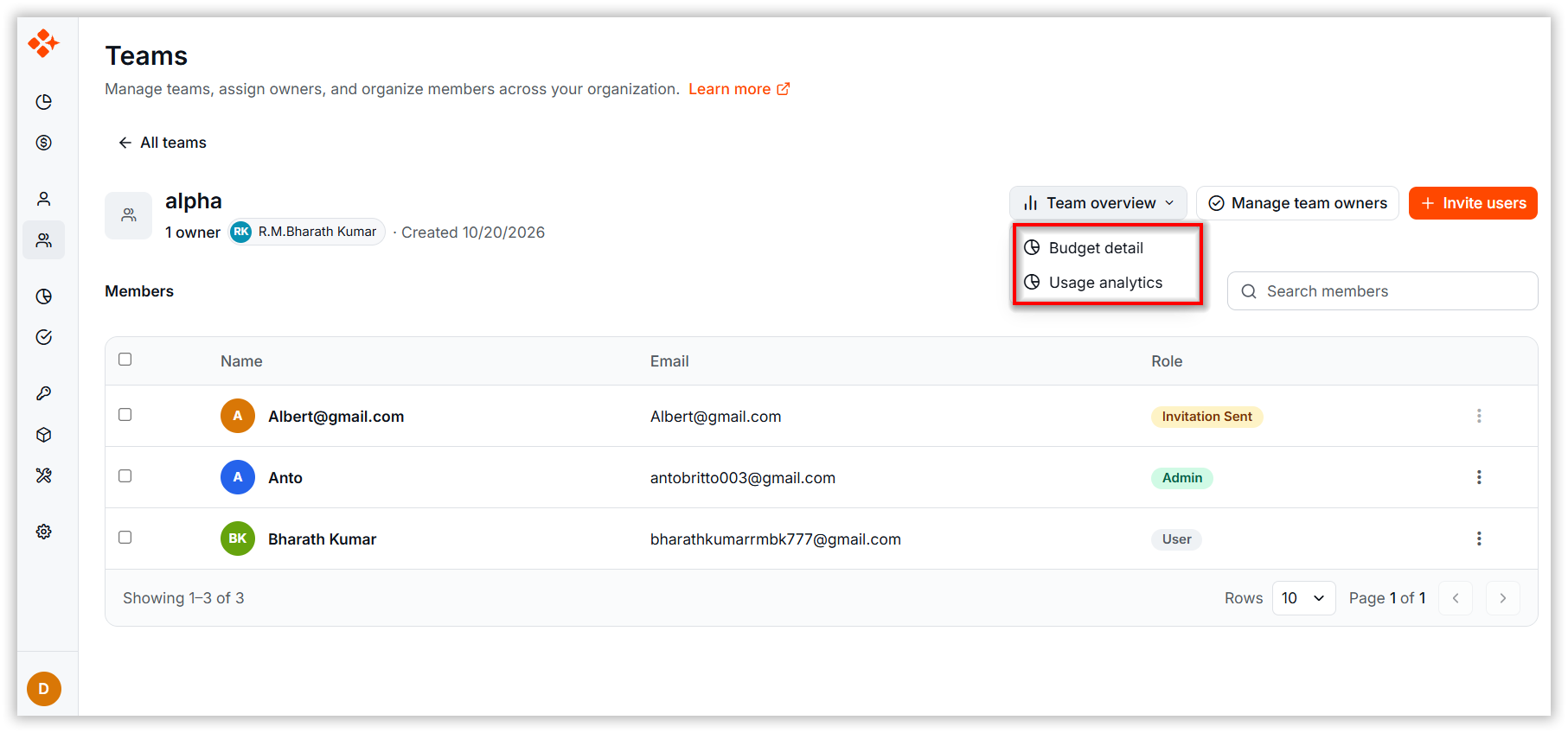
Best Practices
- Assign Owners Thoughtfully: Distribute team-owner responsibility to balance governance with day-to-day execution.
- Maintain Clear Roles and Responsibilities: Assign appropriate roles and permissions to support secure, efficient team management.
- Audit Teams Regularly: Review team structures, memberships, and leadership assignments to keep them aligned with current organizational needs.
- Monitor Team Activity: Track team usage, member engagement, and key activities to improve visibility and accountability.
- Follow Secure User Onboarding: Verify user information and assign the correct team and permissions before granting access.
Related Topics
- User Management — Invite and manage organization members.
- Create Budget — Manage team and user budgets.