
The Budget feature in BoldCreate enables administrators to allocate and monitor AI usage budgets for teams and individual users. This helps organizations manage costs effectively and optimize AI resource utilization.
Budget Overview
The Budget page is organized into three tabs, each providing different functionality based on user roles and access levels:
-
All Teams: View and manage budgets for the teams.
-
All Users: Manage user budgets, track usage, and assign budgets individually or in bulk for all users in the organization.
-
My Budget: View your budget details, monitor usage, and request additional budget when needed.
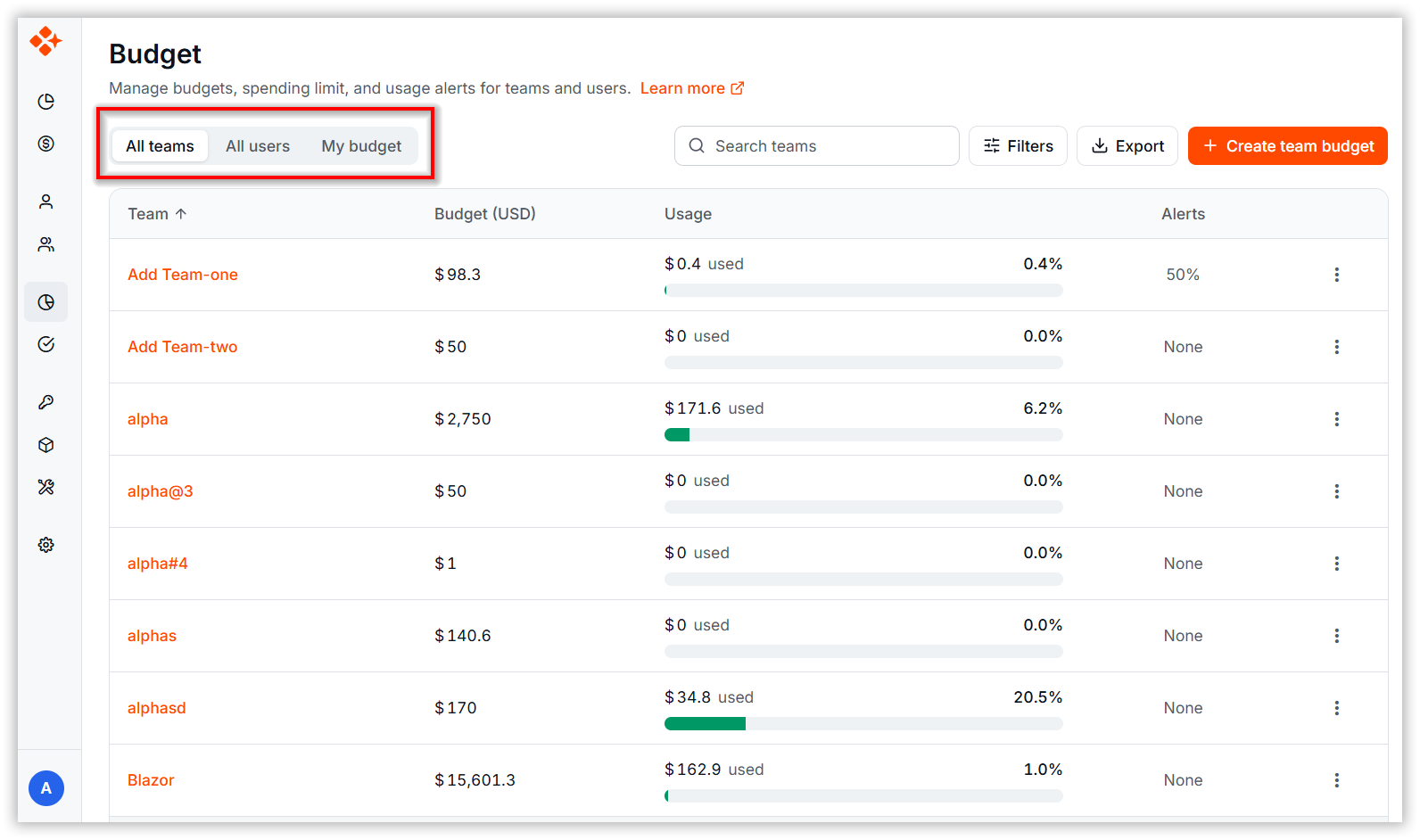
Note: Admins can manage budgets for all teams and users. Team Leads can manage team and user budgets only when the Manage team budget permission is enabled. Users can edit their own budget only when the Edit own budget permission is enabled.
Filtering and Monitoring
-
Click the Filter option to quickly find and view specific records.
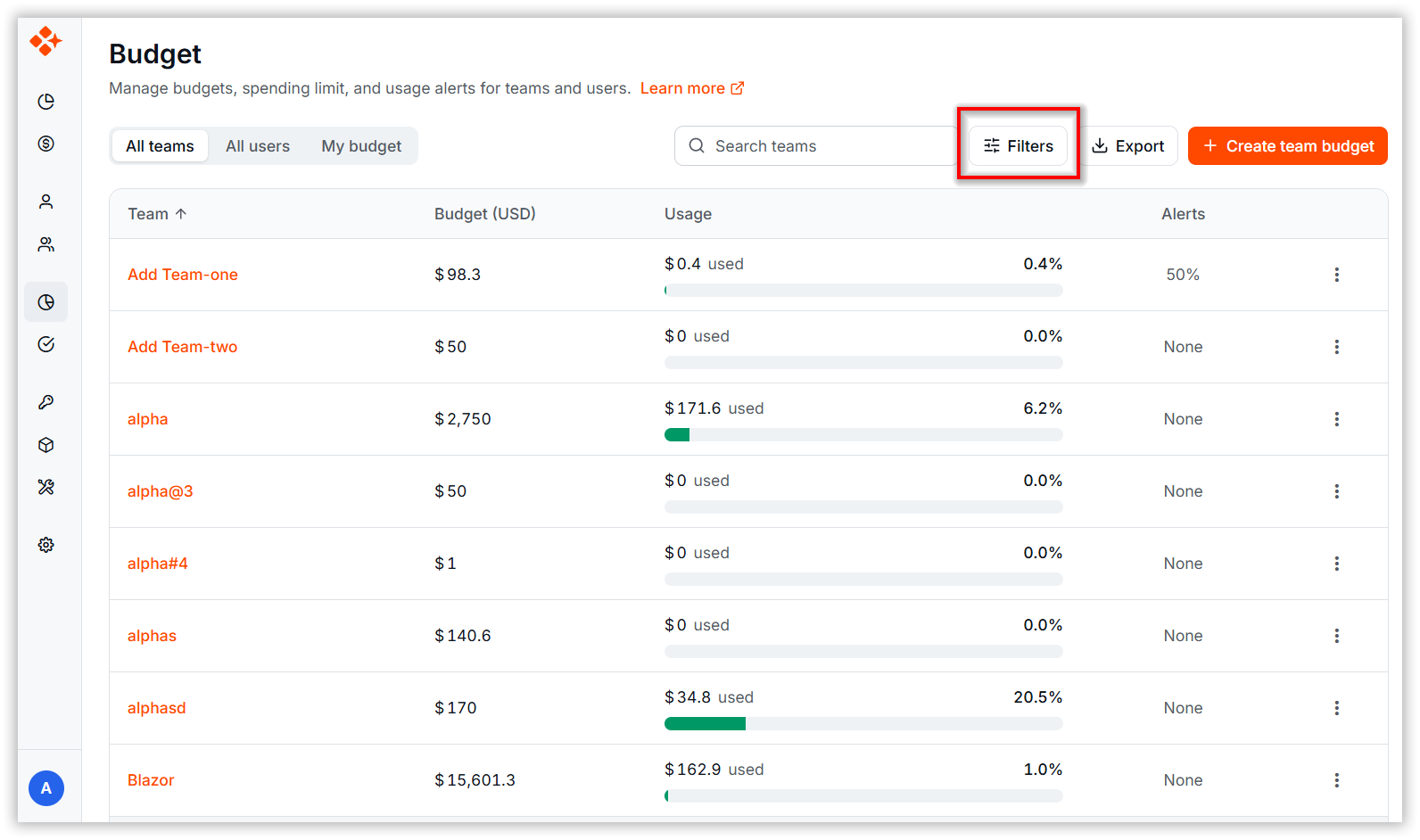
How to Apply Filters
-
Click the Filter button in the toolbar.
-
In the Filter Dialog, select the desired filter criteria:
- For multi-select fields, choose one or more values.
- For dropdown fields, select the required option.
-
Click Apply to apply the selected filters.
-
The grid refreshes and displays only records that match the applied criteria.
-
Active filters are indicated by a filter count on the Filter button.
-
Click Clear to remove all applied filters.
-
The grid refreshes and displays all available records.
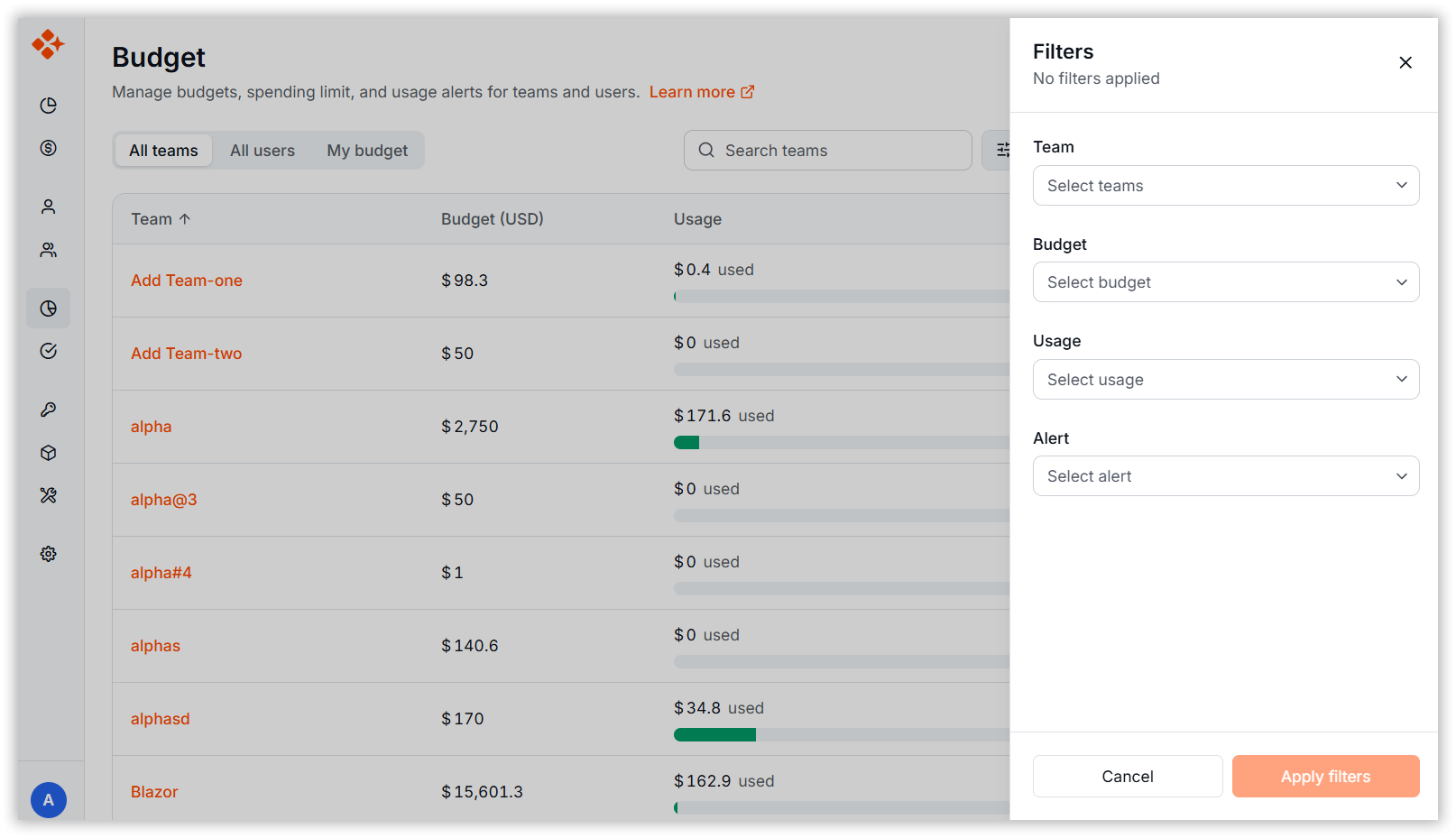
Note: Available filter options may vary depending on the selected tab.
Export the Report
Use the Export option in the toolbar to download the displayed data for reporting and analysis.
-
Click the Export button in the toolbar.
-
Select the desired export format.
-
The system generates and downloads the exported file.
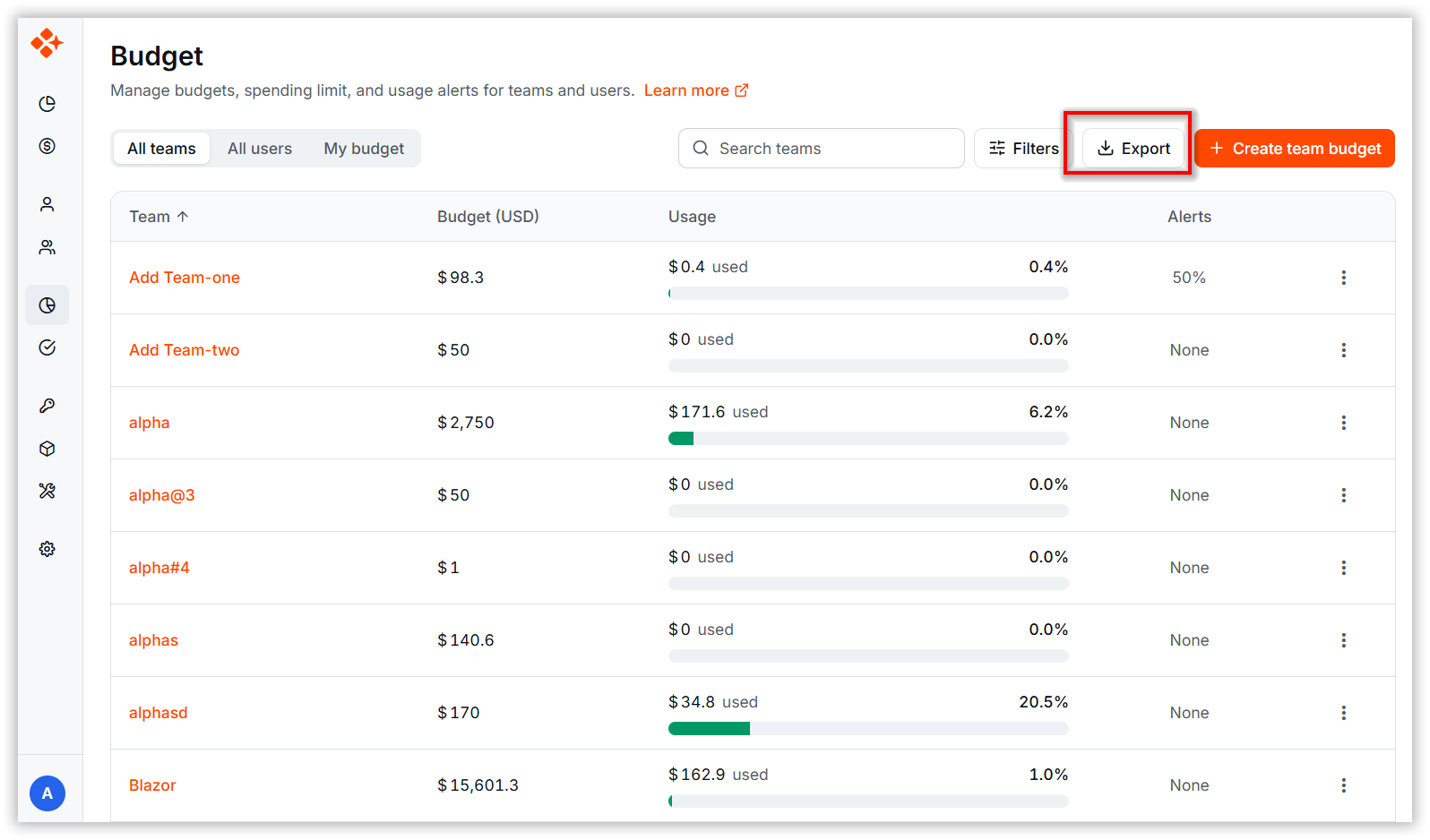
Note: Exported data reflects the currently applied filters and sorting options.
All Teams
The All Teams tab allows administrators and authorized users to view and manage budgets.
Team Budget Setup
Steps:
-
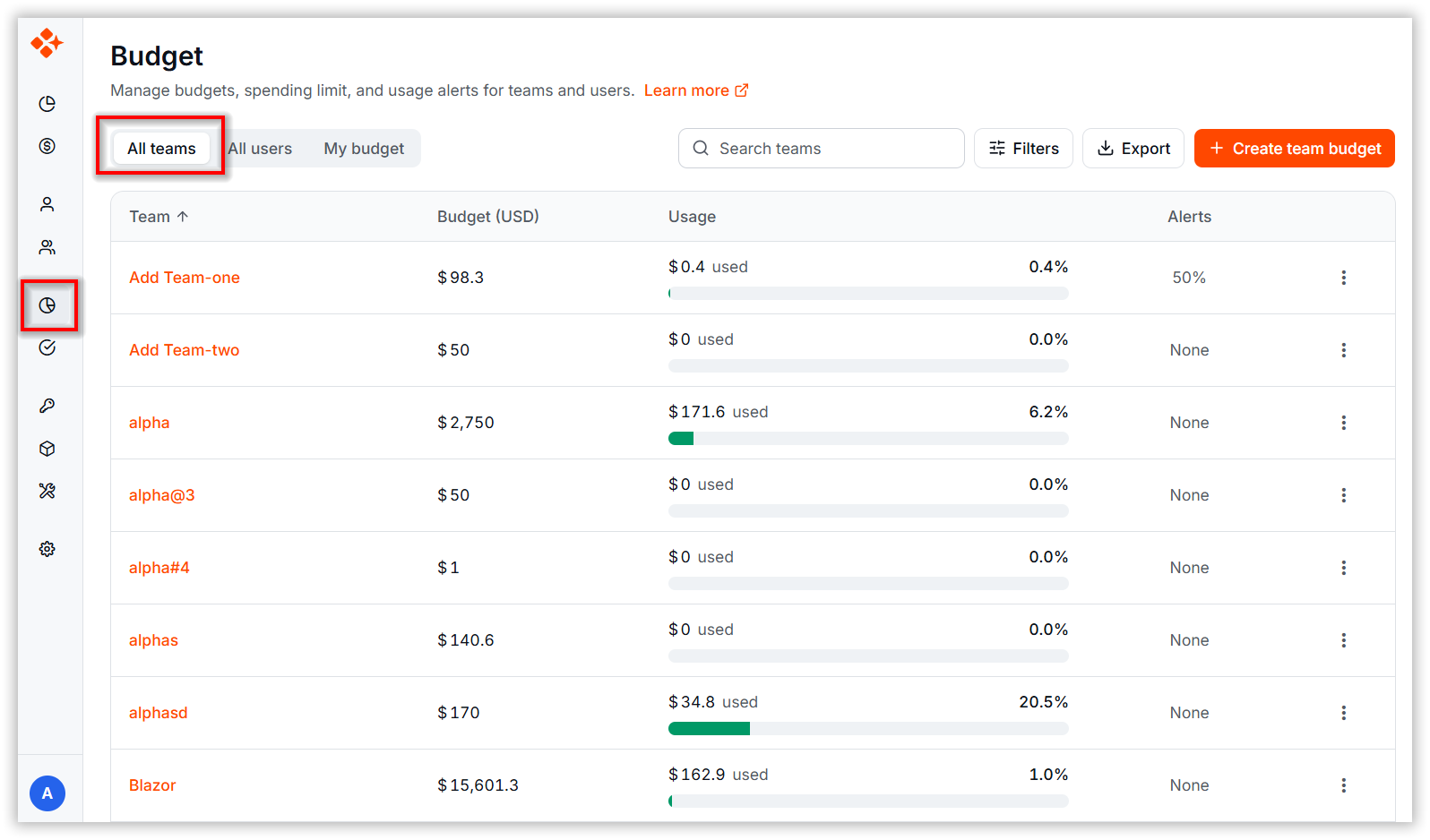
Open the BoldCreate page and navigate to the Budget page from the left sidebar.
-
Click the “Create team budget” button on the top right of the page.
-
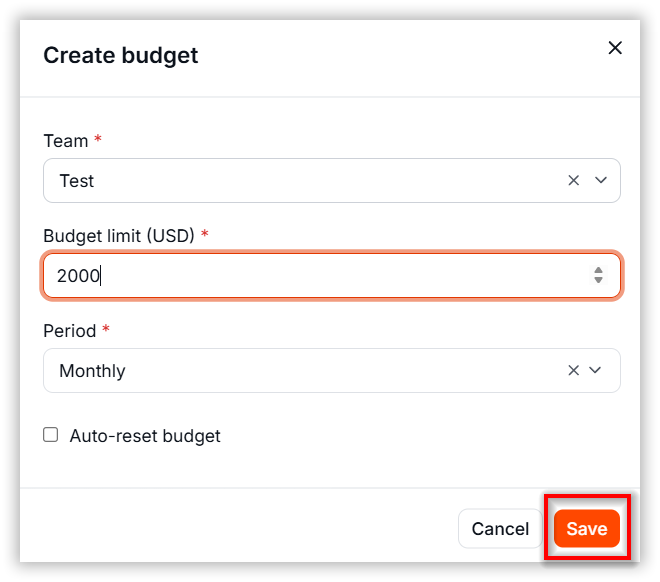
Choose the desired Team in the team selection field.
-
Set the Maximum Budget limit for the team.
-
Choose the Budget Period:
- Monthly
- Quarterly
- Half-Yearly
- Yearly
-
(Optional) Enable Auto-Renewal and set the Reset amount. This will automatically reset the budget at the end of each period.
-
Click the “Save” button to add the team budget.
All Users
The All Users tab allows administrators and authorized users to view and manage budgets.
Individual User Budget Allocation
Steps:
-
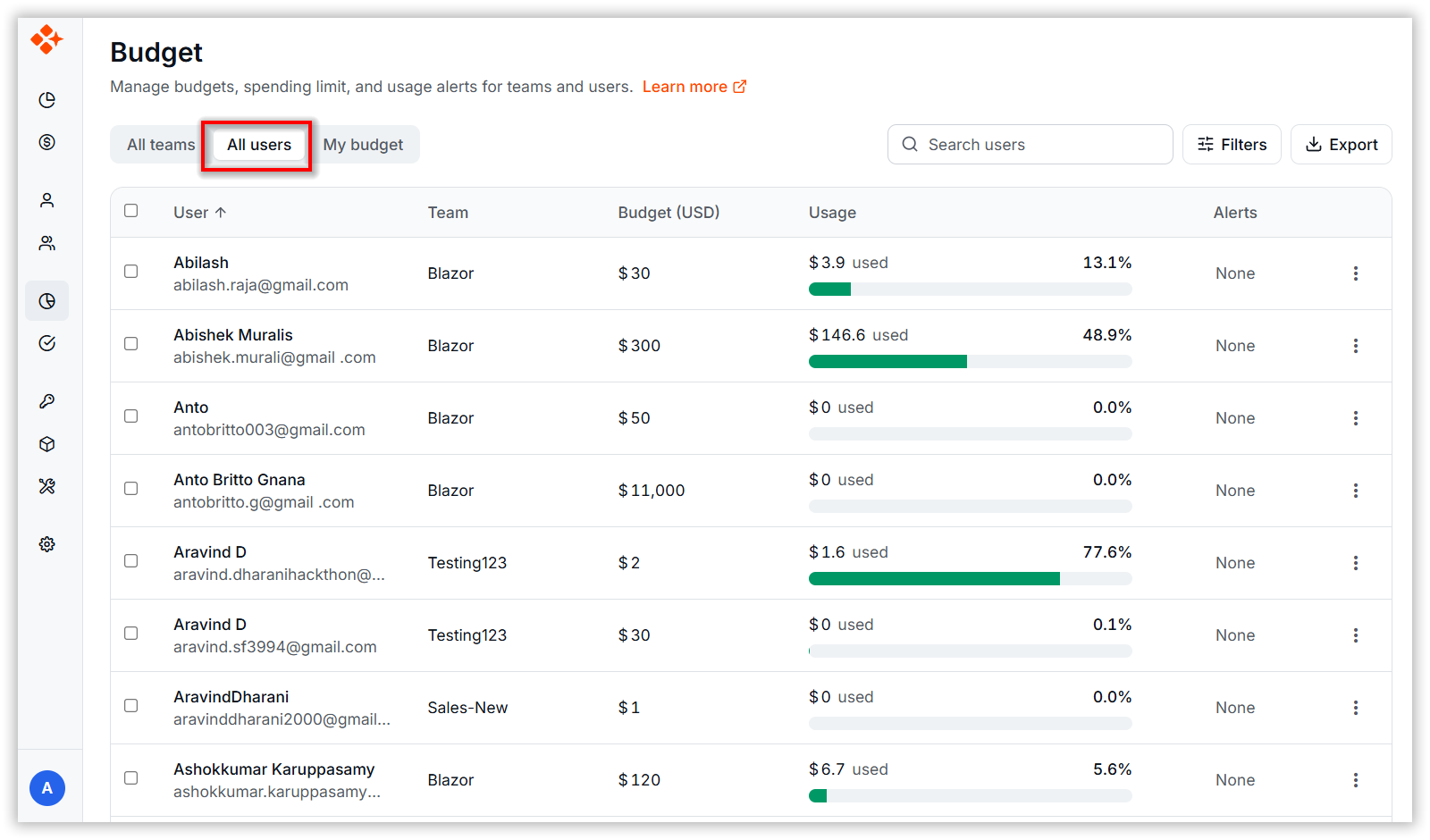
Click the “All users” tab.
-
All users are listed in the table.
-
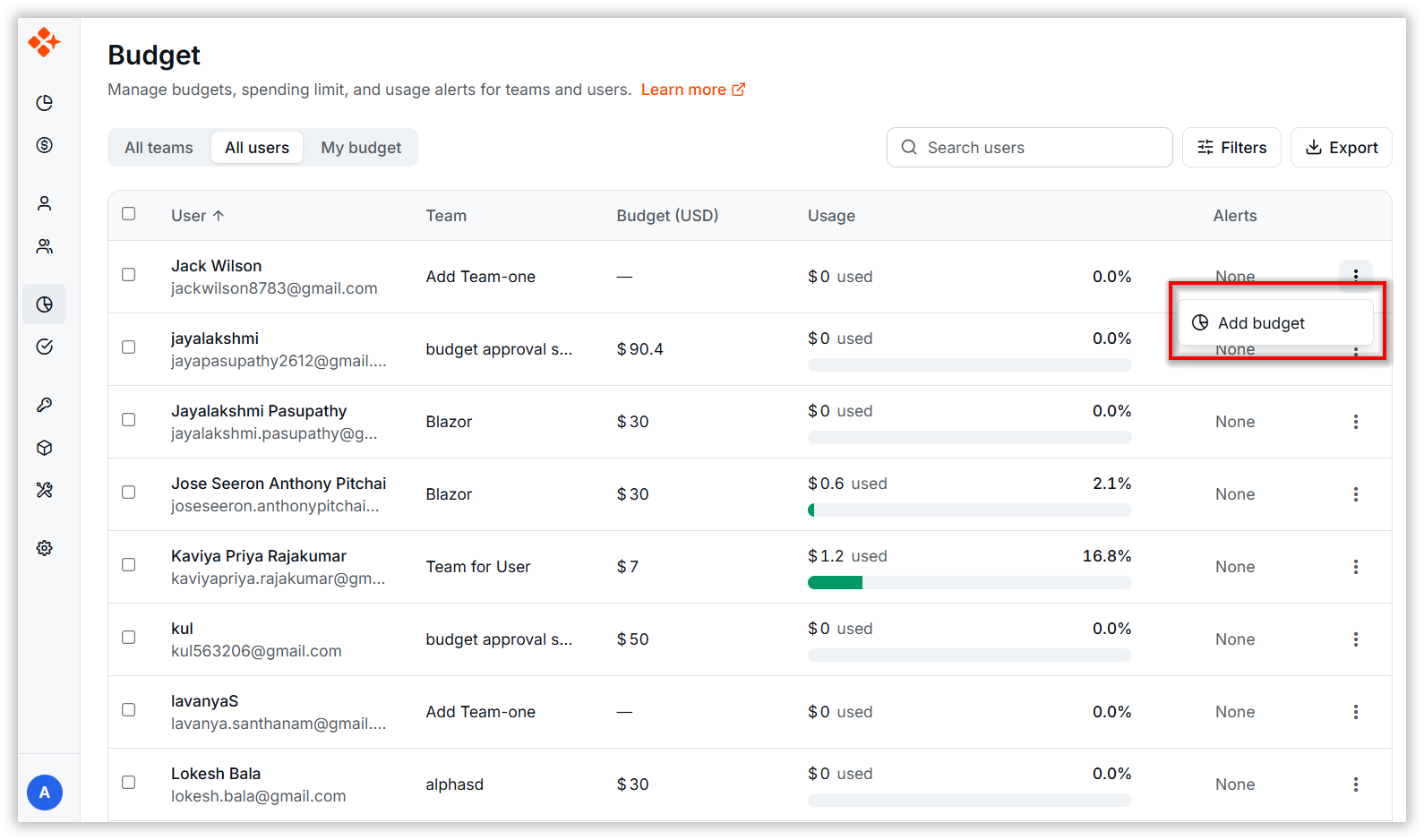
For a user, open the Context Menu and click “Add Budget”.
-
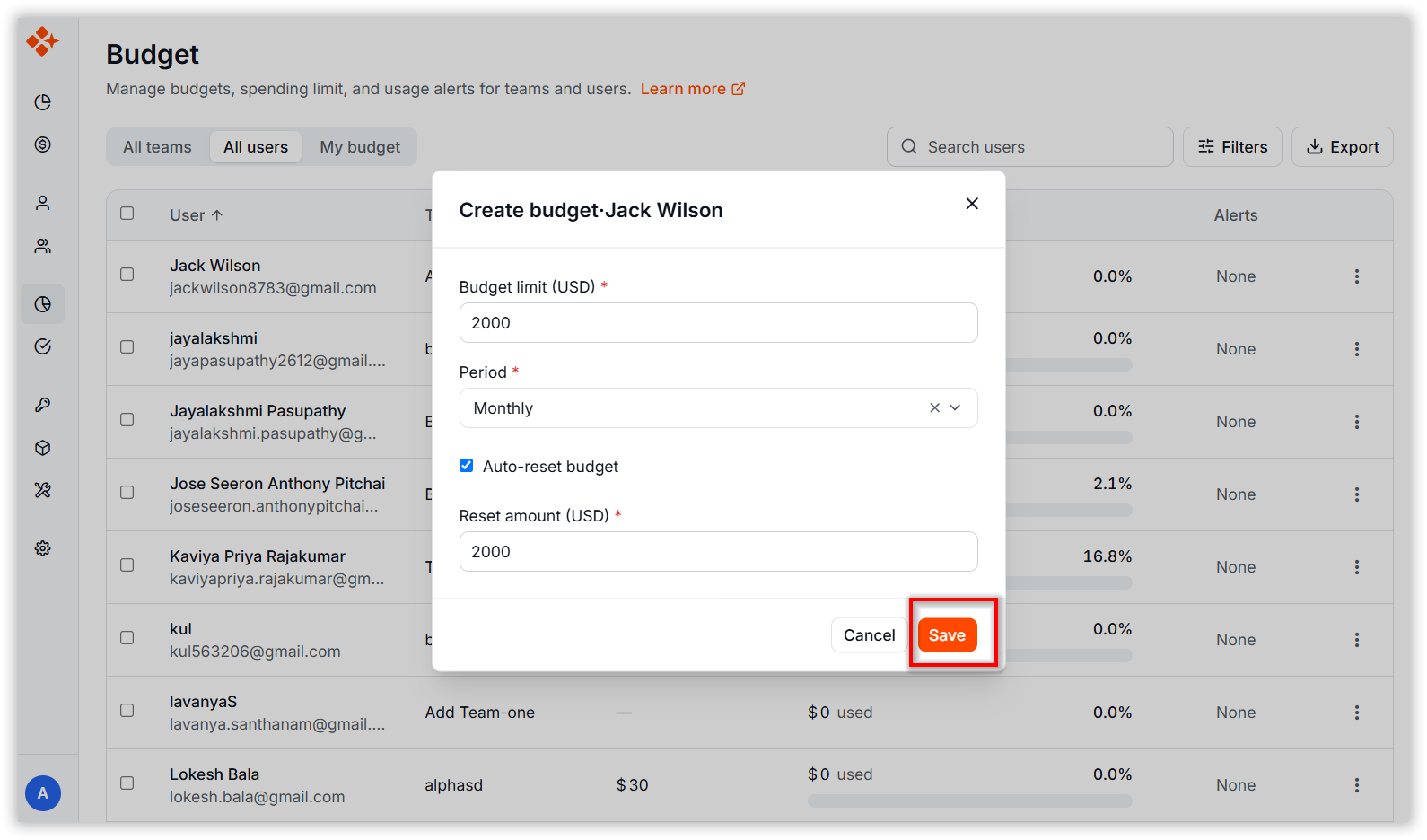
Now the Budget Dialog Box will be open:
- Set the Maximum Budget.
- Choose the Budget Period.
-
Click the Save button to assign the budget to the user.
My Budget
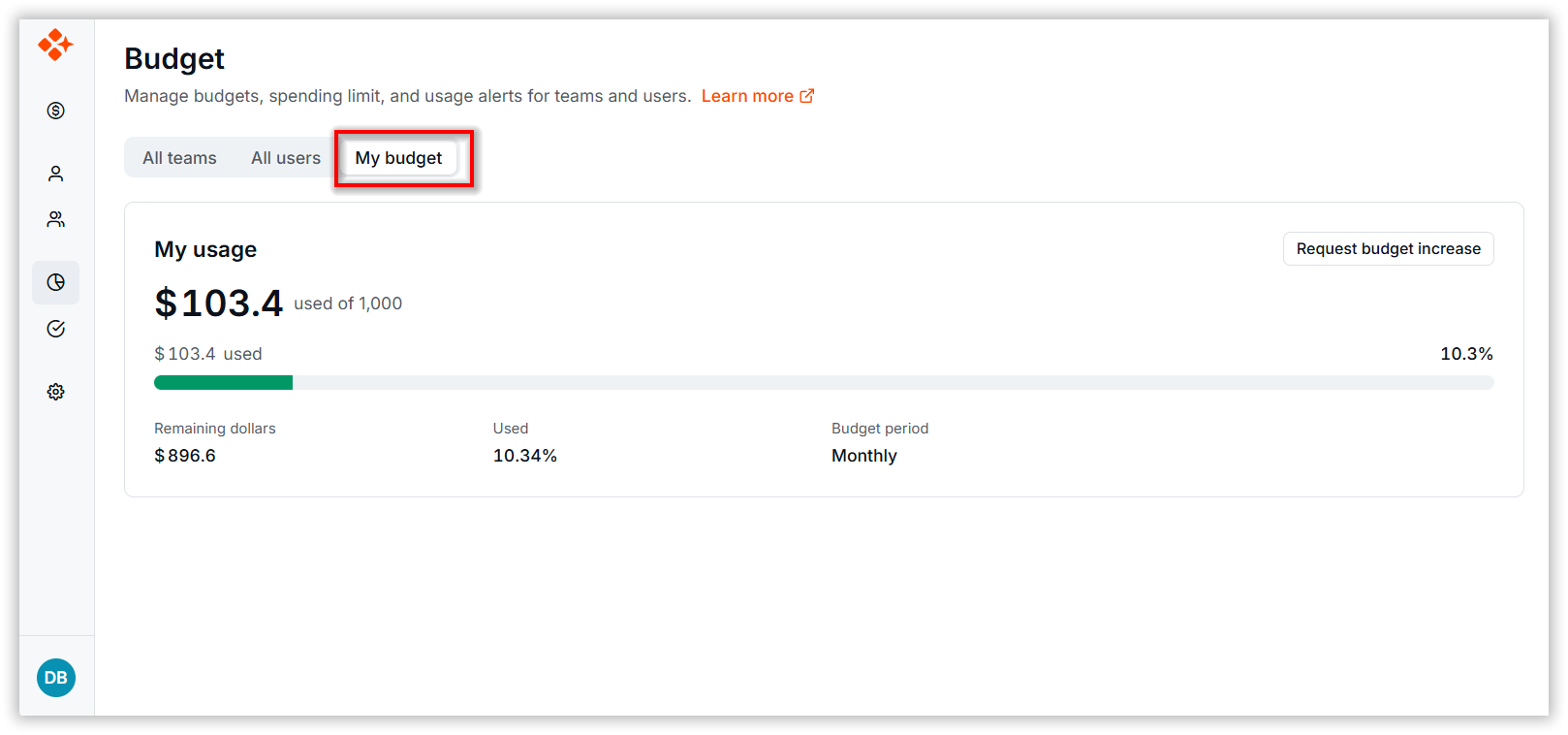
The My Budget tab allows users to view their own budget status and track usage. Admins and Team Owners can also manage alerts for their budgets.
View Your Budget Status
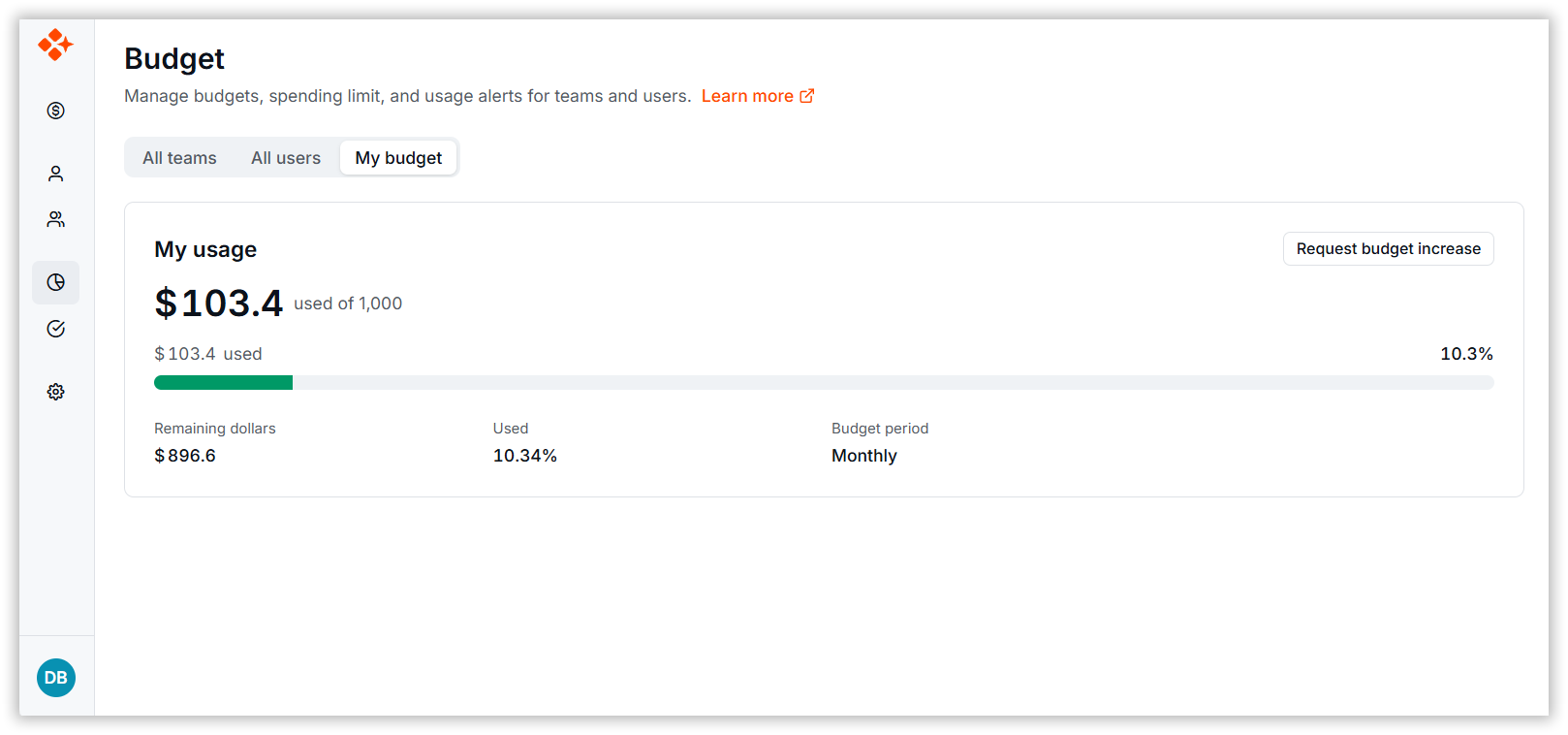
The My Usage section displays your current budget consumption:
-
Used: Shows the amount consumed out of your total allocated budget.
-
Remaining Dollars: Displays a progress bar showing your remaining budget percentage.
-
Budget Period: Shows the budget cycle (Monthly, Quarterly, Half-Yearly, or Annually) and days remaining in the current period.
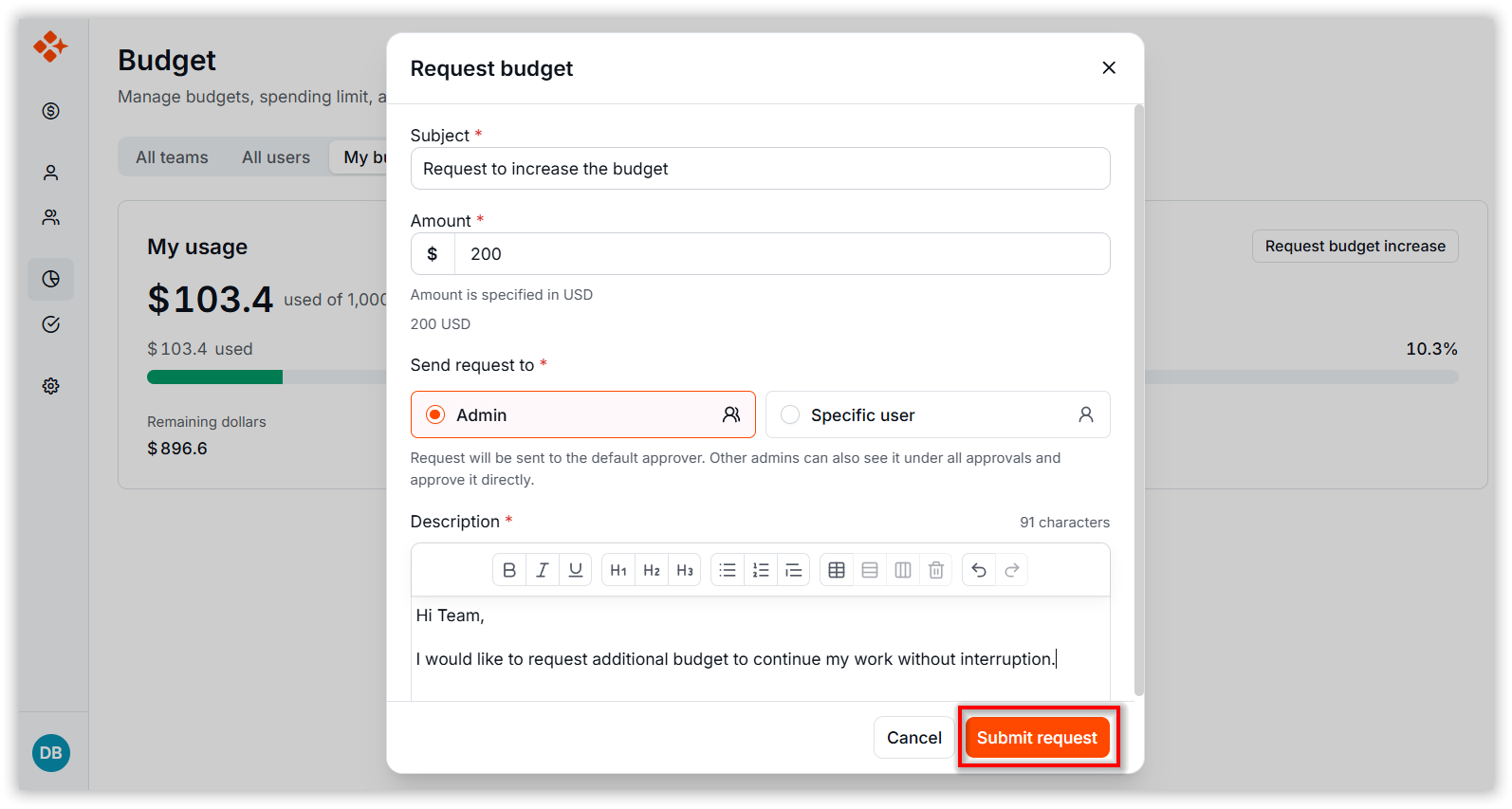
Request Budget Increase
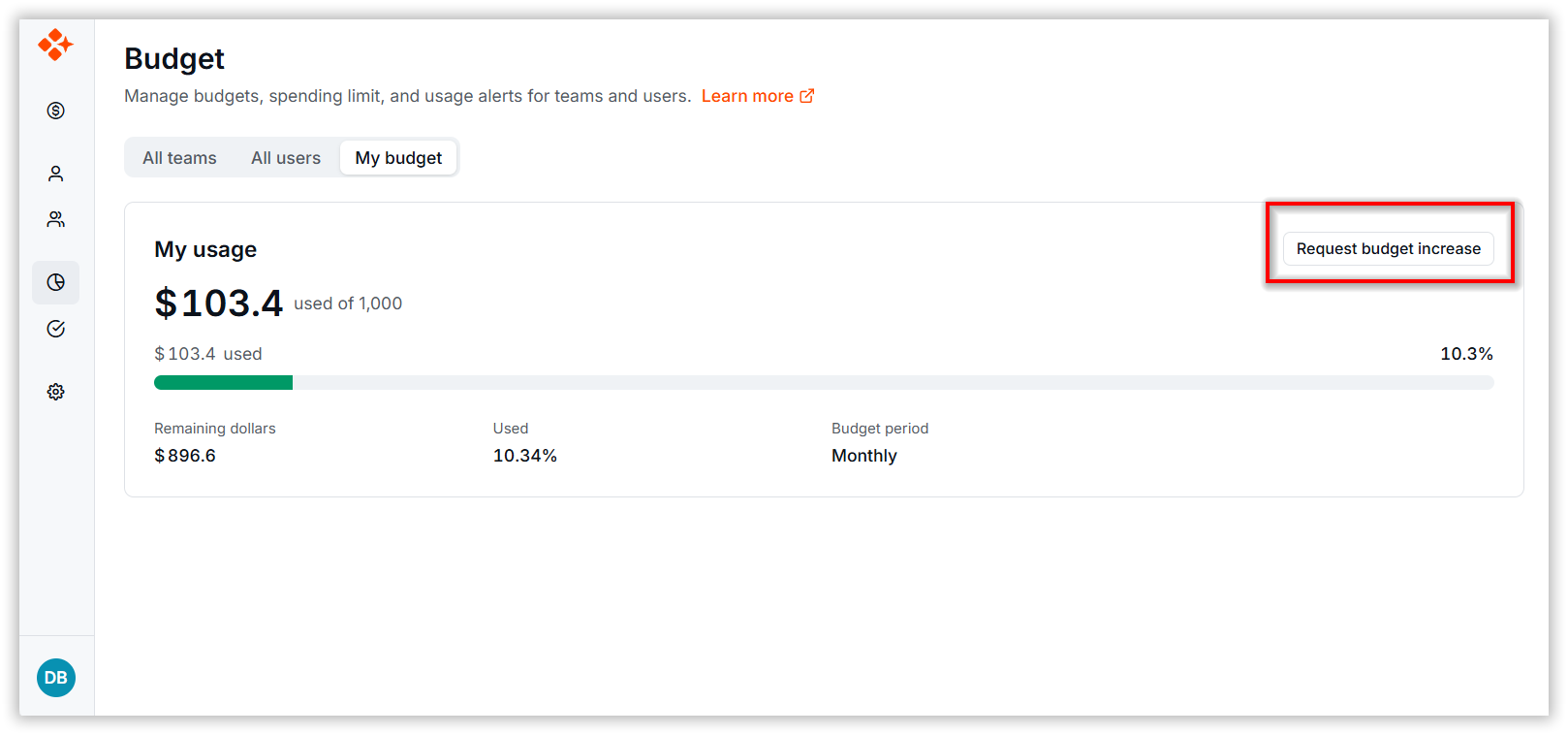
If you are a regular user and need more budget:
-
Click Request Increase.
-
In the Request Budget Increase dialog:
- Enter the Requested Amount (in USD).
- Add a Subject and Description.
-
Click Submit request to send the request to administrators.
Team Members Budget Setup
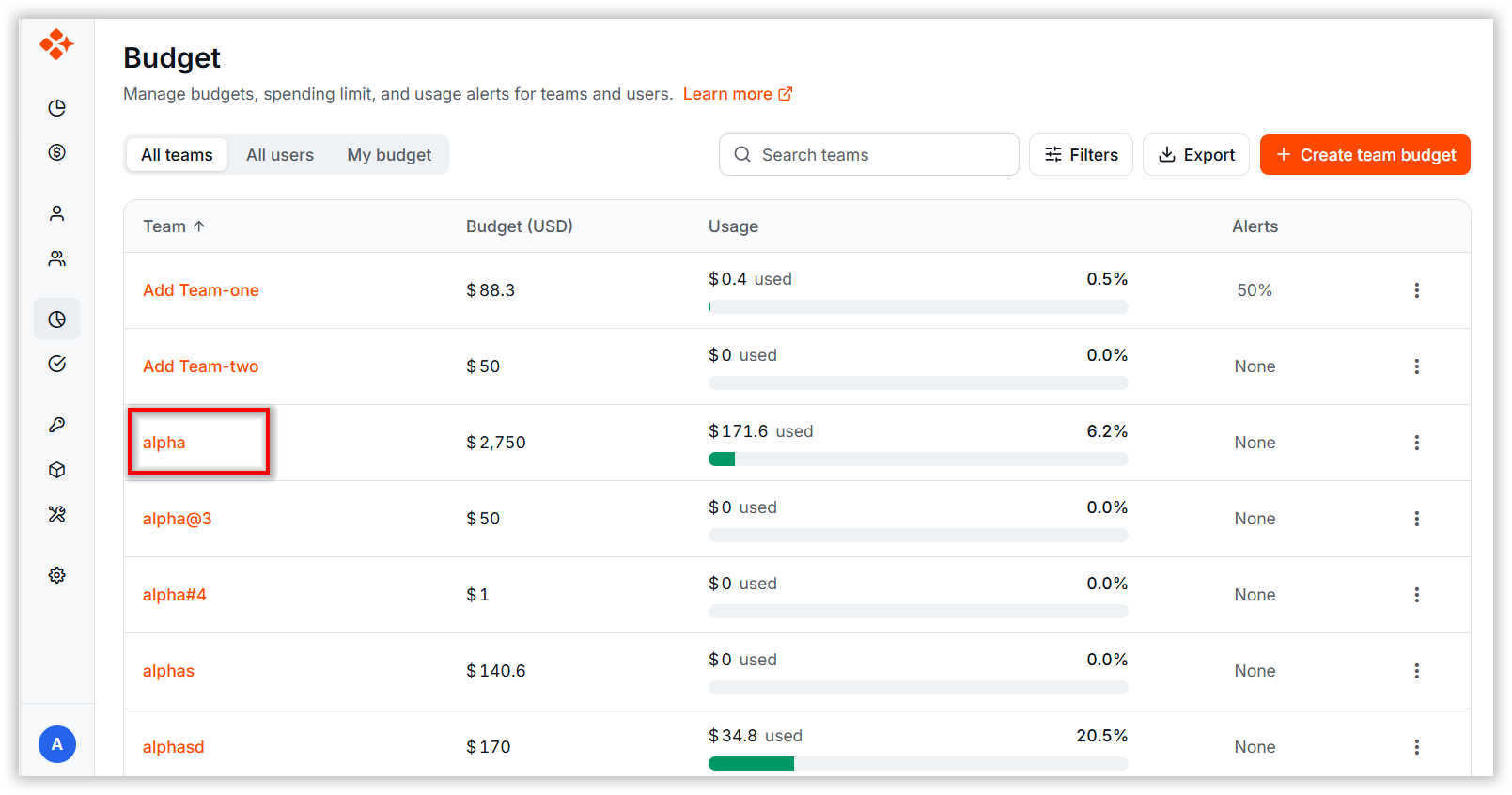
-
Click on the desired Team to go to its details page.
-
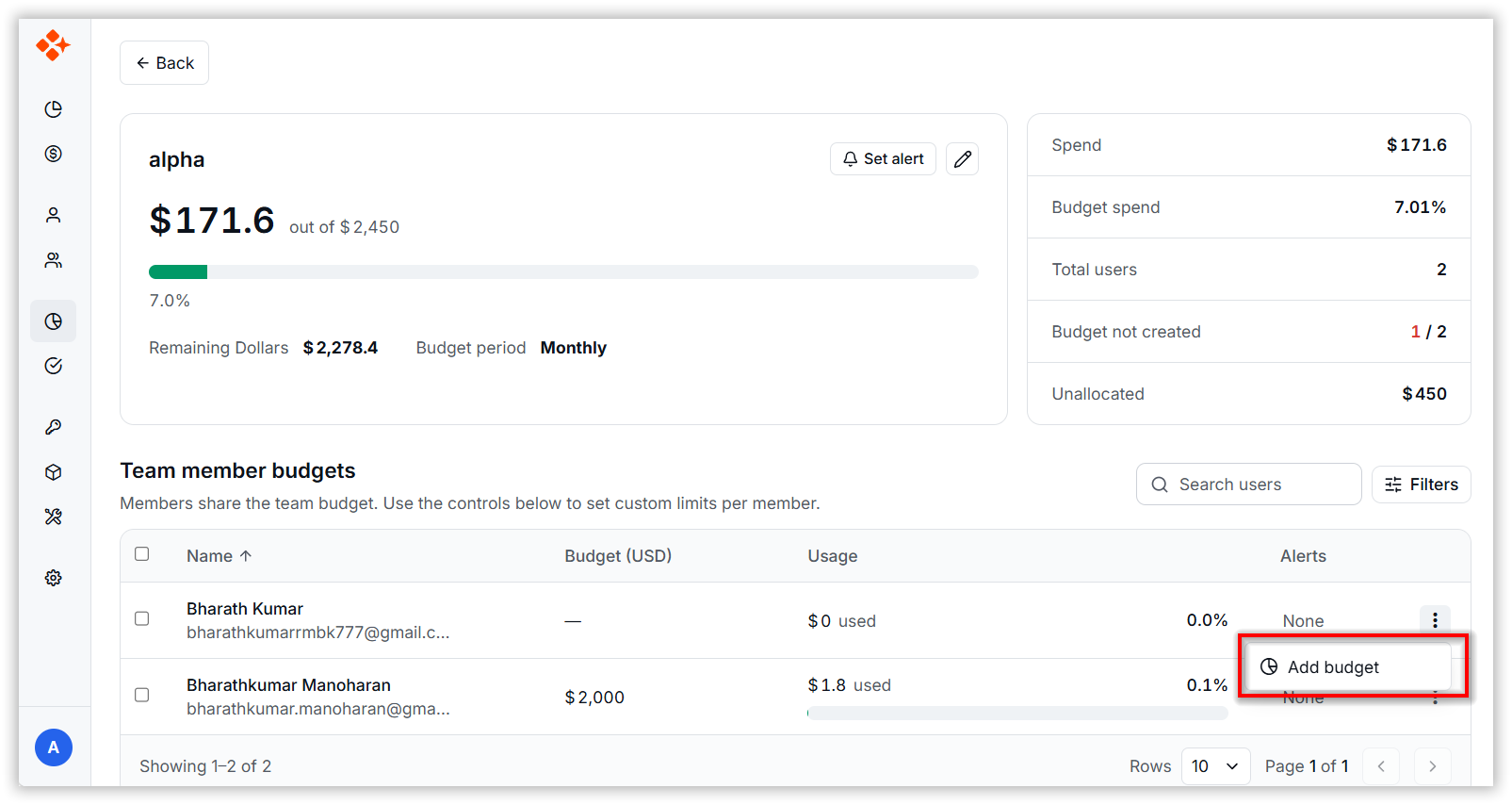
The selected team members are listed in the grid.
-
Open the Context Menu and click “Add Budget”.
-
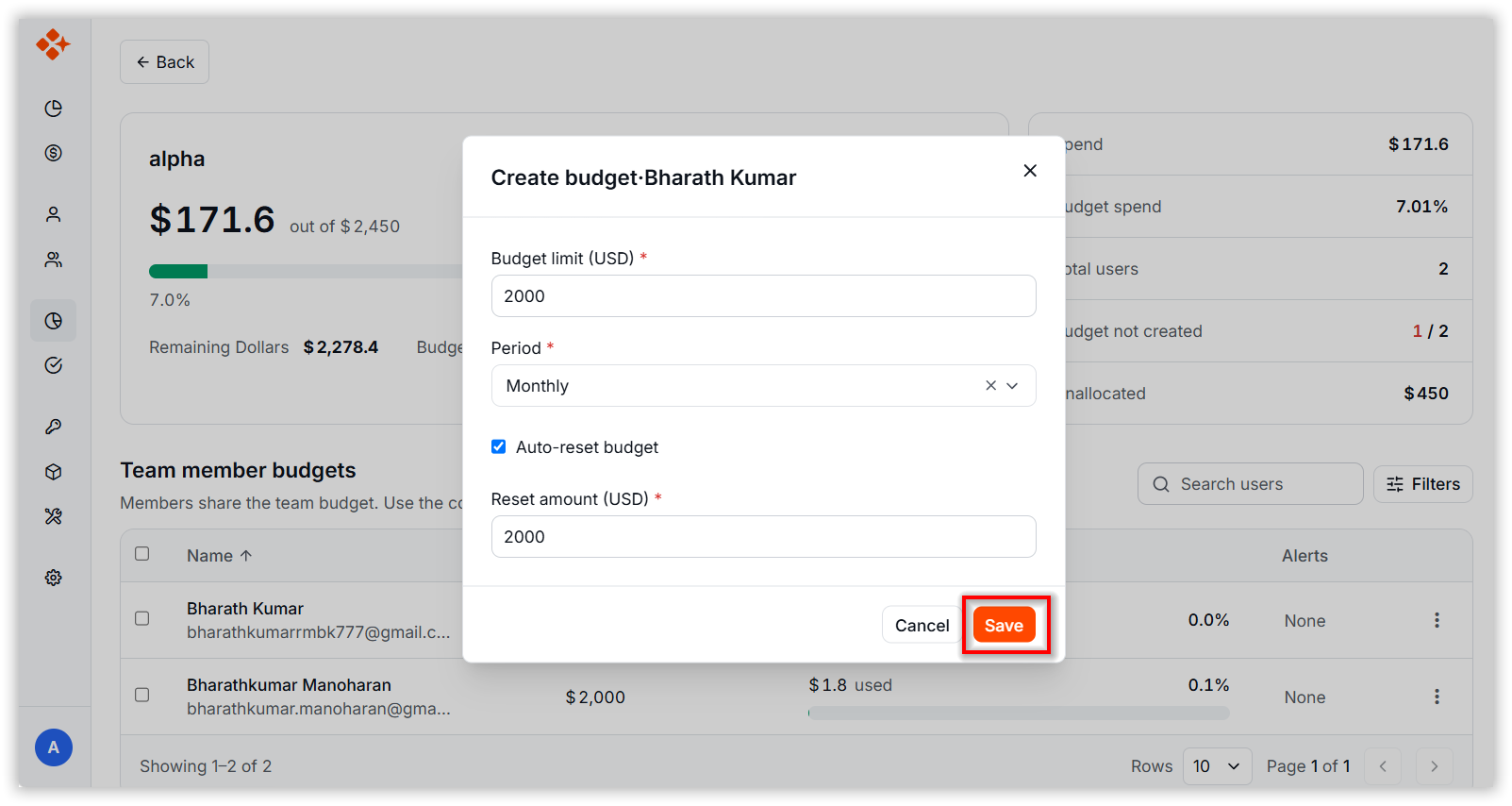
Now the Budget Dialog Box will be open:
- Set the Maximum Budget.
- Choose the Budget Period.
-
Click the Save button to assign the budget to the team member.
Bulk Budget Setup for Users
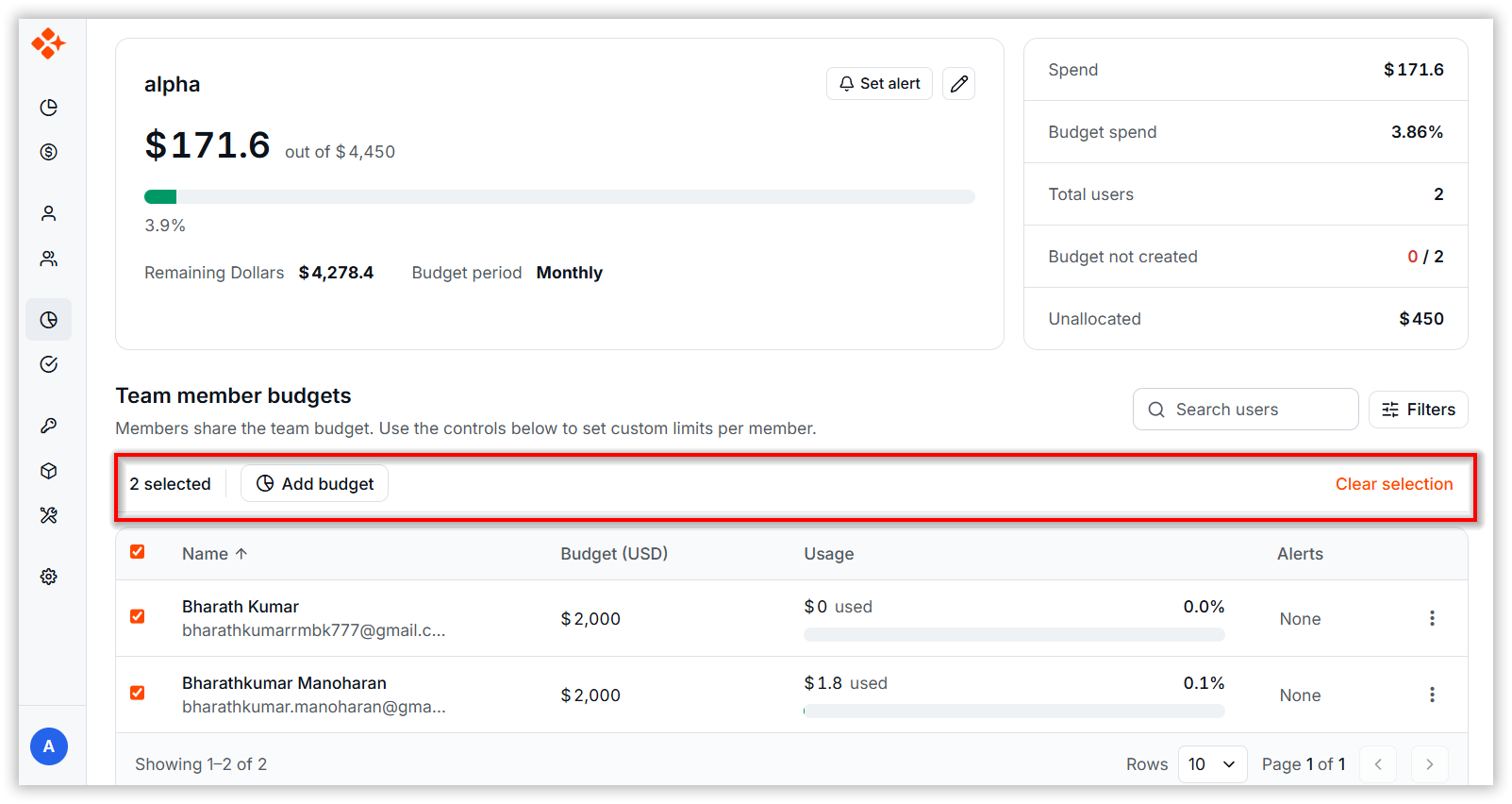
Admins and Team Leads can update multiple users at once using the Bulk Actions bar. Select users using the checkboxes, then choose the required action.
Access Permissions
- Admins can add budget for the users.
- Team Leads can:
- Add budgets only when the Manage Team Budget permission is enabled.
- Users do not have access to bulk actions.
Steps:
-
Select multiple users by clicking the checkboxes in the users grid table.
-
Click “Add Budget” (appears after selecting users).
-
In the Bulk Budget dialog box:
- Set the Maximum Budget.
- Choose the Budget Period.
-
Click the “Add” button to assign budgets to all selected users.
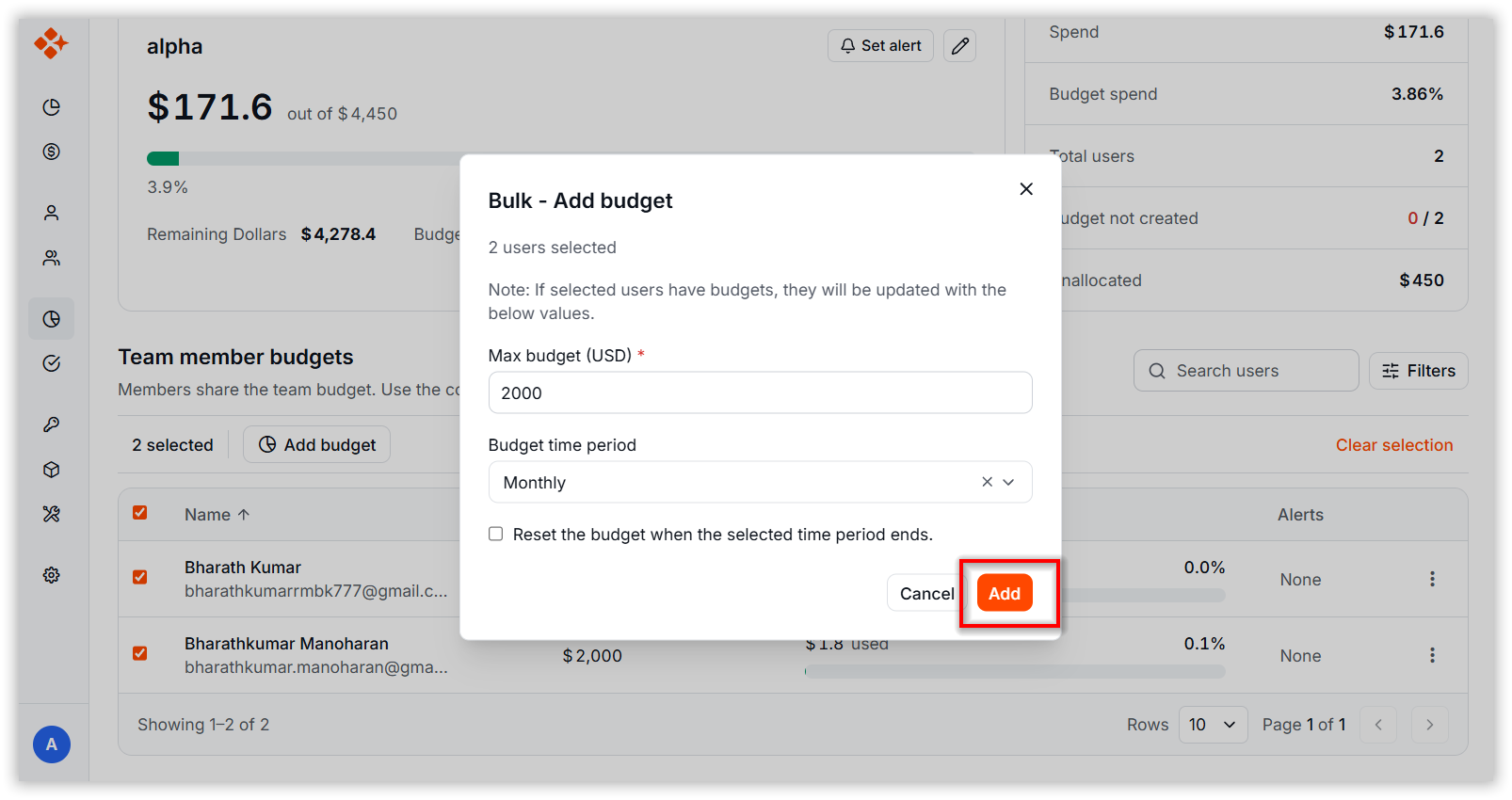
Note: If selected users already have budgets, they will be updated with the new values.
Edit Budget
Steps:
-
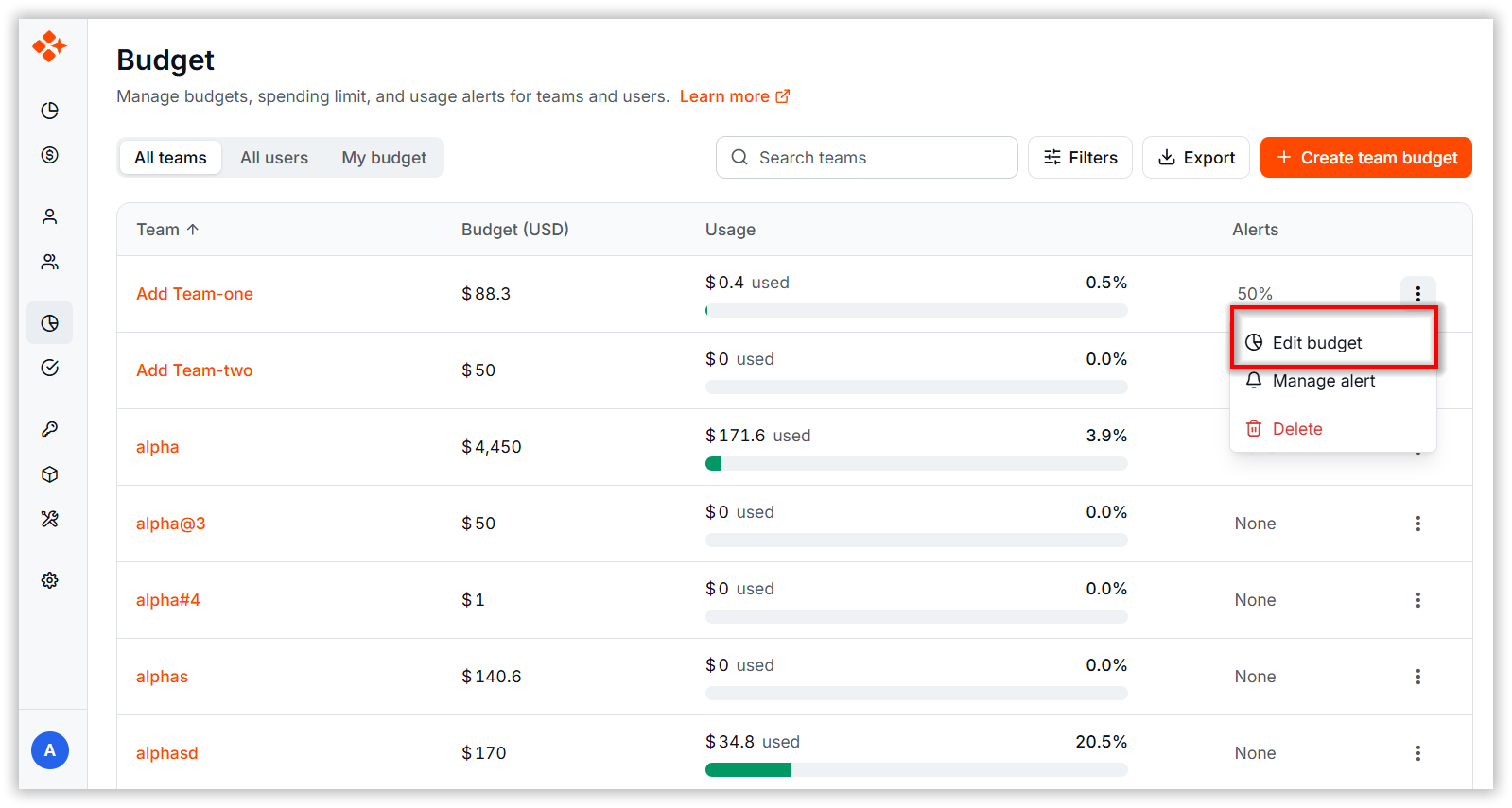
Click “Edit Budget” from the context menu of a team or user.
-
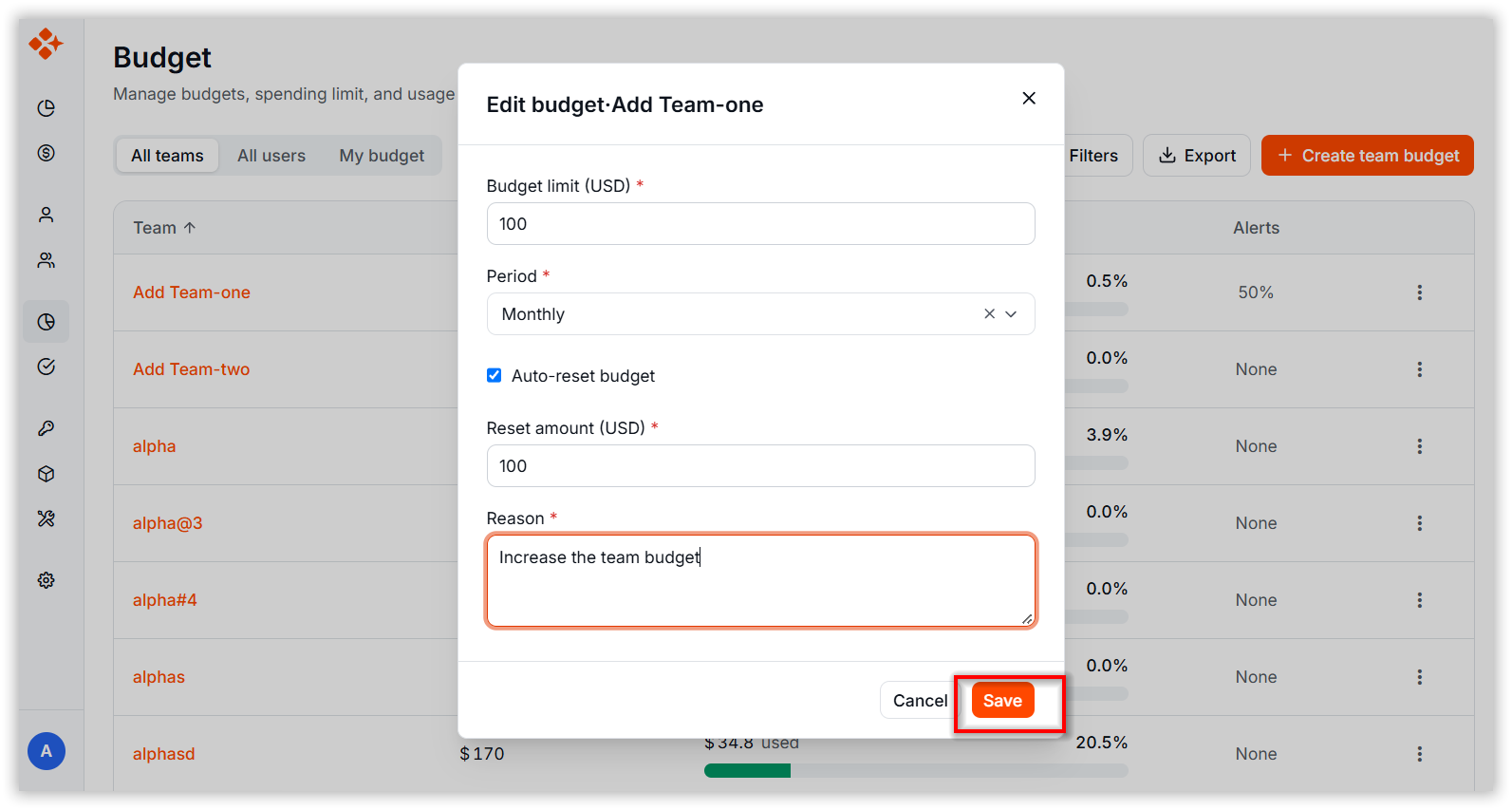
Modify the Maximum Budget, Budget Period, or Reset amount (if applicable).
-
Provide a Reason for modifying the budget
-
Click Save to save the changes.
Delete Budget
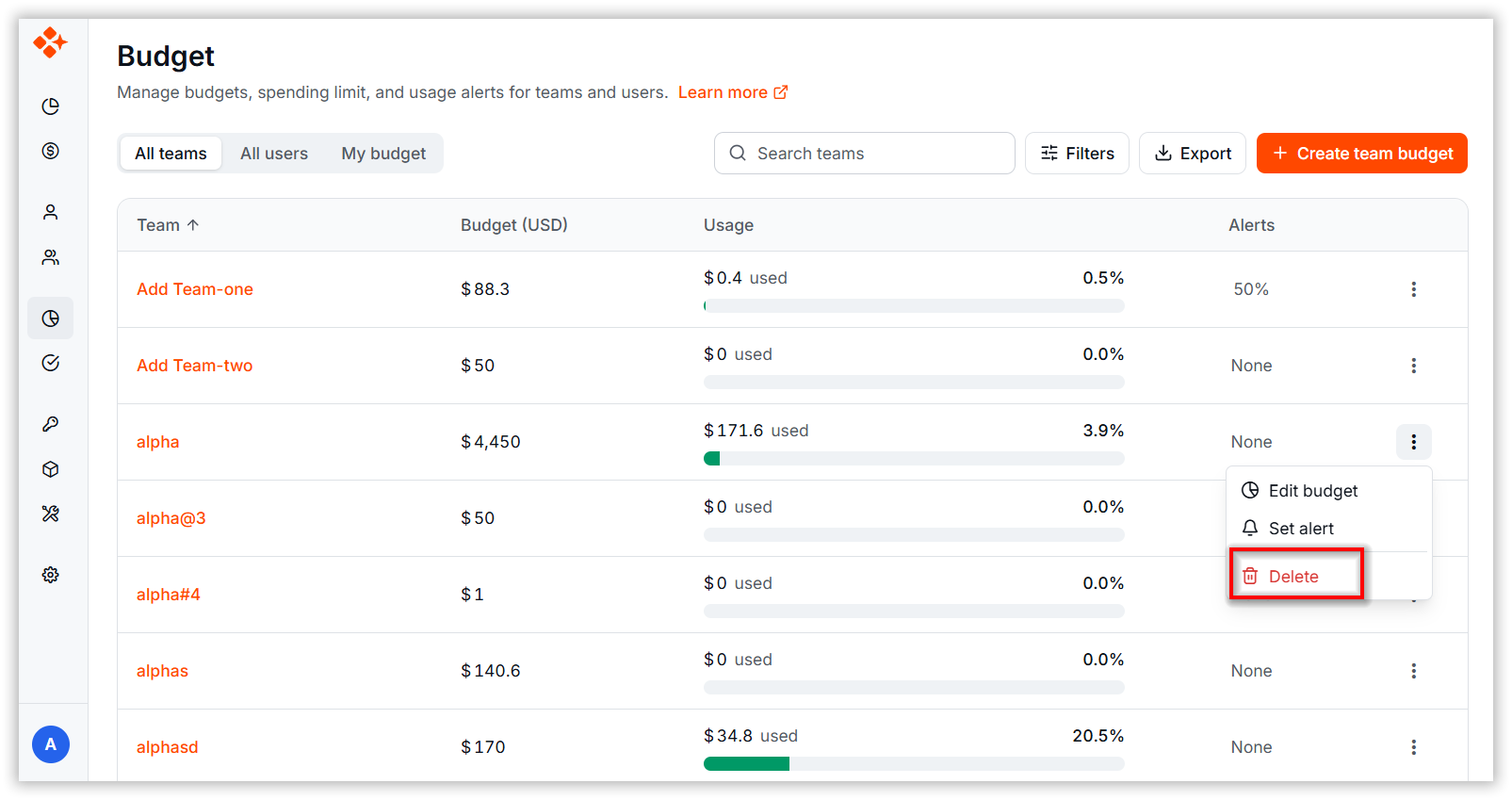
Delete Team Budget
Steps:
-
Click “Delete” in the context menu.
-
In the Delete Dialog Box, click “Delete” to confirm.
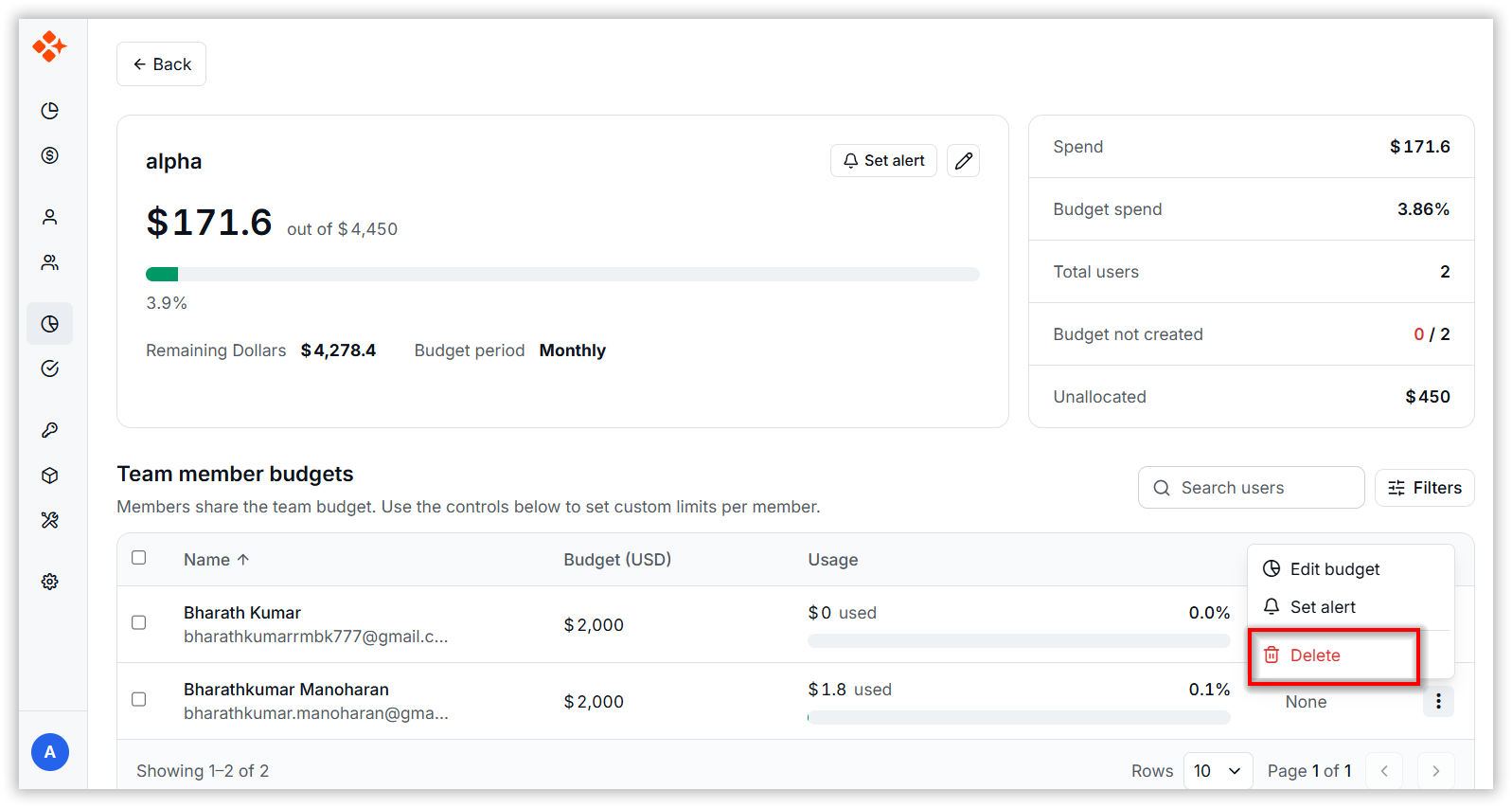
Delete User Budget
Steps:
-
Click Delete from the user’s context menu.
-
In the Delete Dialog Box, click “Delete” to confirm.
Usage Alerts
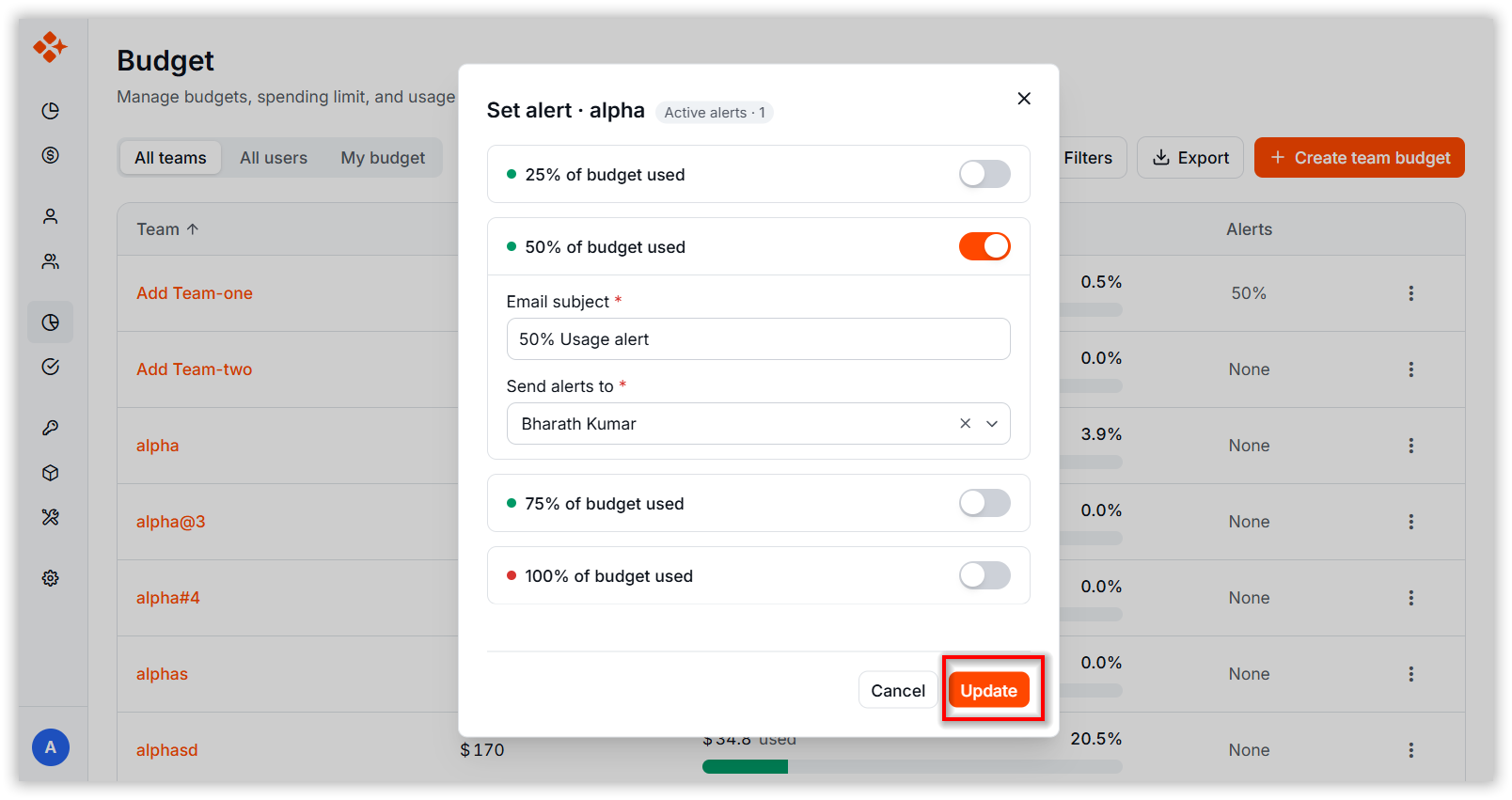
Administrators can set up alerts for a team or a specific user to notify us when budget usage exceeds a defined threshold.
Steps:
-
Click “Set Alert” from the context menu to open the Alert dialog box.
(If an alert is already set, click “Manage Alert” instead.)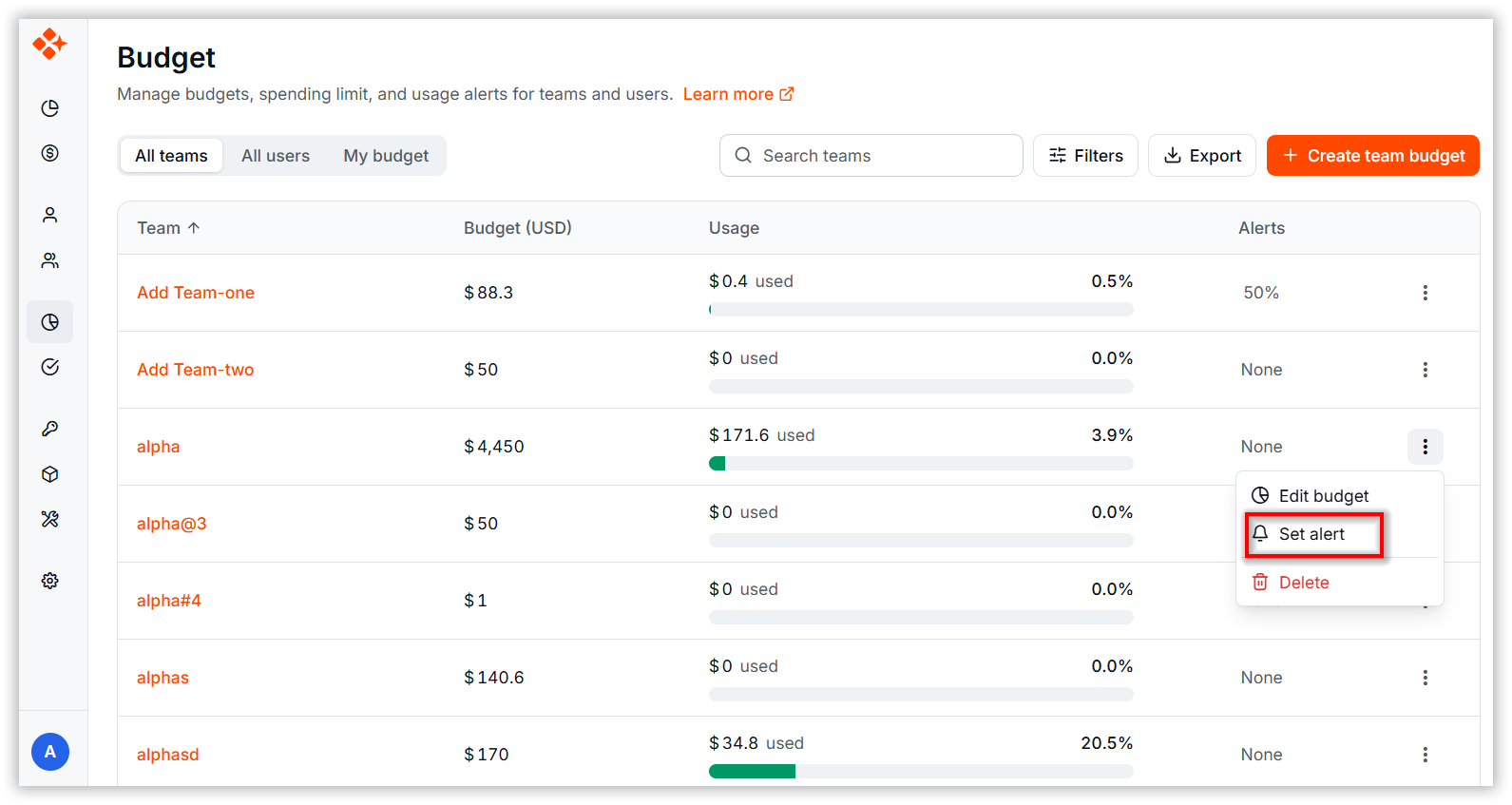
-
Set the Usage Threshold (e.g., 50%).
-
Enter the Email Subject (required).
-
Specify the Recipients for the alert (e.g., team lead or manager). An alert email will be sent to these recipients.
-
Click Update to activate the alert.
Note: Alerts help proactively manage budget overruns and ensure timely action.