
Single Sign-On (SSO) enables users to access BoldCreate using their organization’s identity provider credentials without requiring a separate password. This integration streamlines authentication, enhances security, and simplifies user management across your organization.
SSO is designed for enterprise teams who need:
- Centralized Authentication — Users sign in with their corporate credentials
- Enhanced Security — Leverage your organization’s identity and access management policies
- Simplified Onboarding — Reduce friction for new team members
- Compliance Support — Meet regulatory requirements with audit trails and access controls
- Reduced Administrative Overhead — No need to manage separate passwords
Note: SSO configuration requires administrator privileges and is available on Business tier and higher subscriptions.
Requirements
Before setting up SSO in BoldCreate, ensure the following:
- You are an account administrator in BoldCreate
- You have access to your organization’s identity provider admin console
- Your BoldCreate subscription tier supports SSO (Business or higher)
- Your identity provider supports SAML 2.0 or OIDC
Configure Client ID and secret for BoldCreate application using OpenID
-
Navigate to Settings.
-
Click Single Sign-On under the General section.
-
You will see the SSO configuration options.
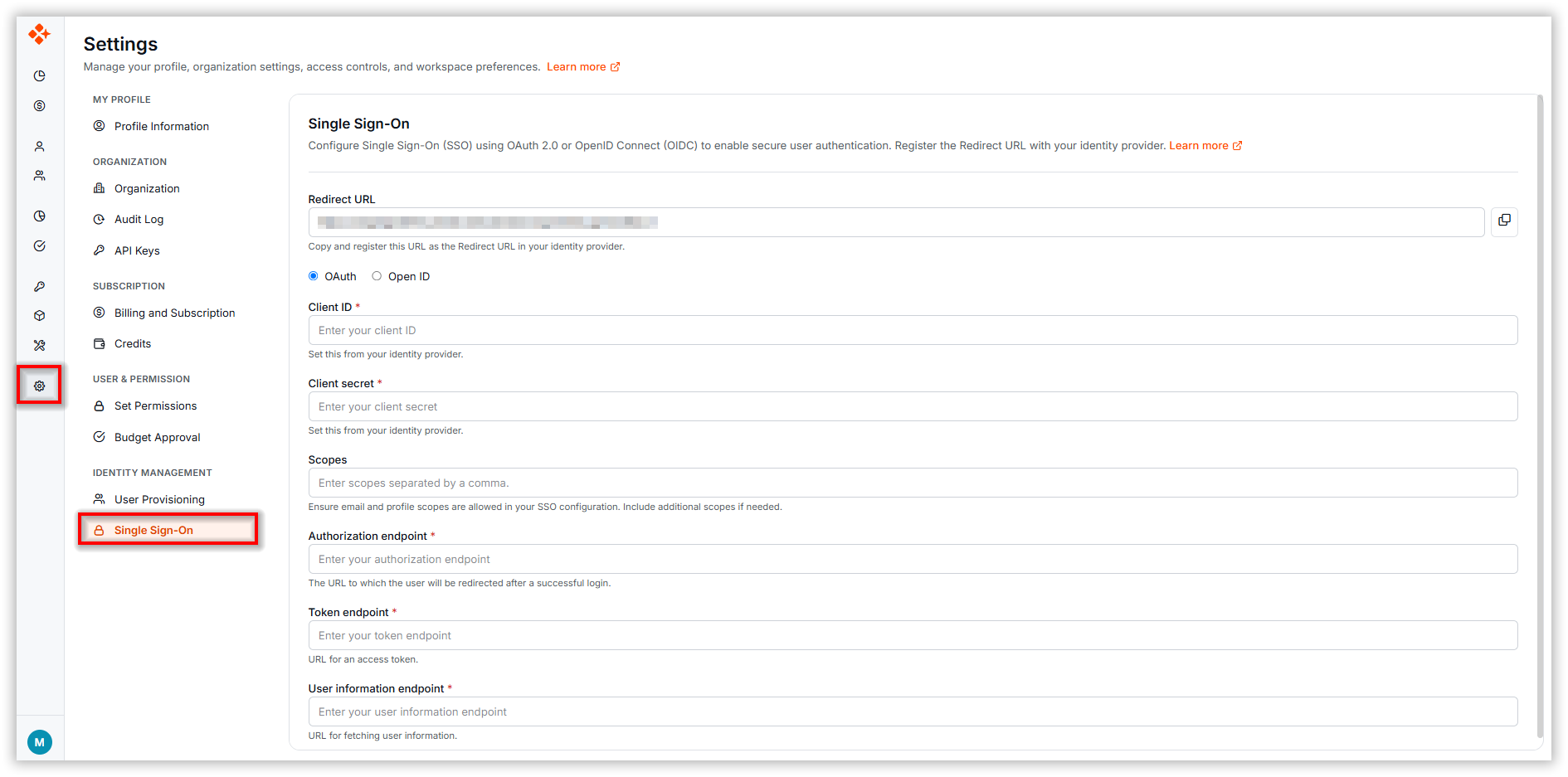
Manage SSO Configuration
- Navigate to Settings > Single Sign-On.
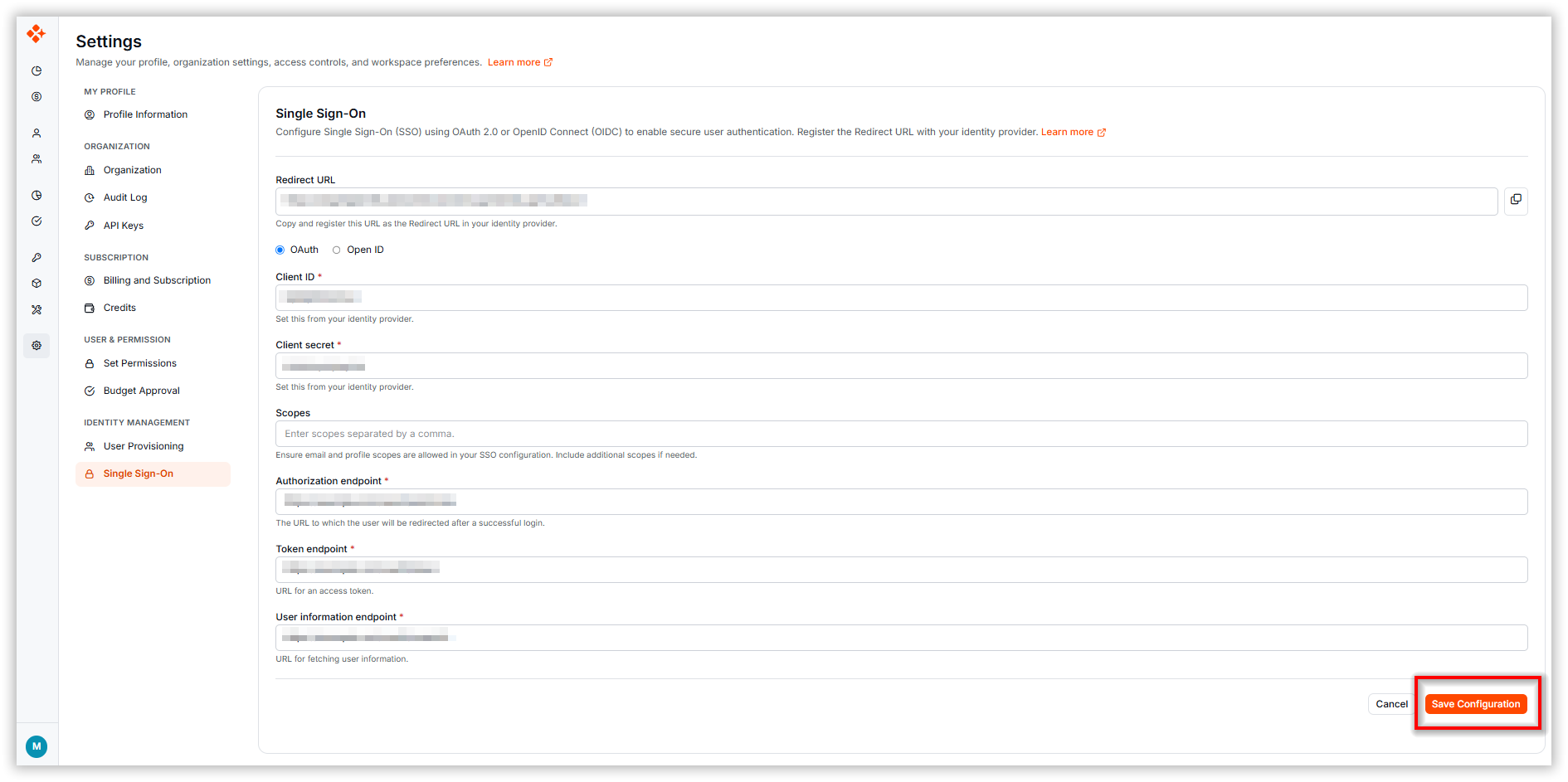
- Enter the required SSO configuration details.
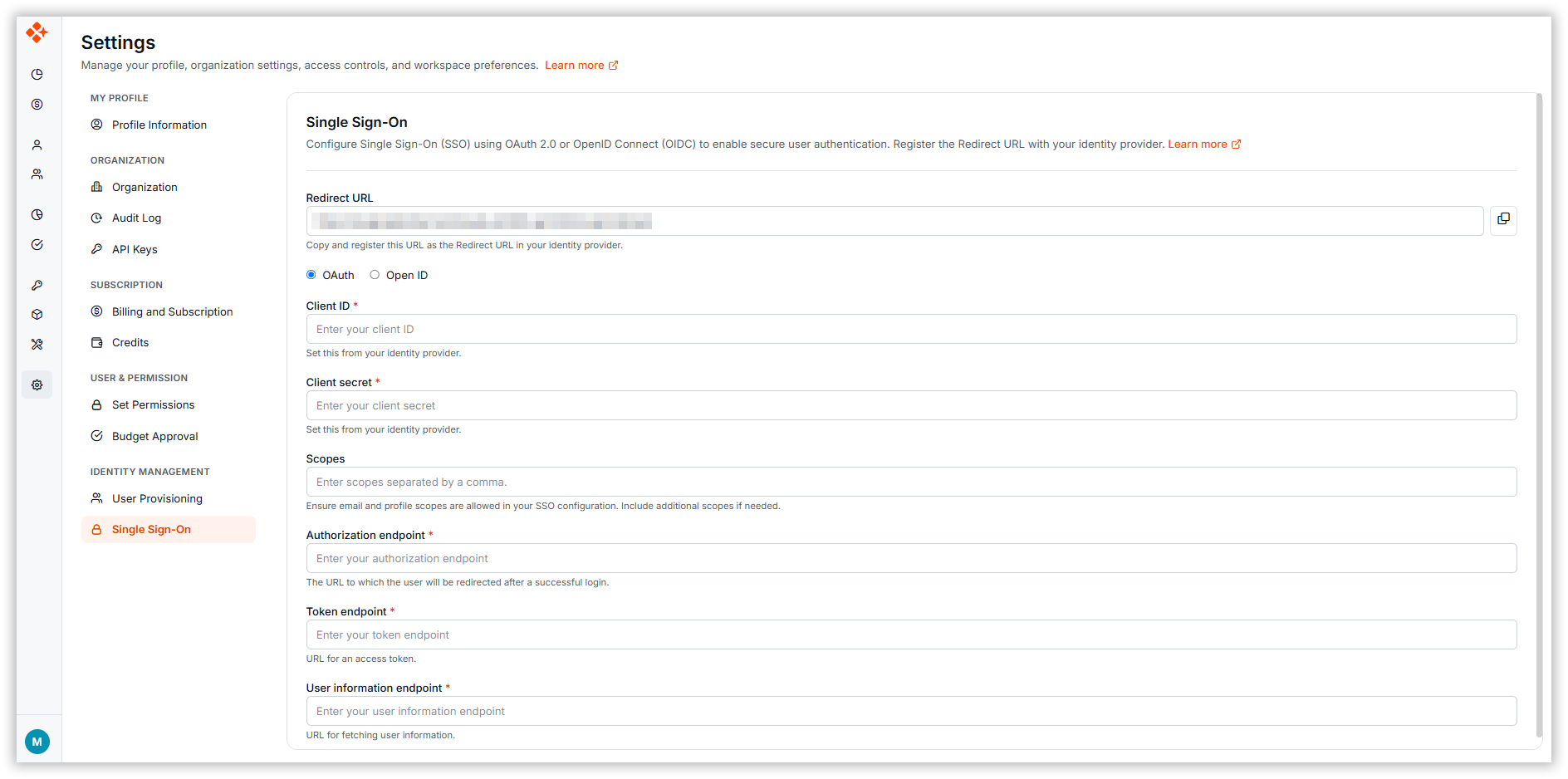
- Click Save Configuration to create and save the SSO configuration.
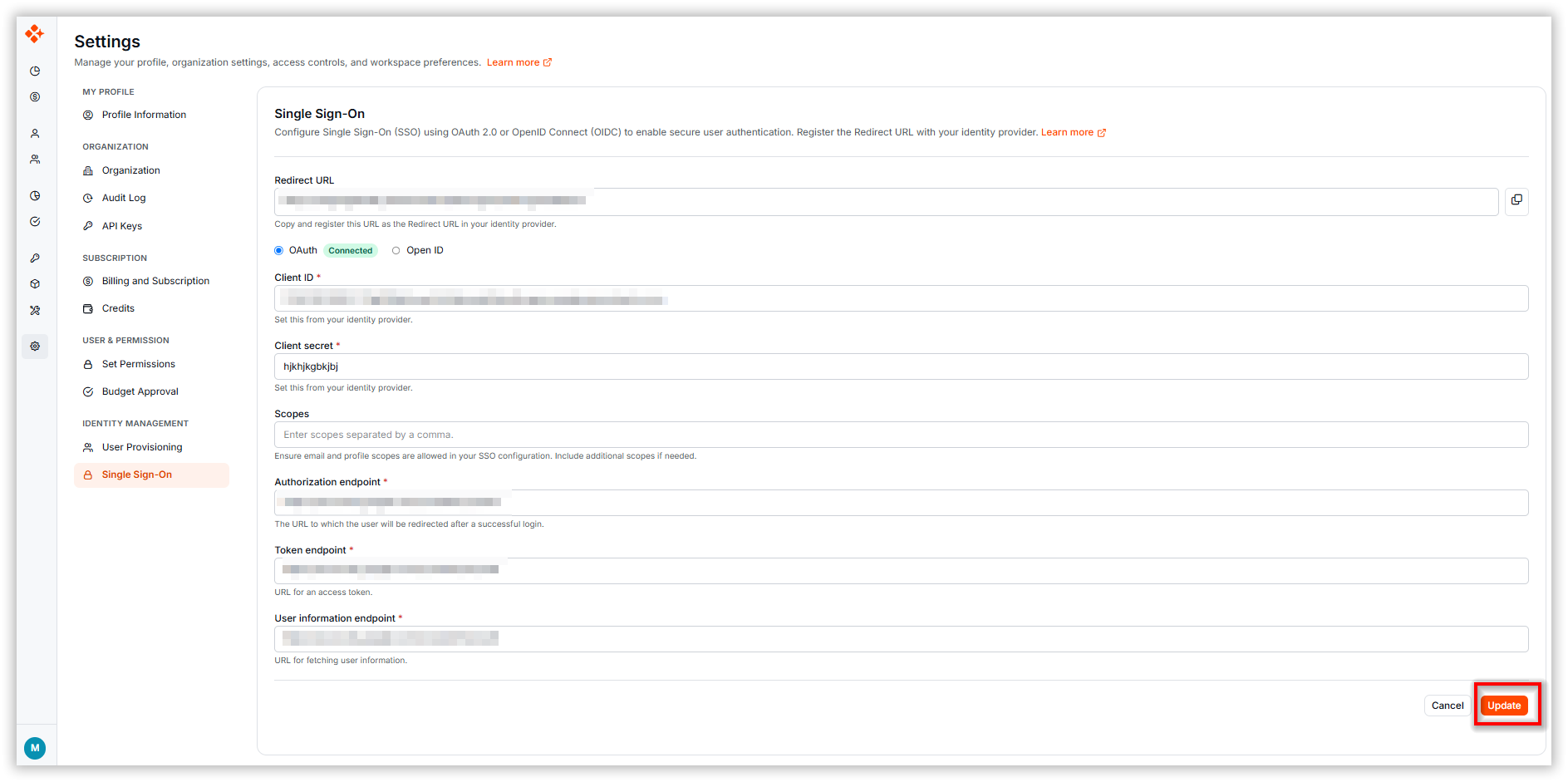
- To modify an existing configuration, update the required fields.
- Click Update to save changes.
-
To remove an existing SSO configuration, click Delete SSO Configuration.

Invite new users to join the BoldSign organization
-
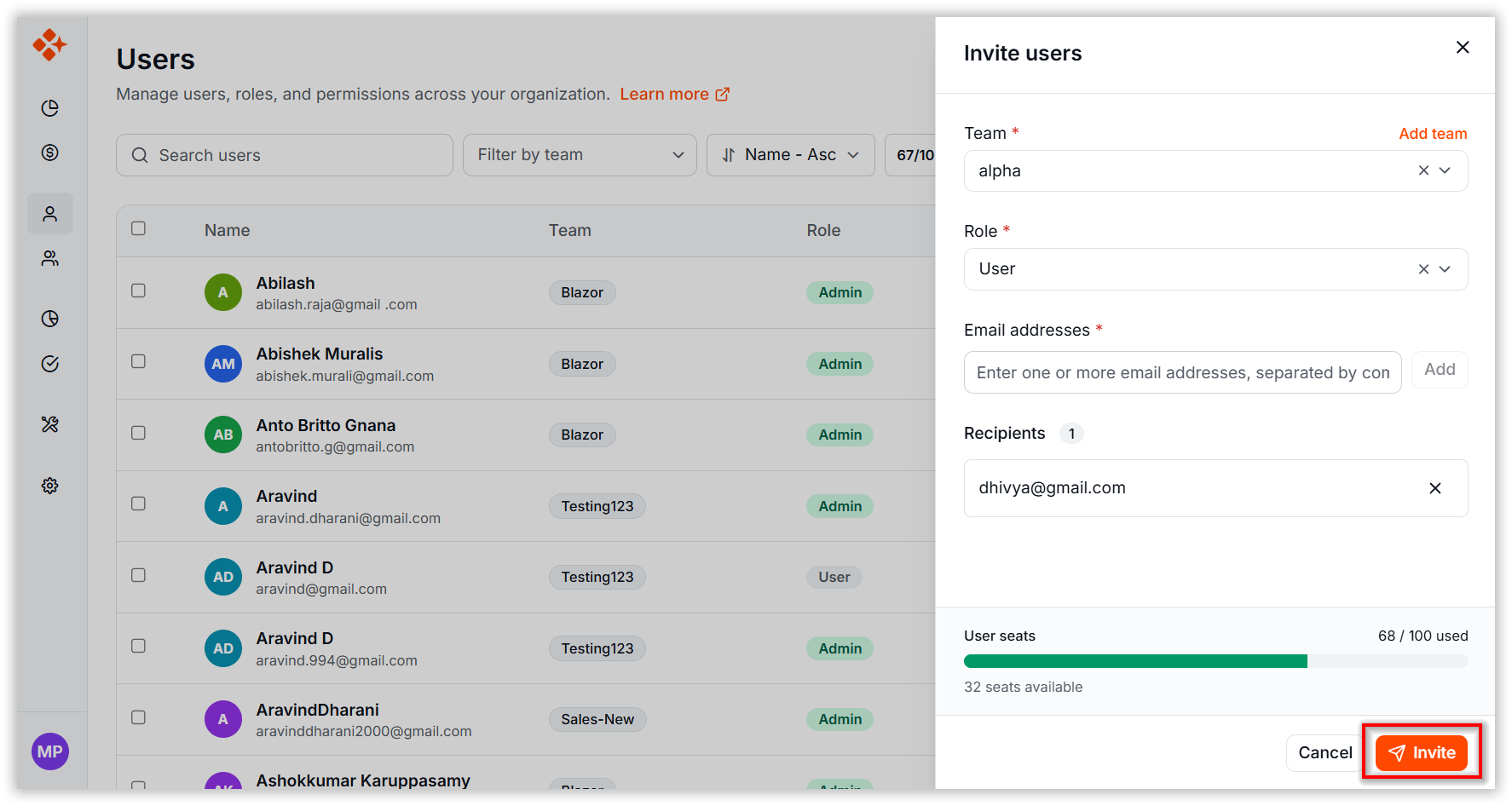
Go to the Users page in your BoldSign admin account.
-
Click the Invite users button to add a new user.
Accepting an invitation to join a BoldCreate organization with SSO configuration
-
Open the email inbox and find the invite link.
-
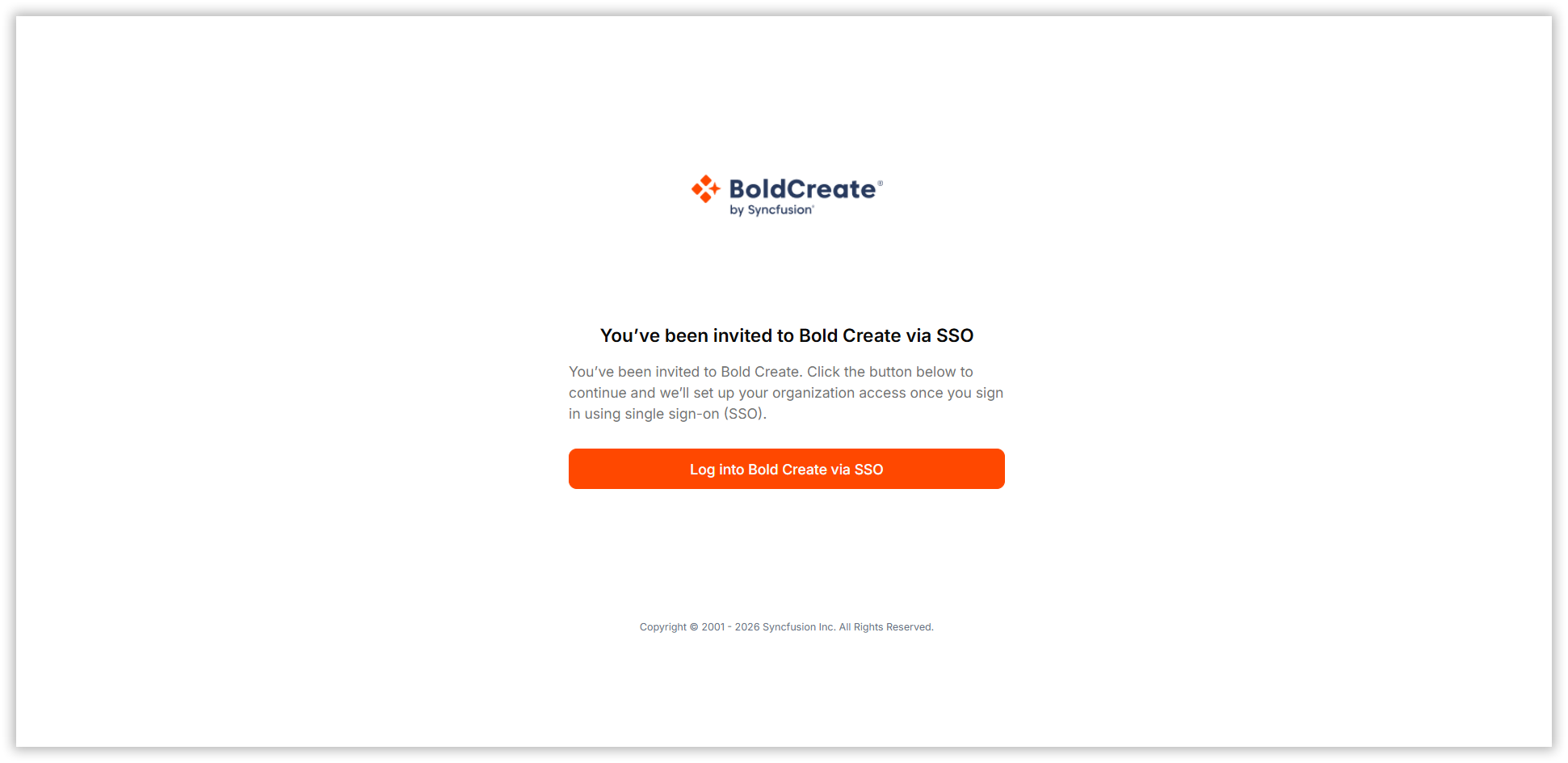
Click Accept Invitation to open the BoldCreate sign-in page.

BoldCreate application sign in with SSO
-
Open BoldCreate sign-in page. and Login with SSO to proceed.
-
You will now be redirected to the BoldCreate dashboard page.
Troubleshooting
Users Cannot Sign In
- Verify SSO is enabled — Check the SSO settings page to confirm SSO is active.
- Check user provisioning — Ensure the user’s email address is provisioned in your identity provider.
- Verify domain — The user’s email domain must match the domain configured in the SSO settings.
- Check IdP status — Verify that your identity provider is operational.
Authentication Fails with an Error
- Review error message — Check the specific error returned by your identity provider.
- Test the configuration — Use the Test Connection button to validate your setup.
- Verify certificate/secret — Ensure your certificate or client secret is current and not expired.
- Check clock sync — SAML validation may fail if server clocks are significantly out of sync.
Users Locked Out
If users are locked out after enabling SSO:
- Contact your identity provider administrator to verify user provisioning.
- Temporarily disable SSO if immediate access is needed.
- Re-enable SSO after resolving the provisioning issue.
Security Best Practices
1. Use Strong Authentication in Your IdP
- Enforce multi-factor authentication (MFA) in your identity provider
- This extends MFA protection to BoldCreate access
2. Review and Audit SSO Activity
- Use the Audit Log to monitor SSO sign-in events
- Investigate any unusual authentication patterns
3. Regularly Update Configuration
- Keep your SSO certificates and secrets current
- Replace expiring certificates before they expire
- Update client credentials as needed
4. Restrict SSO to Your Organization
- Configure your identity provider to only allow members of your organization
- Use group-based access controls if available
5. Plan for Service Continuity
- Ensure your identity provider has high availability
- Have a contingency plan if SSO becomes unavailable
- Maintain administrative accounts with alternative authentication methods