
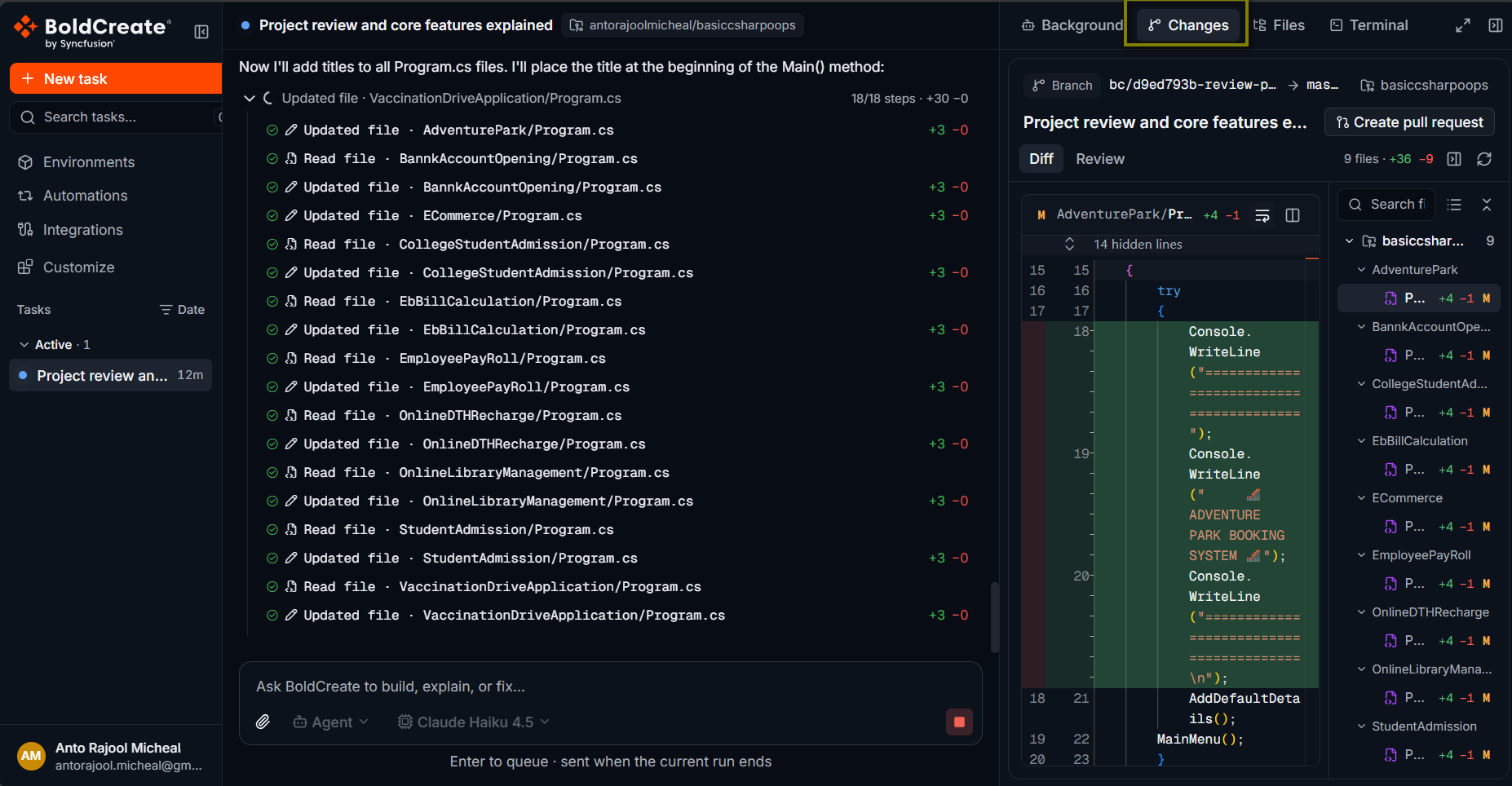
The Git panel shows every change the agent made in a thread. You see how many lines it added and removed, which files changed, and a diff for each file. You can add review comments on specific lines and send them all to the agent as one message. To open it, select Open workspace panel in the top-right corner of a thread. The button appears after the thread starts.
Use cases
- Check what the agent changed before you open a pull request.
- Follow changes live while the agent works.
- Point out problems on exact lines and ask the agent to fix them.
- Compare changes across several repositories in an environment.
Parts of the Git panel
| Part | What it shows |
|---|---|
| Header | Git, and a badge with the number of changed files you haven’t seen yet. Maximize panel / Restore panel size and a close button are on the right. |
| Repository selector | Shown only when the thread has two or more repositories. Pick All Repositories or one repository. Each shows its file count and lines added and removed. |
| Branch header | The repository name, the base branch and the agent’s working branch (for example main → bc/3a05461a-fix-search), and the source of the diff. |
| Stats bar | Lines added and removed, and the number of files changed. Shows when the diff was last updated, with a refresh button. |
| File list | Changed files, with Filter files… at the top. Each file shows its status and lines added and removed. |
| Diff view | The diff of the selected file. |
| Review comments | Your comments, with Submit Review to Agent and Clear. Shown when you have at least one comment. |
What the diff compares
The line under the branch names tells you what you are looking at:
| Label | Meaning |
|---|---|
| Uncommitted changes vs base branch | All changes in the agent’s cloud workspace, committed or not, compared with the base branch. |
| Committed changes (agent branch vs base) | Only changes the agent committed and pushed to its working branch, compared with the base branch. |
Next to the branch names, a badge shows where the diff comes from: Live, Paused, or Remote.
File statuses
| Letter | Status |
|---|---|
| A | Added |
| M | Modified |
| D | Deleted |
| R | Renamed |
| B | Binary file (no text diff) |
Review the changes
- Open the thread and select Open workspace panel. The Git panel opens. If the agent hasn’t changed any files yet, it shows No changes yet.
- If the thread has several repositories, pick one in the repository selector, or keep All Repositories.
- Check the stats bar for the size of the change.
- Optional: type part of a path in Filter files… to find a file.
- Select a file to see its diff. The file list collapses to a header such as 2 files changed. Select it to show the list again. The diff is unified: removed lines are marked − in red and added lines + in green, with line numbers on the left. Select Maximize panel to give the diff the full width. Select Restore panel size to go back. Select the close button to hide the panel.
Live updates
While the agent works, the badge and stats update as it changes files. If the panel is open, the diff refreshes on its own. To refresh it yourself, select the refresh button in the stats bar.
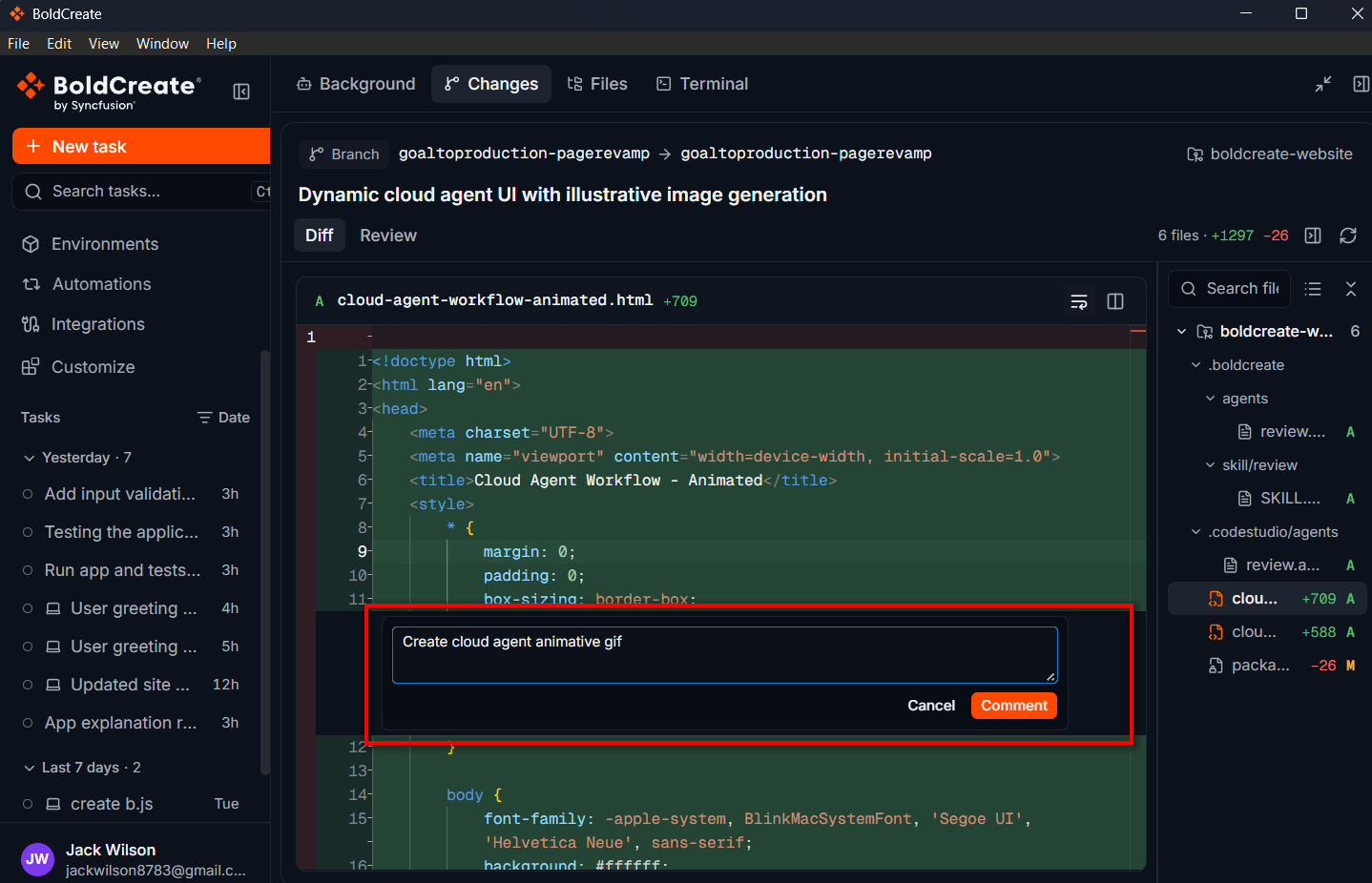
Add review comments
- In the diff, hover over a line.
- Select Add review comment (the button at the start of the line).
- Type your comment.
- Select Comment, or press Ctrl + Enter (Cmd + Enter on macOS). To cancel, select Cancel or press Esc. The comment appears on the line and in the review list at the bottom of the panel, for example 1 review comment. Add as many comments as you need, across any files. The file list shows how many comments each file has. To remove one comment, select the trash icon next to it in the review list. To edit a comment, remove it and add it again. To remove all comments, select Clear.
Send your review to the agent
- In the review list, select Submit Review to Agent. Bold Create writes all your comments into the prompt box as one message, grouped by file and line. The review list is cleared.
- Read the message and edit it if you want.
- Press Enter to send it.
The agent works through the comments. When it finishes, check the diff again. Learn more in Send review comments back to the agent. Submit Review to Agent doesn’t send the message by itself. You can still change it, or pick another agent or model, before you press Enter.
Best practices
- Review every file: the badge in the header shows how many changed files you haven’t seen yet.
- Batch your comments: send one review with all comments instead of many small messages.
- Be specific: say what to change and why, not just “fix this”.
- Check the diff base: uncommitted changes may still change before the agent commits them.
Troubleshooting
- No changes yet: the agent hasn’t changed any files, or the run is still preparing. Wait, then select Refresh.
- An error with Try again: the diff could not be loaded. Select Try again.
- A file shows B and no diff: it is a binary file, such as an image. Check it in the pull request in your Git provider.
- A long diff ends early: very large diffs are cut short. Review the full file in your Git provider after the agent pushes.