
Use the workspace panel to follow the agent’s work, review its changes, edit files, and run commands in the task’s workspace.
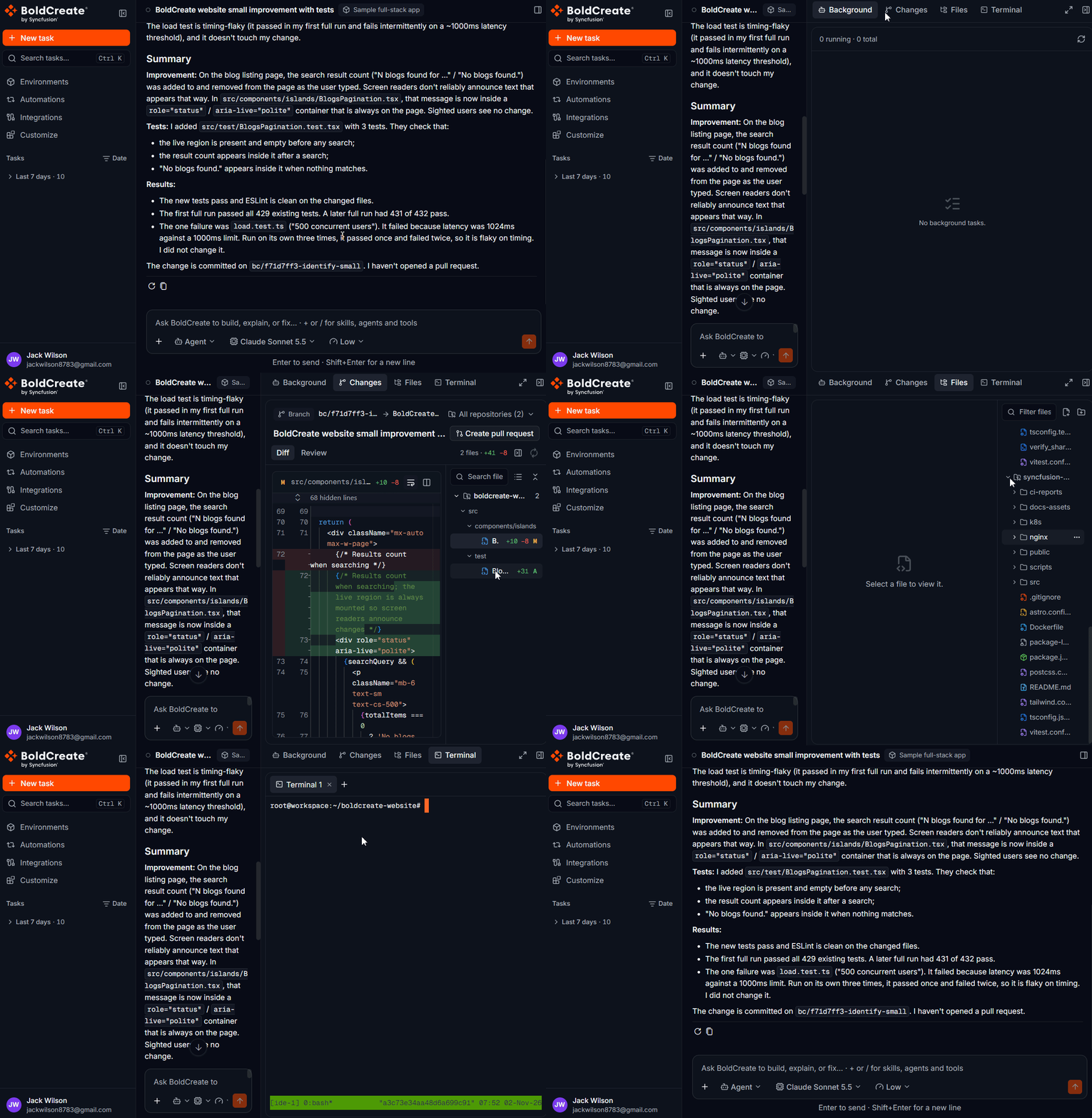
The panel sits on the right of every task. Open or close it with the panel button in the top-right corner of the task. Select the maximize button next to it to enlarge the panel; select it again to restore the size. The panel has four tabs: Background, Changes, Files, and Terminal.
| Tab | Use it to |
|---|---|
| Background | See commands the agent left running and its sub-agents. |
| Changes | Review what the agent changed, comment on it, and create a pull request. |
| Files | Browse and edit the workspace’s files. |
| Terminal | Run your own commands in the same workspace. |
Files and Terminal appear only when the workspace supports them for the task. If a tab is not available, the panel shows Changes instead.
Background
Background lists work that keeps going while the agent does something else:
- Commands the agent left running, such as a development server or a long build.
- Sub-agents the agent started for part of the work.
Each row shows its status, when it started and ended, and its result. Sub-agents also show what they are doing now. The tab shows a count while any item is running or waiting.
| Status | Meaning |
|---|---|
| Running | Still going. |
| Waiting | Waiting, for example, for your approval. |
| Completed | Finished successfully. |
| Failed | Ended with an error. |
| Stopped | You stopped it. |
Open a row to see its details:
- For a command, see and copy its output.
- For a sub-agent, see its last steps, the files it changed, and its full answer.
Stop a running item from its row. Items update live. Use Refresh if the list does not load.
Changes
Changes shows what the agent changed in the task’s repositories. It is read-only and updates as the agent edits files.
Header
- Branch: the agent’s working branch, then an arrow and its base branch, for example
bc/87e3f08e-check-pages-content → development. The agent never commits to the base branch. - Repository menu: shows All repositories with the number of repositories, for example
(2). Open it to see changes from one repository only. - Task title and Create pull request: the task’s name and the action to create a pull request. See Pull requests.
Diff and Review
Switch between two views under the title:
- Diff: the selected file’s changes, side by side. Before you select a file, the view says Select a file to see its changes.
- Review: all your review comments, grouped by file and line.
The row on the right shows the number of changed files and lines added, for example 42 files · +1013. Next to it, one button shows or hides the file list, and Refresh reloads the changes.
The file list
- Search files by name.
- Switch between a tree and a flat list, and collapse or expand all folders.
- Each repository and folder shows how many files changed. Each file shows lines added (green) and removed (red), and a letter for its status, such as A for added.
- Select a file to open its diff.
Review comments
- Select a line in the diff and add a comment.
- Open Review to see every comment, grouped by file and line. Remove one comment or clear all comments.
- Select Send review to the agent. Bold Create writes the comments as one message in the composer. Edit it, then send it.
See Send review comments back to the agent.
Create a pull request
Select Create pull request, pick the repositories to include, and confirm. If you leave the title and description empty, they are written for you. You can include up to 10 repositories at once. See Pull requests.
Files
Files is an explorer beside an editor for the workspace. If the task has several repositories, each one is a folder at the top.
- Open a file from the explorer. Several files can be open, each on its own tab.
- Edit in the editor. A dot on the tab means unsaved changes. Save with Ctrl/Cmd+S or select Save.
- Create, rename, or delete files and folders from the explorer.
- The editor is read-only while the agent is working, so your edits don’t collide with its edits.
- If the file changed on disk since you opened it, you are asked to reload or overwrite.
- The panel follows changes on disk. A file you edited keeps your draft and says so.
- Large or binary files can’t be opened as text, and the panel tells you why.
Changes you save here show up in the Changes tab.
Terminal
Terminal gives you a shell in the task’s workspace, the same one the agent uses.
- Opening the tab connects to terminals that are already running, or starts one.
- Select + to add a terminal. You can have up to 6 per workspace.
- Select × on a tab to end that terminal. Its shell and processes stop.
- Leaving the tab only disconnects. Your terminals keep running, so a server you started stays up.
Use Terminal to check a result, run a test, or start a service yourself.
Tips
- Open Changes first when the agent finishes. It shows exactly what to review.
- Use Background to find a development server the agent left running, and stop it when you are done.
- Use Files for a quick fix, and Terminal to run the checks.
- Maximize the panel for large diffs.
Troubleshooting
- No Files or Terminal tab: the workspace does not support them for this task. Changes and Background are always available.
- Changes is empty: the agent has not changed any files yet, or the filters hide them. Select Refresh.
- Changes fails to load: select Retry.
- A file is read-only: the agent is working. Wait for the run to end, or stop it.
- A terminal says it has exited: its shell ended. Select + to start a new one.