
A task is one piece of work and its full history: your prompts, the agent’s replies, the steps it took, and the changes it made. You start a task by sending your first prompt, and you keep working in the same task with follow-up messages. The agent keeps the context of the task, including its repository, branch, and working branch. All your tasks are listed in the sidebar.
The sidebar labels say “task,” for example New task, Search tasks, and Group tasks. These docs use “task” for the work and “thread” for its conversation.
Use cases
- Start a new task on a repository or environment.
- Refine the agent’s work with follow-up messages in the same task.
- Move from Ask to Plan to Agent in one task without losing context.
- Find an earlier task by its title.
- Check which tasks are still running and which need attention.
- Rename, pin, archive, or delete tasks.
The sidebar
From top to bottom:
- Collapse sidebar / Expand sidebar (Ctrl/Cmd+B): hides or shows the sidebar.
- New task: opens the Start a new task page.
- Search tasks: filters the task list.
- Environments, Automations, and Integrations: open those pages.
- Task list: your tasks, with a Group tasks menu next to the heading.
- Profile menu: at the bottom; contains theme, profile settings, dashboard, and sign out.
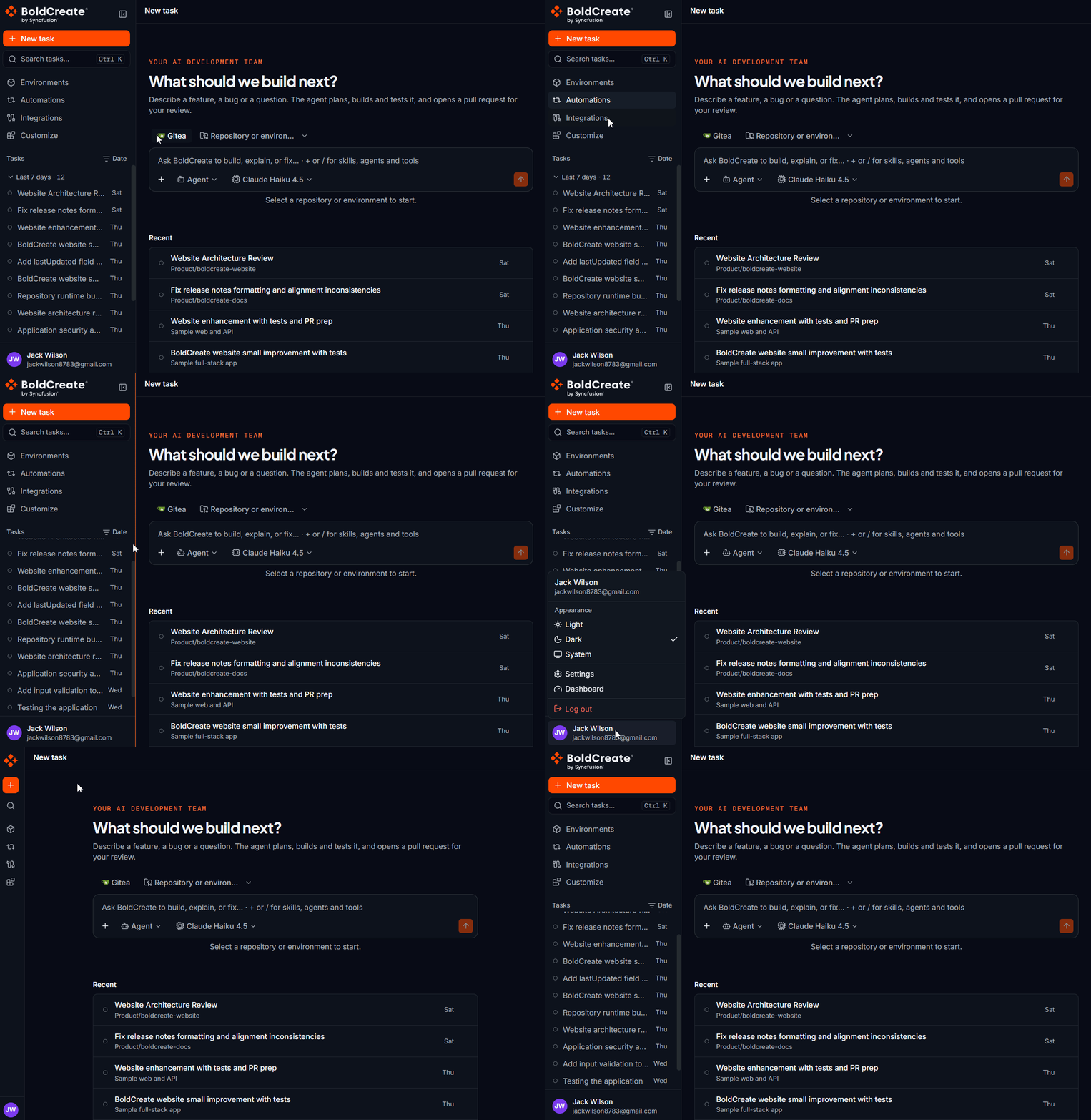
Start a new task
- In the sidebar, select New task. The Start a new task page opens.
- Pick a repository or a saved environment.
- If you picked a repository, pick the branch to start from.
- Choose an agent and a model in the composer.
- Type your prompt and press Enter.
The task opens at the top of the list with the Running status. At first it is named after your prompt, and a short generated title replaces that name after a few seconds. The Start a new task page also lists working tasks under In progress, and your latest tasks under Recent tasks. Select a row to open that task.
Send a follow-up message
The agent remembers everything in the task.
- Open the task.
- Optional: change the agent, model, or thinking effort in the composer.
- Type your message and press Enter. Use Shift+Enter for a new line.
The repository, branch, and environment are set when the task starts. To work on a different repository or branch, start a new task.
While the agent is working, you can still send a message. It goes into a queue (up to 5 messages) and is sent when the current run ends. Remove a queued message before it is sent from the queue list above the composer.
Approvals
Depending on the approval mode, the agent may stop and wait for you before running a command or creating a pull request. The task then shows Waiting for input. Approve or reject to continue.
Stop a run
While the agent is working, the send button changes to a Stop button. Select it. The agent stops. Changes it already made stay on its working branch, and you can see them in the Changes tab.
Retry the last response
If the last response was not what you wanted, hover over it and select Retry. Retry appears only on the last response. To copy a response as text, select Copy below it. To copy one code block, select Copy on the block.
The workspace panel
Open the workspace panel with the panel button in the top-right corner of the task. It has four tabs:
- Background: commands the agent left running and its sub-agents, with their status. You can stop a running one.
- Changes: the files changed per repository, with a diff, review comments, and Create pull request.
- Files: a file explorer and editor. It is read-only while the agent works.
- Terminal: shells in the same workspace (up to 6). They keep running when you leave the panel.
Files and Terminal appear only when the workspace supports them for the task. Use the maximize button to enlarge the panel.
Read long tasks
Long tasks load the latest messages first. Scroll to the top or select Load earlier messages to see older ones. For very long tasks, the agent summarizes older context automatically.
Search tasks
- In the sidebar, select Search tasks.
- Type part of a task title. The list filters as you type. The search matches titles only and ignores case.
Group tasks
Next to the task list heading, select Group tasks and choose an option:
| Option | Groups tasks by |
|---|---|
| Repository | Repository, for example your-org/sample-app. Tasks that use an environment are grouped as Environment · {name}. |
| Date | Today, Yesterday, Last 7 days, Last 30 days, and Older. |
| Status | The status of the latest run. |
| None | No groups. All tasks appear in one list. |
Select a group heading to collapse or expand it. The heading shows the number of tasks in the group.
Task statuses
| Status | Meaning |
|---|---|
| Running | The agent is working, or the run is about to start. |
| Waiting for input | The agent needs your approval or an answer. |
| Completed | The agent finished. |
| Error | The run stopped because of a problem. Open the task to see the message. |
| Idle | Nothing is running. |
The status is also available as text for screen readers. For a full list, see Statuses.
Delete a task
Open the task’s menu in the sidebar and select Delete. A confirmation dialog appears. Deleting a task can’t be undone, and its messages are removed from Bold Create. Branches and pull requests the agent already pushed to your Git provider are not deleted.
Best practices
- Use one task per piece of work: small, focused tasks are faster for the agent and easier to review.
- Stay in the task for follow-ups: the agent keeps the context and the same working branch.
- Start a new task for a new branch or repository.
- Group by repository when you work on several codebases at once.
Troubleshooting
- The task list fails to load: Bold Create could not reach the server. Select Try again.
- Older tasks fail to load while scrolling: refresh the page.
- The task shows Conversation unavailable: select Try again. If it still fails, see Run stopped or shows Error.