
BoldCreate runs use your organization’s BoldCreate plan. You check usage on the BoldCreate Dashboard and your remaining credits under Settings > Credits. Use this guide to find both and to understand the limit messages you may see in a thread.
Before you begin
- Sign in to BoldCreate. See Sign in and access.
- Check your role. The Dashboard is built for administrators and team leads. What you can see depends on your role in your organization.
Steps
- At the bottom of the sidebar, select your name. The profile menu opens.
- Select Dashboard. The Overview page opens.
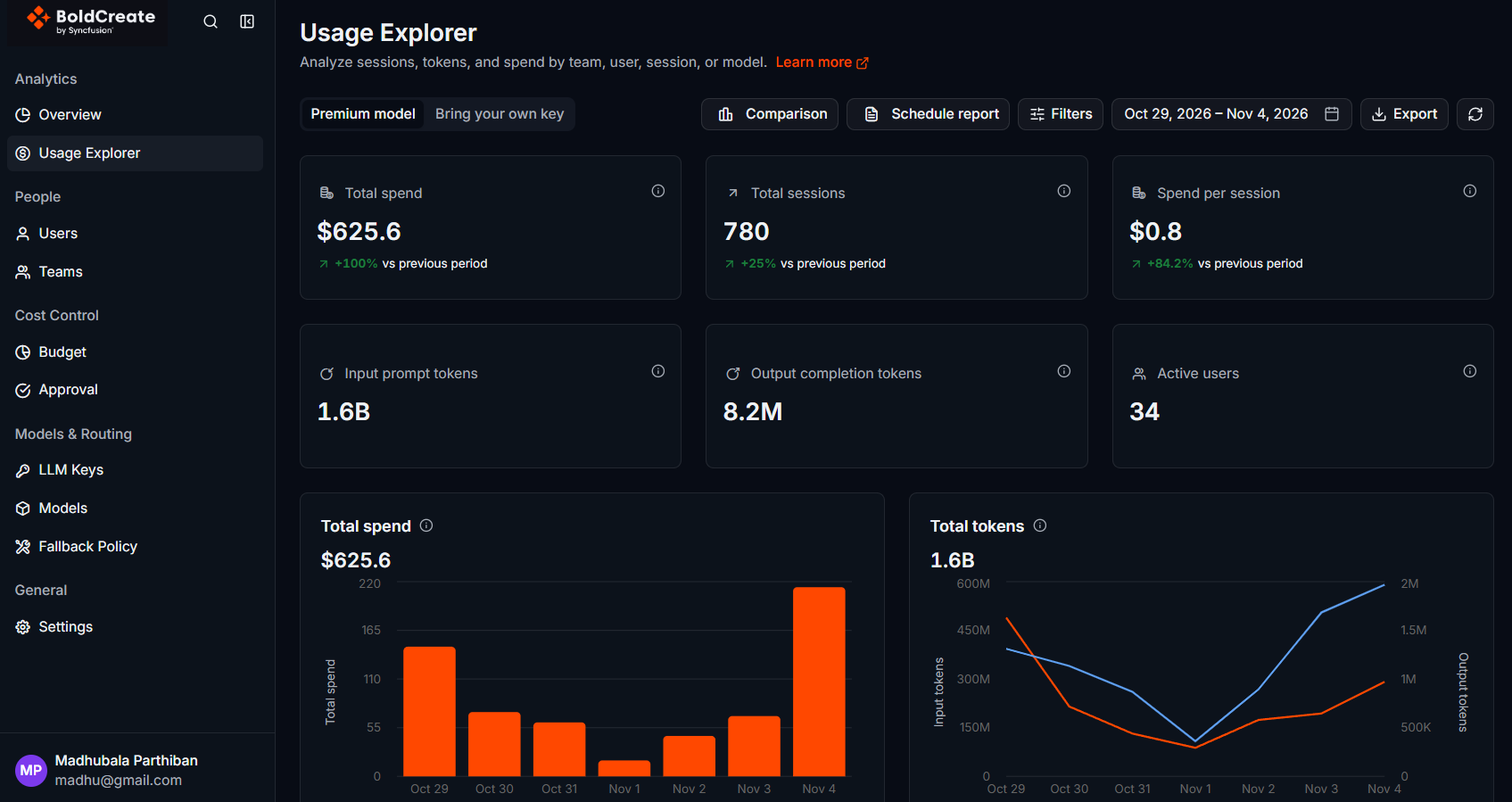
- Select the Premium Model or Bring Your Own Key tab, and set the date range you want to check.
- For a breakdown by team, user, session, or model, select Open usage explorer.
- To see your remaining credits, select Settings in the Dashboard sidebar, then select Credits.
The Dashboard shows active users, spend, agent sessions, tokens, requests, and latency. For a full description of each chart and filter, see Dashboard and Usage Explorer.
Limit messages in BoldCreate
Some limits show up in BoldCreate itself. These messages are not about credits:
| Message | Meaning | What to do |
|---|---|---|
| This organization has {N} active runs (limit {M}). Wait for a run to finish and retry. | Your organization has too many runs going at the same time. | Wait for a run to finish, or stop one you don’t need, then send the message again. |
| {Provider} is temporarily unable to process your request due to rate limiting. Please try again in a few moments. | Your Git provider (GitHub, GitLab, or Gitea) is limiting requests, for example while it loads many branches or repositories. Your connection is still valid. | Wait a few moments and try again. |
| Environment creation limit reached. … | You created the maximum number of environments allowed for your role. | Delete environments you no longer need, or ask your administrator to raise the limit. |
Reduce usage
- Pick the right agent: use Ask or Plan for questions and plans, and Agent when you want code changes.
- Scope tasks tightly: a focused prompt needs fewer steps. See Write effective prompts.
- Stop runs that go off track: select Stop response and send a corrected message instead of letting the run finish.
- Choose the model for the task: see Models.