
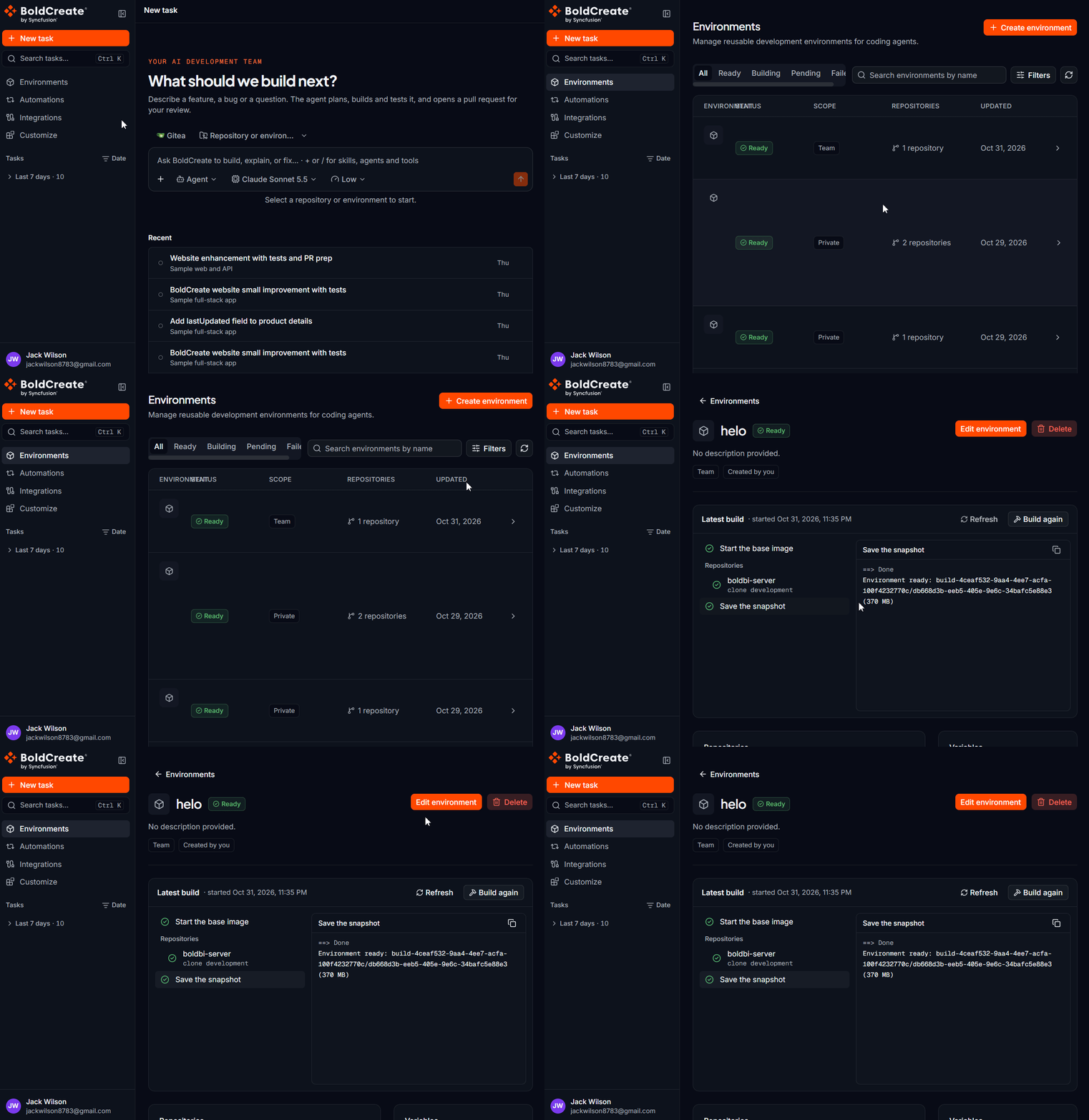
An environment is a saved, reusable setup for the cloud workspace the agent works in. It can include one or more repositories, the tools to install, the commands to run, environment variables, and encrypted secrets. You set it up once, Bold Create builds it, and every task that uses it starts from the same ready-to-use workspace. To open environments, select Environments in the sidebar.
You do not need an environment to start a task. Picking a repository and branch in the composer is enough for most tasks. Use an environment when your project needs more.
Use cases
- Work across several repositories: give the agent a frontend and a backend repository in one task.
- Install extra tools: add system packages, language runtimes, or CLIs that your build or tests need, using setup commands.
- Start services: run a database, cache, or local server with a start command before the agent starts working.
- Set variables and secrets: provide configuration such as
NODE_ENVor a test API URL, and store keys as encrypted secrets. - Share a standard setup: give your team or organization one environment so everyone’s tasks start the same way.
How environments work
- You create an environment. You choose the repositories and branches, and optionally setup commands, a start command, variables, and secrets. See Create an environment.
- Bold Create builds it. The build runs your setup commands, clones your repositories, and runs each repository’s install command. The status shows Building.
- The environment becomes Ready. Only Ready environments can be picked in the composer.
- You use it in a task. Each task gets its own cloud workspace started from the environment. Each task brings the repositories up to date, and the start command runs. See Use an environment in a task.
Every environment starts from the same Bold Create base image. Custom Docker images and Dockerfiles are not supported. Install anything else with setup commands.
The Environments page
The page lists every environment you can access.
| Part | What it does |
|---|---|
| Create environment | Opens the form to create a new environment. |
| Status tabs: All, Ready, Building, Failed | Show only environments with that status. |
| Search | Filters the list by name. |
| Filters | Ownership (Created by me) and scope (Any, Private, Team, Organization). The button shows how many filters are active. Select Clear filters to remove them. |
| Refresh | Reloads the list. |
| Rows | Sets how many environments appear per page: 25, 50, or 100. Use the arrow buttons to move between pages. |
Each row shows the environment’s name, status, scope, and other details. Select a row to open its details page.
The status tabs filter the environments on the current page. If you have more environments than fit on one page, move to the next page or increase Rows.
If you have no environments yet, the page shows No environments available. Select Create environment to add one. If your filters hide every environment, it shows No environments match the active filters. Select Clear filters.
If the list can’t load, the page shows Environments could not be loaded with a Retry button.
Environment statuses
| Status | Meaning | Can you use it in a task? |
|---|---|---|
| Ready | The build succeeded, or the environment needs no build. | Yes |
| Building | The build is in progress. | No |
| Failed | The build failed. The details page shows the error and the build log. | No |
| Pending | The environment is saved but has not been built yet. | No |
An environment with no setup commands and no repositories needs no build, so it is Ready as soon as you save it.
Access and scope
| Scope | Shown as | Who can use it |
|---|---|---|
| Private | Private | Only you. This is the default. |
| Selected teams | Team | Members of the teams you select. |
| Organization | Organization | Everyone in your organization. |
Who can change an environment depends on its scope:
- Private: the person who created it.
- Organization: an organization admin.
- Team: a lead of one of the listed teams.
Everyone else who has access can open the details page and use the environment in tasks.
Preinstalled tools
The base image includes common development tools such as Node.js, Python, and Git. The exact list depends on the current image. Install anything else, such as .NET, Go, or Java, with setup commands.
Limits
| Item | Limit |
|---|---|
| Environment name | 100 characters; unique in your organization |
| Repositories per environment | 20 |
| Variables | 100 |
| Setup commands | 50 |
See Limits for the full list.