
When you are happy with the agent’s changes, ask it to open a pull request. The agent commits its work, pushes its own branch to your Git provider, and opens the pull request with a title and description it writes for you. A pull request card with a link appears in the thread. Bold Create works with GitHub, GitLab, and Gitea. On GitLab, the agent opens a merge request.
Use cases
- Turn the agent’s finished work into a pull request your team can review.
- Add more commits to an open pull request from the same thread.
- Open one pull request per repository when a thread changes several repositories.
- Tell the agent what to put in the pull request description.
How branches work
The agent never commits to the branch you pick. When a thread starts, Bold Create creates a working branch from your branch, and the agent makes all its changes there.
- Name: the branch name starts with bc/, followed by a short ID of the thread and a few words from the task, for example bc/3a05461a-fix-search.
- One branch per thread: every run in the thread uses the same working branch.
- Your branch stays as it is: your changes reach it only when you merge the pull request. You see both branches in the branch header of the Git panel, for example main → bc/3a05461a-fix-search. Learn more on the Review changes page.
Open a pull request
The agent opens a pull request only when you ask. It doesn’t open one on its own at the end of a run.
-
Review the changes in the Git panel.
-
In the same thread, with Agent selected, ask for the pull request. Say what the description should cover.
Commit the changes and open a pull request against main. In the description, explain the root cause and list the tests you added. -
Press Enter.
Result
The agent commits any remaining changes, pushes its branch, and opens the pull request. It replies with a message such as Pull request created: followed by the link, and a pull request card appears in the thread. Ask and Plan can’t commit, push, or open pull requests. Switch to Agent first.
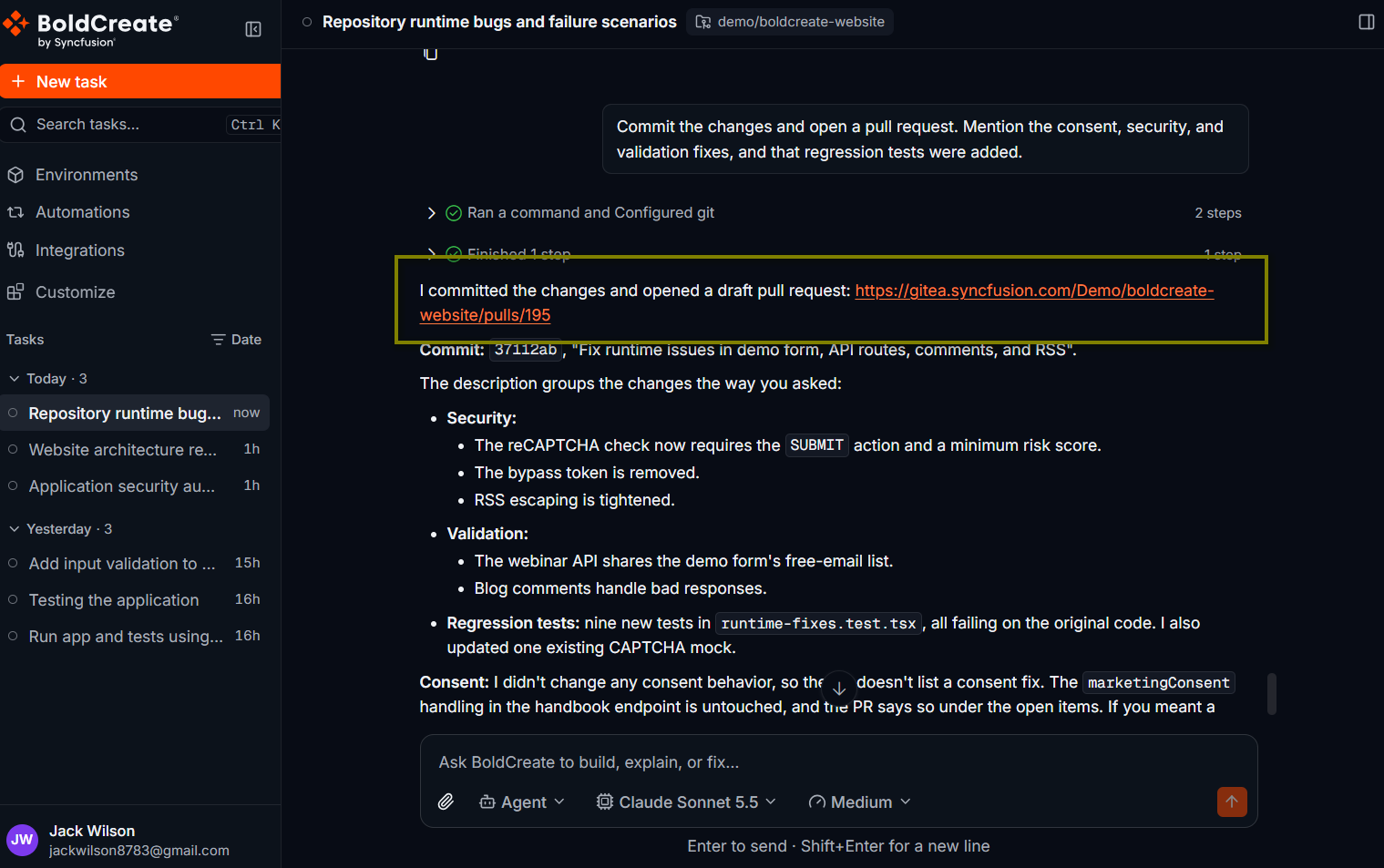
Target branch
By default, the pull request targets the branch you picked when the thread started. To target another branch, name it in your prompt, for example open a pull request against develop.
What the agent writes
The agent writes the pull request title and description. The description usually includes:
- Task Context: what you asked for.
- Implementation Summary: what changed and how.
- Key Technical Decisions: choices it made, and why.
- Verification Results: tests or checks it ran, and their results.
- Human Review Required: parts that need a careful look.
- A link back to the thread in Bold Create.
There is no step in Bold Create to edit the title or description. To change them:
- Tell the agent what to include before it opens the pull request, or ask it to update the pull request in the same thread.
- Edit the pull request in your Git provider. The pull request is opened as ready for review, not as a draft.
Update an open pull request
Keep working in the same thread after the pull request is open. When you ask the agent to push again, it adds new commits to the same branch and updates the existing pull request instead of opening a new one.
Address the review comments from the pull request: rename the helper to normalizeQuery and add a test for empty input. Then update the pull request.
The agent replies with a message such as Pull request updated: or Pull request is up to date:. It updates the title only if nobody changed it in the Git provider. If the pull request was merged or closed, the agent opens a new pull request the next time you ask.
Multiple repositories
If the thread uses an environment with several repositories, the agent opens one pull request for each repository that has changes. Each pull request gets its own card in the thread.
The pull request card
The card shows:
- An icon for the state: open, merged, or closed.
- The pull request title.
- The author, as by {author}. Select the card to open the pull request in your Git provider in a new tab. Review, approve, and merge it there.
Best practices
- Review before you ask: check the diff in the Git panel first.
- Say what the description needs: issue links, test notes, or screenshots your team expects.
- Keep one pull request per thread: use follow-ups in the same thread for review fixes.
- Use branch protection: require reviews on your main branch so agent changes always get a human review.
Troubleshooting
- The agent says the Git provider rejected the credentials: your integration token expired or was revoked. Reconnect it on the Integrations page. See Integration token expired or revoked.
- The agent says you must authorize the token for your organization’s SSO: authorize Bold Create for SSO in your Git provider’s settings, then ask again.
- The repository rejected the push: a branch rule or push rule blocked it. The agent tells you the reason. Change the rule or the target, then ask again.
- There is nothing to open a pull request for: the agent has no changes on its branch. Check the Git panel.
- The repository is archived: unarchive it in your Git provider, or use another repository.
- The agent says the remote branch has commits this workspace doesn’t have: someone pushed to the agent’s branch. Ask the agent to fetch and merge or rebase, then push again.