
After you create an environment, you manage it from its details page. There you can check its configuration and status, follow the latest build, edit it, rebuild it, and delete it. To open the details page, select Environments in the sidebar, then select the environment in the list.
Who can change an environment depends on its scope. For a private environment, only its creator can change it. For an organization environment, the creator or an organization admin can change it. For a team environment, the creator or a lead of one of its teams can change it. Only these people see Edit environment, Build again, and Delete. Everyone else who has access can view the details page and use the environment in tasks.
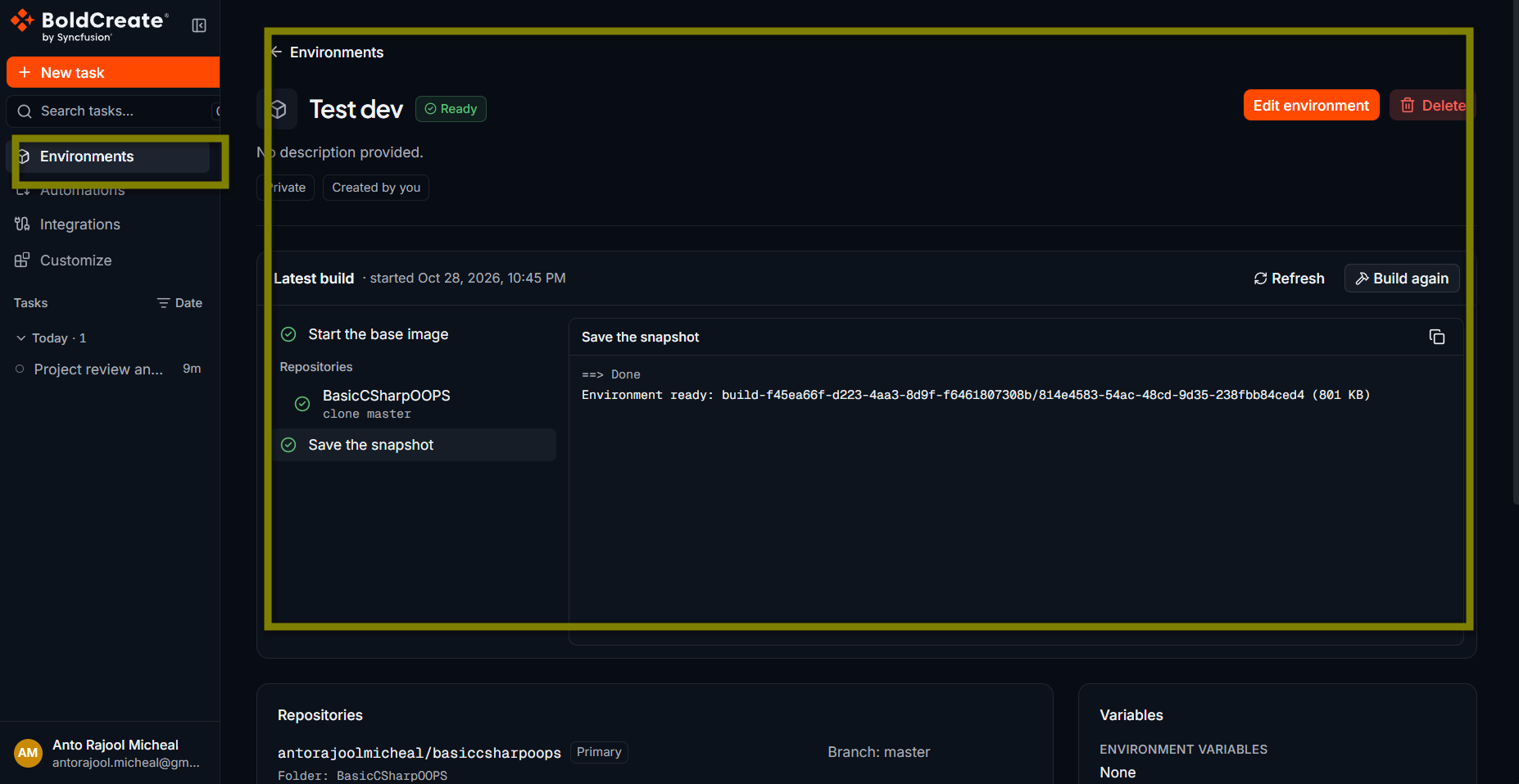
View environment details
| Section | What it shows |
|---|---|
| Header | Name, status, description, scope (Private, Team, or Organization), and Created by you if you created it. |
| Repositories | Each repository with its branch and install command. The primary repository has a Primary label. If there are none, it shows No repositories configured. |
| Commands | Setup (built once): the setup commands. Start (each new workspace): the start command. |
| Variables | The names of the environment variables. Values are not shown, and secret values are never shown. |
| Activity | Who created and last updated the environment, and when. |
| Latest build | The build steps and output. |
While the environment is building, a card shows that the build is in progress. The status refreshes automatically while the page is open. If the last build failed, the error appears with the failed step.
Follow the latest build
The Latest build panel shows a checklist of build steps: your setup commands, then each repository (clone and install). Select a step to see its output, with errors in red. A step can have a warning: a repository that couldn’t be cloned or installed is a warning, not a failed build, and tasks clone or install it themselves.
- Refresh loads the latest output. If nothing has been written yet, it shows No output yet.
- Use the copy button to copy the lines you are viewing.
- When a build fails, find the failed step. The steps after it did not run. Fix the setting and rebuild. Edit setup takes you to the edit page, and Build again starts a new build.
Edit an environment
- On the details page, select Edit environment. The edit page opens with the current settings.
- Change what you need. The fields are the same as when you create an environment. See Create an environment.
- Select Save changes.
Bold Create saves the changes and opens the details page. Some changes start a new build automatically:
| Change | Rebuilds automatically? |
|---|---|
| Setup commands | Yes |
| Repositories, branches, folders, or install commands | Yes |
| Variables and secrets | No. They are applied when a task’s workspace starts, not baked into the build. |
| Name, description, or start command | No |
| Access | No |
If you save a change while a build is running, the change is saved. The build that finishes is used only if it matches the saved settings; otherwise, a new one starts.
Build again
Most of the time you don’t need to start a build yourself. It starts when you create an environment and when you save a change that affects the build. Select Build again when:
- The last build failed and you want to retry.
- The environment is Ready, but you want fresh copies of its repositories or newer packages.
Select Build again, then confirm in the Build the environment again? dialog. The status changes to Building, then to Ready when it succeeds. The button is disabled while a build is running or the environment is pending.
If a rebuild fails after a change, tasks keep starting from the last good build.
Delete an environment
Deleting an environment removes it and its saved configuration. You can’t undo this. Tasks that already started keep running.
- On the details page, select Delete.
- In the Delete environment? dialog, confirm. Cancel closes the dialog.
You return to the Environments page, and the environment no longer appears in the composer.
Best practices
- Check the latest build after every change that affects it, so problems show up before your team uses the environment.
- Rebuild periodically if your setup commands install packages without pinned versions.
- Try big changes in a private environment first, before you change one your team or organization uses.
- Delete environments you no longer use.
Troubleshooting
- No Edit environment, Build again, or Delete buttons: you don’t have rights to change this environment. Ask its creator or an admin.
- The status stays Building for a long time: keep the page open or select Refresh in the Latest build panel.
- The build failed: read the failed step, fix the setting on the edit page, and save. See Environment build failed.
- Environment details could not be loaded: select Retry. If it still fails, the environment may have been deleted or you no longer have access.