
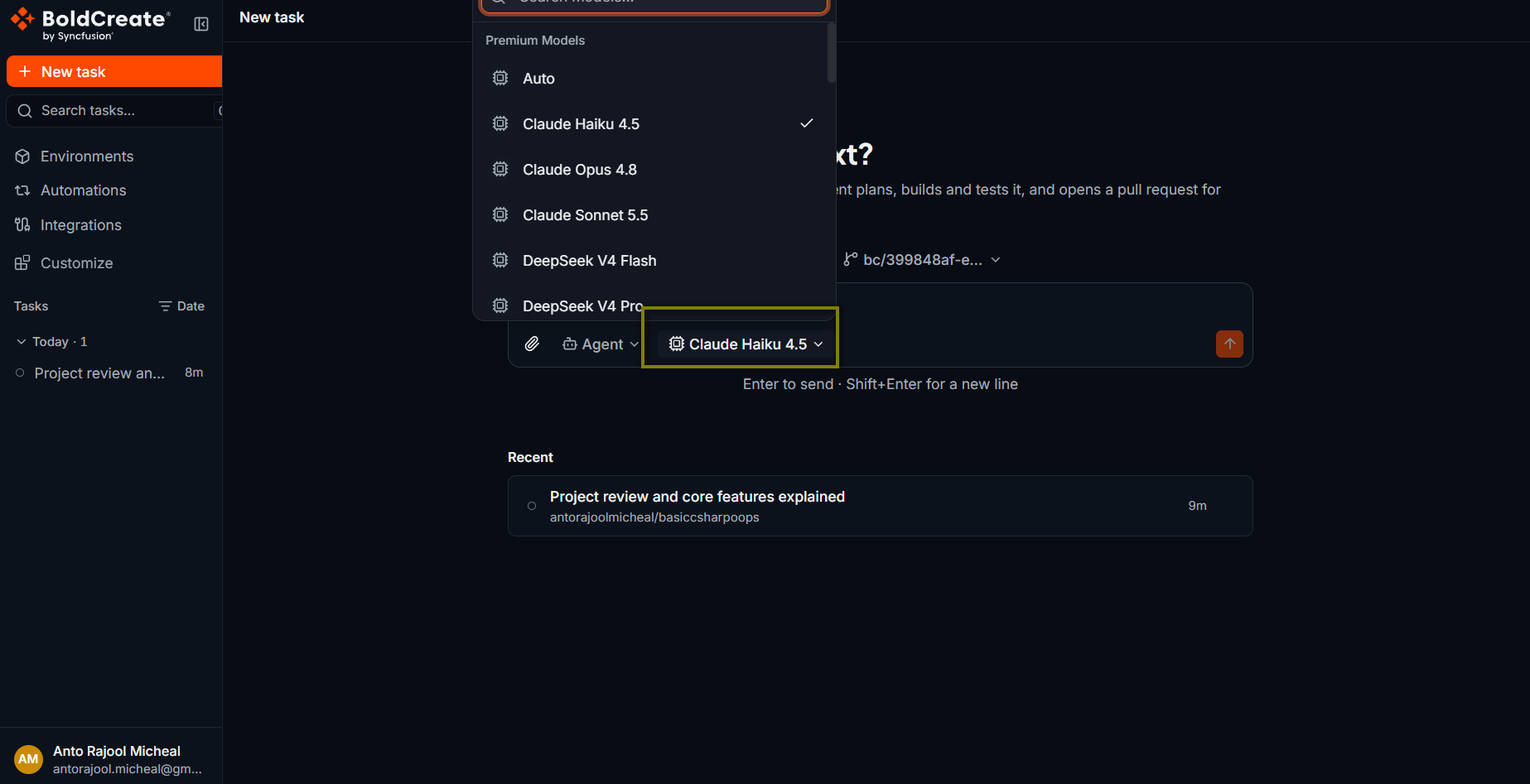
The model is the large language model the agent uses to read your code, reason, and write changes. You pick it in the model picker below the prompt box. Some models also let you set a thinking effort, which controls how much the model reasons before it answers. You can pick a different model for any message, including follow-ups in an existing thread.
Use cases
- Use a stronger model for a hard bug or a large refactor.
- Use a faster model for small edits and questions.
- Pick a model that can read images when you attach screenshots.
- Use a model your organization connected with its own provider key.
Model groups
| Group | What it contains |
|---|---|
| Premium Models | Models provided through your organization’s BoldCreate plan. |
| BYOK Models | Models your organization connected with its own provider keys (“bring your own key”). |
The list depends on what your organization has set up. If a group is empty, it shows No premium models or No BYOK models.
Choose a model
- Select the model picker below the prompt box. It shows the name of the current model.
- Optional: type in Search models… to filter the list.
- Select a model. The model applies to the next message you send. Bold Create remembers your choice in this browser and uses it for new threads.
Set the thinking effort
For models that support it, a thinking effort picker appears next to the model picker. It shows the current level, for example Medium.
- Select the thinking effort picker.
- Under Thinking Effort, choose a level, for example Low, Medium, or High. The levels depend on the model. The model’s default level is marked Default. If the model you pick does not support thinking effort, the picker is hidden.
| Level | When to use it |
|---|---|
| Low | Small, clear tasks where speed matters. |
| Medium | Most everyday tasks. |
| High | Hard problems: tricky bugs, design decisions, large refactors. Takes longer. |
Models and images
Not every model can read images. If you attach an image while a model without image support is selected, the image chip shows a warning such as {model} does not support image attachments. The image is not sent to the model. To use the image, pick a model that supports images before you send. Learn more about attachments in Composer and context.
Models and custom agents
Cloud agents show the model they use below their name in the agent picker. Repository agents can set a model in their file. Learn more on the Cloud and repository agents page.
Best practices
- Match the model to the task: don’t pay for the strongest model on a one-line change.
- Raise the thinking effort, not just the model: for a hard task, a higher effort often helps more.
- Keep one model for a series of follow-ups when you compare results, so changes in output come from your prompts.
- Check image support before you attach screenshots.
Troubleshooting
- No model is available.: your organization has no models you can use. Contact your organization admin.
- No models found: no model matches your search. Clear the search box.
- The thinking effort picker is missing: the selected model doesn’t support it.