
Environments are private when you create them. Share them so your team starts tasks from the same setup. You can share with selected teams or with your whole organization, and change it at any time. To share skills, commit them to a shared repository. See Skills overview.
Before you begin
- Be able to change the environment. Who can change its access depends on its scope: the creator for a private environment, the creator or an organization admin for an organization environment, and the creator or a lead of one of its teams for a team environment.
- Make sure the teams exist. Teams are managed on the Teams page of the BoldCreate Dashboard. If you don’t see the team you need, ask your organization admin.
- Test it first. Use the environment in your own tasks before you share it.
Access options
| Option | Shown in lists as | Who can use it |
|---|---|---|
| Private | Private | Only you. This is the default. |
| Selected teams | Team | Members of the teams you select. |
| Organization | Organization | Everyone in your organization. |
People you share with can open the details page and use the environment in their tasks. They can’t edit or delete it.
Share an environment
- In the sidebar, select Environments.
- Select the environment.
- Select Edit environment.
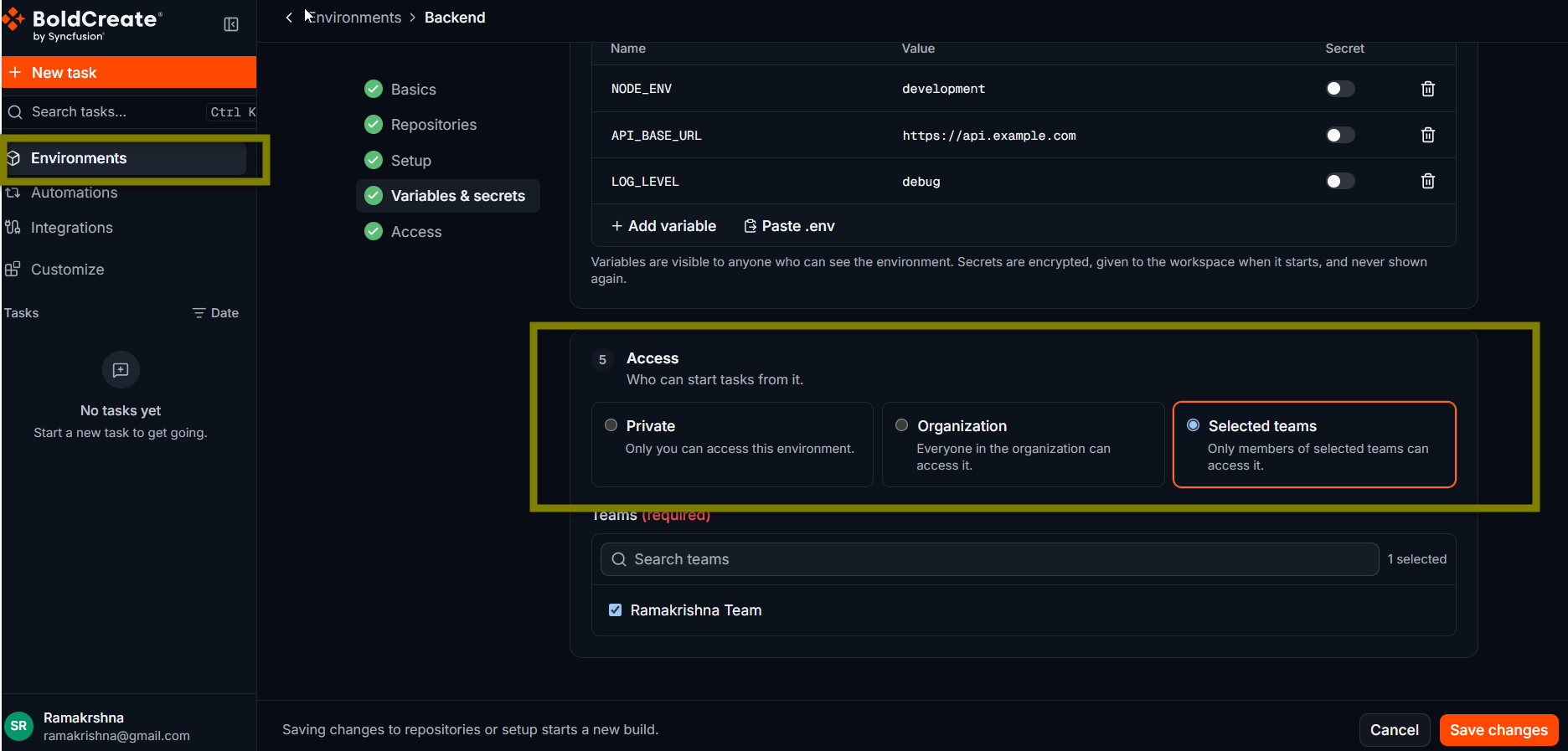
- Under Access, select Selected teams or Organization.
- If you selected Selected teams, search for each team and check it. You must select at least one team. Select Load more teams if yours is not listed.
- Select Save changes.
Changing access does not rebuild the environment. Team members can use it in the composer as soon as it is Ready.
Everyone you share an environment with can use it in tasks. The agent can read its variables while it works, and its secrets are injected into each task’s workspace. Review variables and secrets before you share. Use secrets, not plain variables, for tokens and passwords. See Add environment variables and setup commands.
Stop sharing
- Open the environment and select Edit environment.
- Under Access, select Private, or clear the check box of a team.
- Select Save changes.
People who lose access no longer see it in their lists, and they can’t pick it in the composer. Tasks they already started keep running.
Find what others shared
On the Environments page, select Filters, then choose a scope: Team or Organization. Select Created by me to see only your own.
Verify
- On the Environments page, check that the row shows the new scope, Team or Organization.
- Ask a team member to open the page and find it in their list.
- Ask them to check that it appears under Environments in the Repository or environment picker.
Best practices
- Share with a team first. Move to Organization when the environment works well for one team.
- Name and describe clearly. Others pick environments by name and description.
- Agree on who maintains each shared environment. Only the creator, an admin (organization scope), or a team lead (team scope) can change it.
- Keep secrets as secrets. Only turn on the secret switch for sensitive values, never put them in plain variables.
Troubleshooting
- No Edit environment button: you don’t have rights to change this environment. Ask its creator or an admin.
- The team is not listed: select Load more teams, or search by name. If it still isn’t there, ask your admin to check the team on the Dashboard Teams page.
- A team member can’t see the shared environment: check that they are a member of one of the selected teams, or share with the Organization.
- A team member can’t pick the environment in the composer: only Ready environments are listed. Check its status on the Environments page.