
Connect GitLab when you want the agent to work on projects hosted on GitLab. You sign in to GitLab in your browser and approve access. You do not need to create a token.
Before you begin
- You can sign in to Bold Create. See Sign in and access.
- You have a GitLab account that can access the projects you want to use.
- To let the agent push branches and open merge requests, your account needs permission to push to those projects, for example the Developer role. The Connect flow on the Integrations page connects to GitLab.com.
Steps
-
In the sidebar, select Integrations.
-
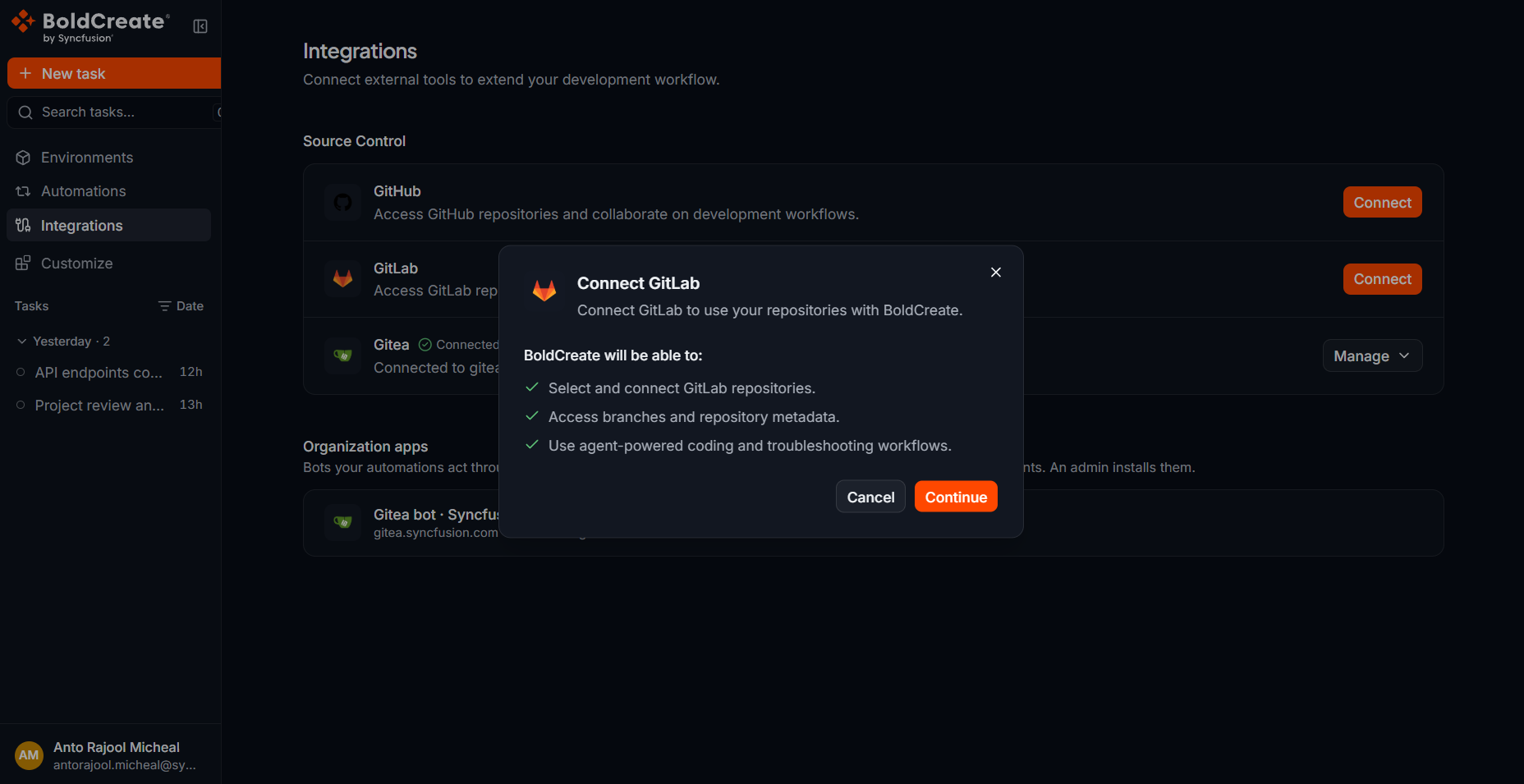
Under Source Control, find GitLab and select Connect. The Connect GitLab dialog opens. It lists what Bold Create will be able to do:
- Select and connect GitLab repositories.
- Access branches and repository metadata.
- Use agent-powered coding and troubleshooting workflows.
-
Select Continue. GitLab opens in your browser.
-
Sign in to GitLab if asked.
-
Review the requested access and select Authorize. GitLab asks for access to your profile, your repositories, and the GitLab API. Bold Create uses API access to push branches and open merge requests.
Verify
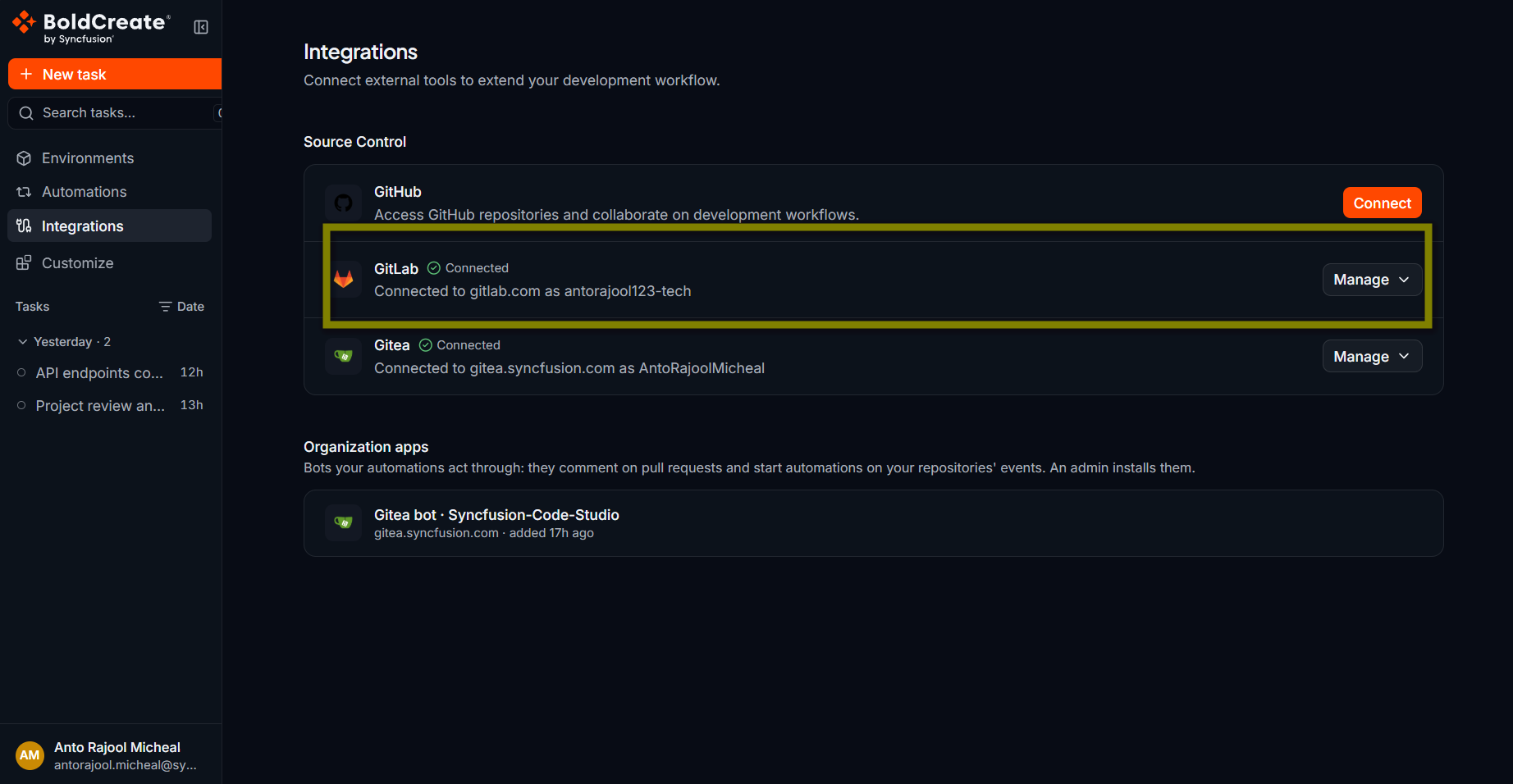
After you authorize, GitLab returns you to the Integrations page.
- A message appears: GitLab connected successfully.
- The GitLab row shows the Connected badge and a Manage button.
To check that your projects are available:
- In the sidebar, select New task.
- Select the Git provider button above the prompt box and choose GitLab under Git provider. The button shows a list only when you have connected more than one provider.
- Select Repository or environment and search for one of your projects under Repositories.
How the agent uses GitLab
The agent works on GitLab the same way as on GitHub. It works on its own branch, pushes the branch to your project, and opens a merge request when you ask for one. The agent writes the merge request title and description. Bold Create shows the merge request in the thread as a pull request card.
Reconnect GitLab
If you revoke Bold Create’s access in GitLab, or the access stops working, the GitLab row shows Connect again. Select Connect and repeat the steps above. Your new connection replaces the old one.
Disconnect GitLab
- In the sidebar, select Integrations.
- In the GitLab row, select Manage.
- Select Disconnect.
- In the Disconnect GitLab? dialog, select Disconnect. The message GitLab disconnected successfully. appears, and the row shows Connect. Bold Create loses access to your GitLab projects. Threads that are running on a GitLab project may be interrupted. Disconnecting removes the connection from Bold Create only. To remove the authorization from GitLab as well, revoke it in your GitLab user settings under Applications.
Troubleshooting
- “GitLab could not be connected.” The sign-in was canceled or GitLab did not approve the request. Select Connect and try again.
- A project is missing from the picker. Your GitLab account may not have access to it. See Repository or branch not listed.
- A thread shows “GitLab OAuth token is invalid or has been revoked. Please reconnect the integration.” Connect GitLab again on the Integrations page. See Integration token expired or revoked.