
The composer is the prompt box at the bottom of every task and on the Start a new task page. You use it to tell the agent what to do and to give it context: which repository and branch to work on, which agent and model to use, and any files it needs.
Use cases
- Pick the repositories and branches, or a saved environment, for a new task.
- Choose the agent and model for each message.
- Attach a screenshot of a bug, a log file, or a spec.
- Send follow-up messages in an existing task.
- Queue a message while the agent is still working.
Parts of the composer
| Part | Where | What it does |
|---|---|---|
| Git provider button | Above the prompt box, new tasks only | Shows the connected provider, for example GitHub. If you connected more than one, select it to switch. |
| Repository or environment | Above the prompt box, new tasks only | Picks the repositories (up to 10) or the saved environment the agent works in. |
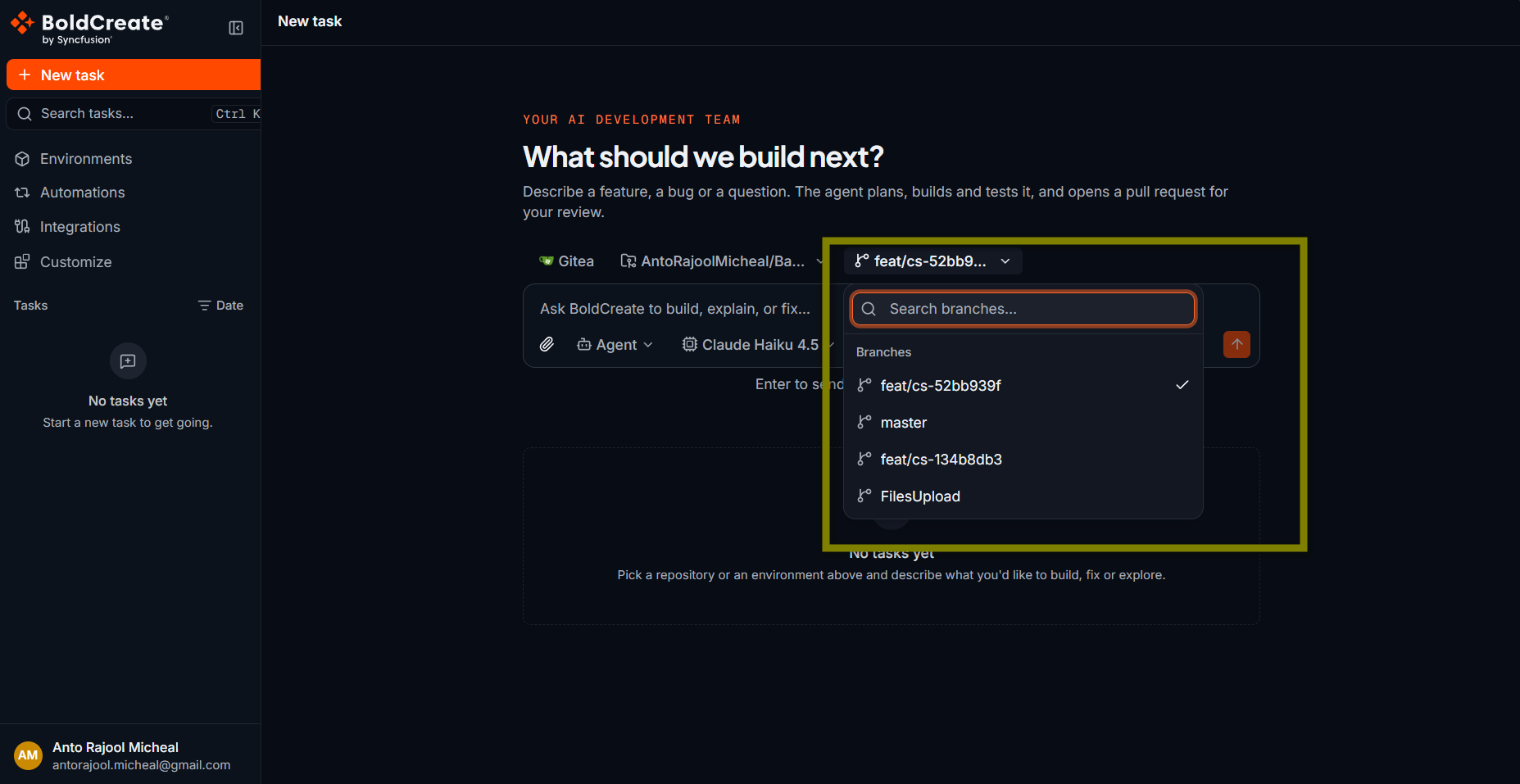
| Branch button | Above the prompt box, new tasks only | Picks the branch the agent starts from. With one repository it shows Branch: {name}. With several repositories, choose a branch for each. Not shown when you select an environment. |
| Prompt box | Center | Where you type your message. |
| Attach button | Near the prompt box | Opens the file picker. |
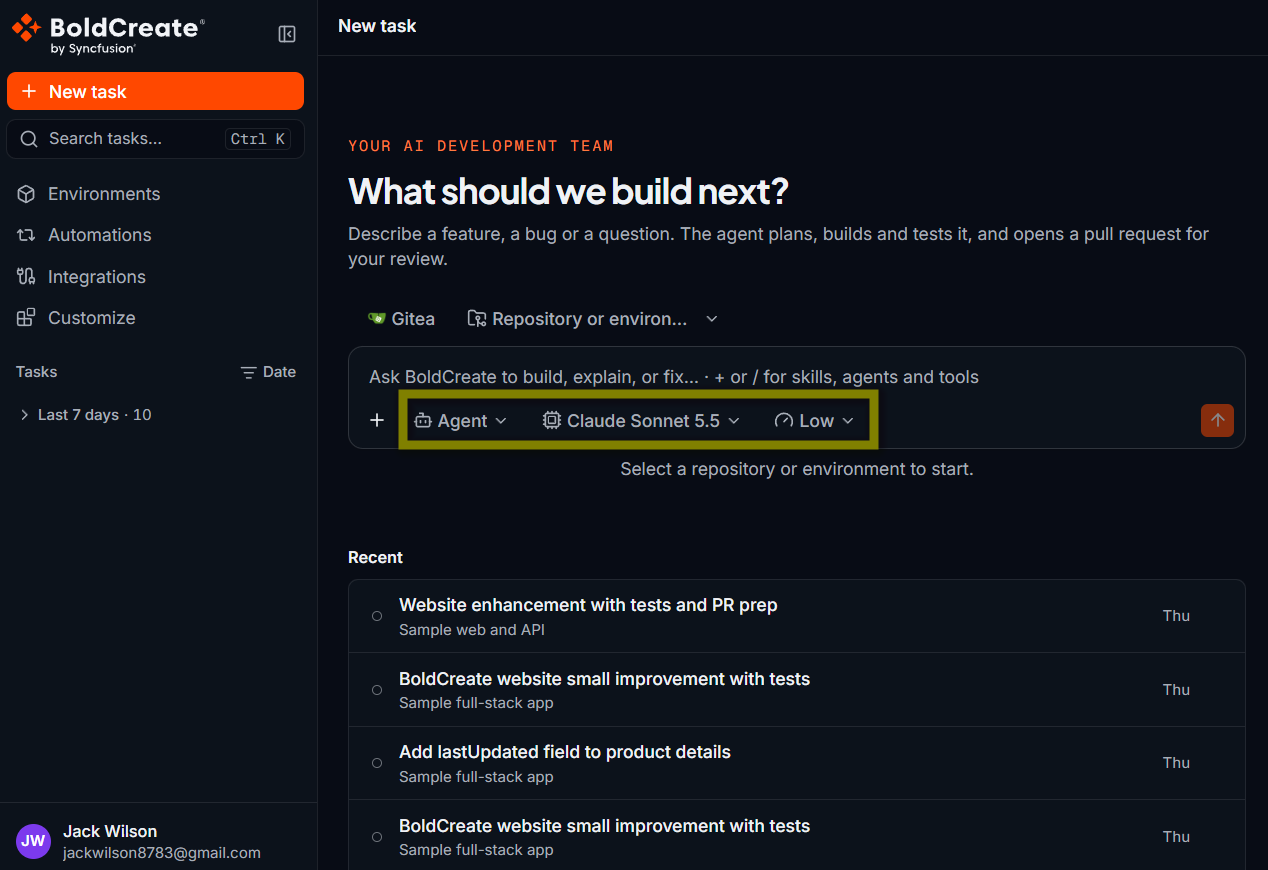
| Agent picker | Below the prompt box | Picks Agent, Ask, Plan, or a repository agent. |
| Model picker | Below the prompt box | Picks the model. |
| Thinking effort picker | Below the prompt box | Sets how hard the model thinks. Shown only for models that support it. |
| Skills and tools menu | In the prompt box menu, or type / in an empty prompt box | Adds up to 5 skills to the message and lets you hand off to another agent or choose tools. |
| Send / Stop | Right side | Sends the message, or stops the agent while it is working. |
A hint below the composer tells you what is missing before you can send, for example Select a repository or environment to start. When everything is ready, it shows Enter to send · Shift+Enter for a new line.
Pick repositories and branches
These pickers are shown only when you start a new task. After the first message, the repositories, branches, and environment of the task can’t change.
- Select Repository or environment.
- Type in the search box to filter the list.
- Under Repositories, select a repository. To work on more than one, select up to 10. If the list is long, scroll down to load more.
- Select the branch button, search if needed, and select a branch. With several repositories, choose a branch for each.
The agent does not commit to the branch you pick. It creates its own working branch from it. Learn more on the Pull requests page.
Pick an environment
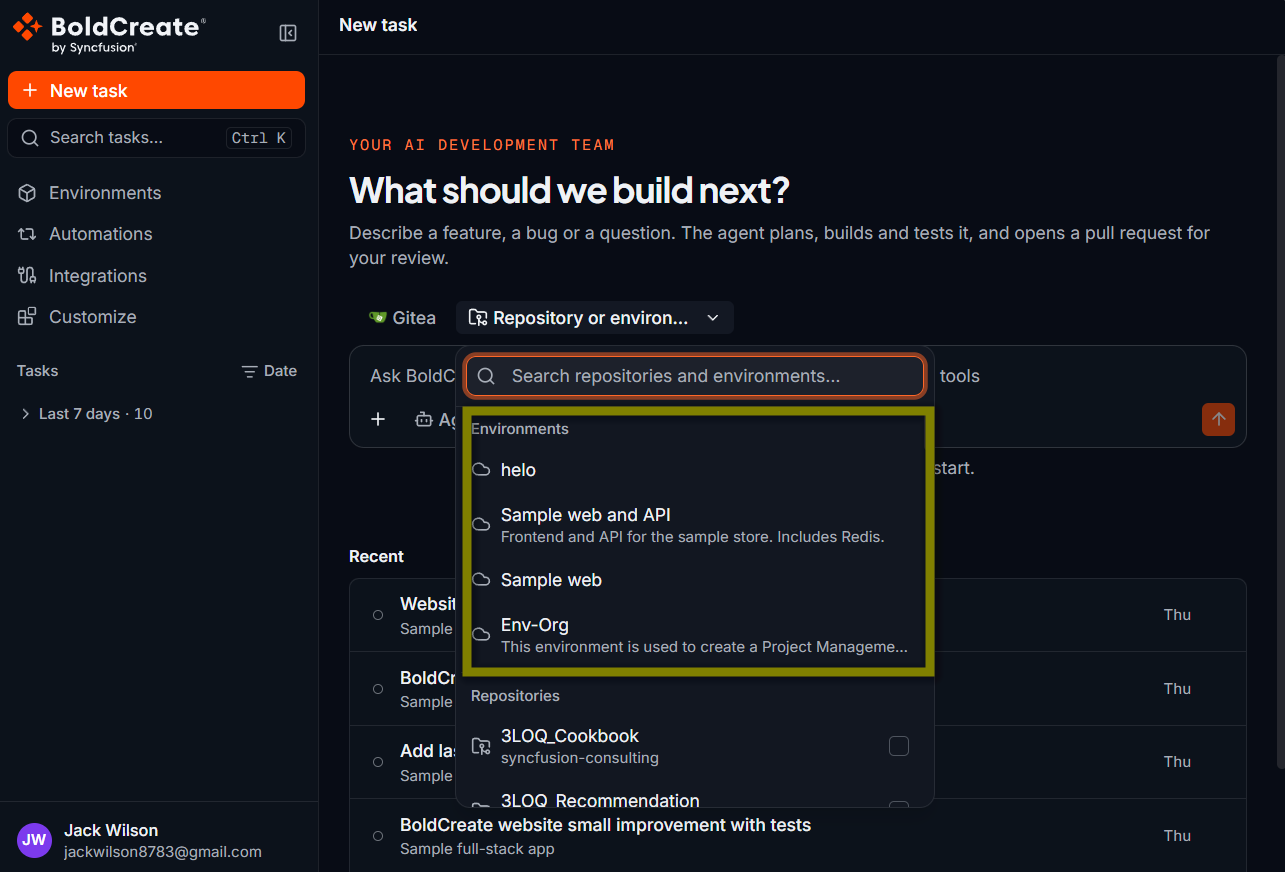
- Select Repository or environment.
- Under Environments, select an environment. Only environments with the Ready status are listed. If none are ready, the section shows No ready environments.
Environments set their own repositories and branches, so the branch button is not shown. Learn more in Use an environment in a task.
Choose an agent, model, and thinking effort
Select the pickers below the prompt box. You can change all three before any message, including follow-ups in an existing task. Bold Create remembers your last model and thinking effort in this browser. The agent isn’t remembered: each new task starts with the default Agent.
- Agent: see Agent, Ask, Plan, and Cloud and repository agents.
- Model and thinking effort: see Models.
Write and send a message
- Select the prompt box and type your message.
- Press Enter, or select Send. To add a new line without sending, press Shift+Enter.
The prompt box grows as you type. For tips on what to write, see Write effective prompts for Bold Create.
Send while the agent is working
You don’t have to wait. While the agent is working, you can still type and send a message. It is queued and sent when the current run ends. You can queue up to 5 messages. After that, the send button is disabled and its tooltip shows Queue is full. To free a place, remove a queued message from the list above the composer before it is sent.
To stop the agent, select Stop. Work already done stays on the working branch.
Attach files
Attach screenshots, logs, specs, or code files to give the agent more context. You can add files in these ways:
- Attach button: select it and pick files.
- Drag and drop: drag files onto the composer.
- Paste: paste an image or file into the prompt box.
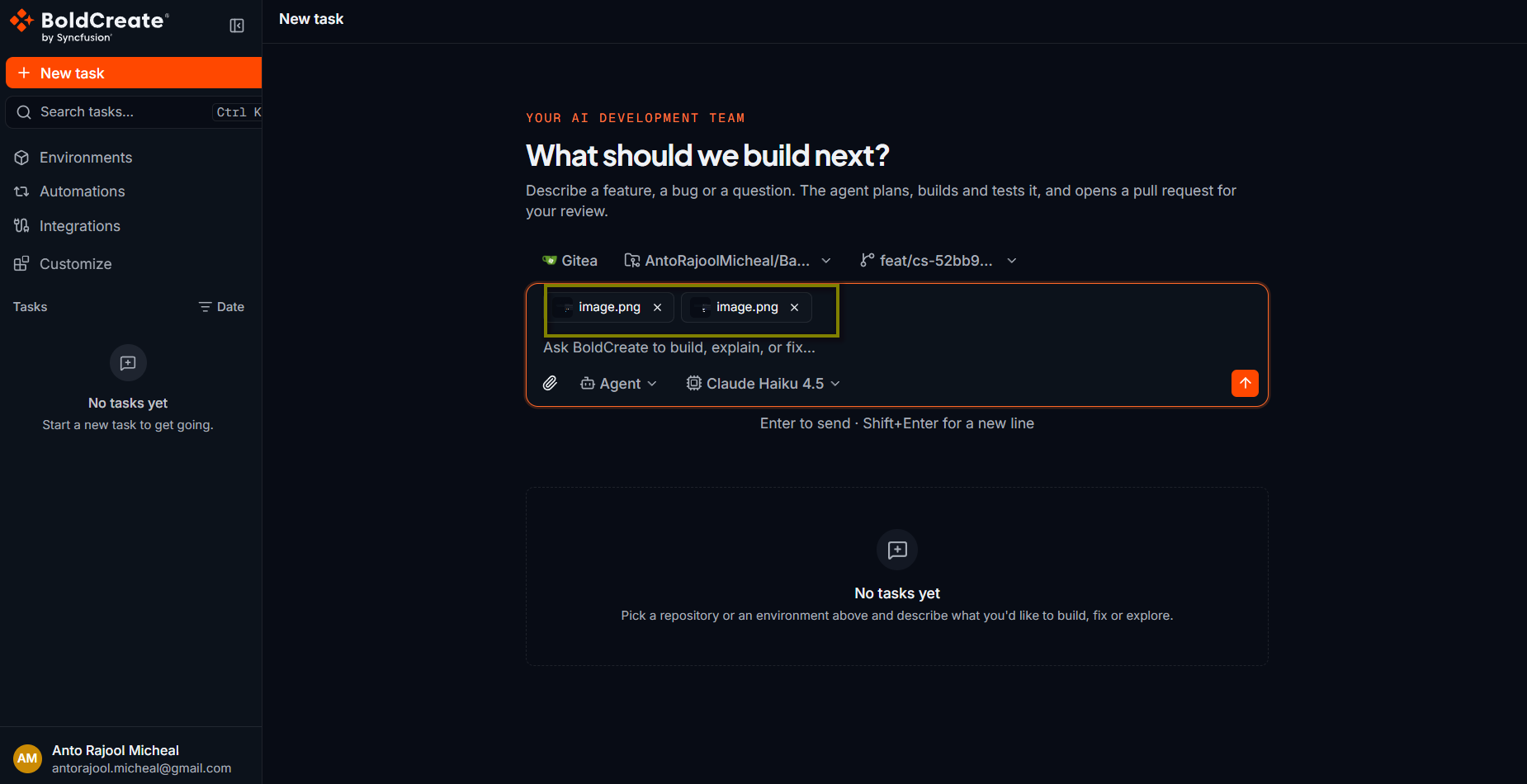
Each attached file appears as a chip above the prompt box. A spinner shows while it uploads. To remove a file, remove its chip.
| Limit | Value |
|---|---|
| Files per message | 10 |
| Size per file | Up to 4 MB |
| Images | PNG, JPEG, WebP, GIF. Images can be up to 8,000 px on a side. Large PNG, JPEG, and WebP images are shrunk automatically before sending. GIFs are sent as they are. |
| Text and code | Text, Markdown, CSV, JSON, XML, YAML, TOML, logs, HTML/CSS, SVG, and common code files such as .ts, .py, .go, .java, .cs, and .sql. |
| Documents | PDF, ZIP, Word, Excel, and PowerPoint (.doc, .docx, .xls, .xlsx, .ppt, .pptx). |
Videos, audio files, other archives, and executables are not supported. Local tasks in the desktop app accept images only, up to 5 MB each, 5 images, and 10 MB in total.
If a file is empty, too large, or of an unsupported type, the composer shows why. Some models can’t see images. If you attach an image while such a model is selected, the chip turns yellow. The file is still sent, but the model can’t view it. Pick a model that supports images, or remove it. See Models and Attachment not accepted.
Keyboard shortcuts
| Shortcut | Action |
|---|---|
| Enter | Send the message |
| Shift+Enter | New line |
| Esc | Close the open picker |
| Ctrl/Cmd+K | Search tasks |
| Ctrl/Cmd+B | Collapse or expand the sidebar |
Best practices
- Pick the right starting branch: the agent’s working branch is created from it.
- Attach evidence: a screenshot or error log often saves the agent several steps.
- Keep reusable instructions in skills: put them in a
SKILL.mdfile instead of pasting them into every prompt. See Skills overview. - Change agents, not tasks: switch between Ask, Plan, and Agent in the same task to keep context.
Troubleshooting
- Select a repository or environment to start: pick a repository or a ready environment.
- Connect a Git provider to use this repository: connect the repository’s provider on the Integrations page. See Integrations overview.
- No model is available: check the Models page.
- No repositories: your Git provider account has no repositories Bold Create can see. See Repository or branch not listed.
- No branches found: check the branch name you typed. If the repository has many branches, clear the search and scroll down.
- An attachment can’t be added: the file may be empty, too large, or an unsupported type. See Attachment not accepted.
- The send button is disabled and shows Queue is full: wait for the run to end or remove a queued message.