
Connect Gitea when your repositories are on a self-hosted Gitea server. Unlike GitHub and GitLab, you connect Gitea with your server URL and a personal access token that you create in Gitea.
Before you begin
- You can sign in to Bold Create. See Sign in and access.
- Your Gitea server is reachable over HTTPS from the internet, so Bold Create can connect to it.
- You have a Gitea account that can access the repositories you want to use.
- To let the agent push branches and open pull requests, your account needs write access to those repositories.
Create a personal access token in Gitea
- Sign in to your Gitea server.
- Open your user Settings, then Applications.
- Under Manage Access Tokens, enter a token name, for example bold-create.
- Select the permissions for the token:
- user: Read (required).
- repository: Read and Write.
- Generate the token and copy it. Bold Create checks that the token can read your profile (read:user) and your repositories (read:repository). The agent also needs write access (write:repository) to push its branch and open pull requests. Gitea shows the token only once. Keep it somewhere safe until you finish connecting. Do not share it or paste it into a thread.
Steps
- In Bold Create, select Integrations in the sidebar.
- Under Source Control, find Gitea and select Connect. The Connect Gitea dialog opens.
- In Gitea server, enter the HTTPS URL of your server. If you leave out ‘https://’, Bold Create adds it.
- In Personal access token, paste the token you created.
- Select Connect.
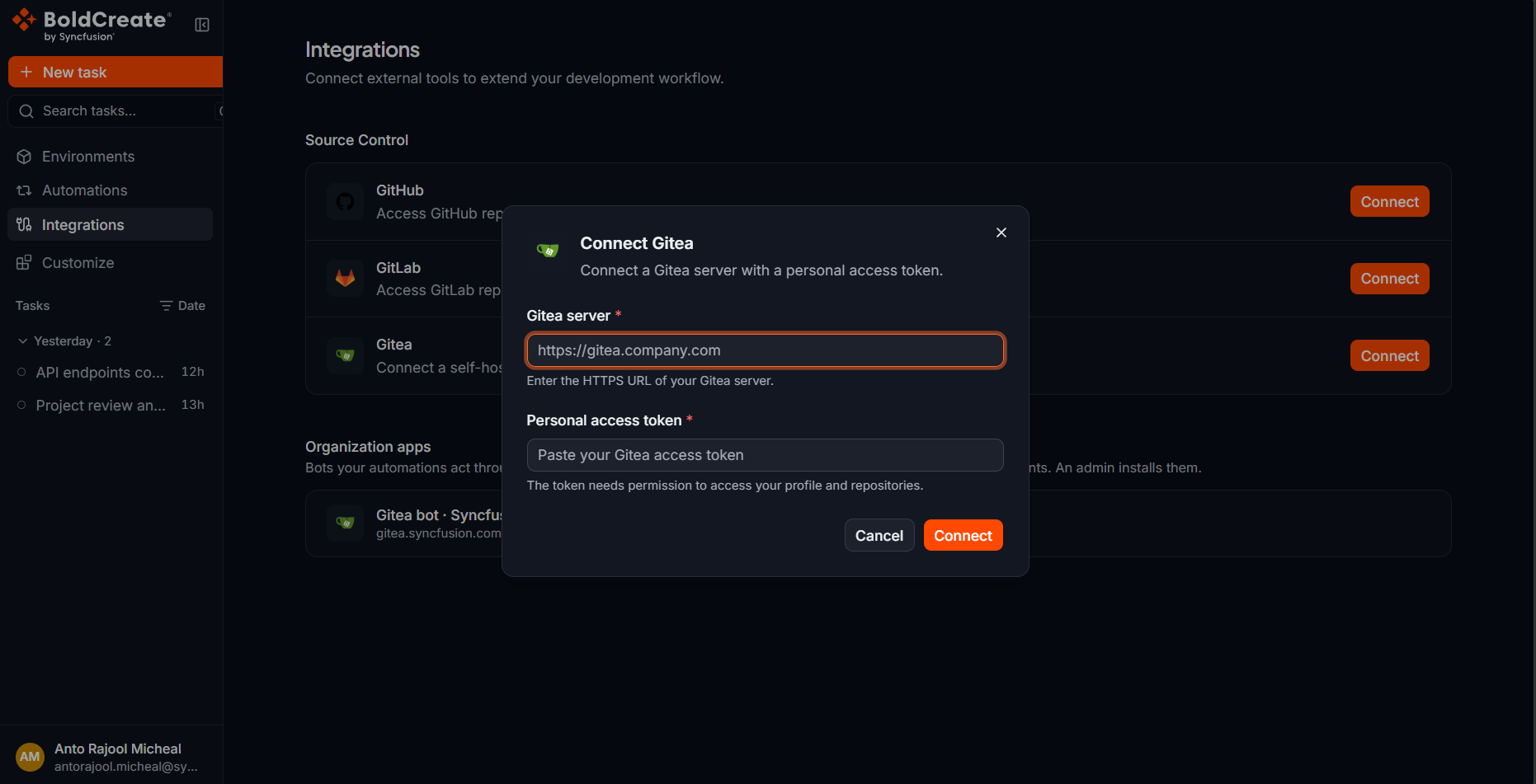
Bold Create checks the token with your Gitea server before it saves the connection.
Verify
- A message appears: Gitea connected successfully.
- The Gitea row shows the Connected badge, the text Connected to {your server}, and a Manage button.
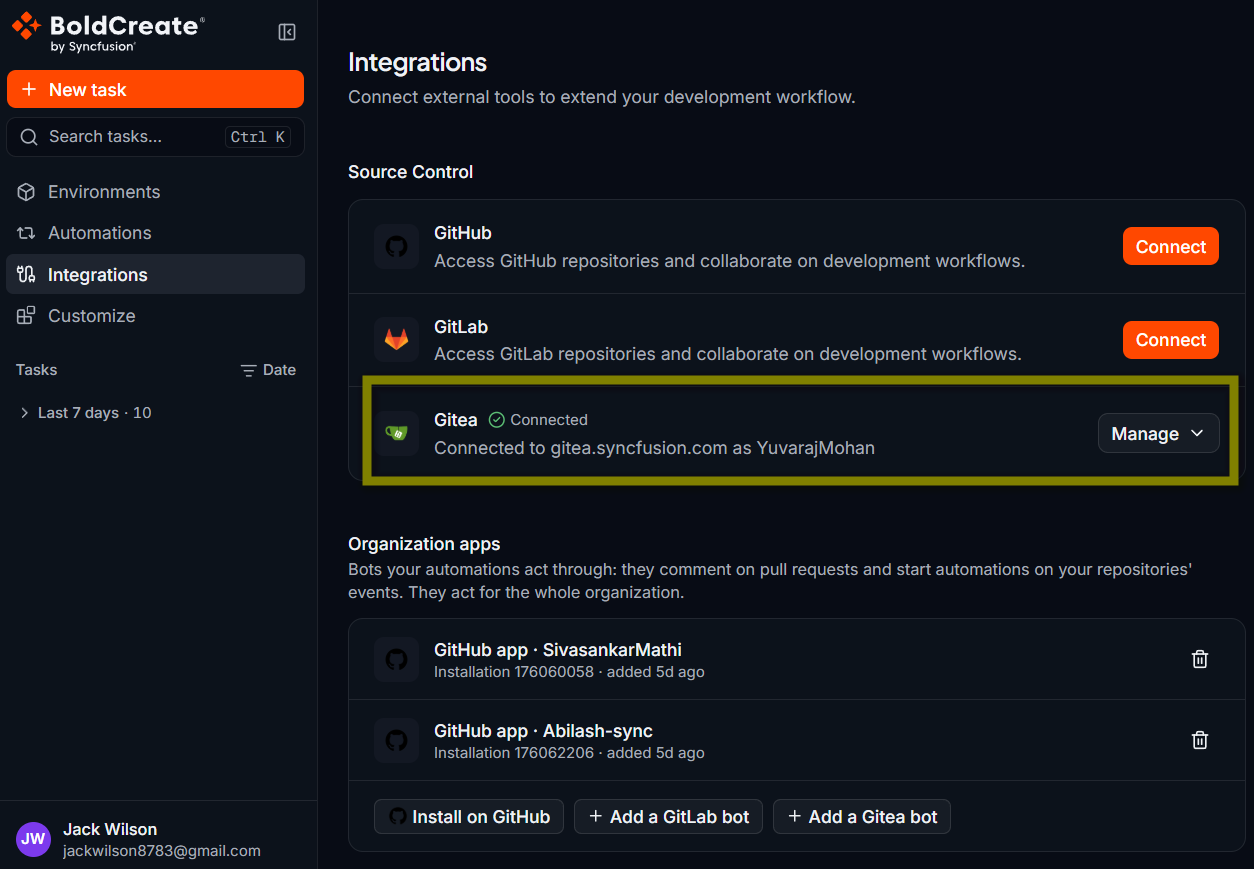
To check that your repositories are available:
- In the sidebar, select New task.
- Select the Git provider button above the prompt box and choose Gitea under Git provider. The button shows a list only when you have connected more than one provider.
- Select Repository or environment and search for one of your repositories under Repositories.
Field reference
| Field | Required | Description |
|---|---|---|
| Gitea server | Yes | HTTPS URL of your Gitea server, for example https://gitea.example.com. HTTP URLs are not accepted. |
| Personal access token | Yes | A token from your Gitea user settings. The token needs permission to access your profile and repositories. |
Replace the token
When your token expires or you revoke it, the Gitea row shows Connect again.
- Create a new token in Gitea.
- On the Integrations page, select Connect in the Gitea row.
- Enter the same server URL and the new token.
- Select Connect. The new token replaces the old one.
Disconnect Gitea
- In the sidebar, select Integrations.
- In the Gitea row, select Manage.
- Select Disconnect.
- In the Disconnect Gitea? dialog, select Disconnect. The message Gitea disconnected successfully. appears, and the row shows Connect. Bold Create loses access to your Gitea repositories. Threads that are running on a Gitea repository may be interrupted. Disconnecting does not delete the token in Gitea. Delete it in your Gitea user settings under Applications if you no longer need it.
Troubleshooting
- “Enter a valid HTTPS Gitea server URL.” The URL is empty, uses
http://, or contains a user name, password, query, or#fragment. Enter only the server address, for examplehttps://gitea.example.com. - “Enter a personal access token.” The token field is empty. Paste your token.
- “The Gitea token is invalid or lacks the required ‘read:user’ and ‘read:repository’ scopes.” The token is wrong, expired, or missing permissions. Create a new token with the permissions listed in Create a personal access token in Gitea, then connect again.
- “Gitea could not be connected. Check the server URL and access token, then try again.” Bold Create could not reach your server or the server rejected the request. Check the URL, confirm the server is reachable over HTTPS, and try again.
- A thread shows “Gitea OAuth token is invalid or has been revoked. Please reconnect the integration.” Replace the token as described in Replace the token. See Integration token expired or revoked.