
Add commands and variables to an environment when the agent needs more than the code: extra tools, installed dependencies, running services, or configuration values. You add them once, and every task that uses the environment starts with them in place.
Before you begin
- Have an environment you can edit. Who can edit depends on its scope: the creator, an organization admin for an organization environment, or a team lead for a team environment. To create one, see Create an environment.
- Know what your project needs: the commands that install its dependencies, the tools it uses, and the services that must be running.
Choose where each command goes
| Field | Where | When it runs | Use it for |
|---|---|---|---|
| Install command | Each repository, under Repositories | During the build, in that repository’s folder | Project dependencies, for example npm ci or pip install -r requirements.txt |
| Setup commands | Setup section | Once, during the build, as root in /workspace, in order | System-wide tools and packages, for example apt-get install or npm install -g |
| Start command | Setup section | Once in each new task’s workspace, after the repositories are ready | Services and background processes, for example docker compose up -d |
| Variables | Variables & secrets section | When a task’s workspace starts | Configuration, for example NODE_ENV=development |
| Secrets | Variables & secrets section | When a task’s workspace starts | Tokens, passwords, and API keys |
Put slow steps in install or setup commands, not the start command. The build runs them once and saves the result. The start command runs at the start of every task.
Step 1: Open the environment for editing
- In the sidebar, select Environments.
- Select the environment.
- Select Edit environment. When you create a new environment, the fields are the same.
Step 2: Add an install command to each repository
Under Repositories, find the repository and enter the command that installs its dependencies:
npm ciStep 3: Add setup commands
In the Setup section, enter one command per line:
apt-get update && apt-get install -y postgresql-client
npm install -g pnpm
pip install httpx
The commands run in order, and the build stops at the first one that fails. Empty lines are ignored. Use && to keep dependent steps on one line. You can also use the quick Add buttons for common tools.
Every task starts from the Bold Create base image (Ubuntu 22.04 with Node.js 22, Python 3, Git, and Playwright). Install everything else here. Custom Docker images and Dockerfiles are not supported.
Step 4: Add a start command
In Start command, enter the command that starts the services the agent needs:
docker compose up -dTo run more than one step, join them with &&:
docker compose up -d && npm run db:migrateStep 5: Add variables and secrets
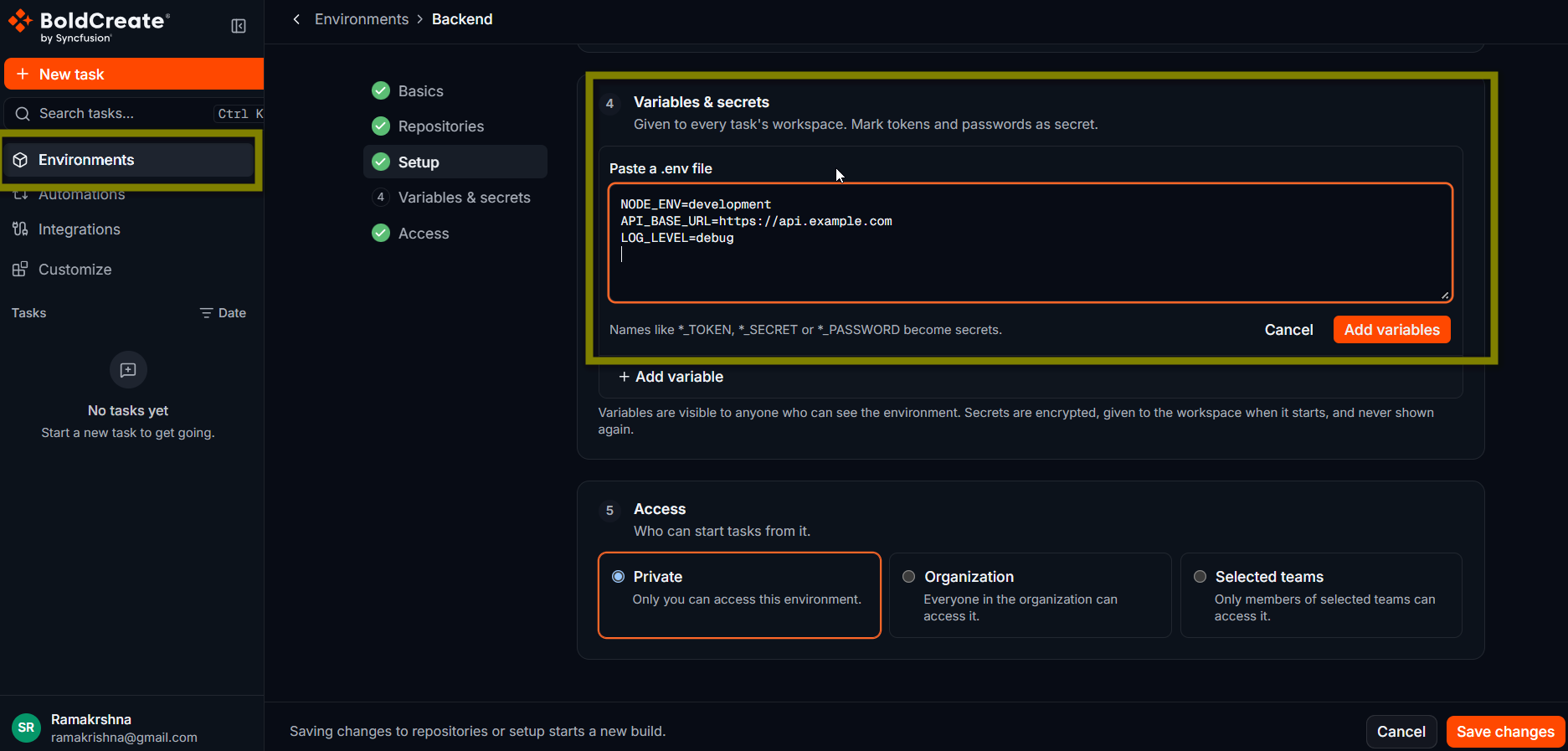
In Variables & secrets, add a row for each value:
- Enter the name, for example
NODE_ENV. - Enter the value, for example
development. - Turn on the secret switch for anything sensitive.
Rules:
- Names use letters, digits, and
_, and cannot start with a digit. A name can’t appear twice. - A variable is stored as plain text. People who can edit the environment can read its value, and the agent can read it.
- A secret is encrypted and write-only. After you save, its value is never shown again. To replace it, enter a new value. A stored secret stays a secret, and you can remove it.
- A name that looks like a credential (for example one containing
TOKEN,SECRET,PASSWORD, orAPI_KEY) starts as a secret. - You can have up to 100 variables and secrets.
You can paste the contents of a .env file. Comments (#), blank lines, and export are skipped, and quotes around a value are removed.
Step 6: Save the changes
Select Save changes. The details page opens.
| Change | Rebuilds? |
|---|---|
| Install commands, setup commands, repositories | Yes. The status shows Building, then Ready. |
| Start command | No |
| Variables and secrets | No. They are applied when a task’s workspace starts, not baked into the build. |
Verify
-
On the details page, check the Latest build. Your setup and install steps should show no errors.
-
Under Commands, check the Setup and Start commands.
-
Under Variables, check the names. Values are not shown.
-
Start a task from the environment and ask the agent to check the setup:
Print the versions of node, pnpm, and psql, and show the value of
NODE_ENV. Do not change any files.
Troubleshooting
- The build failed: open the failed step in the Latest build. It is usually a command that was not found or a package that failed to install. See Environment build failed.
- A tool is missing in the task: check that it is installed by a setup or install command, not the start command, and that the build is Ready.
- A variable has the wrong value: check the row’s value and that the name isn’t listed twice.
- A secret doesn’t work: a new secret needs a value before you can save. Enter it again to replace a stored one.
- A service is not running when the agent starts: check the start command, and ask the agent to run it and show the output.
- No Edit environment button: you don’t have rights to change this environment. Ask its creator or an admin.