
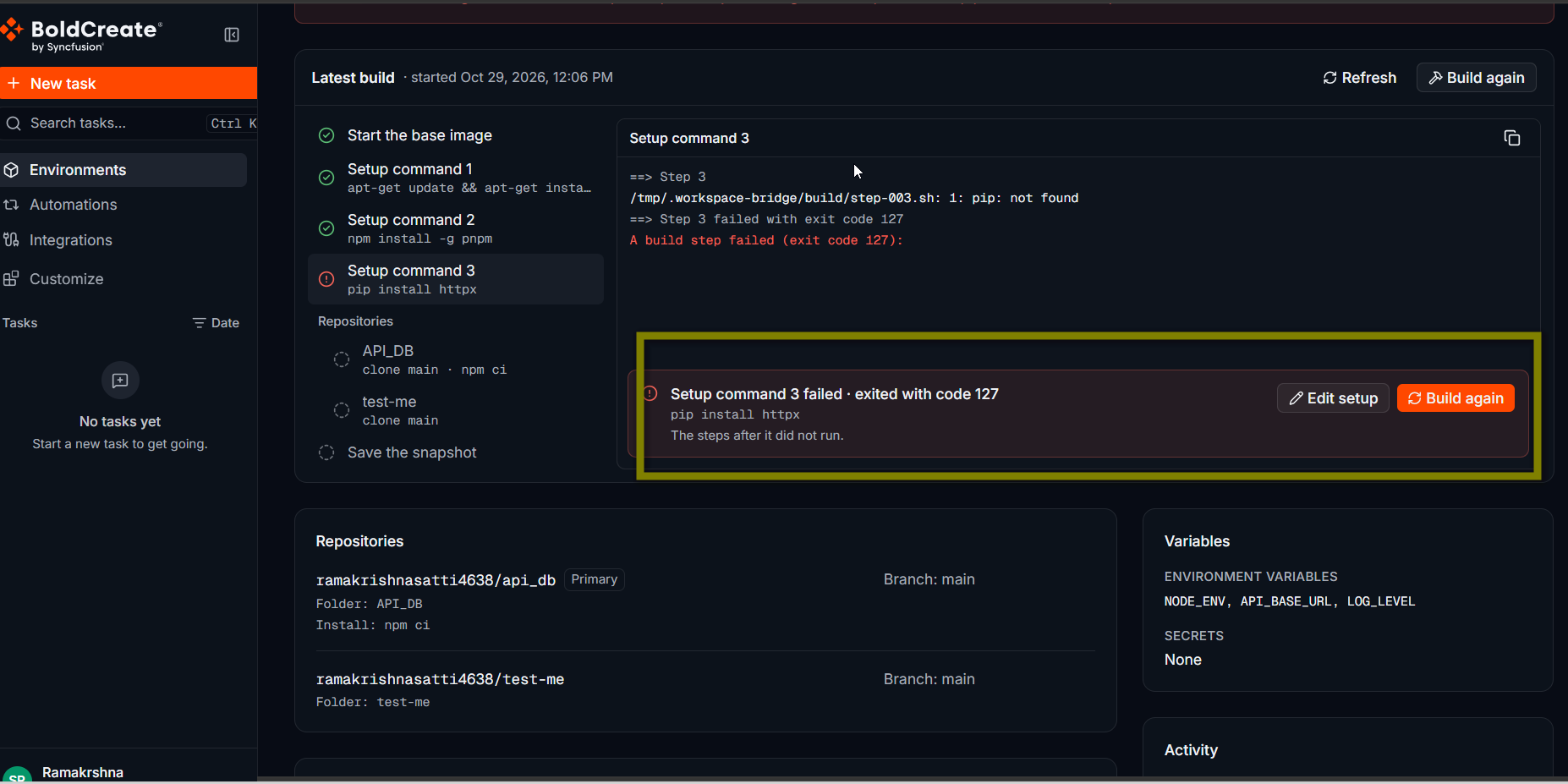
Problem summary
When you create an environment, or save a change that affects its build, Bold Create builds it in the background. If the build does not finish, the environment shows the Failed status. A failed environment is not listed in the composer, so you can’t use it in a task until a build succeeds. You may see:
- The Failed status on the Environments page or the details page.
- The error and the failed step in the Latest build panel on the details page.
Possible causes
- A command failed: a setup command or a repository install command returned an error.
- The build took too long: builds stop after 60 minutes (the message is “The build timed out”).
- The build was interrupted: it stopped before it finished, for example during a service restart.
- A configuration problem: for example, a repository that can’t be reached.
A repository that can’t be cloned or installed is a warning, not a failure. Tasks clone or install it themselves.
Find the cause
- In the sidebar, select Environments.
- Select the Failed tab, then select the environment.
- In Latest build, find the failed step. The steps after it did not run.
- Select the step to read its output. Errors are red.
- If the output looks incomplete, select Refresh. If it shows No output yet, the build stopped before any command ran, so use the error message on the page.
Resolution steps
A command failed
| What the output shows | Fix |
|---|---|
command not found | Install the tool in an earlier setup command, for example apt-get update && apt-get install -y make. |
A package manager error, such as npm ERR! or pip failing to resolve a package | Check the package name and version. Pin versions you know work. |
A missing script, such as missing script: build | Check the install command against the scripts in your repository. |
| A path or file that does not exist | Install commands run in the repository’s folder. Setup commands run in /workspace. |
Setup commands run as root, in order, and the build stops at the first failure. Run the same command in a clean Ubuntu 22.04 container to reproduce it. If it fails there too, fix it first.
The build timed out
- Open the failed step and find what was still running.
- Make that step faster. Install only the packages you need.
- Save the change, or select Build again.
The build was interrupted
Nothing in your configuration needs to change. Select Build again.
A repository shows a warning
The build clones repositories with the Git access of the person who last created, changed, or rebuilt the environment. If that person’s connection expired or they lost access, the repository is a warning in the build, and tasks clone it themselves. To fix it:
- Check your connection on the Integrations page and reconnect it if needed. See Integration token expired or revoked.
- Check that your Git account can open each repository and branch listed.
- If a repository was renamed, moved, or deleted, select Edit environment and update it.
- Select Build again, so the build uses your access.
Build again after you fix the problem
- If you changed setup commands, a repository, a branch, a folder, or an install command, the build starts automatically when you save.
- If you changed nothing, or fixed the problem outside Bold Create, select Build again on the details page and confirm. The status changes to Building, then Ready.
If a rebuild fails after a change, tasks keep starting from the last good build.
Who can edit or rebuild depends on the environment’s scope: the creator, an organization admin (organization scope), or a team lead (team scope). Everyone else can still read the Latest build.
Other messages
- Environment details could not be loaded: select Retry. If it still fails, the environment may have been deleted or you no longer have access.
- Environments could not be loaded: select Retry.
- Could not start the build: wait a moment and try again. If a build is already running, wait for it to finish. A second build can’t start while one runs.
- Repositories could not be loaded: in the editor, see Repository or branch not listed.
Best practices
- Check the latest build after every change that affects it.
- Pin versions of packages so rebuilds stay repeatable.
- Test big changes in a private environment before you change one your team uses.
- Keep setup commands short. Put long scripts in your repository and call them from the command.