
Bold Create runs in your web browser. There is nothing to download or install. You sign in with your account.
Before you begin
Make sure that:
- You have a Syncfusion account. If you do not have one, create it on the BoldCreate sign-in page.
- You have a credit balance. Bold Create uses credits from your account.
- You use a supported browser.
What you’ll learn
- Sign in to Bold Create.
- Find your way around the main screen.
- Use the profile menu to change the appearance and open settings.
- Sign out.
Step 1: Sign in
- Open Bold Create Cloud Agent in your browser.
- If you are not signed in, Bold Create takes you to the Syncfusion sign-in page.
- Sign in with your account.
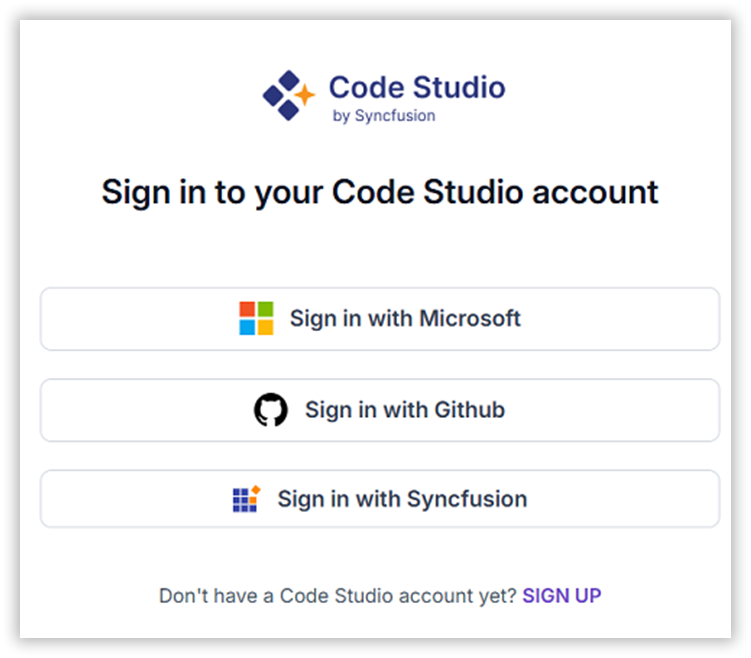
- After you sign in, the browser returns to Bold Create.
Result
The Start a new task page opens. You are ready to start your first task.
Step 2: Explore the main screen
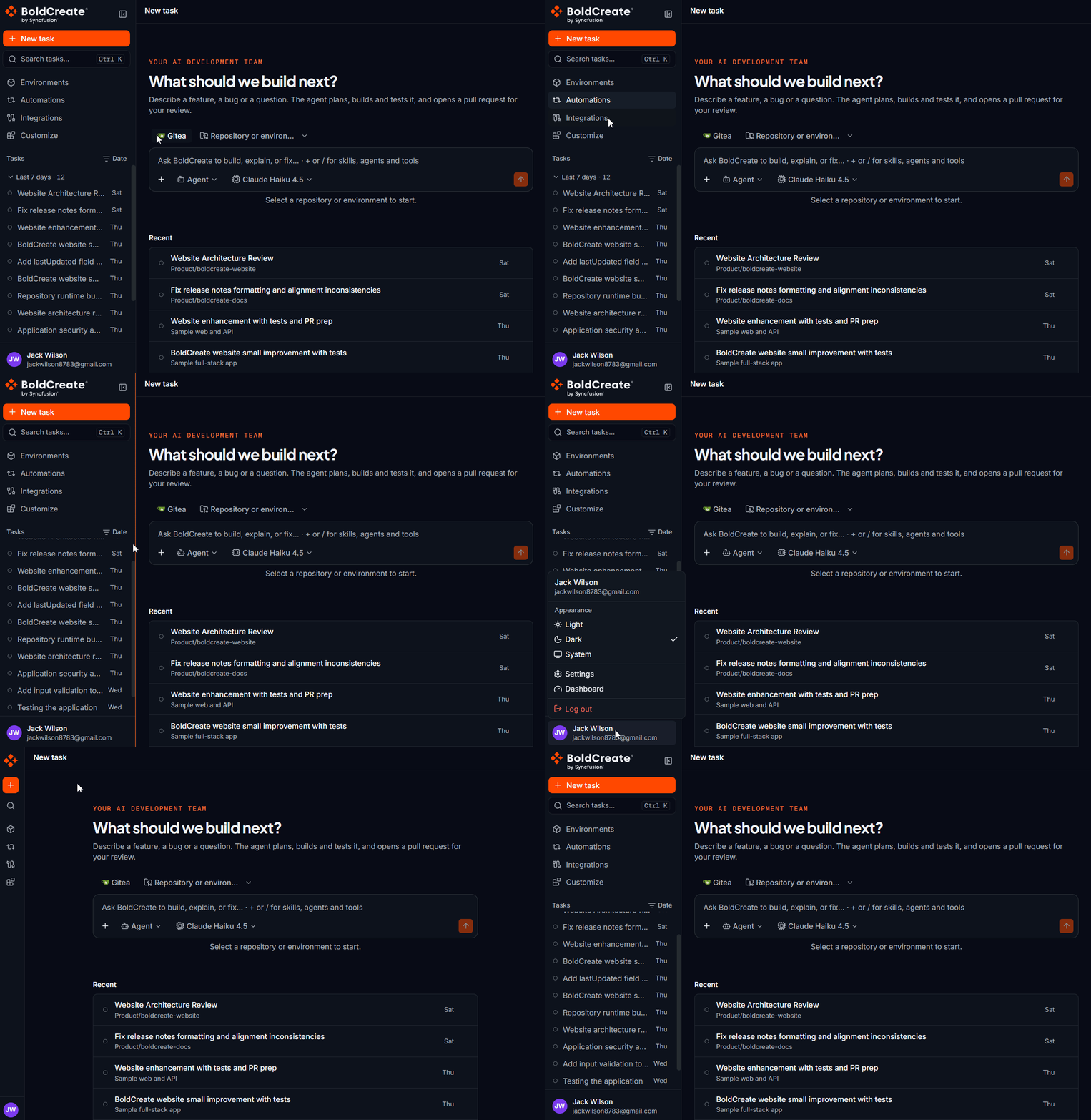
The main screen has two areas. Sidebar (left):
- New task: Opens the Start a new task page.
- Environments: Create and manage environments.
- Automations: Start tasks on a schedule, from repository events, or from a webhook. See Automations.
- Integrations: Connect GitHub, GitLab, or Gitea.
- Customize: Install plugins and see your skills, agents, MCP servers, and rules. See Customize page and plugins.
- Tasks: Your list of threads. Use Search tasks to find a thread, and Group tasks to group the list by Repository, Date, Status, or None.
- Profile menu: Your name and email at the bottom of the sidebar. Main area (right): The Start a new task page, or the thread you selected. When the agent changes files, you can open the Git panel on the right side to review the changes.
To hide the sidebar, select the Close sidebar icon at the top of the sidebar. To show it again, select Open sidebar in the top-left corner of the main area.
Step 3: Use the profile menu
Select your name at the bottom of the sidebar to open the profile menu.
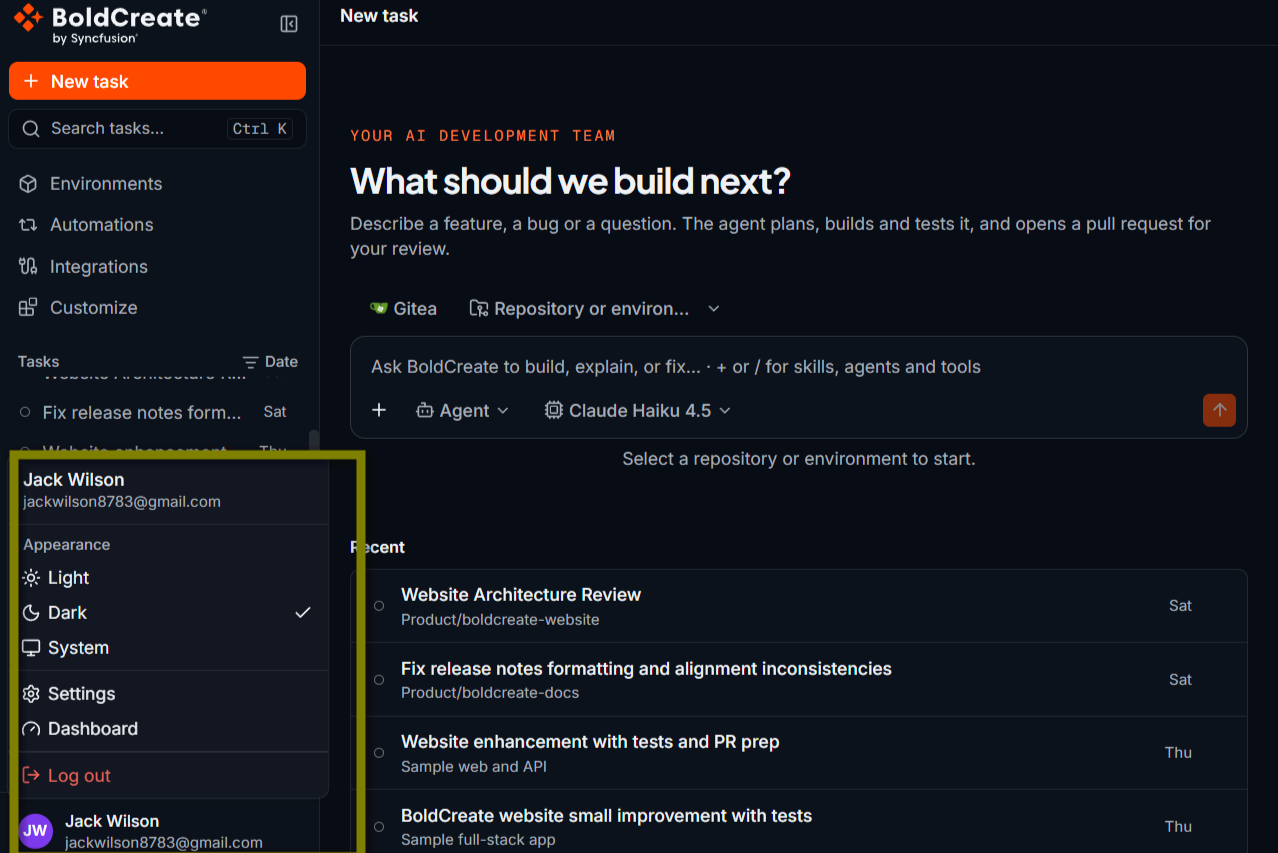
The profile menu has these options:
| Option | What it does |
|---|---|
| Appearance | Choose Light, Dark, or System. System follows your operating system theme. |
| Settings | Opens Settings, where you manage your profile, organization, subscription, credits, and identity settings. |
| Dashboard | Opens the BoldCreate Dashboard, where you can see usage and manage users, teams, budgets, and models. |
| Log out | Signs you out of Bold Create. |
Settings, credits, and usage are managed in the BoldCreate Dashboard. See Dashboard and Settings.
Step 4: Sign out
- Select your name at the bottom of the sidebar.
- Select Log out. Threads keep running in the cloud after you sign out. When you sign in again, you can open them from the sidebar.
Troubleshooting
- Authentication unavailable: Bold Create could not check your session (“Unable to verify the current session.”). Check your network connection, then select Try again.
- You are sent back to the sign-in page: Your session has ended. Sign in again to continue.