
Pick an environment instead of a single repository when you start a thread. The agent then works with all of the environment’s repositories, tools, and commands.
Before you begin
- Have a Ready environment. Only environments with the Ready status appear in the composer. See Create an environment.
- Have access to the environment. It must be yours, shared with one of your teams, or shared with your organization.
Steps
- In the sidebar, select New task. The Start a new task page opens.
- Above the prompt box, select Repository or environment.
- Optionally, type in Search repositories and environments… to filter the list.
- Under Environments, select the environment. The picker shows the environment’s name. The branch button is not shown, because the environment sets the branch for each repository.
- Choose the agent and model, type your task, and send it.
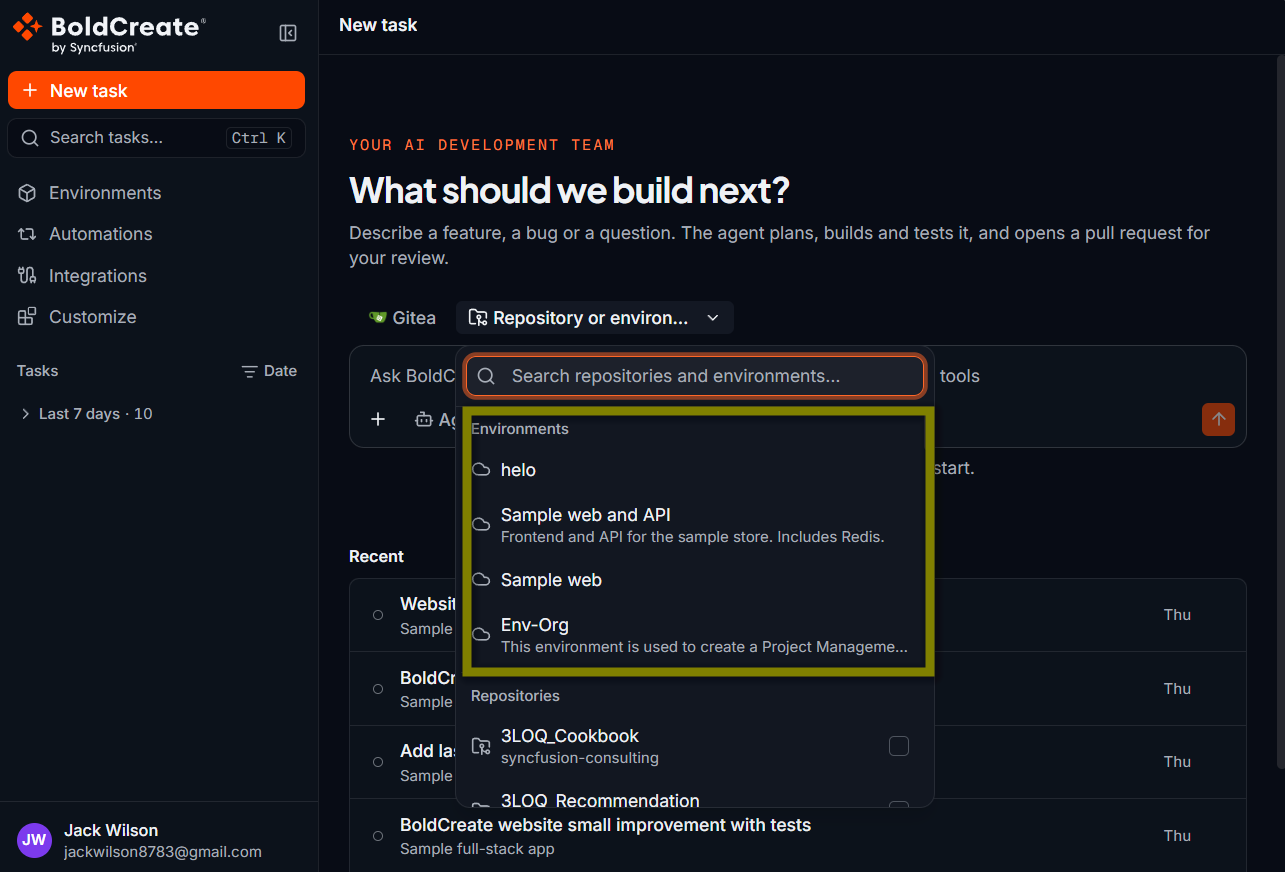
You choose the environment once, when you start the thread. After the first message, you cannot change the thread’s environment or repositories. To use a different environment, start a new thread.
What happens when the thread starts
- Bold Create starts a cloud workspace from the environment. Each thread gets its own workspace, so threads do not affect each other.
- The repositories are brought up to date from the branch set for each repository.
- The start command runs, if the environment has one, so your services are running before the agent begins.
- The agent starts in the primary repository. It can read, change, and run commands in every repository in the environment. The tools from the build, the install command results, and the environment variables are already in place, so the agent does not need to set them up again. Repository agents defined in the environment’s repositories are listed in the agent picker. See Cloud and repository agents.
Verify
- The picker above the prompt box shows the environment’s name.
- In the agent’s first steps, it works in the primary repository’s folder.
- When the agent changes files, the Git panel lists each changed repository under Repositories. See Review changes.
Troubleshooting
- The environment is not listed: it is not Ready yet, or you do not have access. Open the Environments page and check its status and scope. If it is Building, wait for the build to finish. If it Failed, see Environment build failed.
- The Environments section shows “No ready environments”: none of the environments you can access are Ready. Create one or wait for a build to finish.
- The Repository or environment picker is unavailable: you have no connected Git provider and no ready environments. Connect a provider on the Integrations page, or create an environment.
- The agent cannot find a tool or service: add it with setup commands, an install command, or the start command, then rebuild. See Add environment variables and setup commands.